






Unsplash
Connect Unsplash with Webflow to search, insert, and manage free stock photography without leaving your design environment.

Hunting down the perfect hero image shouldn't derail your workflow. Yet every blog illustration, product shot, or landing page visual sends you bouncing between tabs, searching, downloading, and re-uploading files one by one.
Unsplash changes that. With over six million free, commercially licensed photos available directly inside Webflow, you can search and insert imagery without ever leaving the canvas. The official Marketplace app handles design-time placement, while the Unsplash API and Make scenarios power keyword-matched Webflow CMS automation for content-heavy sites.
Whether you're a freelancer building client sites, an agency prototyping campaigns, or an e-commerce team enriching product pages, a direct Unsplash connection delivers high-quality visuals without the stock photo budget.
How to integrate Unsplash with Webflow
What is Unsplash? Unsplash is a free stock photography platform with over six million high-resolution photos contributed by more than 400,000 creators. It provides a REST API for programmatic search and retrieval, and its license permits commercial use at no cost. Getty Images publishes the official Unsplash app on the Webflow Marketplace.
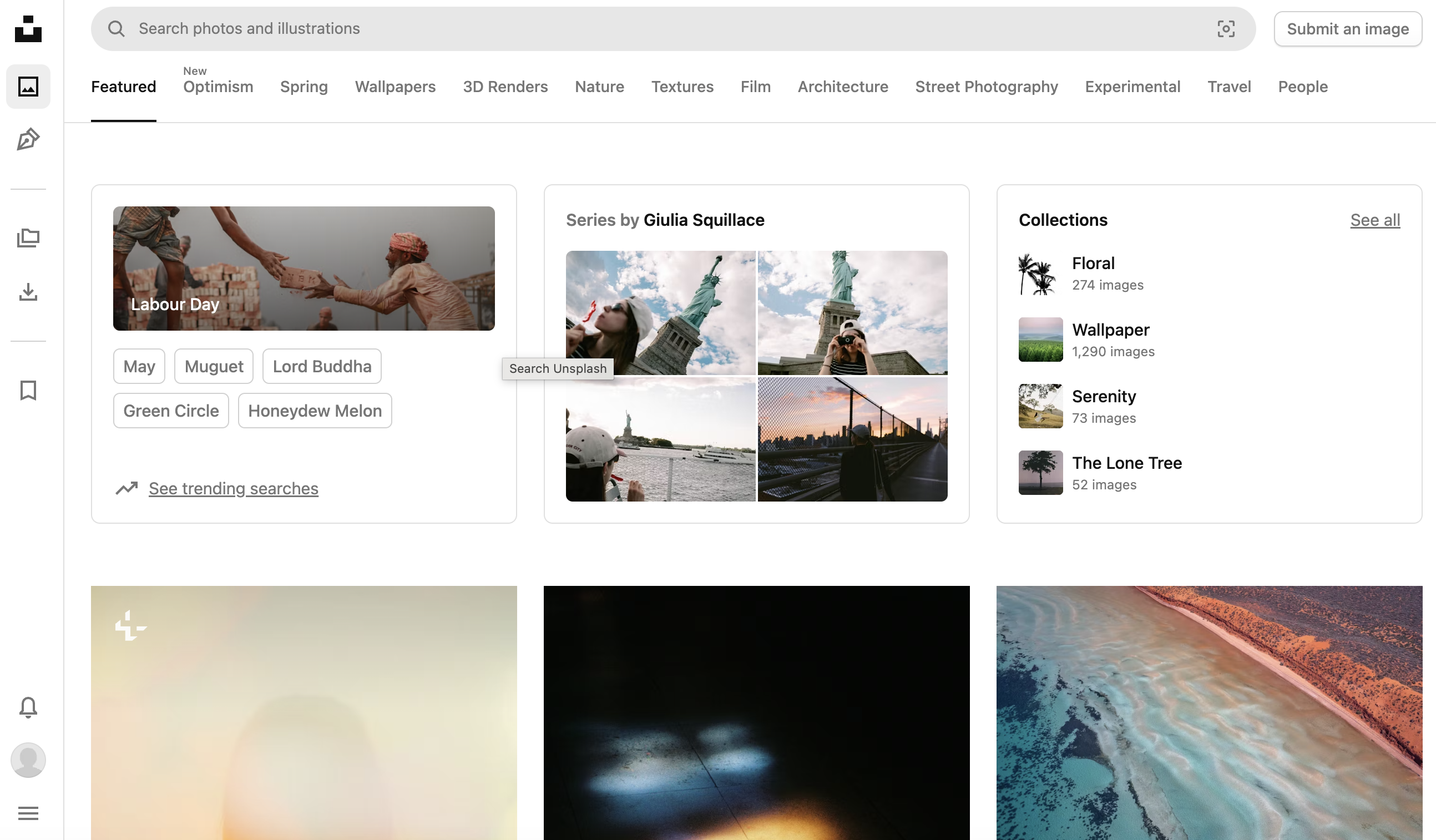
Teams typically pair Unsplash with Webflow when they need imagery during the design phase or want to automate image sourcing for content-heavy CMS sites. Designers use the Marketplace app to find and place photos without leaving the canvas, while developers use the API to populate CMS collections with images matched to post topics or product categories.
The Unsplash-Webflow integration supports 4 approaches:
- Unsplash app handles in-canvas image search and one-click insertion without writing code.
- Code Embed elements and CSV imports let you place Unsplash images via direct URLs or bulk-populate CMS collections.
- Make scenarios automate Unsplash-to-Webflow CMS workflows on a schedule or in response to Webflow events.
- Webflow and Unsplash APIs give you full control over image search, CMS writes, and attribution handling, but require server-side development.
Most implementations start with the Marketplace app for design-time use and add an API or Make workflow when automated CMS population is needed.
Install the Unsplash app
The Unsplash app on the Webflow Marketplace is a free Designer Extension published by Getty Images. It adds an in-canvas panel where you can search Unsplash's full library, filter results, browse themed presets, and insert images with a single click. Images inserted through the app are ingested into the Webflow asset manager as native assets. This is the fastest way to get Unsplash photos into a Webflow project with zero code.
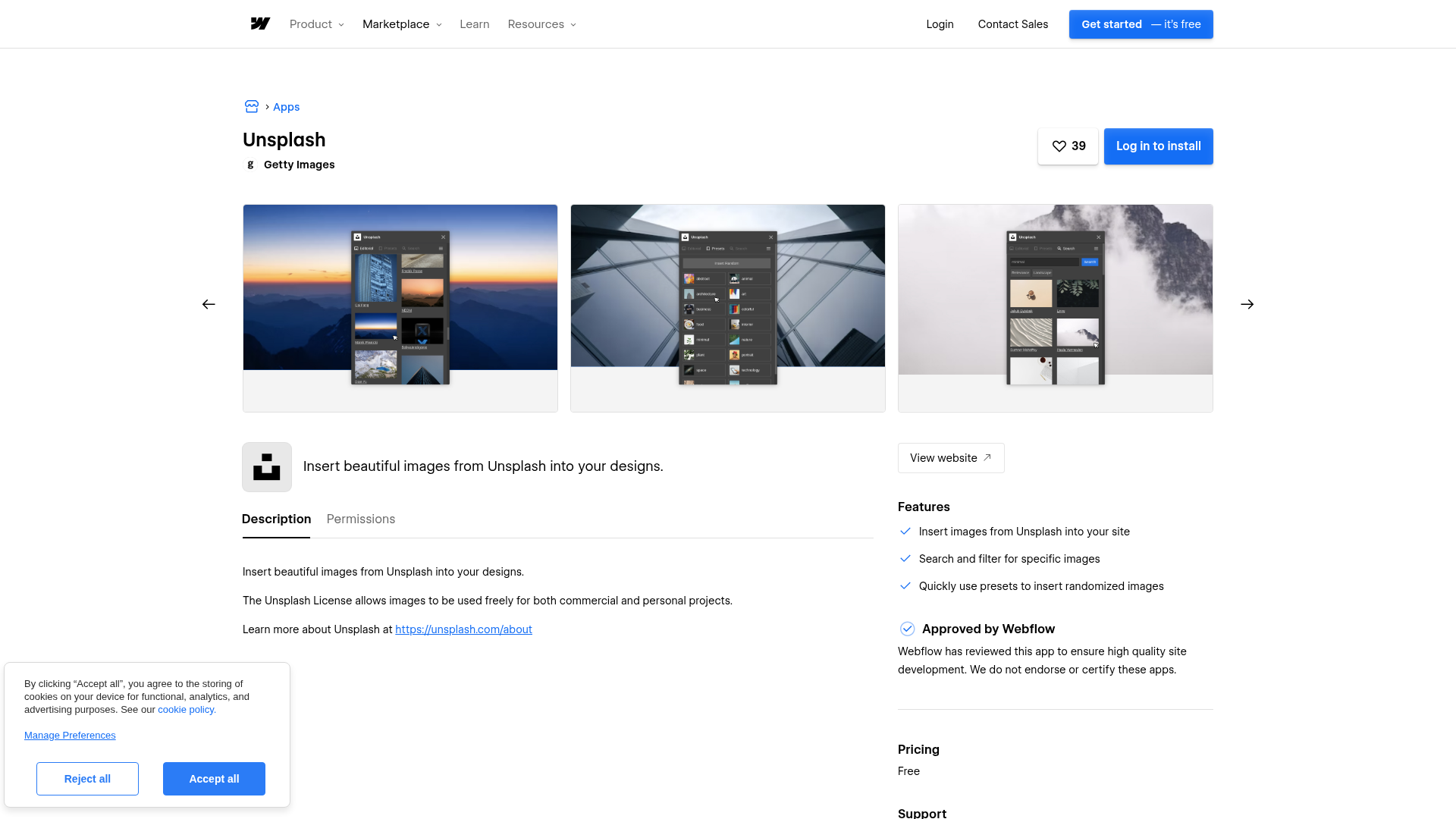
To set up the integration:
- Go to the Unsplash app listing or search "Unsplash" in the Webflow Apps panel inside Webflow.
- Click Install and select the site where you want to add the app.
- Open the Apps panel in Webflow and launch the Unsplash extension.
Once installed, you can add images to your canvas with these steps:
- Select a Div block on the canvas (for a new image) or select an existing Image element (to replace its source).
- Open the Unsplash app from the Apps panel.
- Search for an image or browse presets, then click the photo you want.
- The image is inserted into your design and added to the asset manager automatically.
The app supports three workflows:
- Search and filter for specific images by keyword
- Browse randomized presets organized by theme for rapid prototyping
- Replace existing Image elements by selecting them before choosing a new photo
These options cover both quick mockups and more deliberate image replacement work. While the Unsplash License does not legally require attribution for images inserted through the app, Unsplash recommends crediting photographers. The app preserves metadata but does not display attribution automatically, so add a credit line manually if your project calls for it.
Add Unsplash images with Code Embed elements and CSV imports
The Marketplace app works well for placing images one at a time during design. For cases where you need precise URL control or want to import images in bulk to CMS collections, two additional approaches are available.
Embed Unsplash images with a Code Embed element
A Code Embed element accepts raw HTML, which means you can paste an <img> tag that points directly to an Unsplash CDN URL. This approach is useful when you want to control image dimensions and format through URL parameters rather than relying on the asset manager.
To embed an Unsplash image:
- On Unsplash, find the photo and copy its direct CDN image URL (it starts with
https://images.unsplash.com/). - In Webflow, drag a Code Embed element onto the canvas.
- Paste an
<img>tag with the Unsplash URL as thesrc, and addalttext:
<img src="https://images.unsplash.com/photo-[ID]?w=1200&auto=format&q=80"
     alt="Description of photo"
     style="width:100%; height:auto;">
Unsplash image URLs accept Imgix parameters for dynamic resizing. Append ?w=1920 to set width, ?auto=format to serve WebP or AVIF to supported browsers, and ?q=80 to control compression quality. Hotlinked images do not pass through Webflow's optimization pipeline, so these URL parameters are your primary performance control. This method is best when you want direct control over the served image URL.
Bulk-import Unsplash URLs via CSV
For CMS-heavy sites like blogs or portfolios, you can import Unsplash image URLs into collection items using a CSV file. This approach skips the API entirely and works for any number of items within your plan's CMS limits (2,000 items on the CMS plan, 20,000 on Business).
To import Unsplash images via CSV:
- In your Webflow CMS collection, create a Plain Text field for the image URL. Webflow's native Image field requires a Webflow-hosted asset reference, so it does not accept external URLs. Use a Plain Text or Link field instead.
- On Unsplash, copy direct CDN URLs for each selected photo.
- Build a CSV file with your content, placing Unsplash URLs in the image URL column.
- In Webflow, open the CMS collection and use Import to upload the CSV.
- In your design, render the Plain Text field through a Code Embed element, or use a custom attribute-based approach for the external URL.
CSV-imported external URLs do not automatically generate responsive image variants in Webflow. Use Unsplash's Imgix URL parameters (e.g., ?w=800&auto=format) to control dimensions and format for each breakpoint. This limitation is documented in Webflow's official e-commerce guide.
Connect Unsplash and Webflow with Make
Make is a confirmed automation platform with direct Unsplash and Webflow modules. Unsplash has 17 actions, 12 searches, and 0 triggers on Make, while the Webflow module offers 2 triggers, 26 actions, and 12 searches.
One important detail: Unsplash has no triggers on Make. That means workflows must start with either a Webflow trigger (such as a new CMS item or form submission) or a scheduled time-based trigger. From there, Make can search Unsplash, retrieve photo metadata, and write the results to Webflow CMS collections.
Typical Make scenario patterns include:
- Scheduled trigger runs daily, Unsplash Search Photos module finds images matching a keyword, and Webflow Create Item action writes URLs plus attribution data to a CMS collection
- Webflow Watch Events trigger fires on new CMS item creation, Unsplash Search Photos module looks up images based on the item's title or tags, and Webflow Update Item action writes a matched photo URL back to the item
- Scheduled trigger fetches photos from a specific Unsplash collection, and Webflow Create Item action syncs them to a gallery collection
Make is best suited for scheduled CMS enrichment or Webflow event-based image workflows when you want automation without building a custom serverless integration.
Build with the Webflow and Unsplash APIs
The API path gives you full control over image search, CMS population, attribution handling, and compliance tracking. It requires server-side development because Webflow does not support native server-side code execution, and placing your Unsplash API key in client-side custom code in head and body tags exposes it in browser developer tools. All API calls must route through a serverless proxy (Cloudflare Worker, Vercel Edge Function, or Netlify Function) that stores credentials as environment variables.
Both APIs are REST-based and return JSON:
- The Unsplash API handles photo search, random photo retrieval, collection browsing, and download tracking
- Webflow's Data API handles CMS collection reads and writes, asset management, and site publishing
- Webflow webhooks trigger events like new CMS items or form submissions that can initiate Unsplash searches
Each API requires separate authentication. Unsplash uses a Client-ID header for public access and OAuth 2.0 Bearer tokens for user-specific actions. Webflow uses Bearer tokens scoped to specific permissions like CMS:read and CMS:write.
Search and write photos to Webflow CMS
The most common API pattern fetches photos from Unsplash's search endpoint, extracts URLs and metadata, triggers the required download tracking call, and writes the results as CMS items. This flow supports automated blog imagery, dynamic galleries, and keyword-matched product photos.
To implement the search-to-CMS workflow:
- Search for photos through your serverless proxy:
GET https://api.unsplash.com/search/photos?query=laptop&orientation=landscape&per_page=10
Authorization: Client-ID YOUR_ACCESS_KEY
Accept-Version: v1
- Extract the fields you need from each result:
urls.regularfor the display URL,user.nameanduser.links.htmlfor attribution,descriptionfor alt text,blur_hashfor placeholder rendering, andlinks.download_locationfor compliance. - Trigger the download tracking endpoint for each photo you write to CMS. This is mandatory per the Unsplash API guidelines:
GET {photo.links.download_location}
Authorization: Client-ID YOUR_ACCESS_KEY
Accept-Version: v1
- Write each photo as a CMS item using the Webflow Data API:
POST https://api.webflow.com/v2/collections/{collection_id}/items/live
Authorization: Bearer YOUR_WEBFLOW_TOKEN
Content-Type: application/json
{
  "fieldData": {
    "name": "Photo description",
    "slug": "photo-id",
    "image-url": "https://images.unsplash.com/photo-...?ixid=...&w=1080",
    "photographer-name": "Photographer Name",
    "photographer-profile": "https://unsplash.com/@username"
  }
}
Store Unsplash image URLs in Plain Text CMS fields, not Image fields. Webflow's Image field type requires a fileId referencing a Webflow-hosted asset, which is structurally incompatible with Unsplash's mandatory hotlinking requirement. Always preserve the ixid parameter in image URLs, as stripping it breaks Unsplash's photo view tracking.
Serve random hero images at build time
For rotating hero images that change on each site publish, you can call the Unsplash random photo endpoint during a deploy hook and write the result to a singleton CMS item.
To set up build-time hero rotation:
- Call the random photo endpoint from your serverless function:
GET https://api.unsplash.com/photos/random?query=minimal&orientation=landscape&count=1
Authorization: Client-ID YOUR_ACCESS_KEY
Accept-Version: v1
- Trigger download tracking with
GET {photo.links.download_location}. - Update the hero CMS item via
PATCH https://api.webflow.com/v2/collections/{id}/items/{item_id}with the new image URL and attribution data.
For runtime hero rotation without CMS writes, your serverless proxy can return a random photo URL directly to client-side JavaScript, which injects it into the hero element's src attribute. Use Imgix parameters on the raw URL for full-width display: append &w=1920&auto=format&q=80 to the urls.raw value. This split gives you a publish-time option and a runtime option depending on how dynamic you want the hero image to be.
What can you build with the Unsplash Webflow integration?
Integrating Unsplash with Webflow lets you source and display free, commercially licensed photography across any page type without managing a separate image library or paying per-image licensing fees.
- Automated blog imagery: Build a CMS-powered blog where each new post automatically receives a featured image. A Make scenario or API script reads the post title, searches Unsplash for a matching photo, and writes the URL and attribution back to the CMS item before publishing.
- Dynamic portfolio galleries: Create a gallery page backed by a CMS collection that syncs with a curated Unsplash collection. Each gallery item stores the photo URL, photographer credit, and dominant color for placeholder backgrounds, all rendered through a Collection List bound to custom attributes.
- E-commerce lifestyle photography: Supplement product shots with contextual lifestyle images from Unsplash. A serverless function searches for photos matching product categories and writes the results to product CMS items, giving product pages visual context without a custom photo shoot.
- Campaign landing pages with rapid prototyping: Use the Unsplash app's randomized presets to populate hero sections, feature grids, and testimonial backgrounds in minutes. Designers can try multiple visual directions before the client selects final imagery, with each inserted image already optimized through the Webflow asset manager.
If you need more control over image selection logic, CMS field mapping, or compliance automation, the API integration path covers those cases with full flexibility.
Frequently asked questions
Yes. The Unsplash License grants a worldwide, irrevocable license for commercial use at no cost, including client work. Images downloaded directly from Unsplash.com or inserted through the Webflow Marketplace app are covered. One important distinction: images accessed through the Unsplash API carry additional obligations (mandatory attribution, hotlinking, and download tracking) defined in the API Terms. The license does not cover trademarks or recognizable works of art visible in photos.
Attribution is recommended but not legally required for images inserted through the Webflow Marketplace app or downloaded directly from Unsplash.com. For images accessed through the Unsplash API, attribution is mandatory. The required format is "Photo by [Photographer Name] on Unsplash" with links to both the photographer's profile and Unsplash.com, including UTM parameters. Full requirements are documented in the Unsplash attribution guideline.
Yes. Webflow does not support native server-side code execution. Placing your Unsplash
Client-IDin custom code on a Webflow page exposes it in the browser. All Unsplash API calls must route through a serverless intermediary (such as a Cloudflare Worker, Vercel Edge Function, or Netlify Function) that stores credentials as environment variables. The Webflow blog's Unsplash e-commerce guide documents this architecture pattern in detail.Use Plain Text or Link fields instead of the native Image field. Webflow's Image CMS field requires a
fileIdreferencing a Webflow-hosted asset, so it cannot store external hotlinked URLs. Store the Unsplash CDN URL in a Plain Text field, then render it through a Code Embed element or another custom attribute-based approach. The Webflow Image field documentation explains the field type's requirements.Yes, through Make. Make is a confirmed automation option with direct Unsplash and Webflow modules. Create a scenario with a scheduled trigger that searches Unsplash and writes results to Webflow CMS collections. Note that Unsplash has no triggers on Make, so workflows must start from a Webflow event or a time-based schedule. For most teams, Make is the simplest no-code option, while the API path offers more control when your workflow grows more complex.
Description
Search and insert free Unsplash photos directly in Webflow using the Marketplace app, or connect via Make and the Unsplash API for automated CMS image workflows.
This integration page is provided for informational and convenience purposes only.

Modulo
Connect Modulo with Webflow to add pre-designed, production-ready UI components to your sites like hero sections, feature blocks, FAQ layouts, CTAs, and more, directly inside Webflow.
Goat Slider
Connect Goat Slider, a CMS-driven slider app, with Webflow to add dynamic carousels and sliders that automatically update when your content changes.
Pixcap Editable 3D Icons and Characters
Connect Pixcap, a customizable 3D asset library, with Webflow to browse, customize, and insert 3D icons, illustrations, and characters directly in Webflow without 3D modeling skills.
CutCopy
Connect CutCopy with Webflow to move variable collections and element attributes between projects instead of rebuilding them by hand.

Devblocks CMS Image Optimizer
Connect Devblocks CMS Image Optimizer with Webflow to batch-convert existing CMS images to WebP without re-uploading a single file.
Flowdrive
Connect Flowdrive, an external file and video hosting service, with Webflow to host videos and enable file uploads without Webflow's Business plan requirement.
Lummi
Connect Lummi, an AI visual asset library, with Webflow to source and insert commercial-use images inside the canvas.

Image Management
Convert Webflow CMS collection images to WebP or AVIF inside Webflow with the Image Management app, or script the same job with the Assets API.

Smootify Icons
Connect Smootify Icons with Webflow to place SVG icons from eight icon libraries on the canvas, styled without uploads or code.
Related integrations
Get started for free
Try Webflow for as long as you like with our free Starter plan. Purchase a paid Site plan to publish, host, and unlock additional features.
