






TooEasy Powerups
Connect TooEasy Powerups, a library of attribute-based scripts, with Webflow to add CMS-driven sliders, infinite carousels, lightboxes, modals, theme switching, and custom cursors without writing JavaScript.

CMS-bound sliders, infinite carousels, full-screen modals, and theme switching are tough to build natively without Interactions workarounds or custom JavaScript in Custom code or Code Embed. TooEasy Powerups closes that gap with a library of attribute-based scripts that install directly through the Apps panel. Add HTML attributes to standard elements, and the scripts handle the rest, with zero code maintenance.
This integration fits freelancers and agencies shipping client sites with sliders, modals, and theme switching as standard. You'll get the most value if you want CMS-driven sliders, swipeable carousels, or lightboxes with zoom and video support, or if you're standardizing component libraries across multiple projects.
How to integrate TooEasy Powerups with Webflow
What is TooEasy Powerups? TooEasy Powerups is a suite of attribute-based JavaScript scripts built specifically for Webflow sites. It includes a library of powerups covering sliders, carousels, accordions, modals, lightboxes, custom cursors, and more. All functionality activates through HTML attribute name/value pairs applied to elements, with scripts delivered via CDN through the Apps panel.
You'll typically reach for TooEasy Powerups when a project needs interactive components that go beyond what native elements and Interactions can handle. CMS-bound sliders are a common trigger, since the native slider cannot pull content from CMS collections (a gap with 4,055 votes on the Webflow Wishlist). You'll also use it when you need consistent, reusable components across multiple client projects without managing custom JavaScript files.
TooEasy Powerups has one official integration method: the app installs scripts and manages licenses directly, with all configuration done through custom HTML attributes on elements. Separately, you can use the Webflow CMS and the Data API to programmatically manage content that some TooEasy powerups render on the front end, but that's Webflow-side automation rather than a TooEasy integration surface.
Most implementations use the app-based approach exclusively. Take the API path only when you need to programmatically manage CMS content that feeds into CMS-driven powerups like Sliders.
Install the TooEasy Powerups app
The TooEasy Powerups app is the primary integration method and the only path officially documented by Too Easy Labs. It handles script installation, license activation, and CDN delivery without any manual code pasting. The app carries the Approved badge on the Apps Marketplace. You need a free TooEasy account to get started, and premium powerups require a per-project license.
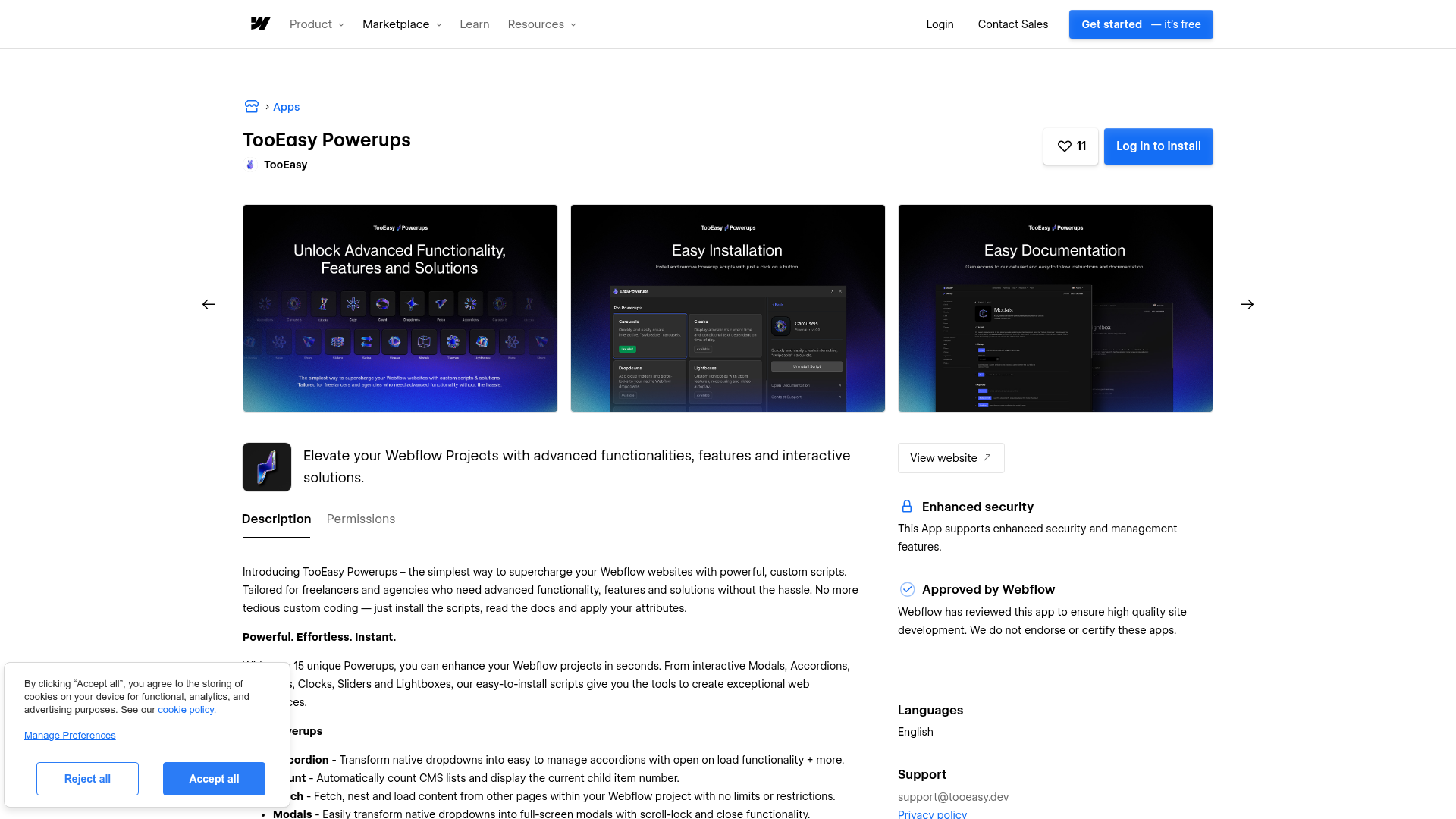
To install the app and set up your first powerup:
- Create a free account at tooeasy.dev.
- Open the Apps panel (puzzle piece icon in the left sidebar) and search for "TooEasy Powerups," or go directly to the app listing and click Install.
- Open the app panel, select the specific powerup you want, and click Install Script. The script loads via CDN automatically.
- For premium powerups, purchase a project license through your TooEasy account and enter the license key in the app panel.
- Select the target element on the canvas, open the Settings panel (gear icon in the right sidebar), scroll to Custom Attributes, and click the + button.
- Enter the attribute name and value exactly as specified in the powerup documentation for the component you installed.
- Repeat for each element that needs an attribute, then publish your site.
Once you publish, verify the powerup on the live page or staging URL and continue configuring additional elements as needed.
The app includes powerups for common interactive patterns:
- Sliders with CMS auto-population, infinite looping, pagination, and slide/fade transitions
- Infinite, swipeable carousels with autoplay and pause-on-hover
- Accordions that transform native Dropdown elements without Interactions
- Full-screen modals with scroll lock and close triggers
- Lightboxes with zoom, video autoplay, custom icons, and image grouping
- Smart Videos supporting Vimeo, YouTube, and HTML5 with lazy loading and viewport-triggered auto-pause
- Custom cursors, real-time clocks, copy-to-clipboard, social sharing, and theme switching
Each powerup has its own set of attribute names and values documented on its individual docs page. For example, the Carousels powerup uses te-carousel on the parent element and te-carousel-autoplay to enable automatic cycling. The Sliders documentation covers CMS auto-population attributes, and the Custom Cursors documentation details te-cursor, te-cursor-element, and te-cursor-trigger attributes.
Powerups don't use Interactions, which means they transfer cleanly between projects. You can place multiple instances of any powerup on a single page. Deployed powerups keep working as long as the app is installed, the script is active, and the project remains properly licensed, even if you cancel a subscription later.
Start from a cloneable template
Every TooEasy powerup has a free cloneable project with the correct element structure and custom attributes already applied. Cloneables are the fastest way to evaluate a powerup before committing to a project license, since they come pre-configured and ready to preview on the staging URL. Each template includes sample content, the complete element hierarchy, and all required custom attributes already configured, so you can see the powerup working before building it into a client project. Find all cloneables in the Made in Webflow listing.
Templates exist for Accordions, Carousels, Lightboxes, Modals, Sliders, SmartNavs, Smart Videos, and more.
To use a cloneable as your starting point:
- Open the cloneable link for the powerup you want and click Clone to copy the project into your account.
- Install the TooEasy Powerups app in the cloned project following the steps in the previous section.
- Open the app panel, select the relevant powerup, and click Install Script.
- Customize the pre-built elements, styles, and CMS content to fit your project.
- Publish and verify on your staging URL.
That gives you a working starting structure before you adapt the design and content for a live project.
After cloning, you still need to connect the TooEasy app and install scripts. The cloneable gives you the element hierarchy and attributes, but you need to activate the scripts themselves through the app. Each powerup also has a video tutorial on YouTube that walks through the setup visually, including guides for Accordions, Carousels, Fetch, and Modals.
Use Webflow Data API automation with TooEasy-powered CMS content
TooEasy Powerups has no API of its own. It reads from the DOM after published content renders. The Data API v2 lets you programmatically create, update, and publish CMS items that TooEasy components can then display on the front end. This approach requires server-side development and suits teams that need automated content pipelines feeding into TooEasy-rendered components.
Use these APIs:
- The CMS Collections and Items endpoints handle reading, creating, updating, and publishing collection items that power CMS-driven powerups
- Webhooks trigger real-time notifications on events like
form_submission,collection_item_created, andcollection_item_published - The Content Delivery API serves cached published content for high-volume reads via
/items/liveendpoints
For authentication, use either a site token or OAuth 2.0, depending on whether you're building a site-specific script or an app. Get full details in the authentication reference.
Automate CMS slider content
The Sliders powerup can auto-populate slides from CMS collections. Instead of manually adding collection items, use the CMS API to push content into the collection programmatically and let TooEasy render it.
To set up an automated CMS slider pipeline:
- Retrieve your target collection ID with
GET /v2/sites/:site_id/collections(requires thecms:readscope). - Create new items with
POST /v2/collections/:collection_id/itemsor use the bulk endpoint atPOST /v2/collections/:collection_id/items/bulkfor batch creation. Items are created as drafts by default. - Publish the new items with
POST /v2/collections/:collection_id/items/publishto make them available on the live site. - TooEasy Sliders automatically picks up the newly published CMS items and renders them as slides based on your configured attributes.
This setup is most useful when you need external data to keep a CMS-driven slider current without manual updates in the Designer.
This pattern works for any scenario where external data needs to flow into a CMS collection that feeds a TooEasy component. Product catalogs, event listings, and portfolio entries are common examples.
Route form submissions to CMS collections
Register a webhook to listen for form_submission events and automatically create CMS items from the submitted data. The new items then appear in any TooEasy component bound to that collection, such as a Slider.
To implement this workflow:
- Register a webhook with
POST /v2/sites/:site_id/webhooks, settingtriggerTypetoform_submission. - When someone submits a form, your server receives a payload containing
name,siteId,data(all field values), andschema(field types). - Validate the request using the
x-webflow-signatureheader. - Create a CMS item from the form data with
POST /v2/collections/:collection_id/items. - Publish it with
POST /v2/collections/:collection_id/items/publish.
With that in place, submitted data flows into CMS-driven components with no manual CMS entry step.
This pattern turns user-submitted content into front-end components without manual CMS entry. Keep in mind that CMS item limits apply based on your site plan: the CMS plan supports 2,000 items, the Business plan supports 10,000 items (expandable to 20,000 with add-ons), and Enterprise plans have custom limits.
What can you build with the TooEasy Powerups Webflow integration?
Integrating TooEasy Powerups lets you add interactive front-end components to any site without writing or maintaining custom JavaScript.
- CMS-driven portfolio sliders: Build a portfolio page where each project slide pulls its image, title, and description from a CMS collection. The Sliders powerup auto-populates slides from a Collection List, with infinite looping, pagination dots, and slide/fade transitions. Add new projects in the CMS and they appear in the slider automatically.
- Interactive FAQ sections with copy-to-clipboard: Combine the Accordion powerup with the Copy powerup to create a documentation or FAQ page where visitors can expand answers and copy code snippets, API keys, or configuration values directly to their clipboard. Accordions transform native Dropdown elements, so the entire structure stays editable in the Designer.
- Video-rich landing pages with lazy loading: Use the Smart Videos powerup to embed Vimeo, YouTube, or HTML5 videos that auto-pause when scrolled out of view and lazy load to reduce initial page weight. Add custom preview covers for each video and group them with the Lightboxes powerup for a gallery with zoom and fullscreen playback.
- Dark/light theme switching across sections: The Themes powerup changes a page's color theme on click, scroll, or at specific breakpoints. Pair it with the SmartNavs powerup to automatically switch your navbar color theme as visitors scroll through light and dark sections, keeping navigation readable without manual Interactions.
If you need more control over programmatically managing the CMS content that feeds sliders and other components, use the Data API for those cases.
Frequently asked questions
Yes. Deploying TooEasy Powerups on a live custom domain requires a paid Webflow site plan. The TooEasy account itself is free, and free powerups work without a TooEasy license. But the Webflow site must be on a paid plan for powerups to run on a published custom domain. See the custom code documentation for details on plan requirements.
Yes. The TooEasy pricing page states that each Webflow project requires an individual license. The Bundle License covers the complete powerup suite for a single project at a one-time cost. Agencies managing multiple client sites need a separate license for each project.
Deployed powerups on published sites keep working. According to the TooEasy pricing documentation, TooEasy licenses are one-time, per-project purchases. Any components already installed and configured on live sites continue to function after cancellation, though access to products, updates, or documentation may change.
Yes. Several powerups integrate directly with CMS content. The Sliders powerup can auto-populate slides from CMS collections, the Count powerup displays the number of items in a CMS list, and the Fetch powerup loads CMS-bound content from other pages in the same project. You configure these by applying the correct attributes to elements inside a Collection List.
Start with the TooEasy documentation index, which has individual setup guides and attribute references for every powerup. Each powerup also has a video tutorial on YouTube. For bug reports, use the report form and include screenshots. For direct support, email support@tooeasy.dev.
Description
TooEasy Powerups adds sliders, carousels, accordions, modals, lightboxes, and theme switching to Webflow through its Marketplace app. Apply HTML attributes to standard elements and the CDN-delivered scripts handle all interactivity.
This integration page is provided for informational and convenience purposes only.

Variables Bae
Connect Variables Bae with Webflow to generate design system variables for size, color, and typography directly in Webflow.

UI Web Kit
Connect UI Web Kit components with Webflow to build consistent design systems and component libraries.
Related integrations
Get started for free
Try Webflow for as long as you like with our free Starter plan. Purchase a paid Site plan to publish, host, and unlock additional features.
