






SVGFlow
Connect SVGFlow with Webflow to edit SVG icon colors, sizes, and stroke widths directly on the design canvas without external tools.

SVG icons ship as fixed files. Changing a color or stroke weight means opening Figma or Illustrator. Editing raw SVG markup is the other option. If you manage multiple client sites or iterate on icon-heavy pages, this round-trip slows down production work.
SVGFlow brings basic SVG editing into the Designer itself. Install the app to change fill and stroke colors, resize icons, and adjust stroke widths. You don't need code or external tools. Edits happen in context, so you see results against your actual layout immediately.
Agency teams delivering client projects with custom iconography use this integration the most. Designers building brand-consistent sites and teams managing multiple client sites reach for it when icon color and sizing changes happen frequently during design iteration.
How to integrate SVGFlow with Webflow
What is SVGFlow? SVGFlow is an app built by Azwedo for editing SVG icons inside the Designer. It covers three operations: changing SVG fill and stroke colors, resizing icons, and adjusting stroke widths. It does not support animations, filters, gradients, clipping paths, masks, or text elements.

Use SVGFlow to edit icon assets for a specific brand palette or visual system. The app removes the need to switch to an external design tool. It fits projects with high icon density, including feature grids, service pages, and navigation menus. Color or sizing changes in these contexts happen frequently during design iteration.
- The SVGFlow app handles SVG color, size, and stroke editing directly on the canvas without writing code.
- You can add Code Embed elements separately if you need scripts for interaction or animation effects that fall outside SVGFlow's scope.
Most projects only need the app. Add custom code on the page if you want behaviors like hover animations or scroll-triggered effects on SVGs that SVGFlow has styled.
Install the SVGFlow app
The SVGFlow app is a native app in the Apps Marketplace. It's listed as free, and the Apps directory shows 5,000+ installs. It adds contextual editing controls that appear when you select SVG elements on the canvas. You don't need an external account, embed code, or script injection. To install it, you need workspace admin access with two-factor authentication enabled.
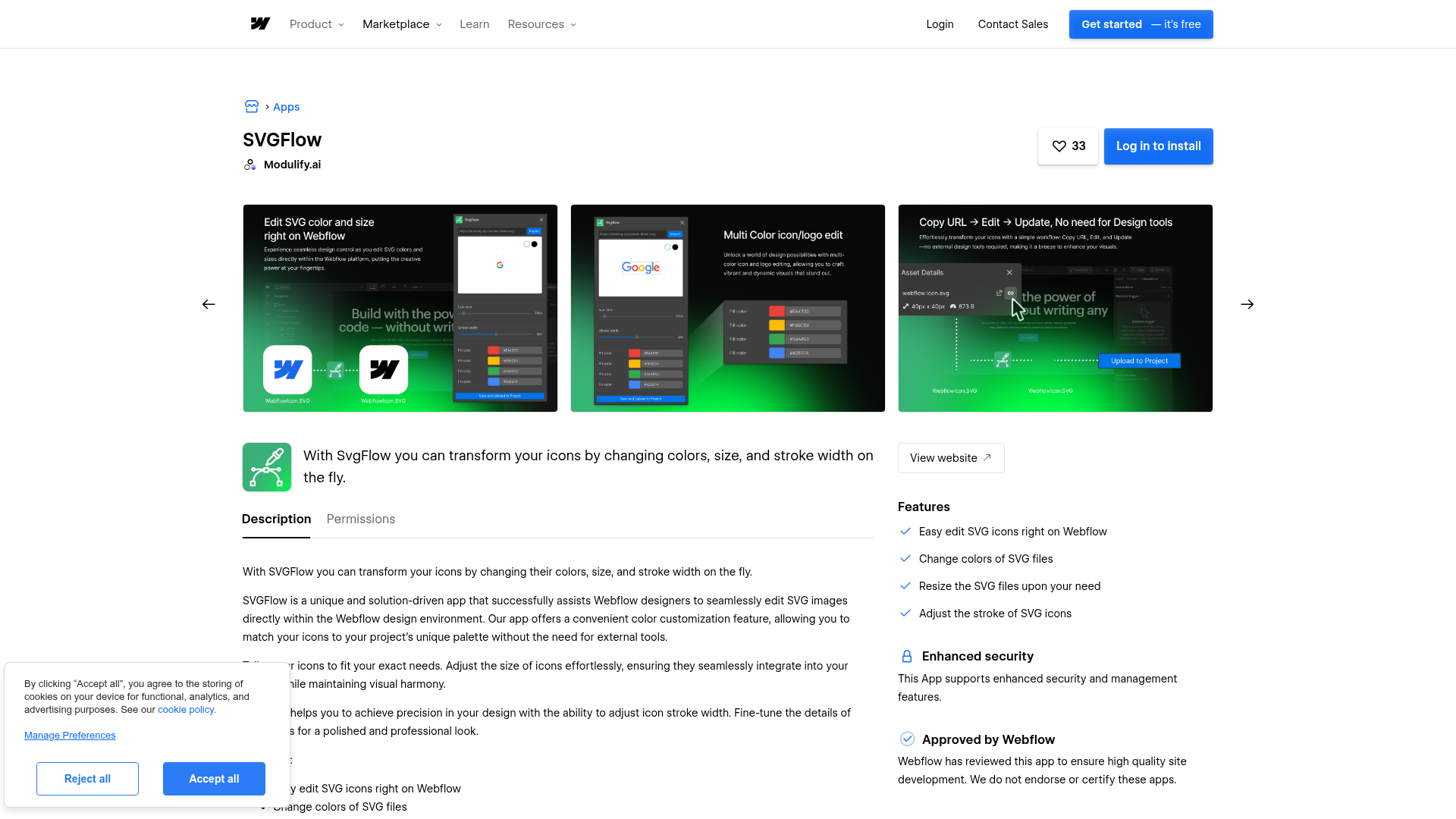
To install SVGFlow from the Marketplace:
- Go to webflow.com/apps/detail/svgflow and click Log in to install (or Add to site if you're already signed in).
- Select your workspace and site.
- Authorize the three requested permissions: read and write assets, read authorized user information, and read site data and publishing.
- Open your site in the Designer. The app is available immediately.
To install SVGFlow from within the Designer:
- Open your site in the Designer.
- Press E or click the Apps panel icon in the left toolbar.
- Search for "SVGFlow" and click install.
Once installed, you can:
- Change SVG fill and stroke values to match your brand palette
- Resize icons for layout contexts like hero sections, feature grids, or footers
- Adjust stroke width across your icon set
These controls cover the app's in-canvas editing.
SVGFlow edits appear live on the canvas. Code Embed elements, by contrast, show a placeholder in the design environment. The app collects no personal data, cookies, or log data, as confirmed by Azwedo's privacy policy. For SVGFlow-specific support questions, contact Azwedo at tech@azwedo.com.
Add supplementary scripts with Code Embed elements
SVGFlow handles static appearance editing. If you need hover effects, scroll-triggered animations, or interactive behaviors on SVGFlow-styled SVGs, add JavaScript separately on the same page using Code Embed elements.
Code Embed elements accept HTML, CSS, and JavaScript, and support up to 50,000 characters per element. Code in these elements doesn't render in the design environment preview, so test on a published or staging URL.
To add interaction scripts on the same page as SVGFlow-edited SVGs:
- Select the section containing your SVG element.
- Add a Code Embed element from the Add panel under Components (this is a standard Designer feature and isn't required by SVGFlow itself).
- Paste your supplementary interaction script (for example, a CSS hover transition or a lightweight JavaScript animation) inside
<script>or<style>tags. - Publish or preview in staging to test the behavior.
This keeps your interaction code separate from SVGFlow's styling controls.
For scripts that load across all pages, use custom code in head and body tags under Site Settings > Custom Code. Site-wide head code injects before </head>, and footer code injects before </body>. Both sections have a 50,000-character limit.
Use supplementary scripts in CMS templates
Your site may use the CMS to manage pages with SVG icons, such as service category pages or blog post headers. Add Code Embed elements inside CMS Collection templates for these pages to apply supplementary scripts across CMS-generated pages that feature SVGFlow-styled icons.
To add scripts inside a CMS template:
- Open the Collection template page for the relevant CMS collection.
- Add a Code Embed element where the interaction script should load.
- Use dynamic field binding if the script references CMS-specific data.
- Publish and test across multiple collection items to confirm consistent behavior.
This keeps behavior consistent across CMS-generated pages.
SVGFlow's in-canvas styling stays intact while your supplementary SVG behavior stays consistent across CMS-generated pages.
In custom-code contexts, jQuery v3.5.1 is included by default. Importing a different jQuery version can cause conflicts with your scripts and with built-in interactions.
What can you build with the SVGFlow Webflow integration?
Integrating SVGFlow lets you edit SVG icon assets to match your brand system without raw SVG editing or external design tools.
- Brand-matched icon colors and strokes: Adjust every SVG icon on a client site to match exact brand colors and stroke weights. An agency delivering a SaaS marketing site can recolor a 30-icon feature grid from default black to brand blue in minutes. All edits happen on the canvas.
- Responsive icon sizing across layout sections: Resize the same SVG asset for different contexts, such as a larger version in the hero section and a smaller version in the footer. You don't need to create multiple asset files or write CSS overrides.
- Visual system calibration for icon stroke weight: Match icon line thickness to a site's typographic and visual weight. A luxury brand site using thin-line icons can dial down stroke widths uniformly. A bold SaaS product page can increase them for higher contrast.
- Icon updates without design tool access: If you're a marketing manager maintaining your own site, you can update icon colors for seasonal campaigns or product launches. You don't need design tool access or developer support.
These use cases all center on faster SVG adjustments inside the Designer.
If you want more control over interactive SVG behaviors like hover states or scroll-triggered effects, add custom interactions and motion with Code Embed elements. For animation options outside SVGFlow's scope, reach for separate tools such as SVGator, LottieFiles, or GSAP through Code Embed elements.
Frequently asked questions
No. SVGFlow handles color, size, and stroke width edits only. It does not support animations, filters, gradients, clipping paths, masks, or text elements, as stated on the SVGFlow integration page. For SVG animation, consider SVGator or LottieFiles. You can also add CSS/JavaScript animations through Code Embed elements alongside SVGFlow-edited assets.
No. SVGFlow requires no external account, registration, or separate login. Install it directly from the Webflow Apps Marketplace. The app collects no personal data or cookies, per the Azwedo privacy policy.
SVGFlow requests three permissions: read and write assets, read authorized user information, and access site data and publishing. The app collects no personal data or cookies, per the Azwedo privacy policy.
SVGFlow's editing features do not rely on custom code. If you want to add supplementary scripts alongside SVGFlow-edited SVGs using Code Embed elements, check the Code Embed documentation for current plan requirements. For app installation requirements, confirm the current workspace requirements in the Marketplace listing.
Description
SVGFlow adds in-canvas SVG editing to Webflow through its Marketplace app. Change fill and stroke colors, resize icons, and adjust stroke widths directly in the Designer without switching to Figma or Illustrator.
This integration page is provided for informational and convenience purposes only.

Clip Path Bae
Connect Clip Path Bae with Webflow to clip images, divs and other elements into polygon, circle, ellipse or custom SVG shapes without writing code.

Chainlift Color
Connect Chainlift Color with Webflow to generate accessible Material 3 dynamic color themes with pre-configured utility classes and color variables.

Adobe Express
Generate images with Adobe Firefly, edit them, and save them to your site without leaving the page build.

bynder
Connect Bynder with Webflow to search and place brand-approved assets from your DAM directly onto your site.
Asset Bae
Connect Asset Bae with Webflow to bulk-edit image filenames and alt text, with AI-generated alt text for accessibility compliance.

Frontify
Connect Frontify with Webflow to browse and embed brand-approved assets, then sync them directly into your site.
Virtual Tours
Connect Virtual Tours to your Webflow site and display interactive 360° tours on any page.
Creattie
Connect Creattie's Lottie animation library with Webflow to add lightweight animations that load faster than videos while maintaining visual quality.

Vidzflow
Related integrations
Get started for free
Try Webflow for as long as you like with our free Starter plan. Purchase a paid Site plan to publish, host, and unlock additional features.
