






SVG Import
Connect SVG Import, a free app that converts pasted SVG code into editable DOM elements, with Webflow to add path-level control to SVGs on the canvas.

SVG Import turns pasted SVG code into native, editable DOM elements on the canvas. Every path stays selectable, styleable, and ready for CMS bindings or hover states. The free app sidesteps the Assets panel's 10,000-character cap and its flat-image rendering, so complex illustrations keep their path-level detail.
Use it when you're building animated hero sections, binding CMS data to graphics, or managing SVG-heavy client sites that need element-level control.
How to integrate SVG Import with Webflow
What is SVG Import? SVG Import is a free app built by Flowcraft that converts pasted SVG code into native, editable DOM elements on the canvas. Individual SVG paths stay selectable and editable in the Designer. You can bind CMS color fields to specific shapes and use currentColor for theme-aware icons that update site-wide from a single swatch change.
Reach for SVG Import when native SVG handling gets in the way. Detailed illustrations exceed the upload character limit, and uploaded SVGs lose path-level editability. This combination matters most when you need to animate individual shapes or drive graphic colors from CMS data.
Use SVG Import for editable DOM elements without code. Native SVG methods cover simpler embeds and uploads through Code Embed elements or the Assets panel. The Data API handles asset uploads and CMS-bound graphics, but you'll need server-side development to use it.
Most implementations combine two or more of these methods depending on the complexity of the setup.
Install the SVG Import app
The SVG Import app is the most direct way to get editable SVG elements onto the canvas. It converts pasted SVG code into native DOM elements, so each path stays selectable. Use this method when you need to style individual shapes, add hover states, or bind CMS colors to specific paths. The app is free and Marketplace-approved. You don't need a paid plan to install it.
This method gives you:
- Element-level selection and editing of SVG paths
- CMS color field binding to individual SVG shapes
- Theme-aware icons via
currentColorthat update from one swatch - Animated graphics as live, editable DOM elements
These options keep SVG paths editable on the canvas while preserving element-level control.
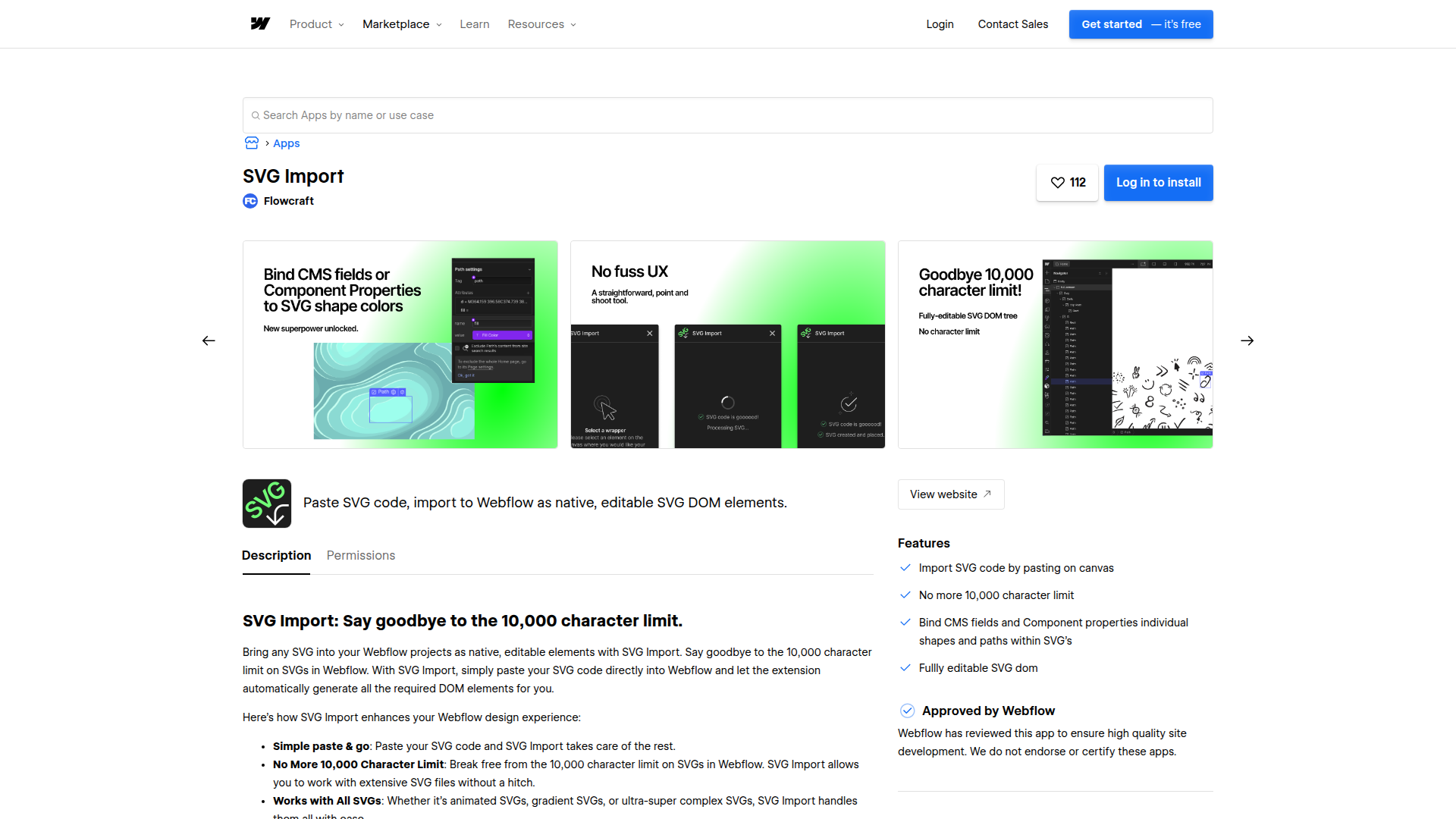
Open the app from the SVG Import Marketplace listing and install it to your site. Launch the app in the Designer, paste your SVG code into the app panel, and convert the code into native DOM elements on the canvas. From there, style or bind paths as needed.
Because the app builds real DOM elements instead of uploading a file, it bypasses both the 10,000-character upload limit and the flat-image restriction.
Add SVGs with native features
Several built-in options handle SVGs when you don't need the app's path-level editing. Each method trades editability against setup limits. Use these when your SVG is simple or already small enough to fit within the native limits.
Paste inline SVG with a Code Embed element
The Code Embed element lets you paste inline SVG or HTML directly onto the canvas. This keeps the SVG markup inline, so you can style and animate it with CSS. It supports up to 50,000 characters per embed, five times the Assets panel limit. You need a paid site plan to use inline SVG through Code Embed.
Drag a Code Embed element onto the canvas and paste your inline SVG markup into the element. Apply CSS classes or custom code to style individual paths.
You can also bind CMS Collection fields inside Code Embed elements for CMS field values. See using Collection fields in custom code embeds for the supported bindings.
Upload SVGs through the Assets panel
The Assets panel accepts SVG files by drag-and-drop or click-to-upload. This is the simplest method for static graphics that do not need path-level control. The maximum file size is 4MB, and SVG uploads cap at 10,000 characters.
Open the Assets panel, then drag your SVG file into the panel or click to upload it. Once uploaded, drag the asset onto the canvas as an image element.
Uploaded SVGs render as flat images, so individual paths, including fills and strokes, become inaccessible. Ecommerce product and variant image fields don't accept SVGs — see image file types for the full list.
Add site-wide SVG code in head or body tags
For scripts or SVG symbols that appear across pages, use custom code in head and body tags. This injects code site-wide or per page. Each location supports up to 50,000 characters. Head and body tags don't run server-side languages like PHP or Ruby.
Go to Site settings > Custom code and paste your SVG symbol definitions or scripts into the head or body section. Save and publish the site.
This method works well for reusable SVG sprite sheets referenced across multiple pages.
Build with the Data API
The Data API v2 gives you programmatic control over asset uploads and CMS item workflows. Use this path when you manage SVGs at scale or sync graphics from an external system. SVG Import itself publishes no public API, so every API workflow described here runs through the Data API. You'll need server-side development and OAuth 2.0 Bearer token authentication.
The API workflow starts with the Assets API for uploading SVG files to a site. Store asset references in CMS collections with the CMS collection items API. For real-time events like collection_item_created and site_publish, add webhooks.
Use webhooks instead of frequent polling to receive real-time updates efficiently.
Upload an SVG file as an asset
Uploading an SVG through the API is a two-step process. Register the file first, then complete the upload to Amazon S3. This suits pipelines that push SVGs from a design system or external repository.
Start by calling POST /v2/sites/{site_id}/assets with fileName, fileHash (an MD5 hash of the file binary), and an optional parentFolder. You'll need the assets:write scope, and the response returns uploadUrl and uploadDetails. Next, use uploadUrl and uploadDetails in a POST request to Amazon S3 to complete the upload. Store the returned assetUrl (S3 link) or hostedUrl (hosted link) for later reference.
The response also includes id, contentType, originalFileName, createdOn, and lastUpdated. Before uploading, convert the file's binary contents into a 128-bit MD5 hash to produce the fileHash value.
Store SVG references in the CMS
Once an SVG lives in your assets, you can store its URL in a Collection List-backed collection. This drives data-bound graphics across CMS-driven pages. Call POST /v2/collections/{collection_id}/items with the cms:write scope to create a staged item. Save the hostedUrl from the upload step as a field value inside the collection item.
CMS item limits vary by current Site plan. The May 2026 pricing update lists up to 20,000 CMS items on the Premium Site plan and 50 CMS items per staged site on Starter Workspace staging. Check current plan limits before you design large SVG-reference collections. After creating items, publish the site with POST /v2/sites/{site_id}/publish.
What can you build with the SVG Import integration?
Integrating SVG Import lets you convert pasted SVG code into native, editable DOM elements on the canvas without uploading them as flat image files.
- Animated hero sections: Paste a multi-path illustration as native DOM elements, then animate individual shapes with CSS or GSAP interactions for a moving vector hero.
- CMS-driven icon systems: Bind a CMS color field to specific SVG paths so a Collection List of services renders each icon in its own brand color.
- Layered logo control: Import a logo with separate layers as selectable elements, then toggle visibility or apply hover states to individual layers.
- Theme-aware icon libraries: Use
currentColoron imported icons so a single swatch change updates every icon instance across the site.
Take the API integration path when you need batch asset uploads or external SVG sync.
Frequently asked questions
Install the SVG Import app and paste your SVG code into it. The app converts the code into native, editable DOM elements on the canvas, so individual paths stay selectable. This bypasses the Assets panel, where uploaded SVGs render as flat images with no path-level access. You can review the app on its Marketplace listing.
Webflow caps SVG file uploads at 10,000 characters, and complex illustrations often exceed that limit. The Assets panel also enforces a 4MB maximum file size. For SVGs above the character ceiling, use the SVG Import app or paste inline SVG into a Code Embed element, which supports up to 50,000 characters.
Yes. A Code Embed element accepts inline SVG up to 50,000 characters and keeps the markup inline for CSS styling. Inline SVG through Code Embed requires a paid site plan. See the Code Embed documentation for character limits and unsupported languages.
No. SVG images are not supported for product or variant image fields, or for Ecommerce email brand logos. Use PNG or JPEG for those fields instead. The image file types article lists the supported formats for each context.
Description
SVG Import is a free app that converts pasted SVG code into editable DOM elements. On a Webflow canvas, every path stays selectable, styleable, and CMS-ready.
This integration page is provided for informational and convenience purposes only.

Goat Slider
Connect Goat Slider, a CMS-driven slider app, with Webflow to add dynamic carousels and sliders that automatically update when your content changes.
Pixcap Editable 3D Icons and Characters
Connect Pixcap, a customizable 3D asset library, with Webflow to browse, customize, and insert 3D icons, illustrations, and characters directly in Webflow without 3D modeling skills.
CutCopy
Connect CutCopy with Webflow to move variable collections and element attributes between projects instead of rebuilding them by hand.

Devblocks CMS Image Optimizer
Connect Devblocks CMS Image Optimizer with Webflow to batch-convert existing CMS images to WebP without re-uploading a single file.
Flowdrive
Connect Flowdrive, an external file and video hosting service, with Webflow to host videos and enable file uploads without Webflow's Business plan requirement.
Lummi
Connect Lummi, an AI visual asset library, with Webflow to source and insert commercial-use images inside the canvas.

Image Management
Convert Webflow CMS collection images to WebP or AVIF inside Webflow with the Image Management app, or script the same job with the Assets API.

Smootify Icons
Connect Smootify Icons with Webflow to place SVG icons from eight icon libraries on the canvas, styled without uploads or code.

Clip Path Bae
Connect Clip Path Bae with Webflow to clip images, divs and other elements into polygon, circle, ellipse or custom SVG shapes without writing code.
Related integrations
Get started for free
Try Webflow for as long as you like with our free Starter plan. Purchase a paid Site plan to publish, host, and unlock additional features.
