






SendPulse
Connect SendPulse, a marketing automation platform, with Webflow to add email campaigns, web push notifications, chatbots, and pop-ups to your site and route form submissions into automated sequences.

Webflow handles site design, Webflow CMS content, and hosting, but doesn't cover subscriber management, automated email sequences, or marketing across email, push, and chat. Form submissions sit in your submission log with no built-in way to trigger a welcome email or push notification.
Connecting SendPulse adds email marketing, web push, chatbots, pop-ups, and automation flows directly to your pages. It fits freelancers, agencies, e-commerce operators, SaaS teams, nonprofits, and content publishers who need marketing automation without migrating off Webflow.
How to integrate SendPulse with Webflow
What is SendPulse? SendPulse is a marketing automation platform for email, chatbots, SMS, web push notifications, CRM, pop-ups, and subscription forms in a single product. All modules connect natively, so a single form submission can add a contact to a mailing list, a CRM pipeline, and a messaging channel audience simultaneously.
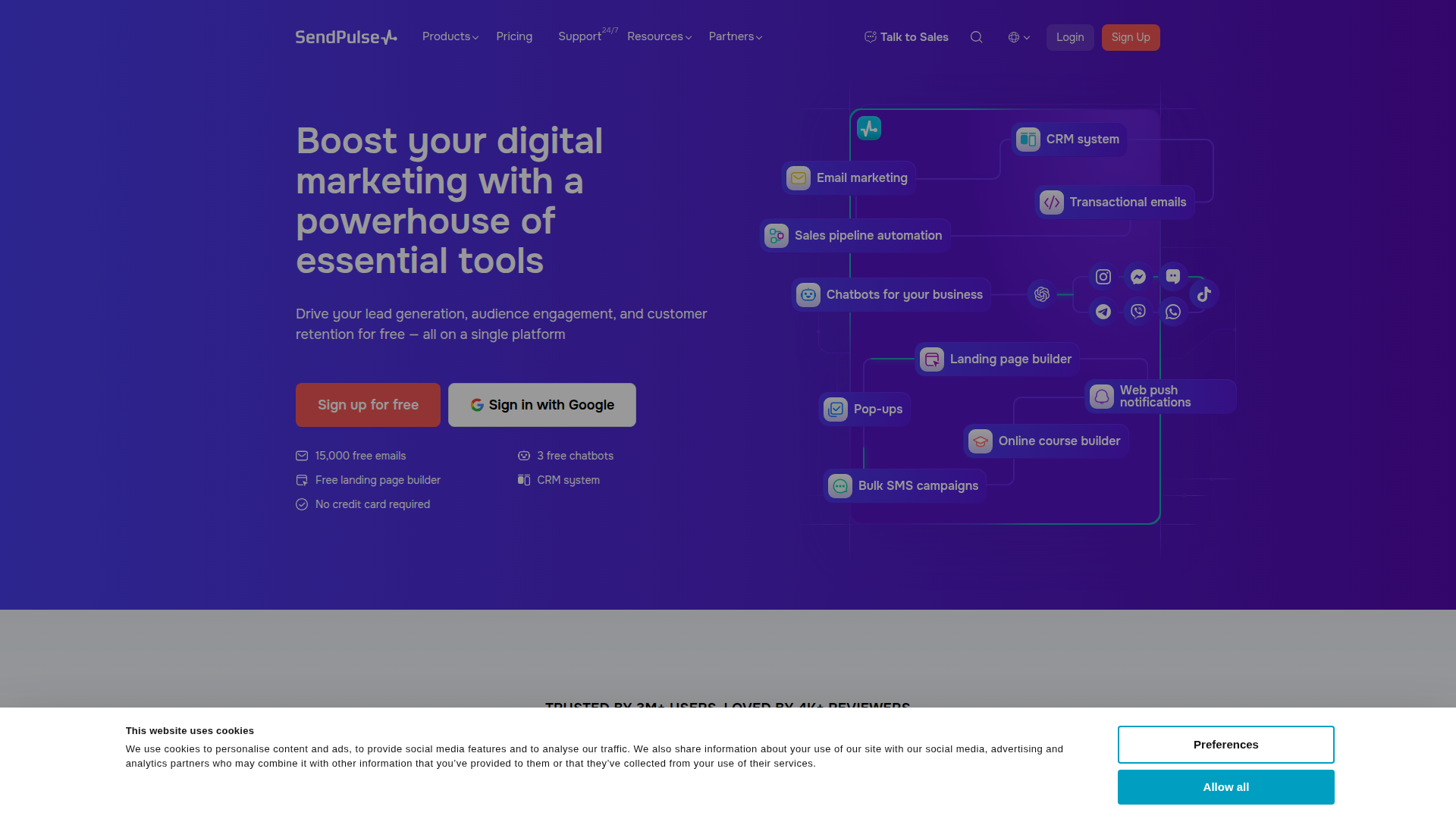
Teams reach for SendPulse when they need subscriber capture, automated email sequences, or re-engagement channels that go beyond native form handling. A common starting point is routing form submissions to a SendPulse mailing list, then adding pop-ups, push notifications, or chatbot widgets as campaigns grow.
You can connect SendPulse and Webflow in 3 ways:
- SendPulse embed codes and widgets let you add subscription forms, pop-ups, web push notifications, chatbot widgets, and visitor tracking to any page without writing backend code.
- Zapier and Make connect form submissions and e-commerce orders to SendPulse through explicit Webflow triggers and SendPulse actions.
- The Webflow Data API v2 and SendPulse APIs give you full control over subscriber syncing, transactional emails, CMS-to-campaign triggers, and bidirectional data flows, but require server-side development.
Most implementations combine two or more of these methods depending on the complexity of the setup.
Add SendPulse components with embed code
SendPulse generates ready-to-paste HTML and JavaScript snippets for subscription forms, pop-ups, web push notifications, chatbot widgets, and its visitor tracking pixel. Each snippet type goes into a specific location depending on whether it needs to appear at a fixed page position or load site-wide. All code-based methods need a paid site plan, since free plans don't support custom code in head and body tags. SendPulse's free plan supports subscription forms, pop-ups, web push (up to 10,000 subscribers), and three chatbots at no cost.
SendPulse provides five embeddable component types for your site:
- Subscription forms (embedded, pop-up, floating, or fixed)
- Pop-up campaigns (email capture, chatbot subscription, video, cookie consent)
- Web push notification opt-in scripts
- Live chat and chatbot widgets
- The SendPulse Pixel for visitor behavior tracking
Each component type has a different placement requirement, covered in the sub-sections below.
Embed a subscription form
Embedded subscription forms sit at a specific position on a page, inside a footer section, sidebar, or below a blog post. SendPulse generates the HTML, and you place it using a Code Embed element.
To add a subscription form:
- In SendPulse, go to Email > Subscription Forms > Create subscription form.
- Select Embedded as the form type.
- Choose or create a mailing list, then design the form in the drag-and-drop editor.
- Click the arrow beside Save, then select Save and get code.
- Click Copy the code.
- Open the page where the form should appear.
- Click + to open the Add Elements panel, find Embed, and drag it to the desired position on the canvas.
- Double-click the Embed element, paste the SendPulse HTML code, and click Save & Close.
- Publish your site.
If you edit the form in SendPulse after embedding it, changes apply automatically on your live site without re-pasting the code, according to the SendPulse subscription forms documentation. Embedded SendPulse forms may redirect users to SendPulse-hosted pages after submission. If staying on-site after submission matters, use the Zapier or API approach to avoid this redirect.
Add a pop-up or floating form
Pop-up, floating, and fixed subscription forms appear site-wide based on trigger conditions like time delay or scroll depth. These scripts go into site-level footer code rather than a Code Embed element.
To add a pop-up:
- In SendPulse, go to Email > Subscription Forms > Create subscription form.
- Select Pop-up, Floating, or Fixed as the form type.
- Design the form and configure display trigger settings (timing, scroll percentage, exit intent).
- Click Save and get code and copy the generated script.
- Go to Site settings > Custom Code tab.
- Scroll to the Footer Code section, paste the script, and click Save Changes.
- Publish your site.
To limit a pop-up to a single page, use Page Settings instead. Click the gear icon next to the page name in the Pages panel, then paste the script into the Before </body> tag field. After adding the script, verify the installation status in SendPulse under Pop-ups > Settings > Site installation code, where an integration status indicator shows Connected or Not connected.
Install web push notifications
Web push notification scripts load in the <head> section of your site so they initialize before page content renders. This placement lets the browser prompt visitors to subscribe to push notifications.
To set up web push:
- In SendPulse, go to the Push tab and click Add New Website.
- Select HTTPS and enter your site URL.
- Upload a website image for the browser opt-in prompt.
- Configure when the subscription request appears to visitors.
- Copy the generated script (formatted as
<script charset="UTF-8" src="//web.webpushs.com/js/push/[unique-code]_1.js" async></script>). - Go to Site settings > Custom Code tab.
- Paste the script into the Head Code section (not Footer Code).
- Click Save Changes and publish.
- Return to SendPulse and click Check the Settings. A green checkmark confirms correct installation.
Web push may also require service worker files in the site's root directory. Standard hosting doesn't expose root-directory file access. If the Settings Check step fails, contact SendPulse support, as noted in the SendPulse push notification setup guide.
Add a live chat or chatbot widget
SendPulse's live chat widget can appear as a floating button (loads site-wide) or as an inline element embedded at a specific page position. The floating version goes in footer code, while the inline version uses a Code Embed element.
To add the floating chat widget:
- In SendPulse, go to Chatbots, select your bot, then open Settings > Website integrations.
- Copy the widget script, which looks like:
<script src="//cdn.pulse.is/livechat/loader.js" data-live-chat-id="[YOUR_ID]" async></script> - Go to Site settings > Custom Code > Footer Code, paste the script, and publish.
For inline placement at a specific page position, add a Code Embed element and use the embedded mode script with the data-is-embedded="true" and data-embedding-target="#your-css-selector" attributes. You can customize the widget's colors, position, and language using SendPulse's JavaScript configuration API.
Install the SendPulse Pixel
The SendPulse Pixel tracks visitor behavior including page visits, scroll depth, button clicks, form submissions, traffic sources, and UTM parameters. It needs two separate code blocks, one for <head> and one for <body>.
To install the pixel:
- In SendPulse, go to Automation > Pixel tab > Add website and follow the on-screen instructions.
- Copy the
<head>code block. - Go to Site settings > Custom Code > Head Code and paste the first block.
- Copy the
<body>code block and paste it into the Footer Code section. - Click Save Changes and publish.
The pixel is free for up to 1,000 events per month. For GDPR compliance, SendPulse instructs users to keep the pixel blocked until a visitor gives consent, as described on the Pixel feature page.
Connect with Zapier or Make
Zapier connects Webflow to SendPulse, letting you sync form submissions, e-commerce orders, and CMS changes to SendPulse mailing lists and automation flows without adding code to your site. It's the more straightforward option, with pre-built templates ready to activate.
Zapier has three confirmed pre-built templates for this integration:
- Subscribe Webflow form submissions to a SendPulse list
- Add new Webflow orders to SendPulse as subscribers
- Update SendPulse subscribers with new Webflow form submissions
To set up the Zapier integration:
- Log in to Zapier and click Create Zap.
- Select Webflow as the trigger app, choose Form Submission as the trigger event, connect your Webflow account, then select your site and form.
- Click Test Trigger to pull in a sample submission.
- Select SendPulse as the action app and choose Add/Update Subscriber.
- Connect your SendPulse account and select the mailing list to add subscribers to.
- Map each Webflow form field to the corresponding SendPulse variable (for example, the Webflow Email field to SendPulse's
email, and the Webflow Name field to SendPulse'sname). - Click Test Action, confirm the subscriber appears in SendPulse, and turn the Zap on.
You can also start with the pre-built template for form-to-list syncing, which pre-configures the trigger and action apps.
For Make, create a new Scenario, add a Webflow Watch Form Submissions module as the trigger, add a SendPulse Add Subscriber module as the action, map the fields, and activate. Zapier works on any plan that supports form submissions, since it reads data from the native form handler rather than requiring custom code injection.
Build with the Webflow and SendPulse APIs
For real-time data syncing, transactional emails triggered by site events, bidirectional CMS updates, or workflows that Zapier templates don't cover, the API integration path gives you full control. You'll need a middleware layer (a serverless function on Vercel, Netlify Functions, AWS Lambda, or Cloudflare Workers), since hosted sites don't run server-side code.
You'll use these APIs:
- The SendPulse REST API handles subscriber management, transactional email sending, web push campaigns, automation triggers, and webhook registration
- The Data API v2 handles CMS collections, form submissions, e-commerce orders, and site publishing
- Webhooks trigger real-time events like
form_submission,collection_item_published, andecomm_new_order
SendPulse authentication supports static API keys (generated at Settings > API > API keys, valid until manually revoked) and OAuth 2.0 client credentials (response includes expires_in: 3600, or 1 hour). Static API keys are simpler for most integrations since they eliminate token refresh logic.
Route form submissions to SendPulse mailing lists
A common API-based workflow registers a webhook for form_submission events that posts data to your middleware. The middleware parses the form fields and calls SendPulse's subscriber endpoint.
To implement this:
- Register a webhook by calling
POST /v2/sites/{site_id}/webhookswith"triggerType": "form_submission"and your middleware URL. Use thefilter.nameparameter to target a specific form by name. - In your middleware, parse
payload.datafrom the webhook. Field names match the labels you set on the form, so normalize them to match SendPulse variable names (for example,"First Name"to"FirstName"). - Call
POST /addressbooks/{id}/emailson the SendPulse API with the subscriber email and any custom variables.
Webhook payloads registered via the API include HMAC SHA-256 signature headers (x-webflow-signature and x-webflow-timestamp) for verification. Use the filter.name parameter in webhook registration to route different forms to different SendPulse mailing lists.
Trigger automation flows from Webflow events
SendPulse's Automation 360 flows can start from external events, letting you trigger multi-step sequences (email, SMS, web push) when a form is submitted or a CMS item is published.
To implement this:
- In SendPulse, create a custom event in the Automation dashboard under Events Manager. That event generates a unique event URL.
- Register a webhook for
form_submission(orcollection_item_publishedfor CMS-triggered campaigns). - In your middleware, POST to the generated event URL with the contact's email in the request headers and any custom data in the JSON body.
You must create the event in SendPulse before sending requests to its generated URL. Use payload.formId from the webhook to branch different forms to different automation events within the same middleware handler. The SendPulse events documentation covers the full request format.
Sync subscriber status back to the CMS
SendPulse outbound webhooks can notify your middleware when a subscriber unsubscribes or a new contact is added. Your middleware then updates or creates CMS items to keep both systems in sync.
To update a CMS item when a SendPulse subscriber unsubscribes:
- Configure a SendPulse outbound webhook for
unsubscribeevents at Account Settings > API tab. - In your middleware, look up the corresponding CMS item by calling
GET /v2/collections/{id}/itemsand filtering by the email field. - Update the item with
PATCH /v2/collections/{id}/items/{item_id}, setting the subscription status field tofalse. - Publish the change by calling
POST /v2/collections/{id}/items/publishwith the item ID.
You must update the item, then publish it — a PATCH to staged items doesn't auto-publish. For sites handling frequent unsubscribe events, maintain a local email-to-item-ID mapping table to avoid repeated lookup calls against the API.
What can you build with the SendPulse Webflow integration?
Pairing SendPulse with your Webflow site lets you run campaigns across email, push, chat, and SMS directly from your pages without switching to a different CMS or building a custom backend.
- Newsletter signup with automated welcome series: Add an embedded subscription form to your blog footer. When a visitor subscribes, SendPulse's Automation 360 triggers a multi-email welcome sequence that delivers a lead magnet, introduces your content library, and segments the subscriber based on link clicks.
- E-commerce abandoned cart recovery: Connect store orders to SendPulse through Zapier or the API. When a shopper starts checkout but doesn't complete it, an automation flow sends recovery messages across email, web push, and WhatsApp from a single sequence that stops automatically on purchase.
- Chatbot lead qualification on pricing pages: Embed a SendPulse chatbot widget on your pricing page. The bot asks qualifying questions, captures contact information, and routes high-intent leads to your CRM pipeline, all without a human being online. Captured contacts automatically enter segmented mailing lists for follow-up campaigns.
- Content publish notifications via web push: Register a webhook for
collection_item_publishedevents. When a new blog post goes live in the CMS, your middleware triggers a SendPulse web push campaign that notifies subscribers with the post title and link, similar to an RSS-triggered notification but with full control over targeting and timing.
If you need more control over bidirectional data syncing or transactional email logic, take the API integration path.
Frequently asked questions
Yes, for any method that involves adding code to your Webflow site. According to the Webflow custom code documentation, all custom code features require a paid Webflow workspace or site plan. This applies to SendPulse subscription form embeds, pop-up scripts, web push notification scripts, chatbot widgets, and pixel tracking. The Zapier-based integration does not require custom code, since it reads data from Webflow's native form handler. However, Webflow's free Starter plan limits form submissions to 50 total (lifetime, not monthly), which makes it impractical for production lead capture.
They can. Webflow's official SendPulse integration page notes that embedded SendPulse forms may redirect users to SendPulse-hosted pages after submission. If keeping visitors on your site after form submission is a priority, use Zapier to route Webflow's native form submissions to SendPulse mailing lists instead. The API approach also avoids this redirect by handling the submission through middleware.
Web push notification scripts go in Head Code (site settings) because they need to initialize before page content loads. Pop-up scripts, live chat widgets, and the second part of the SendPulse Pixel go in Footer Code (site settings) so they load after page content. Embedded subscription forms use a Code Embed element placed at a specific position on the page canvas.
The SendPulse Pixel requires both Head Code and Footer Code, with separate code blocks for each. The SendPulse pop-up installation guide covers placement details and verification steps.
Preview mode in Webflow does not reliably run external scripts. According to the Webflow documentation on external resources in previews, scripts with Content-Security-Policy restrictions or domain-based validation may fail in the preview environment. Test all SendPulse integrations on your published site rather than in preview mode. An integration that appears broken in preview may work correctly once published.
Use the pre-built Zapier template that subscribes Webflow form submissions to a SendPulse list. Connect your Webflow and SendPulse accounts in Zapier, select the form and mailing list, map the fields, and activate the Zap. Your Webflow site needs at least one published form with a test submission for Zapier to pull sample data during setup.
Description
SendPulse adds email marketing, web push, chatbots, and pop-ups to Webflow through embeddable scripts and forms.
This integration page is provided for informational and convenience purposes only.

ActiveCampaign
Connect ActiveCampaign, a marketing automation and email platform, with Webflow to sync form submissions to contact records, track visitor behavior, and trigger automated email sequences based on page activity.
Related integrations
Get started for free
Try Webflow for as long as you like with our free Starter plan. Purchase a paid Site plan to publish, host, and unlock additional features.
