






quizell-product-quiz
Connect Quizell Product Quiz with Webflow to embed product recommendation quizzes that capture leads and guide visitors to the right products.

A Webflow form collects a visitor's information, but it can't use answers to branch, score responses, or recommend products. Shoppers facing a large catalog get no guided path from question to purchase. Building that logic by hand means custom scripts for branching and scoring logic for result pages. Quizell handles that layer instead.
Connect Quizell with Webflow and any page can host a multi-step quiz with conditional logic and product matching. Visitors answer a few questions and see results matched to their responses. Edits made in Quizell appear on the published site without touching the embed. Captured leads sync onward to Mailchimp, Klaviyo, HubSpot, and other tools.
This integration is most useful for designers and marketers. Designers embed quizzes without code and adjust styling and layout, including width, in Webflow. Marketers capture leads and route segmented responses into email tools. eCommerce store owners and service providers use the same setup to guide shoppers and pre-qualify clients.
How to integrate Quizell product quiz with Webflow
What is a Quizell product quiz? Quizell is an AI-powered product recommendation quiz and shopping experience builder for eCommerce and lead generation. More than 25,000 businesses use it to build multi-step quizzes with conditional logic and scoring for product matching. It has 30+ native integrations, including Webflow, Klaviyo, Mailchimp, HubSpot, and Zapier.
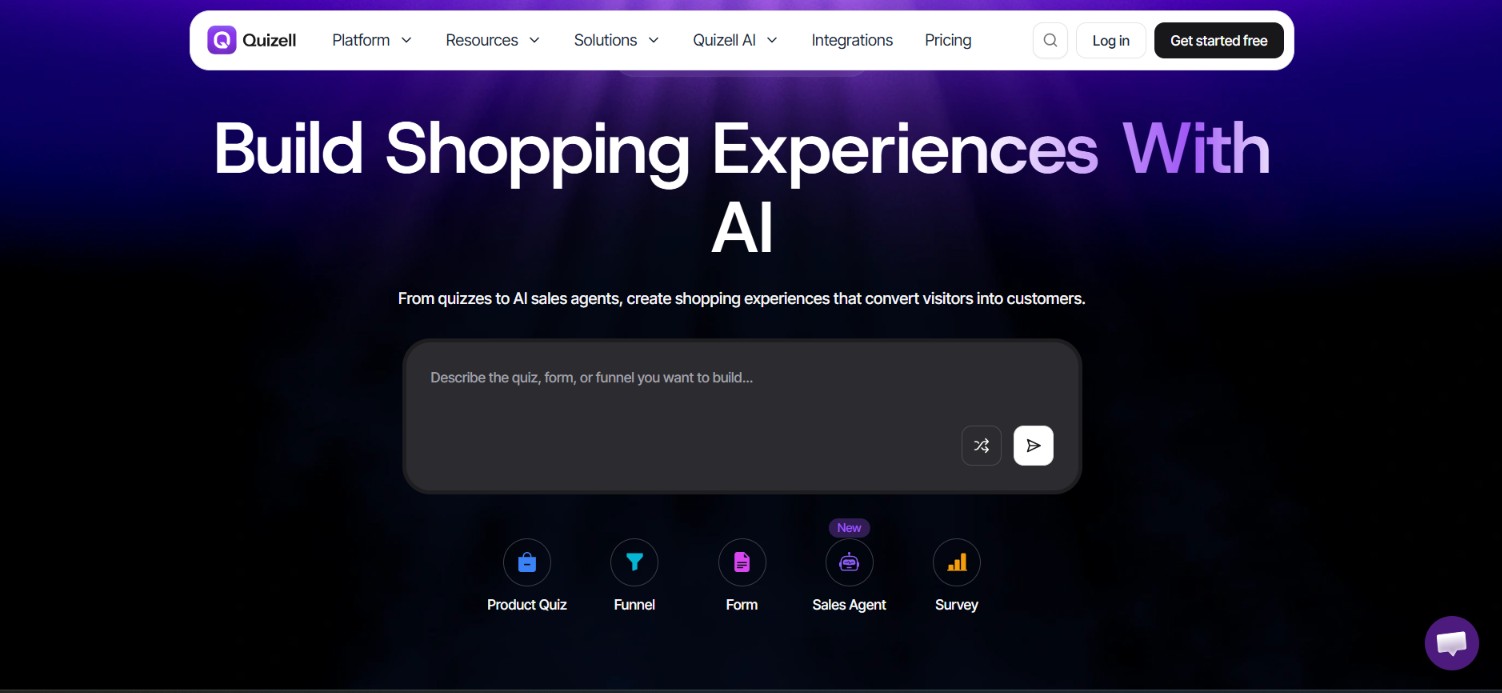
Teams pair the two when a static page can't handle product discovery or lead qualification. A beauty brand can run a routine finder, and a SaaS site can score plan-fit questions before follow-up. In each case Webflow handles design and hosting while Quizell handles quiz questions and the logic behind recommendations.
The Quizell Product Quiz-Webflow integration supports four approaches:
- The Quizell Product Quiz app embeds a quiz on any page without writing code.
- Code Embed elements let you paste Quizell's HTML snippet into a page or site-wide code, including popup placements.
- Zapier and n8n send quiz submissions into the Webflow CMS as collection items.
- The Webflow Data API and Quizell APIs give you full control over lead syncing and product data, but require server-side development.
Most implementations combine two or more of these methods depending on the complexity of the setup.
Install the Quizell Product Quiz app
The Quizell Product Quiz app is free and carries Approved by Webflow status. It embeds a quiz into any page without code, so it fits designers and marketers who want a quiz live fastSetup follows Quizell's Webflow embed guide.
To set up the integration:
- Install the Quizell Product Quiz app from the Webflow App Store and click Authorize App.
- In Webflow, open the Quizell app panel and click Select Quiz.
- In the Quizell dashboard, go to Share > Share your quiz as a link.
- Replace
previewwithquizin the URL, so it readshttps://app.quizell.com/quiz/QuizID. - Paste the updated link into the Quizell embed field in Webflow and publish.
The app listing covers three main capabilities:
- A no-code quiz builder with smart logic, tailored results, and product recommendations
- Lead capture that syncs data to Mailchimp, Klaviyo, HubSpot, and more
- An analytics dashboard that tracks engagement, completions, and conversions
Every Quizell plan supports this app. If you want manual control over placement and display type, the Code Embed method below does the same job with a pasted snippet.
Add quizzes with Code Embed elements
Quizell generates an HTML snippet for any quiz, and a Code Embed element renders it anywhere on a page. Five display types are available: Full Page, In Page, Popup, Greet Bar, and Floating Button. Code Embed accepts HTML plus CSS in <style> tags and JavaScript in <script> tags, with a 50,000 character limit per field. Custom code, including Code Embed, is available on paid Webflow Site plans and paid Workspace plans. Quizell documents the flow in its HTML embed guide.
Embed a quiz on a single page
Use this path when the quiz belongs to one page, like a dedicated quiz landing page or a product finder section.
To embed the quiz:
- In Quizell, open the quiz, click Share, then Embed on a Webpage.
- Pick a display type and click Copy Code.
- In Webflow, add a Code Embed element from the Add panel to the target section and paste the code.
- Save the embed and publish the site.
Quiz changes made in Quizell reflect on the live page automatically, so you never re-embed.
Load a quiz site-wide with custom code
Popups, the Greet Bar, and the Floating Button often belong on every page. For that, paste the snippet into custom code in head and body tags instead of a single element.
To add the snippet site-wide:
- Copy the same embed snippet from Quizell's Share menu.
- In Webflow, go to Site settings > Custom code and paste it into the Head code or Footer code section.
- Save and publish.
Page-level code in Page settings > Custom code works the same way when only some pages need the quiz. Server-side languages like PHP, Python, Perl, and Ruby won't run in either location; the snippet stays client-side.
Connect Quizell to Webflow with Zapier or n8n
Zapier and n8n both offer Quizell connectors that fire when a visitor completes a quiz. Zapier maintains a dedicated Quizell + Webflow page, and Quizell also connects to n8n for custom workflows. Each fires on quiz completion and passes lead data, typically the name, email, phone number, quiz answers, and quiz result, into your workflow.
Available connections include:
- Quizell New Lead (Zapier) → Webflow Create Item or Create Live Item. Each respondent becomes a CMS record.
- Quizell New Lead (Zapier) → Webflow Update Item, Update Live Item, Find Item, or Find Live Item
- Quizell Trigger node (n8n, monitoring all quizzes or one specific quiz) → Webflow node Create, Update, Get, Get All, or Delete operations
No Quizell actions exist on either platform, so data flows one way, from quiz to Webflow. Leads stored as collection items count toward your site's CMS item limits.
Build with the Webflow and Quizell APIs
The API path fits developers who need custom mapping between quiz data and site content, and it requires server-side development. Quizell's REST API and webhooks are Pro plan features; a 403 Forbidden response means your plan lacks access. Both APIs authenticate with Authorization: Bearer headers. Generate a Quizell key under Integrations > APIs, following Quizell's API key guide.
Three APIs cover the integration:
- The Quizell REST API handles products and customers at
https://api.quizell.com/api/v1 - Webflow's Data API v2 handles CMS collections and form submissions at
https://api.webflow.com/v2 - Webflow webhooks push real-time events like
form_submissionandcollection_item_createdto your endpoint
You can also apply the Quizell embed script across pages programmatically. First register the script to the site with the registered_scripts endpoints, then apply it with PUT /v2/pages/{page_id}/custom_code or PUT /v2/sites/{site_id}/custom_code. These custom code endpoints require an OAuth token from a Webflow Data Client App, not a site token.
Sync quiz leads into the Webflow CMS
Quizell delivers new-lead data to your server, either through its API or a connected automation trigger such as Zapier's New Lead event. Your server receives the lead and writes it to a collection through the create item endpoint.
To build the sync:
- Configure a Quizell webhook pointing at your server endpoint (Pro plan).
- Map the incoming payload to
fieldData; every item needsnameandslug. - Create the record with
POST /v2/collections/{collection_id}/items, or use/items/liveto publish immediately. - For staged items, publish in batches with
POST /v2/collections/{collection_id}/items/publish.
Write operations need a token with the CMS:write scope, and the bulk endpoint, POST /v2/collections/{collection_id}/items/bulk, accepts up to 100 items per request for backfills.
Sync product data into Quizell
Build a Webflow CMS to Quizell product sync with the available endpoints; neither vendor documents a direct sync. A scheduled job reads collection items from Webflow and mirrors them into Quizell's catalog. That keeps quiz recommendations current with your site.
To keep catalogs aligned:
- Fetch product items with
GET /v2/collections/{collection_id}/itemsfrom the Data API. - Create matching Quizell products with
POST https://api.quizell.com/api/v1/products. - Push price or availability changes with
PUT /products/:id, and remove discontinued items withDELETE /products/:id.
Quiz creation, quiz configuration, recommendations, and analytics aren't exposed in Quizell's public API, so manage those in the Quizell dashboard. Lead data reads back out through GET /customers.
What can you build with the Quizell Product Quiz Webflow integration?
Integrating Quizell Product Quiz with Webflow lets you add guided product discovery and lead qualification without building branching logic or scoring for recommendation engines from scratch.
- Product recommendation quizzes: A skincare routine finder or supplement selector that asks about preferences and concerns, then displays matching products ranked by score.
- Lead qualification funnels: A "Find Your Plan" quiz for a SaaS site that scores responses and sends visitors to a sales calendar URL or self-serve resources based on intent.
- Quiz-to-CMS lead pipelines: A Zap that turns each New Lead into a collection item, so respondents appear in a Collection List on an internal dashboard page or feed a data export.
- Service intake and booking flows: An intake quiz for a service site collects preferences, matches visitors to a service package, and drives bookings.
If you need more control over how quiz answers map to CMS fields or product records, the API integration path covers those cases with full flexibility.
Frequently asked questions
You need a Core, Growth, Agency, or Freelancer Workspace, or a site with an active Site plan. The free Starter Workspace doesn't support custom code, which the app embed and Code Embed methods both rely on. The custom code in head and body tags article lists the plan requirements and supported code types.
No. Quizell's servers receive quiz submissions instead of the Webflow form handler, so form caps never touch them. The Starter Site plan's lifetime cap of 50 form submissions applies only to native Webflow forms on the same site, as covered in the form submissions documentation.
Custom code with
<script>tags shows a placeholder on the canvas by design. The quiz renders in preview mode and goes live after you publish, per the Code Embed documentation. If the published quiz is missing, check that the embed URL usesquizrather thanpreview.No. Changes made in Quizell reflect automatically on your published site without touching the embed. Quizell confirms this behavior in its HTML embed guide, and it holds for both the app and Code Embed methods.
Every Quizell plan, including Free, supports Webflow embedding. The REST API and webhooks require the Pro plan, per Quizell's API and webhook integration page. To start, install the app from the Quizell Product Quiz listing and authorize it on your site.
Description
Embed Quizell product recommendation quizzes on Webflow pages through the free Quizell app or [Code Embed](https://help.webflow.com/hc/en-us/articles/33961332238611-Custom-code-embed) elements, then sync quiz leads to the [Webflow CMS](https://help.webflow.com/hc/en-us/articles/33961307099027-Intro-to-the-Webflow-CMS) with Zapier, n8n, or the APIs.
This integration page is provided for informational and convenience purposes only.

Quizell
Connect Quizell with Webflow to embed product recommendation quizzes that route each visitor to a matching product or a qualified sales form.
involve.me
Connect involve.me, an interactive content platform, with Webflow to embed quizzes, calculators, forms, and surveys that capture leads and personalize user experiences.

Outgrow
Connect Outgrow, an interactive content platform, with Webflow to embed quizzes, ROI calculators, and product recommendation tools on pages and route captured lead data to CMS collections.

EX.CO
EX.CO is a technology company used by brands & publishers to turn content into engaging experiences.
Related integrations
Get started for free
Try Webflow for as long as you like with our free Starter plan. Purchase a paid Site plan to publish, host, and unlock additional features.
