






quilly
Connect Quilly with Webflow so AI ghostwriters draft SEO posts and publish them into your CMS Collections on a schedule.

The Webflow CMS stores posts and renders them through Collection page templates; writing remains manual. Someone must draft each new article and its SEO metadata, then paste both into a Collection item. Publishing slows whenever every post waits on manual drafting.
Connecting Quilly to Webflow puts AI ghostwriters on your blog. They draft complete posts and send them into a chosen Collection through the Webflow Data API. Body copy, generated images, meta title and description, taxonomy and JSON-LD arrive as fields on the item, per Quilly's Webflow page. Review-first writers hold each post for your approval, and auto-publish writers ship it on its scheduled date. Connected Google Search Console data then shows which posts earn clicks.
Site owners and designers who built the blog but never staffed it get the most from this pairing. Solo and micro-SaaS founders can keep a cadence going without a marketing hire. Content leads can keep approval control with review-first mode. Agencies on Quilly's white-label plan can resell the output to Webflow clients under their own brand.
How to integrate Quilly with Webflow
What is Quilly? Quilly is an AI content engine from Spaceboat that connects to a CMS and writes SEO content with recurring ghostwriters. It publishes on a schedule and measures results through Google Search Console. Quilly reaches Webflow, WordPress, Strapi and Payload through each CMS's API. The product relaunched in June 2026 as this multi-CMS engine, so older screenshots and the Marketplace listing copy describe an earlier version.
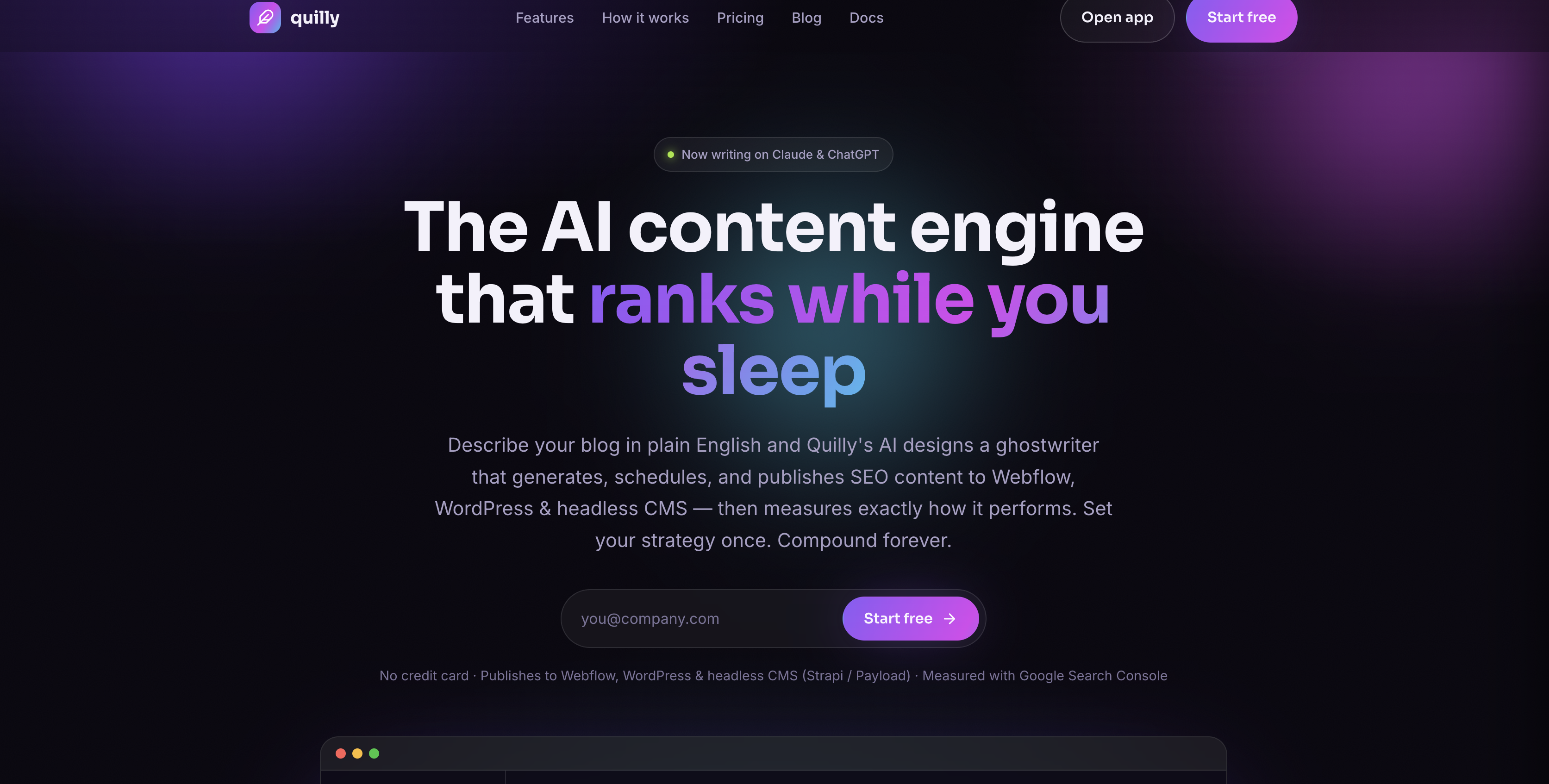
Teams reach for Quilly once the Webflow site is finished and the blog needs a steady publishing cadence. Quilly's docs suggest starting in review-first mode to tune the voice, then switching to auto-publish once the drafts read right. The same account can audit the live site for on-page gaps and generate long-tail programmatic pages.
Four methods cover the integration, and each section below walks through one:
- Quilly app: The Marketplace app handles OAuth authorization, ghostwriter setup and scheduled CMS publishing without writing code.
- Claude connector: Quilly's remote MCP connector publishes one-off posts from a Claude chat.
- Code Embed elements: A Code Embed on the Collection page template renders Quilly's JSON-LD.
- Webflow Data API and webhooks: Server-side code controls what happens after Quilly creates or publishes an item, and this path requires development work.
Start with the app, because the other methods depend on a Quilly account that is already connected to your site.
Install the Quilly app
The Quilly app on the Webflow Marketplace, published by Spaceboat under the listing slug ghostwriter, connects your site to Quilly through OAuth. OAuth handles access, so you don't need to create an API token. After you authorize, you set up ghostwriters inside Quilly. Each ghostwriter targets one Collection, and Quilly detects that Collection's fields automatically, so you do no manual field mapping. The other methods in this guide assume Quilly is connected to your Webflow site.
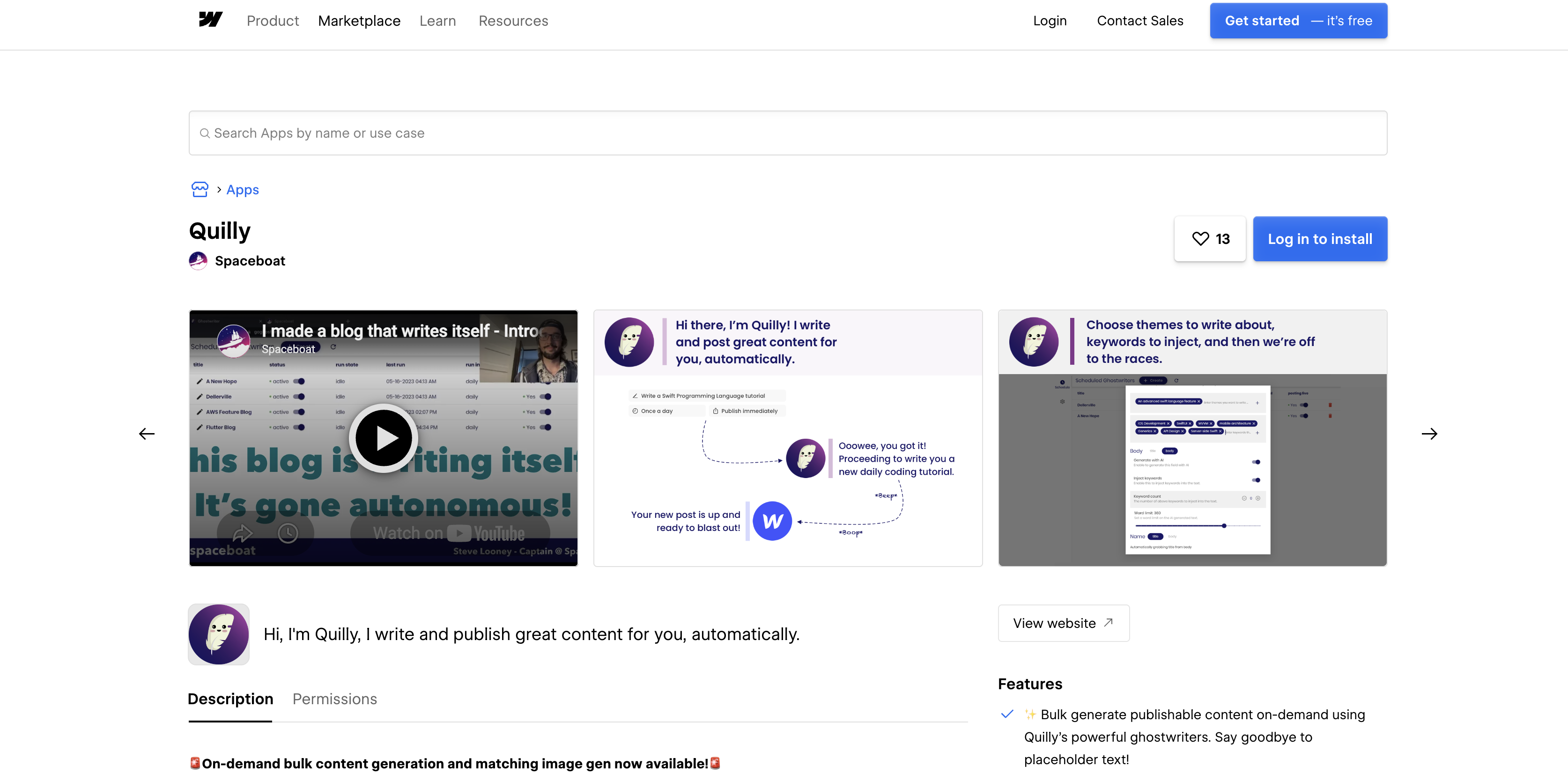
To set up the integration:
- Open the Quilly listing on the Webflow Marketplace and click Log in to install, or Add to site once you are signed in. Or open the Apps panel in Webflow, search for Quilly and click Install on site.
- Select the site or Workspace, then click Authorize app. This grants the CMS, asset and site permissions the listing shows.
- In Quilly, go to Settings > Integrations and connect Webflow if it is not already listed. Optionally connect Google Search Console for performance data.
- Go to Ghostwriters > New writer, pick the target Collection and describe the blog in plain English.
- Review the proposed plan, choose review-first or auto-publish, and generate the first drafts.
After these steps, the Webflow connection and first drafts are ready.
Quilly's docs list the fields a ghostwriter fills: body, meta title, meta description, summaries and images, with images uploaded as Webflow assets. Preview the first drafts in the calendar to confirm each value landed in the field you expected. Structured data is the one field that needs template work on the Webflow side.
The Marketplace listing and Quilly's docs describe these app features:
- Bulk generation: Generate publish-ready posts on demand, with matching images.
- Scheduled publishing: Schedule automated CMS posts at a daily, weekly, twice-weekly or monthly cadence, among others.
- Keyword targeting: Add target keywords and get meta titles and descriptions written for each post.
- Languages: Use the app in English, Spanish, French, German or Russian, the languages the listing shows.
The listing copy predates the June 2026 relaunch, so treat Quilly's docs as the current reference where the two differ.
Publish posts from Claude with the Quilly connector
Quilly's Claude connector adds Quilly as a custom connector in Claude. You write a post in chat and publish it to your Webflow Collection. Claude reads your connected destinations and brand voice from Quilly and saves drafts there. It publishes only after you confirm. Quilly retains your Webflow credentials and makes the publish call on your behalf; Claude does not receive them.
Claude supports custom connectors on its Free, Pro, Max, Team and Enterprise plans, with Free accounts limited to one, per Anthropic's connector guide.
To publish from Claude:
- In Claude, add a custom connector with the URL
https://constellation.spaceboat.space/ghostwriter/mcp. - Sign in to Quilly when prompted and review the requested permissions. Publishing to your live site is a separate permission you can withhold.
- If Quilly has no CMS connected yet, open the Quilly app and connect Webflow under Onboarding > Connect.
- Ask Claude for a post, iterate on the draft in chat, and tell it to publish to Webflow.
Reading destinations and brand voice works on any Quilly account. Creating drafts and publishing require an active Quilly subscription or trial. Claude cannot change account settings or edit ghostwriters, and the connector cannot delete a published post.
Render Quilly's JSON-LD with Code Embed elements
Quilly writes its schema output to a Plain text field that you bind inside a Code Embed element on the Collection page template, per Quilly's docs. Without that binding, crawlers never see Quilly's structured data. No site-wide snippet is required, so you add nothing to your site's head or body custom code. Code Embed elements need a Core, Growth, Agency or Freelancer Workspace, or an active Site plan.
Bind the JSON-LD field to a Code Embed element
Quilly's schema builder assembles an @graph (one JSON-LD block holding several linked schema nodes). The @graph includes Organization and Article nodes, plus a FAQ node on Q&A pages. Quilly stores the result as plain text on the item. Crawlers only see it once a Code Embed on the template outputs that field inside a script tag.
To render the markup:
- In the CMS tab, open the Collection settings and add a Plain text field for Quilly's JSON-LD.
- Open the Collection page template and add a Code Embed element from the Add panel.
- Inside the embed, write a
<script type="application/ld+json">tag and bind the Plain text field as its content. Check the field contents in Quilly first. If the field already includes the script tag, bind it without wrapping. - Save and close the code editor, then publish the site. Embedded code renders in preview, but its effects go live only after you publish.
Each Code Embed element holds up to 50,000 characters, which is ample for a per-page @graph. It runs HTML, CSS and JavaScript, not server-side languages.
Build custom workflows with the Webflow Data API
Quilly's docs describe no public REST API, so the following custom workflows use the Webflow Data API and webhooks to control what happens after a Quilly item lands in a Collection. You can post to Slack when an article goes live or mirror posts to a second system. This path requires server-side development.
Webhook registration requires a Data Client App bearer token. A site token can handle item reads and writes.
Every request carries a bearer token in the Authorization header. Item writes need the cms:write scope listed on the scopes reference. Use List Collections to find the ID of the Collection your ghostwriter targets.
Listen for Quilly-published items with a webhook
A collection_item_published webhook fires when a Collection item is published, including each Quilly post that goes live. The event reference lists collectionId, isDraft and fieldData in the payload. New items fire collection_item_created, so you can also react when Quilly first writes an item. Registration is site-wide, so your handler filters on the Quilly target Collection.
To set it up:
- Create a Data Client App with the
sites:writescope for registration andcms:readfor the event. - Register the webhook with Create Webhook:
POST https://api.webflow.com/v2/sites/{site_id}/webhooks
Authorization: Bearer <token>
Content-Type: application/json

{
  "triggerType": "collection_item_published",
  "url": "https://example.com/hooks/webflow"
}- Verify each delivery before acting on it, following the webhook signature guide:
const crypto = require("crypto");

function isValidWebhook(rawBody, headers, secret) {
  const timestamp = headers["x-webflow-timestamp"];
  const signature = headers["x-webflow-signature"];
  if (!timestamp || !signature) return false;

  // Reject deliveries whose timestamp is more than 5 minutes old.
  if (Math.abs(Date.now() - Number(timestamp)) > 5 * 60 * 1000) return false;

  const expected = crypto
    .createHmac("sha256", secret)
    .update(`${timestamp}:${rawBody}`)
    .digest("hex");

  const expectedBuf = Buffer.from(expected, "hex");
  const signatureBuf = Buffer.from(signature, "hex");
  if (expectedBuf.length !== signatureBuf.length) return false;

  return crypto.timingSafeEqual(expectedBuf, signatureBuf);
}
Use your Data Client App's client secret as secret.
- In the handler, ignore events whose
collectionIddiffers from the Quilly Collection, then readfieldData.
The filter object only applies to form_submission events, so Collection filtering stays in your code.
Publish Quilly's draft items from your own tooling
Quilly's docs say a programmatic SEO run publishes its pages as drafts for review. Review-first ghostwriters work differently: approval happens in Quilly's calendar, and the Claude connector saves its drafts in Quilly rather than in Webflow. If your approvals happen outside Quilly, the staged item endpoints let you publish any Quilly item that sits in your Collection as a draft.
To publish approved drafts:
- List staged items with
GET https://api.webflow.com/v2/collections/{collection_id}/itemsand select entries whereisDraftistrue(List Items). - Optionally apply field edits with
PATCH /v2/collections/{collection_id}/items(Update Items). - Publish the approved item IDs with
POST /v2/collections/{collection_id}/items/publish(Publish Items). Publishing a draft item setsisDrafttofalseautomatically, so no separate update is needed. - To take a post down later, call
DELETE /v2/collections/{collection_id}/items/{item_id}/live. SettingisDrafttotrueno longer unpublishes a live item. That behavior changed on July 7, 2025 (Webflow API changelog).
Quilly's docs don't state which Webflow endpoints it calls or how it batches large programmatic runs. Treat your own calls as a separate client sharing the same site.
What you can build with the Quilly Webflow integration
These builds pair a Quilly ghostwriter or campaign with standard Webflow CMS features:
- Scheduled blog publishing: A daily ghostwriter targets the Blog Posts Collection and ships body, hero image, meta title and description. Each post renders through the Collection page template. A Collection List on the blog index shows new items as they publish.
- Programmatic location and service pages: Describe a goal that combines a service list with a city list, then preview a few generated pages. The full run then publishes hundreds of long-tail drafts into a Collection you set aside for them. A run that size needs a Premium Site plan or above, since Starter caps a site at 50 CMS items and Basic includes no CMS (Webflow pricing).
- Site-wide on-page SEO cleanup: Quilly crawls the live site and scores each page. It then generates AI fixes for missing alt text and meta tags, which you review before applying. Schema fixes render through the Code Embed binding above.
- Chat-written posts for an agency client site: An agency using Quilly's white-label option drafts a one-off announcement in Claude and iterates on it. It then publishes straight into the client's Webflow Collection.
Before you script your own calls around Quilly's items, start with our CMS API guide. To manage the rest of the site from the same Claude chat, connect Webflow's MCP server.
Frequently asked questions
Install the Quilly app from the Webflow Marketplace and authorize it through OAuth, then set up ghostwriters in Quilly. The app requests read and write access to CMS data, assets and site information. Created the Quilly account first? Go to Settings > Integrations in Quilly to connect Webflow from inside the app.
Only if you choose auto-publish for that writer. Review-first mode holds every post as a draft until you approve it in Quilly's calendar, and you can switch a writer between modes at any time. Quilly labels review-first as best for high-stakes content and suggests starting there before trusting a writer with auto-publish. A programmatic SEO run publishes its pages as drafts. Quilly's Claude connector also waits for your confirmation before it publishes.
No. Quilly publishes server-side through the Webflow Data API and documents no site-wide snippet. Your site's head and body custom code stays untouched (see the custom code guide). The JSON-LD binding is the only template work, and it lives in a Code Embed on the Collection page template.
Not necessarily. Quilly detects your Collection's fields automatically and fills the ones its docs list: body, meta title, meta description, summaries and images. Its docs do not cover other field types such as references or multi-image fields, so check a preview draft before you rely on them. The JSON-LD field also needs a Code Embed binding on the Collection page template.
The app requests read and write access to CMS data, assets and sites, which covers publishing. It also requests read access to the authorizing user, plus the
users:readscope, which belongs to Webflow User Accounts, a feature Webflow disabled on January 29, 2026. The full list is on the Marketplace listing under Permissions. To revoke a site authorization, go to Site settings > Apps & integrations and click Revoke. For a Workspace-level install, go to Workspace settings > Apps & integrations and click Uninstall app (see Webflow Apps overview).
Description
Connecting Quilly with Webflow lets AI ghostwriters write and publish complete posts into your CMS Collections on a schedule. Install the Quilly app from the Marketplace and authorize it with OAuth to start.
This integration page is provided for informational and convenience purposes only.

Ordinal
Connect Ordinal with Webflow to schedule CMS collection items and their social promotion from one calendar.

BlogSEO AI
Connect BlogSEO AI, an AI content platform that generates and publishes SEO articles, with Webflow to auto-publish keyword-targeted posts directly to the CMS.

Goaffpro Affiliate Marketing
Connect Goaffpro with Webflow to track affiliate sales, manage commissions, and build custom branded affiliate portals on your site.

Hypotenuse AI
Connect Hypotenuse AI with Webflow to publish AI-drafted blog articles directly into a CMS Collection.

Ranktune (Formerly Krastie AI)
Connect Ranktune (formerly Krastie AI) to Webflow to publish approved articles into Webflow CMS Collections and track AI referrals with a site script.

Hipa.ai
Hipa.ai's Webflow app is still listed, but the vendor rebuilt hipa.ai as a different business. Here is how to check your site and what to run instead.

Octopus.do
Plan and approve your site architecture in Octopus.do before you build the first page in Webflow.

LandingRabbit
Draft landing pages in LandingRabbit from notes and decks, then create and publish them on your Webflow site with the Webflow MCP server.
Text Wizard AI
Connect Text Wizard AI by Modulify with Webflow to add AI-powered text processing capabilities directly in the Webflow Designer through a marketplace app.
Related integrations
Get started for free
Try Webflow for as long as you like with our free Starter plan. Purchase a paid Site plan to publish, host, and unlock additional features.
