






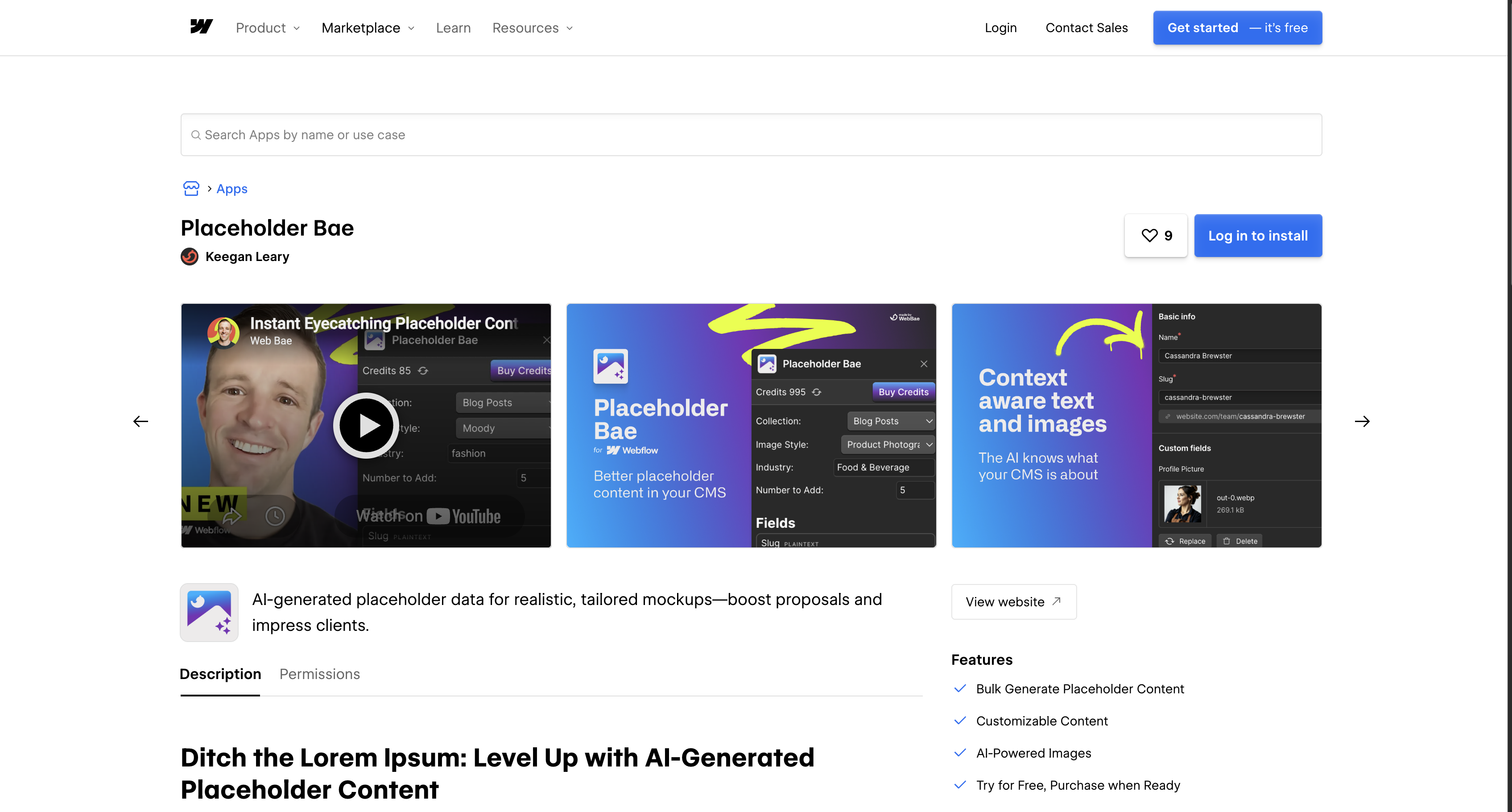
Placeholder Bae
Connect Placeholder Bae with Webflow to fill entire CMS collections with AI-generated placeholder text and matching images while you design.

Every CMS-driven layout needs content before you can judge it. Lorem ipsum and stock photos can conceal unstyled rich-text elements until real content arrives, while also hiding spacing and line-break problems. Hand-typing dozens of fake items into the Webflow CMS slows the build, and the result still reads as filler in client reviews.
Placeholder Bae generates AI placeholder content directly inside Webflow. The app reads your collection structure, then writes context-aware text and images into every supported field type in one operation. A blog collection gets rich-text posts with titles and matching images instead of repeated dummy strings.
It requires no code, so Webflow developers and no-code builders can both run it. The payoff is largest on a client prototype with a deadline, where a populated mockup lets the client react to the design rather than to the filler.
How to integrate Placeholder Bae with Webflow
What is Placeholder Bae? Placeholder Bae is a Webflow Marketplace app that generates AI placeholder content for CMS collections. It replaces lorem ipsum and generic stock imagery with content matched to your project type and CMS field names. Its listing is published by Keegan Leary, gives support at the Web Bae domain, and carries Approved by Webflow status, a review badge Webflow grants without endorsing or certifying the app. It is one of several standalone Web Bae apps, alongside Section Divider Bae and Asset Bae, and each one installs on its own.
Before you install it, be clear about what Webflow now does natively, because that changed the case for this app. Webflow AI generates sample CMS Collection items in bulk: open an empty Collection in the CMS panel, click Generate sample items, choose 5, 10, or 20, add an optional prompt, and the items land with Queued to publish status. An agent connected to Webflow's MCP server goes further, writing items into a Collection that already holds content, at whatever count you ask for. Neither route is a paid add-on, and AI credits now ship with every Workspace plan.
Two gaps survive that, and they are the reason to still install Placeholder Bae. Webflow AI does not generate content for image, option, and reference fields, so a mockup arrives with the copy written and the imagery still empty. Its bulk path also only appears on a Collection with nothing in it. Placeholder Bae generates matched imagery alongside the text and runs against collections that already hold items. If your prototype is text-only and the Collection is empty, use what Webflow ships and skip the install.
That gives you three routes, and most builds touch two of them. Webflow AI and the MCP server generate CMS items natively, with no app and no code. The Placeholder Bae app adds field-aware imagery and industry templates from the Apps panel inside Webflow. The Webflow Data API independently manages whatever landed in the CMS afterwards, including publishing and cleanup, but it needs server-side development.
Generate CMS items with Webflow AI or an agent
Webflow's own generation covers the common case at no extra cost, so try it before you reach for an app. Two routes exist and they suit different moments.
To generate sample items in bulk with Webflow AI:
- Confirm Webflow AI is enabled for your Workspace in Workspace settings > General.
- Open the CMS panel and click the empty Collection you want to populate.
- Click Generate sample items and choose 5 items, 10 items, or 20 items.
- Enter an optional prompt describing the items, then click Generate.
Generated items arrive queued to publish, and image, option, and reference fields receive placeholder data rather than generated content. This path needs a Site plan that includes the CMS, and it appears only while the Collection is empty.
For a Collection that already holds items, connect an agent to the MCP server instead. Its CMS tools include create_collection_items, which writes new items as drafts from field data the agent composes, so the model doing the writing is the one you already work with. Two documented limits apply: each authorization covers a single workspace, and the server cannot create new localized CMS items.
Install the Placeholder Bae app
The Placeholder Bae app runs inside Webflow and bulk-populates CMS collections with AI-generated content. Installation takes a few clicks from the Marketplace, and you need the Site manager or Designer role to install or uninstall apps on a site. The app is the entire integration surface, so it installs without a Code Embed or an external script.
To set up the integration:
- Open the Placeholder Bae listing in the Webflow Marketplace and click Add to site.
- Select the Workspaces and sites that should get the app, then click Authorize application.
- In Webflow, press
Eto open the Apps panel and launch Placeholder Bae. - Follow the app's instructions to select a collection and run generation.
Once installed, the app can:
- Fill a whole collection at once: Generation covers every supported CMS field type in a single operation, text and images together.
- Read what each field wants: A name field gets a name and a description field gets a description, without you mapping anything by hand.
- Apply an industry template: Templates cover e-commerce, SaaS, and real estate projects, which shifts the vocabulary of the generated copy.
- Generate matched imagery: Preset image styles produce visuals that follow the generated content instead of unrelated stock photos.
- Exercise rich-text styling: Rich-text fields come back with callouts, links, bold, italics, and both ordered and unordered lists, which surfaces unstyled elements early.
That last one is the quiet reason to run generation even on a build you could fill by hand: a rich-text field only reveals its unstyled children once something is inside it.
The app requests five permissions at install, including read and write CMS data. Review or revoke access from Workspace settings > Integrations > Authorized applications. Revoking does not remove the items it already created, so clear generated content before launch rather than relying on uninstalling the app.
Optional: manage resulting CMS items with the Webflow Data API
Placeholder Bae publishes no public API, webhooks, or REST endpoints of its own, and its Marketplace app is its only documented connection method. Its listed capabilities cover site data access and a Designer workflow, which is how it writes content into the CMS from inside Webflow. After generation, you can call the Webflow Data API against those items yourself by placing the collection ID in each endpoint path. This workflow cannot invoke Placeholder Bae or tell its records apart from any other CMS item, so track generated item IDs or isolate generation to a known collection when cleanup has to be reliable. It requires server-side development and bearer token authentication, and all production endpoints use the base URL https://api.webflow.com/v2/.
Clean up or publish generated items
Placeholder content has to leave the CMS before launch, and staged items need publishing before they appear on the live site. The Data API covers both directions.
To manage generated items:
- Call
GET /v2/sites/{site_id}/collectionsto find your collection ID with the List Collections endpoint. - Call
GET /v2/collections/{collection_id}/itemsto list staged items, paginated at a maximum of 100 records per request. - Bulk-update up to 100 items with
PATCH /v2/collections/{collection_id}/items, or clear tracked placeholders withDELETE /v2/collections/{collection_id}/items. - Push staged items live with
POST /v2/collections/{collection_id}/items/publishvia the publish endpoint.
Read operations require the cms:read scope and writes require cms:write; the scopes reference lists both.
React to new items with webhooks
The collection_item_created trigger fires when a new collection item is created, which suits developers who already run a server endpoint they control. Register a site-level webhook, then inspect collectionId to log generation runs, notify your team, or start a downstream sync. Because the collection ID does not identify which app created an item, use a generation-only collection or separately tracked item IDs when attribution matters.
To set up the webhook:
- Register it with
POST /v2/sites/{site_id}/webhooksand the body{"triggerType": "collection_item_created", "url": "https://your-url.com"}using the Create Webhook endpoint. - Concatenate
x-webflow-timestamp + ":" + JSON.stringify(body), compute its HMAC-SHA256 with your client secret, and securely compare it with thex-webflow-signatureheader. Reject timestamps older than 5 minutes. - Return HTTP
200. Failed deliveries retry before the webhook deactivates.
Create webhooks through the API rather than the dashboard. Dashboard-created webhooks omit the request headers needed for signature validation, per the webhooks guide.
What you can build with the Placeholder Bae Webflow integration
Integrating Placeholder Bae with Webflow gets you high-fidelity CMS-driven mockups without hand-typing filler items or hunting for stock images. These are the cases where generated imagery earns the install over Webflow's native text generation.
- E-commerce store prototypes: Fill a product collection with realistic names, descriptions, and product imagery, then demo a full store layout before any inventory data exists.
- SaaS blog and marketing mockups: Generate rich-text posts carrying callouts, links, and lists so every rich-text style in the template gets exercised before real articles arrive.
- Real estate listing demos: Populate a listings collection from the real estate template and present a working listings page inside a client proposal.
- Multi-collection pitch prototypes: Populate collections one at a time, starting with team bios and case studies before filling testimonials, so a prospect walks through a prototype with nothing left blank.
Each of those ends the same way: the placeholder content has to come out again before launch, which is the part worth scripting rather than clicking. To build that side yourself, start with the Webflow CMS API.
If you would rather not maintain that script, hand the job to the agent you already use and let it create, audit, and clear CMS items in the same conversation where you are building the site. Connect the MCP server and give it your Collection to work on.
Frequently asked questions
Placeholder Bae requests five permissions at install. They cover read and write CMS data, read access to site data and publishing, read access to Workspace resources, read access to App subscriptions, and read access to information about authorized users. To revoke a Workspace authorization, go to Workspace settings > Integrations > Authorized applications and click Revoke next to the app, as the Marketplace overview documents. Removing the authorization from a Workspace removes it from every site in that Workspace, and revoking from a single site starts from that site's own Integrations tab instead.
Yes. Generated items sit in the CMS as content you can edit or remove before you publish, so nothing reaches the live site until you push it there. Clear tracked items with the bulk delete endpoint at
DELETE /v2/collections/{collection_id}/items. That call, like every other write in this workflow, needs thecms:writescope.Two ceilings decide how far a generation run gets. A collection schema supports a maximum of 60 fields, and your Site plan caps how many CMS items a site can hold: the free Starter plan allows 50 CMS items across 20 Collections, while Premium allows 20,000 items across 40 Collections, per Webflow's plan comparison. Free installs of Placeholder Bae also cap each generation run at 10 items per request, per its Marketplace listing, so a large collection fills across several runs.
Only teammates with the Site manager or Designer role can install or uninstall apps, and Webflow's roles and permissions guide covers what each role can do. If you hold one of them, open the Placeholder Bae listing in the Marketplace, click Add to site, then authorize the app for the Workspaces and sites that should have it.
It does, and that is worth checking before you install anything. Webflow AI populates an empty Collection with 5, 10, or 20 sample items from an optional prompt, and an agent connected to Webflow's MCP server can write items into a Collection that already holds content. Webflow AI does not generate image, option, or reference fields, so it fills the text and leaves the imagery as placeholder data. Matched imagery is the main thing Placeholder Bae still adds.
Description
Field-aware generation writes text and images into every supported CMS field type from the Apps panel, including rich text. Industry templates cover e-commerce, SaaS, and real estate projects.
This integration page is provided for informational and convenience purposes only.
Placeholder-bae
Connect Placeholder Bae with Webflow to fill entire CMS collections with AI-generated placeholder text and images while you design.

HyperSEO
Connect HyperSEO with Webflow to generate SEO blog articles and publish them straight into your site's Webflow CMS as Collection items.

Adaptify Seo

SynqPro
Connect SynqPro with Webflow to score, audit, and improve CMS content for search engines directly inside the Webflow interface.

Robynn AI
Connect Robynn AI to Webflow through a documented chatbot embed and a marketed CMS publishing agent.

Schema Flow
Connect Schema Flow, a no-code app that generates JSON-LD structured data, with Webflow to bind schema to CMS fields and keep rich-result markup current at scale.
FlowScribe
Connect FlowScribe, a programmatic SEO tool, with Webflow to generate and publish hundreds of AI-powered, SEO-ready pages directly to your CMS without coding.
Quilly
Connect Quilly with Webflow to automate AI-powered content creation and publishing directly to your CMS collections.
AutoLink
Connect AutoLink AI with Webflow to automate internal linking across your site.
Related integrations
Get started for free
Try Webflow for as long as you like with our free Starter plan. Purchase a paid Site plan to publish, host, and unlock additional features.
