






Mollie
Accept iDEAL, Bancontact, SEPA Direct Debit, and card payments on a Webflow site with Mollie Payment Links, Zapier automations, or the Mollie API.

Connect Mollie with Webflow to accept iDEAL, Bancontact, SEPA Direct Debit, and card payments through buttons, forms, and CMS-driven pages.
Webflow Ecommerce supports two payment providers, Stripe and PayPal, and its checkout doesn't offer iDEAL, Bancontact, or SEPA Direct Debit. That gap hurts most in the Benelux. Mollie's payment methods guide reports that two-thirds of Dutch consumers prefer iDEAL and 73% of Belgian consumers prefer Bancontact. Webflow Ecommerce has no Mollie gateway, so Mollie always runs beside the native checkout rather than inside it.
Connecting Mollie to a Webflow site adds those methods while keeping the storefront on the same platform. A Mollie Payment Link on a Webflow button opens a hosted checkout with no code. Zapier turns Webflow form submissions into Mollie payments or payment links. With a server in between, the Mollie and Webflow Data APIs write paid status back into the Webflow CMS so pages update after each payment.
Webflow designers and agencies can use this integration for clients who sell to European customers. The no-code paths support nonprofit donations and sports-club membership fees. Event organizers can use them to sell tickets. Developers building a subscription product behind a Webflow marketing site need the API path.
How to integrate Mollie with Webflow
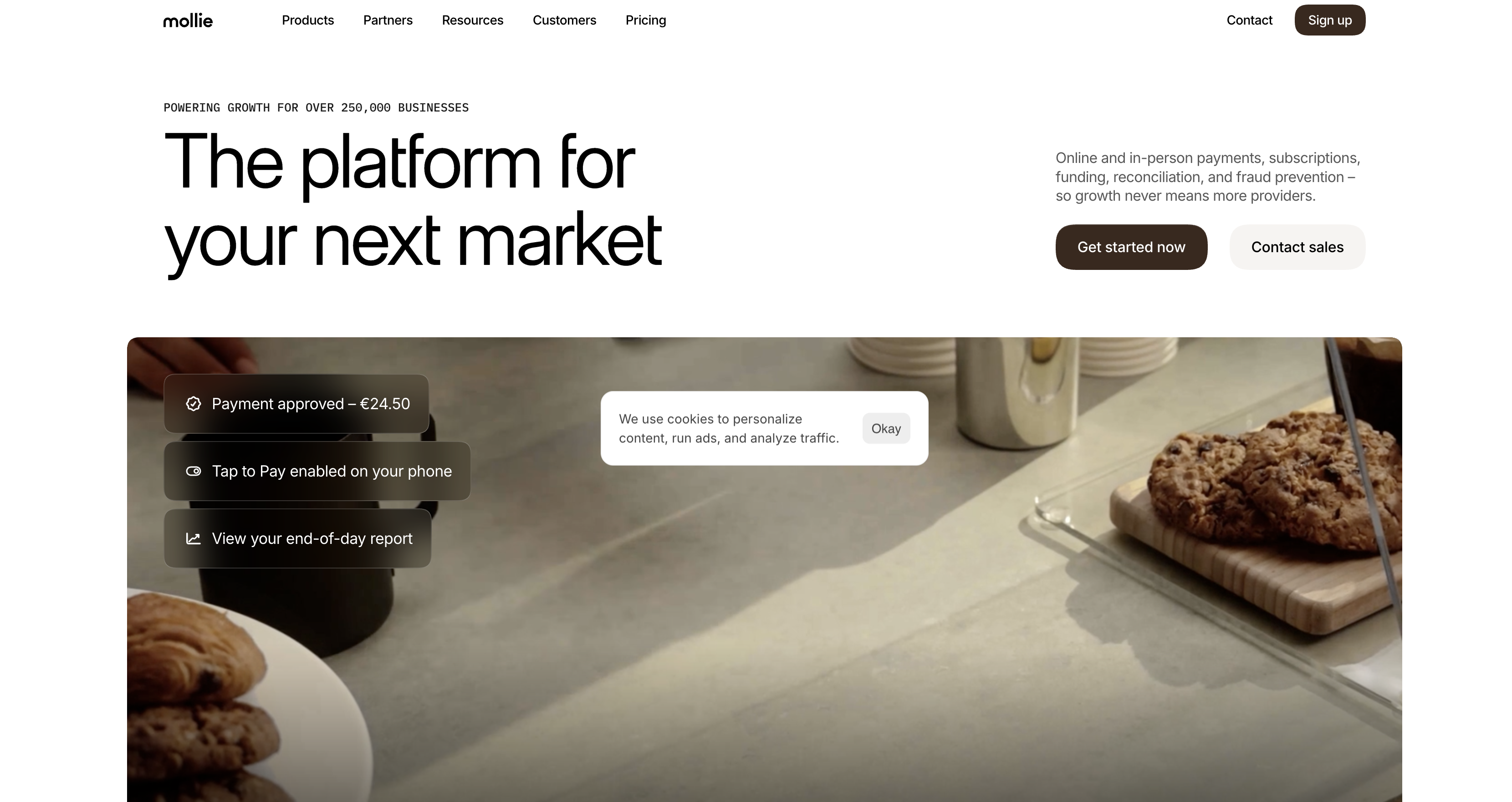
What is Mollie? Mollie is a European payment service provider. Its company page states that Mollie B.V. is licensed as an electronic money institution by the Dutch Central Bank and that Mollie UK Ltd is registered with the Financial Conduct Authority as a payment institution. The same page says Mollie serves more than 250,000 businesses across Europe. Merchants accept payments through a hosted checkout, Mollie Components, Payment Links, and recurring mandates, with methods that include iDEAL, Bancontact, SEPA Direct Debit, cards, Apple Pay, Google Pay, PayPal, and Klarna.
Teams pair Mollie with Webflow when European customers expect local payment methods at checkout. Webflow's help center confirms that iDEAL isn't supported in Webflow Ecommerce, even with Stripe connected, so a Dutch store needs a second processor for its most common method. Mollie also covers jobs outside a product catalog, such as donation buttons and SEPA mandates for club fees. Mollie offers accounts to companies based in the EEA, Switzerland, or the UK, and its country eligibility article says sign-up requires an IBAN or a UK bank account.
- Mollie Payment Links and hosted carts handle one-off checkout from a Webflow button or an embedded Snipcart or Foxy cart without writing your own code.
- Zapier, Make, and n8n let you create Mollie payments or payment links from Webflow form submissions and log Mollie events in the CMS.
- The Webflow and Mollie APIs give you full control over hosted checkout, subscriptions, and payment-status sync, but require server-side development.
Most implementations combine two or more of these methods depending on the complexity of the setup.
Add Mollie Payment Links and hosted carts to Webflow pages
A button can send customers directly to Mollie's hosted checkout through a URL created in the Mollie Dashboard. This route works on any Site plan through a plain link; Mollie hosts checkout and removes the need for a Webflow Ecommerce plan, custom code, or a server. Mollie's Payment Links documentation and no-code integration overview cover the Dashboard side. For multi-product baskets, Snipcart and Foxy extend the same idea by running a hosted cart that settles through Mollie.
Link a Webflow button to a Mollie Payment Link
A Payment Link fits a fixed price, such as a ticket or a course seat, or, when you create the link through the API, an open amount the customer types in. Mollie's Help Center article on creating a payment link covers the creation flow. Once the customer opens the link, Mollie redirects them to a checkout page. Mollie creates the underlying payment only when the customer starts paying.
To connect a Payment Link to a Webflow button:
- In the Mollie Web App, click Browse > Payment links, then Create.
- Choose the currency and enter the amount.
- Add a description, then set an optional expiry date and a redirect URL pointing to a Webflow thank-you page.
- Click Create and copy the generated URL, or download the QR code.
- In Webflow, select the button and open Element settings > Link settings. Choose the URL option and paste the link, as described in the Link settings article.
- Publish the site.
Payment links support these options, and the API exposes all of them:
- Amount: Set a fixed amount, or omit
amountin the API so the customer enters one, optionally above aminimumAmount. - Reuse: A link accepts a single payment by default, and setting
reusablelets several customers pay through the same link. - Expiry: An expiry date is optional, and a link created without one does not expire on its own.
- Redirect URL: The redirect URL returns the customer to your Webflow site after payment; without one, Mollie shows a generic message.
- QR code: Each link comes with a QR code you can place as an image on a Webflow page or a printed flyer.
Payment links created in the Dashboard exclude Klarna. The Payment Links API accepts klarna in allowedMethods, but Klarna then requires order lines and a billingAddress on the link.
Embed a Snipcart or Foxy cart with Mollie as the gateway
When customers buy several items at once, a hosted cart replaces individual Payment Links. Snipcart lists Mollie among its supported gateways next to Stripe, PayPal, Braintree, Square, and Authorize.net. Its release notes record support for the latest Mollie payment methods as of July 2, 2025. Foxy publishes a Mollie setup page, and Webflow's iDEAL article names Foxy as one way to offer iDEAL on a Webflow site. Both vendors run the server-side Mollie calls, so the Webflow site stays static.
To install Snipcart with Mollie on a Webflow site:
- Create a Snipcart account and select Mollie in the payment gateway settings of the Snipcart dashboard.
- In Webflow, go to Site settings > Custom code and paste the Snipcart script into the Footer code section, as described in Webflow's guide to head and body code. Each section holds up to 50,000 characters, and site-wide custom code needs an active Site plan or a Core, Growth, Agency, or Freelancer Workspace.
- Add Snipcart buy buttons to your product pages and publish. Snipcart's Webflow guide shows how to build the products from CMS Collections. Leave Webflow Ecommerce disabled, since Webflow advises against enabling it alongside a third-party cart.
Foxy's Mollie integration doesn't support subscriptions, so recurring billing through Mollie requires the API route below. Ecwid also connects to Mollie for iDEAL, Bancontact, SEPA, and cards, according to its Mollie setup article, and installs its storefront through a Code Embed element on a paid Webflow plan. Mollie Components can render card fields inside a Code Embed too. But the cardToken they produce must reach a server that calls Mollie's API, and a Code Embed runs HTML, CSS, and JavaScript only.
Connect Webflow and Mollie with Zapier, Make, or n8n
Zapier publishes ready-made Webflow and Mollie templates. The most useful one creates a Mollie payment link for each new Webflow form submission. Zapier is listed as a Webflow Marketplace app, and Mollie lists both Zapier and Make in its automations directory. On the n8n side, the Mollie node is built and maintained by Mollie and verified by n8n.
To build the form-to-payment-link Zap:
- Add a form to a Webflow page with fields for name, email, and amount, then publish and submit it once. Webflow's Zapier article notes that a form needs at least one submission before Zapier can connect to it.
- Open the template in Zapier, connect your Webflow account, and pick the site and form.
- Connect Mollie and map the form's amount and description fields to the Create Payment Link action.
- Pass the returned link URL to any later step, such as an email to the submitter, then test and turn on the Zap.
These Webflow and Mollie pairings are available today:
- Form to payment: Webflow New Form Submission → Mollie Create Payment Link or Create Payment, both available as Zapier templates.
- Order to payment: Webflow New Order → Mollie Create Payment is also a Zapier template, but a Webflow order has already been charged through Stripe or PayPal at checkout, so this template requests a second payment rather than replacing checkout.
- Payment log: Mollie New Payment → Webflow Create Item or Create Live Item records each new payment in a CMS collection, using a custom Zap built from Zapier's Mollie triggers. The trigger fires when a payment is created, so the record starts out unpaid.
- Make scenarios: Make's Webflow Watch Events trigger can feed Mollie Create a Payment, Create Customer, Create Mandate, or Create Subscription from its Mollie modules.
- n8n workflows: The n8n Webflow Trigger on Form Submission can feed Mollie Payment: Create or Payment Link: Create.
Zapier's Mollie triggers, such as New Payment, New Refund, New Payment Chargeback, and New Settlement, fire when Mollie creates a record, and none of them fires when a payment changes status. For paid status in the CMS, use the webhook flow in the API section below. Make and n8n each offer both connectors, and you assemble those scenarios module by module.
Build with the Webflow and Mollie APIs
A custom integration gives you hosted checkout from any Webflow page, subscriptions backed by SEPA mandates, and payment status written into CMS items. It requires a server or a serverless function. Mollie's Components guide warns that your API key is private and should never be used in a browser context. A server or serverless function must receive the webhook Mollie sends when a payment changes. Mollie's API lives at https://api.mollie.com/v2 and authenticates with a test_ or live_ API key, or with OAuth for apps acting on behalf of other merchants. Mollie also advises using OAuth rather than API keys for third-party integrations. The Webflow Data API lives at https://api.webflow.com/v2 and takes a bearer token in the Authorization header. Use the Payments API for new work, since Mollie has deprecated the Orders API.
These APIs cover the integration:
- Mollie Payments API handles one-off payments and returns the hosted checkout URL in
_links.checkout - Mollie Payment Links API creates fixed or open-amount links programmatically
- Mollie Customers, Mandates, and Subscriptions APIs handle recurring billing, as the recurring payments guide explains
- Mollie webhooks notify your server when a payment's status changes
- Webflow's Data API handles CMS collection items and form submissions
- Webflow webhooks trigger real-time events such as
form_submissionandecomm_new_order
You can create up to five site tokens per Webflow site, and each expires after 365 consecutive days of inactivity.
Create a Mollie payment from a Webflow form submission
Webflow sends each booking request or event registration to your server through a webhook. Your server creates the payment and delivers the checkout URL to the customer by email. To redirect the customer immediately, the browser must submit directly to the integration server instead of using the asynchronous webhook.
To implement this:
- Register the webhook with
POST https://api.webflow.com/v2/sites/{site_id}/webhooks. SettriggerTypeto"form_submission"and add an optionalfiltersuch as{ "name": "Payment Request Form" }. - Validate each incoming request. Compute HMAC-SHA256 over
timestamp + ":" + JSON.stringify(body), using the webhook's own secret key (returned when you create it with a site token) or your OAuth app's client secret as the key. Compare the result to thex-webflow-signatureheader, and reject anything older than 5 minutes (Working with webhooks). Create webhooks through the API to receive this header; webhooks created in the Webflow dashboard omit it. - Read the form fields from the payload's
dataobject and create the payment withPOST https://api.mollie.com/v2/payments, sending your Mollie API key as a bearer token.
{
  "amount": { "currency": "EUR", "value": "10.00" },
  "description": "Order #12345",
  "redirectUrl": "https://webshop.example.org/order/12345/",
  "webhookUrl": "https://webshop.example.org/payments/webhook/",
  "metadata": { "order_id": 12345 }
}
Store the returned payment id (prefixed tr_) and deliver _links.checkout.href to the customer by email. If the browser submitted directly to the integration server, respond with an HTTP 303 See Other redirect to the checkout URL, as Mollie's payment flow guide recommends.
The amount and description fields are required, and redirectUrl is required for most payments. The amount.value field is a string holding the exact amount, such as "10.00", and amount.currency is a three-character ISO 4217 code.
Sync paid status back to the Webflow CMS
Mollie's webhook carries only the payment ID, never the new status, so a forged call can't mark an order paid. Route that POST to your server, fetch the payment, and update the matching CMS item through the Data API. The live-item endpoint publishes in the same request, so a paid badge or a sold-out flag appears on the page right away.
To sync a payment:
- Accept the form-encoded body
id=tr_5B8cwPMGnU6qLbRvo7qEZoat yourwebhookUrland return200 OKwithin 15 seconds, even for IDs you don't recognize. The URL must be publicly reachable, so Mollie won't acceptlocalhost. - Fetch the payment with
GET https://api.mollie.com/v2/payments/{id}and readstatus. Mollie calls your webhook for most status changes, includingpaid,authorized,canceled,expired, andfailed, plus refund and chargeback events, as its payment status guide explains. - Find the CMS item using the
metadataordescriptionyou stored at creation. - Update and publish in one call with
PATCH https://api.webflow.com/v2/collections/{collection_id}/items/live(scopeCMS:write, up to 100 items per request).
{
  "items": [
    {
      "id": "<cms-item-id>",
      "fieldData": {
        "paid": true,
        "payment-id": "tr_5B8cwPMGnU6qLbRvo7qEZo"
      }
    }
  ]
}
Map Mollie fields to Webflow field types like this:
id→ a Plain Text field such asmollie-payment-idstatus→ an Option field holding the seven status valuesamount.value→ Plain Text, or Number afterparseFloat()paidAtandcreatedAt→ Date/Time fieldssubscriptionIdandcustomerId→ Plain Text fields on membership records
If you prefer a review step, use a staged PATCH /items followed by POST .../items/publish, which returns HTTP 202. If your endpoint returns anything other than 200, Mollie keeps retrying, up to 10 calls in total over 26 hours. You can't retrigger a call yourself, though Mollie's support team can resend one. Redirect with 307 or 308 if you must, because 301 and 302 turn the POST into a GET and drop the payload. Mollie also advises against IP allowlisting; authenticate the webhook by fetching the resource from the API. Mollie's next-gen webhooks can deliver the full event payload signed with an X-Mollie-Signature header, but Mollie recommends classic webhooks for payment-related updates until those event types reach next-gen webhooks.
Bill recurring memberships with Mollie subscriptions
The Subscriptions API handles recurring payments, and Mollie's guide notes that recurring payments can't be set up in the Mollie web app, only through the API or a partner integration. Since User Accounts were removed on January 29, 2026, membership status lives in a CMS collection you update after each charge. The flow is a customer record, a first payment that creates a mandate, a subscription, and one webhook per billing cycle.
To set up a subscription:
- Create the customer with
POST https://api.mollie.com/v2/customersand store thecustomerId(Create customer). - Create the first payment with
POST https://api.mollie.com/v2/paymentsand passcustomerId,sequenceType: "first",amount,description,redirectUrl, andwebhookUrl. Redirect the customer to_links.checkout.href; Mollie creates the mandate automatically once they pay. - Create the subscription with
POST https://api.mollie.com/v2/customers/{customerId}/subscriptions. Setamount,interval(for example"1 month"),startDateinYYYY-MM-DD, andwebhookUrl(Create subscription). - Handle each cycle's webhook as in the previous flow. The fetched payment carries
subscriptionId, which points to the CMS membership record to update. - Cancel with
DELETE https://api.mollie.com/v2/customers/{customerId}/subscriptions/{subscriptionId}; the mandate stays intact (Cancel subscription).
Mollie sends no webhooks for status changes of a subscription itself, so detect a lapsed member from payment-level events. A failed subscription charge may be retried up to 5 times, once a day, and Mollie cancels the subscription once those retries run out. SEPA Direct Debit is Mollie's standard method for euro-denominated recurring collection. Monthly donations are one use case.
What you can build with the Mollie Webflow integration
- Ordering sites with local payment methods: Flowline, which makes a mobile serving table for catering and events, runs its ordering flow on Webflow, with Mollie handling payments behind a React configurator built by agency Monospace. A Snipcart or Foxy cart reaches a similar result without custom development.
- Membership sign-up pages with automated billing: Transport & Logistiek Vlaanderen's Webflow site includes a membership page with pricing logic driven by Make and Mollie, built by Studio Neat on an automated CMS.
- Donation pages with open amounts: A reusable Payment Link created through the API with no fixed
amountlets each donor choose what to give, and its QR code works on printed material alongside the page. A webhook-driven CMS update can feed a running total shown in a Collection List. - Ticket sales and payment requests from forms: A Webflow registration form connected to Zapier produces one Mollie payment link per attendee.
For subscription lifecycles and payment-status sync, the API path uses Mollie webhooks and Webflow CMS updates. To build the CMS side of that sync, work through the CMS API guide.
Frequently asked questions
No. Webflow Ecommerce supports two payment providers, Stripe and PayPal, and Apple Pay, Google Pay, and Microsoft Pay come through the Stripe connection. Mollie runs beside the native checkout through a Payment Link on a button, a Snipcart or Foxy cart, or your own server calling the Mollie API. Zapier also has a template that creates a Mollie payment for each new Webflow order, but that order was already charged through Stripe or PayPal at checkout. Mollie's integrations directory has no Webflow entry.
Direct API implementations use the server-side architecture detailed under "Build with the Webflow and Mollie APIs" and in Mollie's in-app payments guide, which explains why API keys belong on a server. Payment Links, Zapier, and Snipcart or Foxy carts handle the API calls on infrastructure operated by those services. A Code Embed runs HTML, CSS, and JavaScript; server-side languages like PHP, Python, or Ruby require an external server.
Use an intermediary, because a Webflow site can't receive Mollie's webhook itself: a Code Embed and site custom code run only HTML, CSS, and JavaScript in the browser. On your own server, fetch the payment when the webhook arrives and call
PATCH /v2/collections/{collection_id}/items/liveon the Webflow Data API. A staged update throughPATCH /itemsstays invisible on the live site until you publish it. Zapier's Mollie triggers fire when a payment is created, not when it's paid, so they can't carry paid status on their own.Use a
test_API key, or settestmodetotruewhen you authenticate with an OAuth app access token or an advanced access token. According to Mollie's testing reference, "Any payments or other resources you create in test mode are completely isolated from your live mode data." The hosted checkout is replaced by a test screen where you pick the payment status you want to simulate. Webhooks still fire in test mode, so yourwebhookUrlmust be publicly reachable; a tunnel such as ngrok works for local development. Payment methods still pending activation work in test mode but can't be used in live mode. Work through Mollie's go-live checklist next, then swap the Test API key for the Live API key.User Accounts were sunset on January 29, 2026, and all related APIs and webhooks were removed. Gate member content with CMS fields that your server updates after each Mollie payment, or use Outseta or Memberstack for member logins and gated content. Neither Marketplace listing names Mollie as a payment option.
Description
Accept Mollie payments on a Webflow site through Payment Links, automation platforms, or a server-side integration with the Mollie API and the Webflow Data API.
This integration page is provided for informational and convenience purposes only.

Flowstar: Payment Button
Connect Flowstar Payment Button with Webflow to add PayPal-based checkout, donation, and subscription buttons to any page without a full e-commerce store setup.

Form Payments
Connect Form Payments, a Stripe payments app, with Webflow to collect card and wallet payments inside the forms you already build.

Quickbooks
Send Webflow form submissions and Ecommerce orders to QuickBooks Online through Zapier, Make, or n8n, add QuickBooks Buy buttons, or build on both APIs.

Revolut for Business
Connect Revolut for Business with Webflow to accept online payments on your site.
Metamask
Connect MetaMask with Webflow to add wallet authentication, NFT galleries, and token-gated content.
GoCardless
Connect GoCardless with Webflow to collect recurring Direct Debit payments without backend development.

Razorpay
Connect Razorpay with Webflow to accept Indian payment methods like UPI, netbanking, and cards on your site.

Givebutter
Connect Givebutter, an all-in-one fundraising and donor management platform, with Webflow to embed donation forms, goal bars, and signup widgets using Code Embed.

Airwallex
Connect Airwallex, a global payments platform supporting 160+ local methods, with Webflow to accept cross-border payments via hosted checkout, embeds, or APIs.
Related integrations
Get started for free
Try Webflow for as long as you like with our free Starter plan. Purchase a paid Site plan to publish, host, and unlock additional features.
