






Massively AI
Connect Massively AI, an AI customer service platform, with Webflow to add a chatbot that captures leads and answers visitor questions around the clock.

Massively AI turns static pages into a live conversation with MAT, a no-code AI chatbot trained on your existing site content. Once connected, it answers visitor questions 24/7, captures and qualifies leads, and hands off complex inquiries to a human agent.
That means the midnight visitor scanning your pricing page gets an answer, a salon books appointments through chat, and a boutique fields sizing questions before anyone bounces, all without developer time or new infrastructure.
How to integrate Massively AI with Webflow
What is Massively AI? Massively AI is a conversational AI platform for customer service and social commerce. Its website product, MAT by Massively, is a no-code AI chatbot you train on existing business content like website URLs, FAQs, and product pages. MAT handles lead capture, live chat handoff to human agents, and native integrations with Shopify, Webflow, Zendesk, and Zapier.
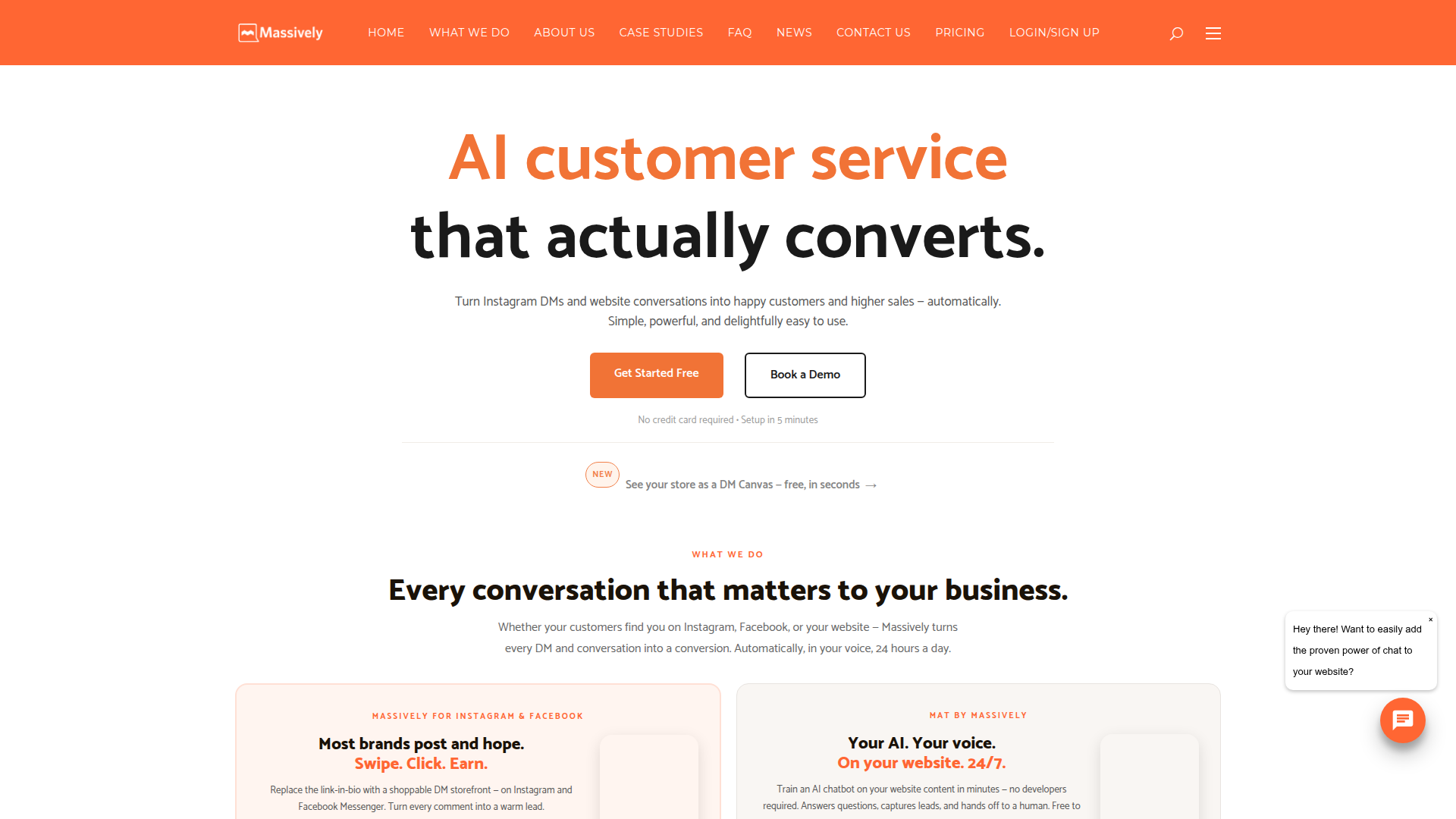
Go for Massively AI when you want a chatbot that works around the clock without adding engineering overhead. A bakery can answer catering inquiries, and a finance firm can qualify leads from the same chat widget running on your site. The bot reads your published content, so answers stay accurate as your site changes.
The Massively AI integration supports three approaches:
- The Massively AI app installs the chatbot from the Marketplace without writing code.
- One-line embed code drops the widget onto your site using custom code fields.
- Zapier routes chatbot and form data between systems; the Data API is available for server-side development, but Massively AI does not publish a public API of its own.
For most sites, start with the Marketplace app unless you need deeper placement control or lead-routing workflows.
Install the Massively AI app
The fastest way to add MAT to your site is the Massively AI app in the Marketplace. Massively AI built and published the app themselves, and it joined the Marketplace on October 16, 2024. After review, it received the "Approved by Webflow" designation. The certification wording reads: "Webflow has reviewed this app to ensure high quality site development. We do not endorse or certify these apps." Setup takes a few clicks with no developer required.
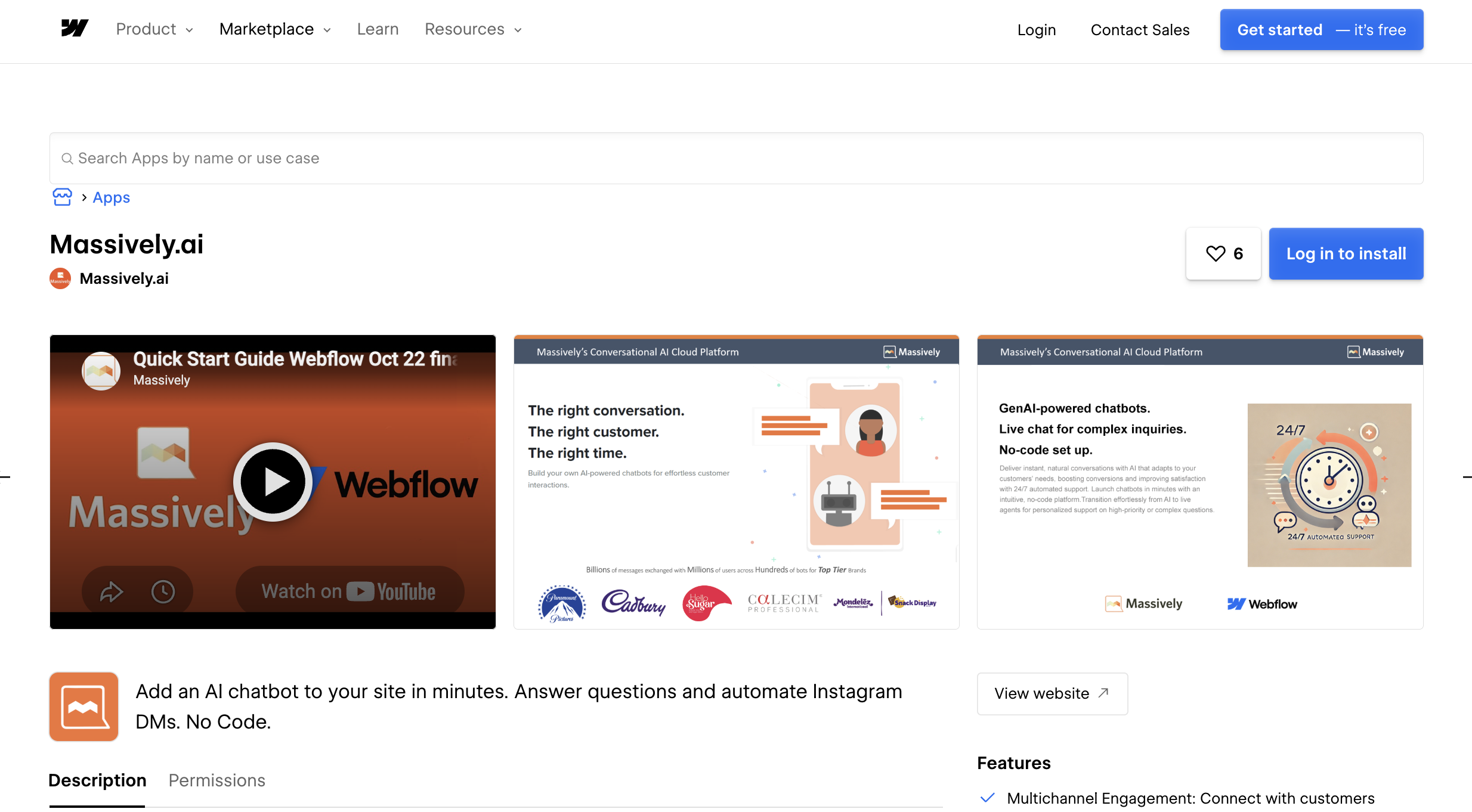
To set up the integration:
- Open the Massively AI listing in the Apps Marketplace.
- Click Install and authorize the app for your site.
- Configure your chatbot in the Massively AI dashboard, then publish your site.
The app supports the core jobs teams reach for most:
- AI chatbot answers visitor questions 24/7, trained on your site content.
- Lead capture collects and qualifies visitors directly on your pages.
- Live chat handoff transfers complex inquiries to a human agent.
You can start on the free plan or move up to a paid tier. GPT-powered AI responses need the Business tier, so factor that in if you want generative answers rather than scripted ones.
Add Massively AI with custom code or a Code Embed element
If you want to place the widget without the Marketplace app, MAT generates one line of embed code you paste into your site. Use this method when you need precise control over where the script loads or you prefer managing the snippet yourself.
To use custom code, you need a paid Site plan or a Core, Growth, Agency, or Freelancer Workspace. The free Starter plan blocks all custom code. Each custom code section holds up to 50,000 characters, far more than a single chatbot snippet needs.
Add the script site-wide
Adding the embed to your site-level custom code loads the chatbot on every page. This suits a support or sales bot you want available everywhere. The setup uses Custom code in head and body tags.
To add the script across your site:
- Open Site settings and click the Custom Code tab.
- Paste the Massively AI snippet into the Footer code section.
- Click Save changes, then publish your site.
Don't include <html>, <head>, or <body> tags in your snippet — they'll break your layout. Paste only the raw script.
Add the script to a single location
When you want the chatbot on one page or a specific spot in the layout, use a Code Embed element. This places the script exactly where you drop it on the canvas. A campaign landing page that needs a chatbot, while the rest of your site stays widget-free, is a good fit.
To add the script to a specific location:
- Open the Add panel and drag a Code Embed element onto the canvas.
- Paste your Massively AI snippet into the element.
- Save and publish the site.
The widget won't render on the canvas or in preview mode. It goes live only after you publish.
Connect with Zapier
Zapier is the one automation platform with a native bridge between MAT by Massively and your site. Massively AI lists Zapier as a supported integration, and the product appears in Zapier's directory as "MAT by Massively."
Use this path to move chatbot and form data into downstream tools without writing code. The official Massively FAQ confirms that through Zapier you can connect to over 7,000 apps including Salesforce, HubSpot, Mailchimp, Google Sheets, and Calendly.
Common flows include:
- Form submission → log the lead in your CRM through Zapier.
- Captured chatbot lead from your site → push to Google Sheets or Mailchimp for follow-up, or record the conversation in Salesforce or HubSpot.
This supplements the Marketplace app by handling lead routing after the chatbot captures a contact.
Build with the Data API and Zapier
Massively AI does not publish a public developer API. Its own pages state that no API configuration is required and that integrations run through one-click setups, embed code, or Zapier. So the programmatic work happens on your side. Take this path when you want to sync CMS content into the chatbot's knowledge base or react to site events in real time. You'll need server-side development and an access token.
The APIs and events you'll work with:
- The Data API handles CMS collections and form data, authenticated with
Authorization: Bearer YOUR_TOKEN. - Webhooks trigger real-time events like form submissions and CMS changes.
Send all requests to https://api.webflow.com. Rate limits apply and vary by plan, so check your account's limits before building high-volume syncs.
Sync CMS knowledge base content
Pulling published FAQ or support content from your CMS lets you feed accurate, current answers into the chatbot. This works well when your knowledge base lives in a Collection List on the front end and a Collection behind it.
To sync CMS content:
- Fetch published items with
GET /v2/collections/{collection_id}/items/live. - Map the
fieldDatavalues to your knowledge base format. - Feed the content into Massively AI through your chosen no-code path.
This grounds the bot's answers in your own content rather than generic responses.
React to site and CMS changes with webhooks
Use webhooks to update the chatbot incrementally as content changes instead of re-fetching everything on every publish. Register an endpoint and a signed payload arrives when events fire.
To set up event-driven updates:
- Register your endpoint with
POST /v2/sites/{site_id}/webhooksand atriggerTypelikesite_publishorcollection_item_changed. - Verify each request using the
x-webflow-signatureandx-webflow-timestampheaders. - Return a
200response and process the payload to update your knowledge base.
The site_publish event delivers siteId, publishedOn, domains, and publishedBy, so you know exactly which site changed and when.
What can you build with the Massively AI Webflow integration?
Pairing Massively AI with your site adds a working conversational layer without hiring a developer or building chat infrastructure.
- 24/7 support bot: Train MAT on your FAQ and product pages so a skincare brand deflects repetitive support tickets automatically. CALECIM® Professional automated 80% of support tickets with under five-second response times.
- Lead capture and qualification: Add a chatbot that collects and qualifies visitor leads on a landing page. eBay Canada qualified 88% of high-intent subscribers through a chatbot on a holiday campaign page.
- Appointment booking: Drop the widget on a service site so a salon books appointments through conversation. Hello Sugar improved its lead-to-booking rate by 24% and cut booking time to under two minutes.
- Product discovery for e-commerce: Run the bot on a boutique site for size guides, product recommendations, and real-time inventory questions. A static catalog becomes a guided shopping experience.
If you need more control over CMS-driven knowledge sync or real-time content updates, the API integration path covers those cases with full flexibility.
Frequently asked questions
No. The Massively AI FAQ states that MAT "is designed to be set up by anyone, no coding required" and that you can have a chatbot live in under five minutes. The dedicated Massively AI Marketplace app installs in a few clicks. If you prefer the embed route, you paste one line of code with no API configuration on the Massively side.
It depends on the method. The manual embed method requires custom code, which needs a paid Site plan or a Core, Growth, Agency, or Freelancer Workspace. Free Starter plans block all custom code.
For every page, paste it into Site settings > Custom Code > Footer code, then save and publish. For a single page, use Page settings and add it before the closing body tag. For an exact spot in the layout, drag a Code Embed element onto the canvas and paste it there.
The most common cause is an unpublished site. Custom code won't go live until you publish, and the widget won't render in Webflow or preview mode. Also confirm you pasted only the raw script without
<html>,<head>, or<body>tags, since those break the layout.Yes, through Zapier. MAT by Massively connects to Zapier, which fully supports Webflow and links to over 7,000 apps. You can log a chatbot interaction in Salesforce or HubSpot, or push a captured lead into Google Sheets or Mailchimp. To build programmatic syncs into the CMS instead, start with Webflow Data API authentication.
Description
Massively AI is a no-code conversational AI platform. Add its chatbot to Webflow to answer visitor questions, capture leads, and hand off to human agents 24/7.
This integration page is provided for informational and convenience purposes only.

Smartarget Countdown Popup
Connect Smartarget Countdown Popup with Webflow to display time-limited offers and event deadlines through JavaScript embed codes.

Flowstar Urgency Countdown Timer
Connect Flowstar Urgency Countdown Timer with Webflow to run deadline-driven campaigns without writing custom JavaScript. The countdown now installs inside Flowstar Sales Booster Widgets.

Announcement Bar
Connect Announcement Bar, Smartarget's no-code message bar widget, with Webflow to change promotional banner copy without republishing the site.

Flowstar Spin Wheel & Gamification
Add Flowstar Spin Wheel & Gamification to Webflow with embed code and run spin-to-win campaigns that turn visitors into subscribers.

Tidio
Connect Tidio, a customer service platform with live chat and AI, with Webflow to add a chat widget, automate visitor responses with the Lyro AI agent, and capture leads through proactive triggers.

Twilio
Connect Twilio with Webflow to add SMS, voice, WhatsApp, and email communication to your site.

Chatbot
Connect Chatbot, an AI chatbot platform by Text, Inc., with Webflow to add a 24/7 chat widget for lead qualification, visitor support, and conversation-driven data collection.

Ortto
Connect Ortto with Webflow to capture leads from your site, track visitor behavior, and trigger automated customer journeys.

HelpDesk
Connect HelpDesk with Webflow to turn form submissions into trackable support tickets with automated routing, agent assignment, and status tracking.
Related integrations
Get started for free
Try Webflow for as long as you like with our free Starter plan. Purchase a paid Site plan to publish, host, and unlock additional features.
