






Lucky Wheel
Add a spin-to-win wheel to a Webflow site with the Marketplace app or one snippet. For programmatic setups, use the Data API.

A discount-driven email capture flow needs more than a static form. Native Webflow forms collect submissions, but they do not reward a visitor for handing over an address, and they carry no prize-wheel mechanic. Building one yourself means writing the spin animation plus the prize and trigger logic, then maintaining both. Lucky Wheel by Smartarget closes that gap with a hosted spin-to-win widget.
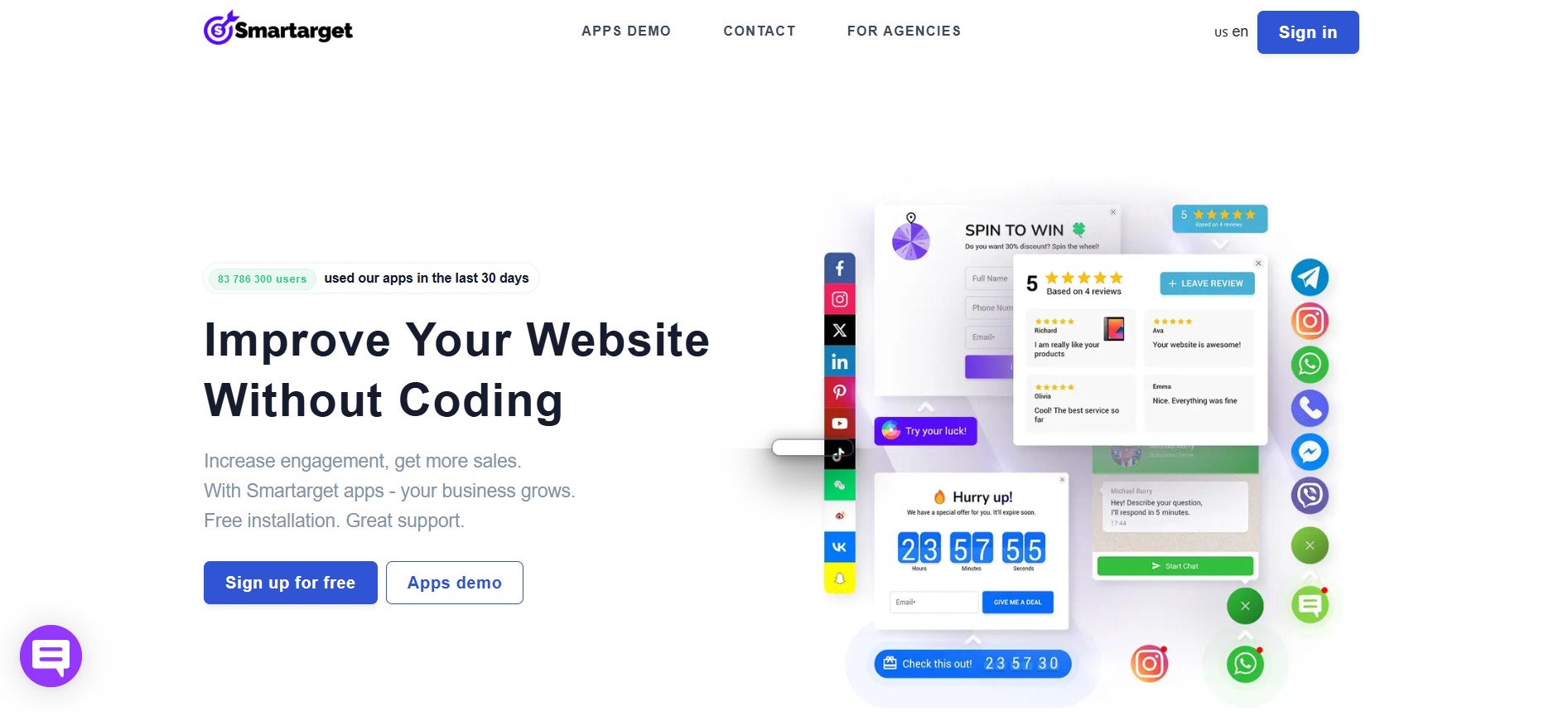
Connecting Lucky Wheel with Webflow overlays a spinning prize wheel on any published page. Visitors submit an email address, then spin for a prize you configure in Smartarget, such as a percentage discount or a coupon code. After the one-time install you manage prize segments and their display triggers in the Smartarget dashboard, and those changes never touch your Webflow site.
Ecommerce merchants on Webflow use the wheel to catch leaving visitors with an exit-intent offer, and marketing teams use it to grow a newsletter list. Every spin requires an email, even when the visitor wins nothing. Smartarget also sells white-label versions to freelancers and agencies who resell its apps under their own brand.
How to integrate Lucky Wheel with Webflow
What is Lucky Wheel? Lucky Wheel is a spin-to-win popup widget published by Smartarget. It runs on Webflow, Shopify, WordPress, Wix, Squarespace, and other platforms. Visitors enter an email address before spinning for rewards you configure, with optional fields for a name or phone number. Smartarget hosts the widget and its logic, so you maintain no code of your own after installation.
Teams pair the two when a Webflow site needs a promotion mechanic that can ship in an afternoon. The wheel handles the incentive and the email capture, and Webflow handles the pages it runs on.
This is a crowded shape, so it is worth knowing the neighbors before you commit. Impulse and Flowstar's spin wheel cover the same spin-to-win mechanic from different vendors. Reach for a plain discount popup when the offer needs no game attached to it, and for a countdown popup or a countdown bar when the pressure you want is a deadline rather than a prize. The wheel earns its place when the reward itself is the reason someone hands over an address.
The Lucky Wheel and Webflow integration supports three methods:
- The Lucky Wheel app installs from the Webflow Marketplace without writing any code.
- Custom code snippets place the wheel site-wide or on a single page with one line of JavaScript.
- The Webflow Data API gives programmatic control over script deployment and lead routing, and needs server-side development.
Most sites need only one of these. Agencies managing a portfolio of client sites usually prefer the programmatic route.
Install the Lucky Wheel app
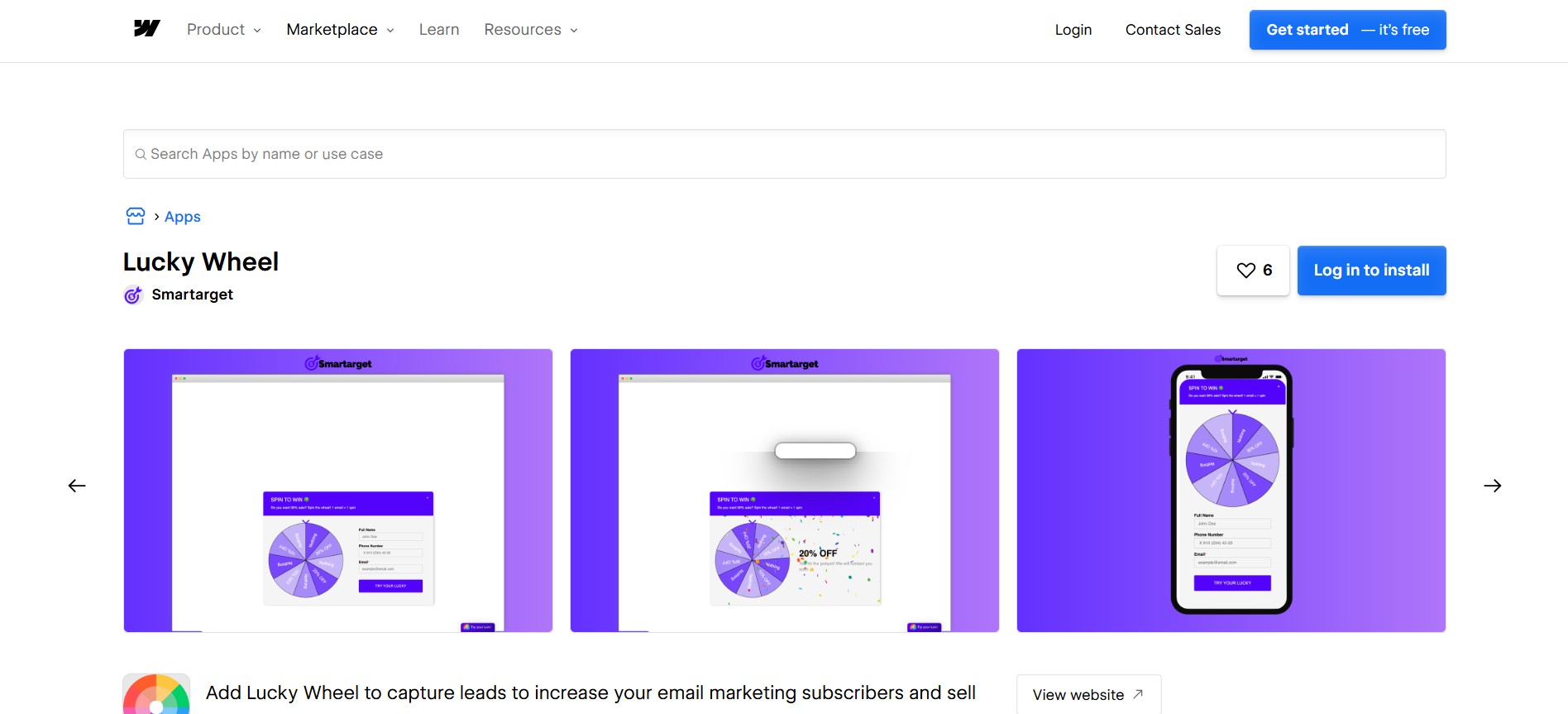
The Lucky Wheel app in the Webflow Marketplace adds a customizable spinning wheel to your site without touching code. It suits marketers and site owners who want the fastest route from signup to a live wheel. You need a Smartarget account, which is free to create.
To set up the integration:
- Open the Lucky Wheel listing in the Webflow Marketplace and click Log in to install.
- Sign up for a free Smartarget account.
- Configure your wheel in the Smartarget dashboard and publish your Webflow site.
You set everything below in the Smartarget dashboard, with no additional code in Webflow:
- Prize segments: Each segment holds a reward you define, such as a percentage discount, a coupon code, or another prize you fulfil yourself.
- Win probability: Make every segment a winner, or let only some visitors win. You still capture every email either way.
- Contact fields: The form before each spin collects an email and can also ask for a name or phone number, with entries held by the Smartarget widget.
- Display triggers: Show the wheel after a time delay, at a chosen scroll depth, or on exit intent, and cap how often one visitor sees it.
- Appearance and copy: Set the colors and calls to action, plus a unique celebration message for each wheel result.
On Smartarget's free plan the wheel shows on all pages for the first 14 days, then on the homepage only, carrying a "Powered by Smartarget" label. The paid PRO plan restores all-page display and removes the branding. The Marketplace listing asks for two permissions, read and write access to custom code plus read access to site data and publishing, and you can review or revoke that grant later under Site settings > Integrations > Authorized apps. If you would rather own the embed yourself, the snippet method below produces the same wheel.
Add the Lucky Wheel snippet with custom code
You copy one JavaScript snippet from the Smartarget dashboard and paste it into your site, and Smartarget documents the steps in its own Webflow guide. Adding code in the head or body tags needs an active paid Site plan, or a Core, Growth, Agency, or Freelancer Workspace plan, because the free Starter plan does not include custom code. Install site-wide to show the wheel everywhere, or at page level to scope it to one campaign.
Add the snippet site-wide
Site-wide placement shows the wheel on every published page, which fits store-wide promotions and newsletter growth.
To install the snippet site-wide:
- In the Smartarget dashboard, open Integrations and copy the JavaScript code.
- In Webflow, go to Site settings > Custom code.
- Paste the snippet into the Footer code section, which places it before the closing
</body>tag so it loads after your page content. - Click Save changes and publish the site.
Custom code effects appear in preview mode, but they do not go live until you publish.
Place the wheel on specific pages
Page-level placement suits campaign landing pages, or a site that wants the wheel only where a promotion is running. Use a Code Embed element to scope the snippet to a single page.
To place the wheel on one page:
- Open the target page in Webflow.
- Open the Add panel and drag a Code Embed element onto the canvas.
- Paste the Smartarget snippet and click Save and close.
- Publish the site.
Page-level scoping also keeps the script off payment pages, which sit inside the scope of PCI DSS requirements 6.4.3 and 11.6.1 for payment page security and e-skimming.
Build with the Webflow Data API
Programmatic work runs through the Webflow Data API v2 at https://api.webflow.com/v2, because Smartarget publishes no public API, no outbound webhooks, and no data export for Lucky Wheel. This route fits agencies rolling the wheel out across many client sites, and teams that need the captured leads in a CRM. You need server-side development and an API token carrying the right scopes.
- Script registration: The custom code endpoints register the Smartarget snippet once, then apply it to whole sites or to individual pages.
- Lead storage: The form submissions endpoints and Webflow CMS collections hold the addresses you capture next to the wheel.
- Real-time routing: Webflow webhooks push events such as
form_submissionto any endpoint you control. - Agent-driven rollout: The Webflow MCP server reads and writes site-level and page-level custom code and manages registered scripts, so an AI tool can run the same deployment instead of a service you build.
Between them these cover scripted deployment and automated lead routing, the two jobs the Smartarget dashboard cannot do at portfolio scale.
Deploy the Smartarget script programmatically
Instead of pasting the snippet by hand on each site, register it once and apply it through the API. This suits agencies rolling the wheel out across a client portfolio.
To deploy the script via the API:
- Register the snippet with
POST /v2/sites/{site_id}/registered_scripts/hosted. Inline registration caps at 2,000 characters, so hosted registration is the safer default. - Apply it site-wide with
PUT /v2/sites/{site_id}/custom_code, or to one page withPUT /v2/pages/{page_id}/custom_code. Both need thecustom_code:writescope. - Audit active scripts with
GET /v2/sites/{site_id}/custom_code/blocks, then publish withPOST /v2/sites/{site_id}/publish.
To remove the wheel later, call DELETE /v2/sites/{site_id}/custom_code for the same site.
Route leads with a Webflow form and webhooks
Pairing the wheel with a native Webflow form is a workaround, because Smartarget documents neither an export API nor an outbound webhook for the emails it captures. Route those form submissions to your CRM in real time instead.
To route leads:
- Add a Webflow form near the wheel placement, such as a newsletter signup that mirrors the wheel's offer.
- Create a webhook with
POST /v2/sites/{site_id}/webhooks(scopesites:write):
curl --request POST \
  --url https://api.webflow.com/v2/sites/{site_id}/webhooks \
  --header 'Authorization: Bearer YOUR_ACCESS_TOKEN' \
  --header 'Content-Type: application/json' \
  --data '{
    "triggerType": "form_submission",
    "url": "https://your-endpoint.example.com/webflow-leads"
  }'
- On your endpoint, verify the
x-webflow-signatureSHA-256 HMAC header and return HTTP 200. - Write each lead where it needs to go, for example into a CMS collection via
POST /v2/collections/{collection_id}/items.
Non-200 responses trigger up to three retries at 10-minute intervals. After repeated failures Webflow deactivates the webhook and emails the site owner.
What you can build with the Lucky Wheel Webflow integration
Integrating Lucky Wheel with Webflow lets you run gamified promotions and grow an email list without building popup, prize, or trigger logic yourself.
Four patterns come up most often:
- Exit-intent discount recovery: An ecommerce store pops the wheel when a visitor moves to leave, and the prize codes match the discount types Webflow Ecommerce supports, including free shipping and percentage or fixed-amount discounts.
- Newsletter growth on content sites: A blog asks for an email before each spin, so the list grows even when a visitor's segment wins nothing.
- Campaign landing pages: A page-scoped Code Embed puts the wheel on one promotion page, triggered at a set scroll depth or after a delay, with frequency limits stopping returning visitors from seeing it again.
- Time-limited seasonal offers: A sale page pairs wheel prizes with an expiry on the coupon, which pushes the purchase into the current session rather than a later one.
Read our walkthrough on how to prevent page scroll so the page behind the wheel stays still while it is open.
The costs are worth naming plainly. The wheel is a third-party script hosted by Smartarget, so it adds a request you do not control and its behavior can change without any deploy on your side. It sets cookies, which puts it inside your consent obligations rather than outside them. An interstitial that covers the page is also the same device whether a visitor enjoys it or resents it, so watch bounce and engagement on the pages carrying it instead of counting captured addresses alone. We publish no conversion figure for spin-to-win widgets, because the percentages in circulation come from vendor and directory marketing pages with no method behind them.
One more thing to settle before you launch. Promotional prize mechanics are regulated differently from one jurisdiction to the next, and the obligations that can attach to a prize draw, covering published terms, eligibility, whether entry may be conditioned on a purchase, and record keeping, are not the same everywhere. This page is not legal advice and we cannot tell you which rules apply to you. Check your own obligations for every market where the wheel will show, and make the terms you publish match what you actually configured in Smartarget.
To get started, install the Lucky Wheel app from the Webflow Marketplace, then build and manage the wheel in your Smartarget dashboard so campaign changes go live without republishing your Webflow site.
Frequently asked questions
Yes for the code routes. The snippet and Code Embed methods rely on custom code, which needs an active paid Site plan or a Core, Growth, Agency, or Freelancer Workspace plan. Free Starter sites cannot add the Smartarget script. The Webflow Marketplace listing does not state plan requirements for the app route.
Publish the site first, because custom code takes effect only on published sites and not in preview alone. If it still does not show, test in an incognito window. Append
?sm_no_cache=1to your URL to bypass Smartarget's cache. Also check your Smartarget plan, since free-plan sites drop to homepage-only display once the initial trial period ends.Yes. Publish to your Webflow staging subdomain at
yoursite.webflow.io. Confirm the wheel fires as configured, then publish to your custom domain.Yes. The Smartarget script uses cookies. Its consent-by-use terms fall short of EU/UK rules, which require prior affirmative consent for non-essential cookies. Head code lands at the end of the
<head>tag. The script can run before a consent platform initializes. Gate it with a CMP such as Cookiebot so it waits for consent. A spin entry doesn't authorize email marketing on its own. Add a separate, unchecked marketing opt-in to the capture form.Promotional prize mechanics are regulated differently by jurisdiction, and rules on published terms, eligibility and record keeping vary by market. This is not legal advice, so check your own obligations before launch and make your published terms match the segments and win odds you set in Smartarget.
Description
Adds a spin-to-win popup to Webflow pages through the Marketplace app or one JavaScript snippet. Visitors submit an email to spin for discount codes, with prizes and triggers managed in the Smartarget dashboard.
This integration page is provided for informational and convenience purposes only.

Unbounce
Unbounce and Webflow work together through a popup script, a subdomain CNAME, and Zapier or webhook lead sync. Here is what each method covers and what it does not.

Zendesk Chat (Zopim)
Connect Zendesk Messaging, a live chat and AI-powered support platform, with Webflow to add a chat widget, bot responses, help center search, and persistent conversations to any page.
Zendesk
Connect Zendesk, a cloud-based customer service platform, with Webflow to add live chat, AI-assisted messaging, and ticket creation to any page on your site.

Website Toolbox Forum
Connect Website Toolbox Forum, a hosted community discussion platform, with Webflow to embed threaded forums, user management, and moderation tools on any page without backend code.

UserVoice
Connect UserVoice's powerful feedback management platform with Webflow to collect user insights, prioritize feature requests, and build customer-driven websites. Transform visitor feedback into actionable improvements with voting systems, roadmap transparency, and seamless design integration.

Trustpilot
Connect Trustpilot, an independent review platform, with Webflow to display TrustBox widgets on high-intent pages and send review invitations via embeds or APIs.

Storylane
Connect Storylane, a demo automation platform, with Webflow to embed interactive product tours as inline demos, click-to-launch overlays, or popup modals on landing pages and CMS-driven galleries.

POWr chat
Add a Webflow Chat Plugin to your website without coding or headaches.

Prefinery
Connect Prefinery, a waitlist and referral marketing platform, with Webflow to capture pre-launch signups, generate automatic referral links, manage queue positioning, and sync waitlist data to CMS collections.
Related integrations
Get started for free
Try Webflow for as long as you like with our free Starter plan. Purchase a paid Site plan to publish, host, and unlock additional features.
