






Lottieflow
Connect Lottieflow, a free Lottie animation library by Finsweet, with Webflow to add customizable JSON animations to pages using the native Lottie element, interaction triggers, and CMS-driven playback.

The native Lottie element accepts JSON animation files, so teams still need a source for those files. That typically means using After Effects with the Bodymovin plugin or commissioning custom motion design work. If your team doesn't have animation production resources, that gap can leave Lottie support underused.
Lottieflow fills that gap with a free, categorized library of downloadable Lottie JSON files built for Webflow. Many one-color files include a hex color picker, and each download includes a choice between two easing variants designed around the Interactions panel. You download a JSON file, upload it to your Assets panel, and control playback through native interaction triggers like scroll, hover, click, and page load.
Designers building client sites with motion, SaaS marketers adding animated CTAs and scroll-driven product demos, and freelancers who need production-ready UI animations without a motion design toolchain get the most from this integration. Agency teams working across multiple client projects can match brand colors at download time.
How to integrate Lottieflow with Webflow
What is Lottieflow? Lottieflow is a free Lottie animation asset library created by Finsweet and built specifically for Webflow. It gives you a free library of downloadable JSON animation files across 21 categories, including arrows, CTAs, loading indicators, menu navigation icons, and scroll prompts. Each animation offers a choice between two easing variants before download, and one-color animations support real-time hex color customization.
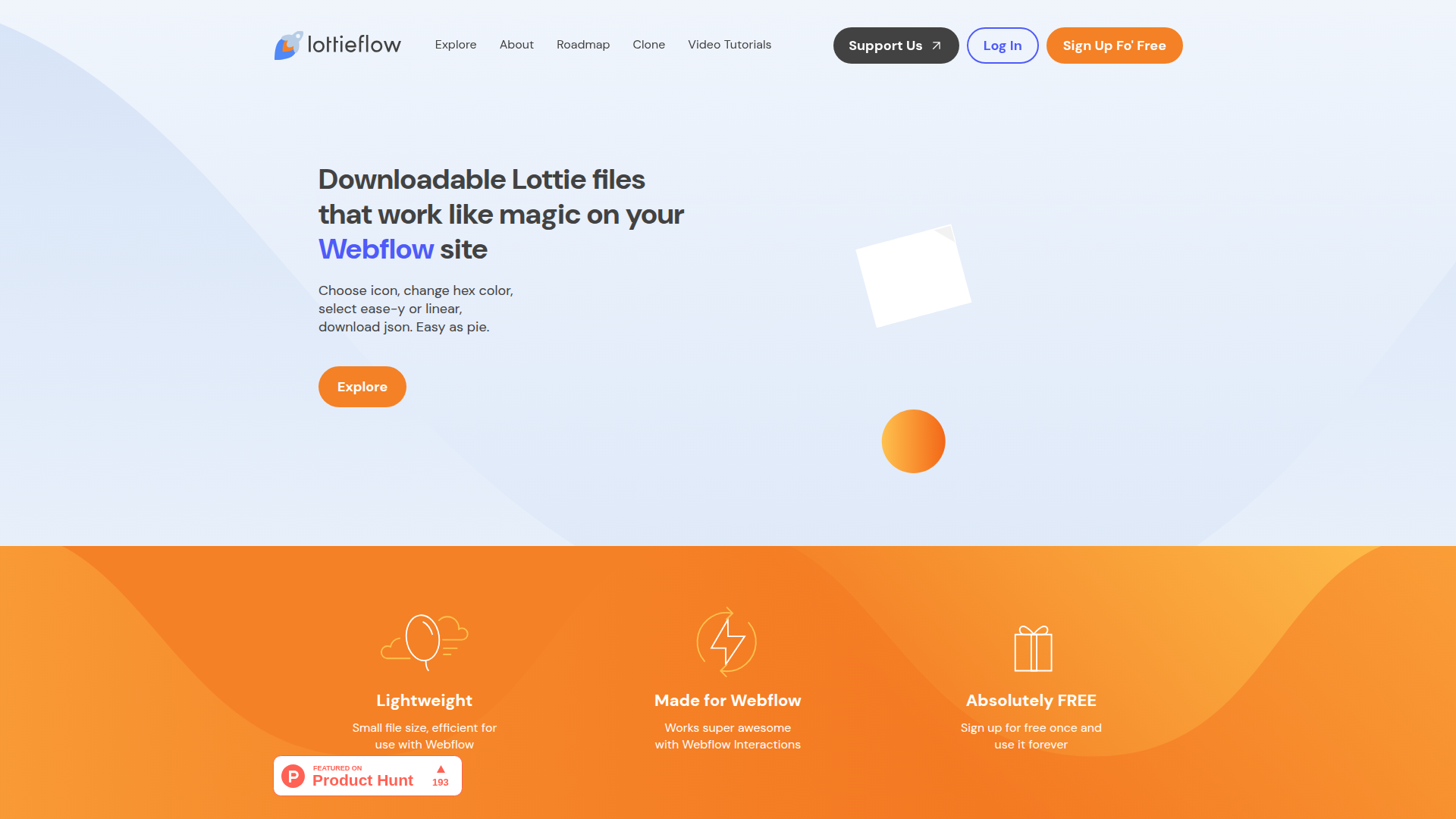
Use Lottieflow alongside the native Lottie element when you need ready-made UI animations without producing custom motion files. The typical workflow starts on Finsweet's site, where you customize color and easing, then moves into your project for file upload, element placement, and trigger configuration. Because Lottieflow outputs standard JSON files that map directly to the built-in Lottie element, you don't need any third-party scripts or plugins for standard use.
You can use the native Lottie element to download, upload, and trigger animations without writing code, or use Code Embed elements to bind different Lottie animations to CMS items, which the native Lottie element cannot do on its own.
Most implementations use the native Lottie element. The Code Embed approach works as a workaround for CMS-driven use cases.
Download and add animations with the native Lottie element
Lottieflow's primary integration path requires no code, no scripts, and no marketplace app installation. You download a JSON file from the Lottieflow library, upload it to the Assets panel, and configure playback through the Interactions panel. The standard JSON upload workflow works on the free Starter plan. Finsweet provides a 27-video YouTube tutorial playlist covering every animation category and trigger type, plus a cloneable Webflow project with live implementation examples.
[image placeholder]
To download and customize your animation:
- Go to finsweet.com/lottieflow/explore and browse by category or search across all 21 categories.
- Click any animation to open its download page, which typically includes a live preview, frame-by-frame timeline slider, duration, and file size.
- Log in with your free Lottieflow account (required once, free forever).
- Enter a hex color value to preview your brand color on one-color animations.
- Choose your easing variant: pick Ease-y if you want professional animator easing baked into the file, or Linear if you want a clean file where you control all easing through Interactions.
- Click Download to save the
.jsonfile to your computer.
Picking the wrong easing combination creates double-easing. If you download the Ease-y variant, set the Interactions easing to Linear so the two don't stack. If you download the Linear variant, apply any easing you want inside the Interactions panel. Finsweet's Ease-y vs. Linear tutorial explains this in detail.
To add the animation to your site:
- Open the Assets panel in the left toolbar (cloud icon) and upload your
.jsonfile, or drag it directly from your desktop into the panel. - Open the Add panel (the
+icon), go to the Media section, and drag the Lottie animation element onto your canvas. - Click the Lottie element on the canvas, then click Replace Lottie sequence in the element settings panel and select your uploaded JSON file.
- Configure playback settings: toggle Loop for continuous playback, toggle Play in reverse for backward playback, and choose between SVG rendering (crisp vector scaling) or Canvas rendering (better performance for complex animations).
Once you connect the file, the Lottie element plays the animation on page load by default. Animations placed below the fold will have already played before visitors scroll to them. Add a scroll into view interaction trigger or enable looping to make below-fold animations visible. The Lottie documentation covers this default behavior.
Set up interaction triggers
All trigger logic lives in the Interactions panel (the lightning bolt icon in the right toolbar). Lottieflow has no trigger system of its own. The Interactions panel supports multiple trigger types for Lottie playback, and each trigger type maps to specific use cases in the Lottieflow library.
To add a mouse click trigger:
- Select your Lottie element on the canvas.
- Open the Interactions panel (⚡ icon in the right toolbar).
- Click
+next to Element trigger and choose Mouse click (tap). - Click Select an action and choose Lottie playback under the Integrations section.
- Configure delay, reverse, or loop options as needed.
This trigger works well with Lottieflow's Checkbox, Radio, and CTA animation categories. The Arrow icon click tutorial walks through this setup.
To add a mouse hover trigger:
- Select the Lottie element and open the Interactions panel.
- Under Element trigger, select Mouse hover.
- For hover-in, set the action to Lottie playback.
- For hover-out, add another Lottie playback action and enable reverse.
Hover triggers pair well with arrow icons, social media icons, and CTA animations. See the Arrow hover tutorial for a walkthrough.
To add a scroll-into-view trigger:
- Apply the Scroll into view interaction to the parent container of the Lottie element, not to the Lottie element itself.
- Set the parent element's height to control playback speed, since a taller parent produces slower scrubbing as the user scrolls.
- If you use sticky positioning, set the top distance value explicitly or the animation will behave incorrectly.
Applying the scroll trigger directly to the Lottie element instead of its parent container is the most common setup mistake. The Background icon scroll tutorial shows the correct approach.
The Interactions panel also supports mouse click, mouse hover, page load, scroll into view, while-scrolling, while-page-scrolling, dropdown-opens, nav-opens, and on-form-submit triggers for Lottie playback. The full set of supported triggers and their corresponding tutorials:
- Mouse click: Arrow click tutorial
- Mouse hover: Arrow hover tutorial
- Scroll into view: Arrow scroll tutorial
- While scrolling: Attention scrolling tutorial
- Page load: Attention page load tutorial
- While page scrolling: Scrolling icon tutorial
- Dropdown opens: Dropdown tutorial
- Nav opens: Menu nav tutorial
- On form submit: Success icon tutorial (the only trigger type that requires a custom code step, covered at timestamp 03:05)
The form submit trigger needs custom code beyond the visual Interactions panel.
Add CMS-driven Lottie animations with Code Embed elements
The native Lottie element cannot bind directly to CMS URL fields. If you need different animations on each CMS collection page — for example, unique loading animations per portfolio project or category-specific icons on a blog — you need a workaround using the LottieFiles web player component.
This workaround relies on custom code embeds and dynamic bindings, so you need a paid plan; the free Starter plan does not support this method. Standard Lottieflow usage — uploading a JSON file and using the native Lottie element with Interactions — works on the free Starter plan.
To set up CMS-driven Lottie animations:
- Upload your Lottieflow JSON files to the Assets panel and copy each file's published URL.
- In your CMS Collection, add a URL field (for example, name it "Lottie Link").
- Paste each animation's asset URL into the URL field for the corresponding CMS item.
- On your CMS Collection Template page, drag an Embed element onto the canvas where you want the animation to appear.
- Inside the Embed, add a
<lottie-player>web component with thesrcattribute bound to your CMS URL field using the purple dynamic binding icon:
<lottie-player src="[CMS URL field]" background="transparent" loop autoplay></lottie-player>
- Add the LottieFiles player
<script>tag to your site-level custom code settings. You only need this step for CMS-driven animations using this workaround; standard Lottieflow usage requires no script. Grab the current script tag from LottieFiles documentation before implementing, since the CDN URL may change.
The Lottie animation in CMS dynamic pages cloneable project by Daria Mulova shows this approach with speed, loop, and reverse loop settings configured per CMS item. It is the main exception to Lottieflow's otherwise no-code workflow.
Manage Lottie assets with the Data API
If you need to programmatically upload, organize, or manage Lottie animation files across multiple sites, the Data API gives you a developer path for working with site assets. Lottieflow itself has no API, so this section covers a Data API workflow rather than a Lottieflow-native integration. It requires server-side development and fits best for agencies managing animation libraries at scale or developers building internal tools for content teams.
Relevant API resources include:
- The Assets API uploads, lists, updates, and deletes Lottie JSON files as site assets
- Asset Folders sub-endpoints support organizing Lottie files into folders and filtering by
folderId - The Custom Code API supports injecting player scripts programmatically on specific pages or site-wide
Lottie files upload as application/json MIME type through a two-step process.
Upload Lottie files via the Assets API
The asset upload process uses presigned S3 credentials returned by the Data API.
To upload a Lottieflow JSON file programmatically:
- Call
POST /v2/sites/{site_id}/assetswith thefileName(including.jsonextension) andfileHash(MD5 hash of the file contents). The API returns presigned S3 upload credentials. - Post the file directly to S3 using the returned credentials.
- Verify the upload by calling
GET /v2/sites/{site_id}/assetsto confirm the file appears in your site's asset list.
Both API calls need the assets:write scope on your API token. The Create Asset endpoint documentation covers the full request and response schema. This API route is optional and mainly relevant if you're managing Lottie assets across sites at scale.
What can you build with the Lottieflow integration?
Integrating Lottieflow with Webflow lets you add production-ready motion to UI elements, page transitions, and content sections without After Effects or custom animation work.
- Animated navigation menus: Replace static hamburger icons with animated menu-open and menu-close transitions triggered by the navbar interaction. Lottieflow's Menu Nav category includes multiple hamburger animation styles that match your brand color through the hex picker. The Menu Nav Pack live example shows several variations.
- Scroll-driven product storytelling: Build landing pages where animations advance frame-by-frame as visitors scroll. Place a Lottieflow Background or Scrolling animation inside a tall parent container with a while-scrolling trigger to create a product reveal sequence that responds to scroll position.
- Interactive form feedback: Show an animated success confirmation when a visitor submits a form. Lottieflow's Success category provides animated checkmarks and celebration icons that trigger on form submission. This gives visitors immediate visual feedback instead of a static thank-you message.
- Page preloaders with brand animation: Use Lottieflow's Loading category to create a branded loading state that plays while page assets load. Set the animation to play on page load and configure it to loop until the page is ready. This can hold attention during initial render.
If you need more control over CMS-driven animations, the workaround and API path above cover those cases.
Frequently asked questions
Lottieflow uses a visual workflow: download a JSON file from finsweet.com/lottieflow, upload it to your Webflow Assets panel, and configure triggers in the Interactions panel. No CDN link, no HTML attributes, and no
<script>tag is required for standard use. The only scenario requiring custom code is binding Lottie animations to CMS items through a Code Embed element.Ease-y files include professional animator easing baked into the JSON. When you use an Ease-y file in Webflow Interactions, set Webflow's easing to Linear so the two easing curves don't stack on top of each other. Linear files contain no easing at all, giving you full control to apply any easing method through Webflow's Interactions panel. Finsweet's Ease-y vs. Linear tutorial walks through both options with visual examples.
Webflow CMS collection pages require a workaround for per-item Lottie animations. Webflow's native Lottie element cannot bind to CMS URL fields. To display different Lottie animations per CMS item, upload your JSON files to the Assets panel, copy each file's published URL into a CMS URL field, and use a Code Embed element with the
<lottie-player>web component on your Collection Template page. The Lottie animation in CMS dynamic pages cloneable project shows a working implementation of this approach. This workaround requires Webflow support for custom code and dynamic embeds.All Webflow Lottie animations play on page load by default. If the element is below the visible viewport, the animation finishes before the visitor scrolls to it. To fix this, either enable the Loop toggle in the element settings panel, or add a Scroll into view element trigger in the Interactions panel. Apply the scroll trigger to the parent container element, not to the Lottie element itself. The Webflow Lottie animation documentation covers default playback behavior and trigger configuration.
Lottieflow and Finsweet Attributes are separate products. Lottieflow is a free Lottie animation download library that outputs
.jsonfiles. Finsweet Attributes is a JavaScript-based system that usesfs-*HTML attributes for CMS filtering, sorting, and other functionality. There is nofs-lottieflow-*attribute system. The Lottieflow about page and the Finsweet Attributes page confirm they are distinct products with different installation methods.
Description
Lottieflow provides downloadable Lottie JSON files across 21 categories with hex color customization and easing variants. Animations upload directly to the Assets panel and play through the native Lottie element and Interactions panel with no scripts required.
This integration page is provided for informational and convenience purposes only.

Modulo
Connect Modulo with Webflow to add pre-designed, production-ready UI components to your sites like hero sections, feature blocks, FAQ layouts, CTAs, and more, directly inside Webflow.
Goat Slider
Connect Goat Slider, a CMS-driven slider app, with Webflow to add dynamic carousels and sliders that automatically update when your content changes.
Pixcap Editable 3D Icons and Characters
Connect Pixcap, a customizable 3D asset library, with Webflow to browse, customize, and insert 3D icons, illustrations, and characters directly in Webflow without 3D modeling skills.
CutCopy
Connect CutCopy with Webflow to move variable collections and element attributes between projects instead of rebuilding them by hand.

Devblocks CMS Image Optimizer
Connect Devblocks CMS Image Optimizer with Webflow to batch-convert existing CMS images to WebP without re-uploading a single file.
Flowdrive
Connect Flowdrive, an external file and video hosting service, with Webflow to host videos and enable file uploads without Webflow's Business plan requirement.
Lummi
Connect Lummi, an AI visual asset library, with Webflow to source and insert commercial-use images inside the canvas.

Image Management
Convert Webflow CMS collection images to WebP or AVIF inside Webflow with the Image Management app, or script the same job with the Assets API.

Smootify Icons
Connect Smootify Icons with Webflow to place SVG icons from eight icon libraries on the canvas, styled without uploads or code.
Related integrations
Get started for free
Try Webflow for as long as you like with our free Starter plan. Purchase a paid Site plan to publish, host, and unlock additional features.
