






LottieFiles for Webflow
Search and recolor Lottie animations inside Webflow, then insert them straight onto the canvas.

Lottie animations play natively on a Webflow site, but Webflow ships no animation library of its own. Sourcing motion means finding a file somewhere else, downloading it, and uploading it to the Assets panel, which accepts Lottie JSON, dotLottie, and Rive files. The usual fallback, a GIF or a short looping video, means shipping raster frames where vectors would do, and the page weight follows.
The LottieFiles for Webflow app closes that gap by putting the LottieFiles library inside Webflow. You search public animations or your team's private Workspace files, recolor them to match the site, and place them on the page without exporting or uploading anything by hand. It handles both Lottie JSON and dotLottie, the compressed open format that bundles multiple animations, themes, and interactive state machines into a single file.
The integration suits designers and no-code builders who want motion without writing code, and agencies that keep an approved animation library in a shared Workspace. Motion designers can export from After Effects or Figma into LottieFiles first, then hand a reviewed file to whoever builds the page.
How to integrate LottieFiles for Webflow with Webflow
What is LottieFiles for Webflow? LottieFiles for Webflow is a free Marketplace app, published by LottieFiles and approved by Webflow, that brings the public LottieFiles library and your private Workspace into the Webflow canvas. You find an animation, prepare its palette, theme, renderer, or state machine, then insert it as a native Webflow Lottie element or as a dotLottie player.
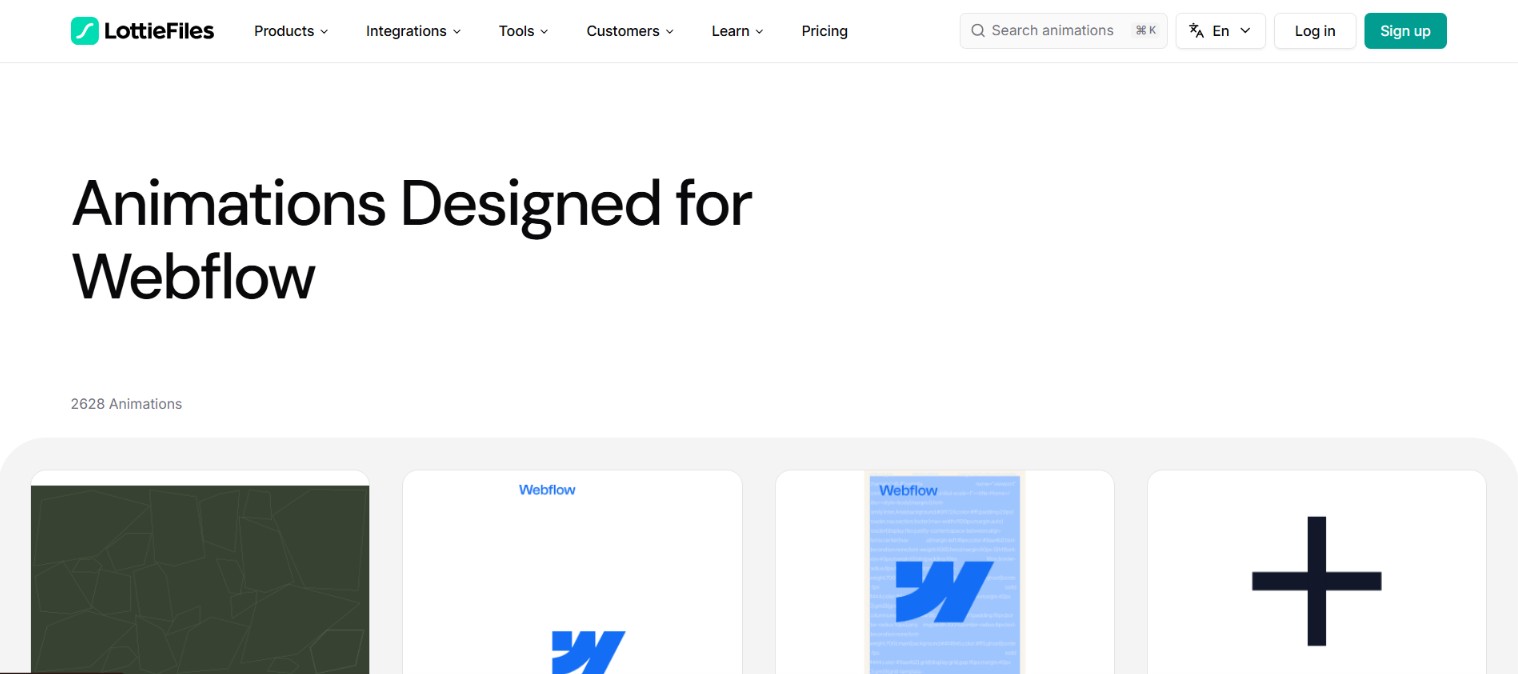
Teams reach for this pairing when a page needs motion a static image cannot carry: a loader, an empty state, an animated icon, or a hero that responds to scroll. Vector Lottie scales across breakpoints without pixelation, and Webflow's own interaction triggers decide when it plays.
The LottieFiles for Webflow integration supports three approaches:
- The LottieFiles for Webflow app searches, recolors, and inserts animations from inside Webflow with no code.
- Direct embeds place files you already own, using the native Lottie animation element or an embedded player script.
- The Webflow Data API drives assets, custom code, and CMS references programmatically, and needs server-side work.
Most sites use the app for everyday work and reach for the other two when a file is self-hosted or the work has to run unattended.
Install the LottieFiles for Webflow app
Installing the app is the shortest route from an empty section to a playing animation, and it costs nothing. Add it from the Marketplace listing or from the Apps panel inside a site, following LottieFiles' installation steps, then authorize it for the Workspace and sites that should have it.
To set up the integration:
- Search for LottieFiles for Webflow on the Webflow Marketplace or in the Apps panel
- Click Add to site, or Install on site if you started from the Apps panel
- Choose the intended Workspace and site, review the requested permissions, and click Authorize app
- Return to the site, open the Apps panel, and launch LottieFiles
- Sign in to LottieFiles when you need Workspace files, then select an element and insert an animation
Once it is running, the app gives you:
- Explore: the public LottieFiles library, best searched by the job the animation has to do, using phrases such as checkout success or empty state.
- Workspace: private and team files, whose visibility follows your membership and project permissions, with a guest insertion limit before you sign in.
- Palette controls: recoloring of detected vector colors, up to five colors per custom palette, saved as a new Workspace file before it can be inserted.
- Two insertion paths: ordinary Lottie JSON lands in Webflow Assets as a native Lottie element, while dotLottie v2 files, runtime themes, and state machines insert a dotLottie player backed by page custom code.
Two limits are worth knowing before you standardize on the app. Advanced files need the ThorVG renderer, and switching one back to the SVG player can quietly drop its themes or its state machine, so test in Preview and on the webflow.io staging URL rather than trusting the canvas. Apps also cannot be opened in secondary locales, although custom elements created in the primary locale are inherited by the rest.
Add Lottie animations with the native element or Code Embed
You do not need the app to run Lottie on a Webflow site. The Assets panel takes .json and .lottie files directly, and an embed element takes a player script or an iFrame. These paths suit teams that already own their animation files, or that would rather self-host than depend on an external CDN.
Use the native Lottie animation element
The built-in Lottie animation element needs no code and no LottieFiles plan. Upload a file once and reuse it anywhere on the site.
To add an animation with the native element:
- Upload your
.jsonor.lottiefile to the Assets panel - Open the Add panel > Media section and drag the Lottie animation element onto the canvas
- Click Replace Lottie sequence in the element settings
- Select your file from the Assets panel
Element settings cover built-in duration, loop, play in reverse, and the render mode, either SVG or canvas, as set out in Embed Lottie animations. Two interaction types handle playback, Lottie playback and Lottie action, and the documented triggers for them include mouse click, scroll into view, and page load. Since December 12, 2025 the Lottie action also works inside Interactions with GSAP, so you can play, pause, or scrub an animation on a timeline. Two behaviors catch people out: playback settings in the Interactions panel overwrite the element's own settings, and every animation plays on page load unless an interaction takes control.
Paste a player snippet or iFrame into a Code Embed element
LottieFiles-hosted animations drop into a page through a Code Embed element, which caps a single embed at 50,000 characters and needs a paid Workspace plan or a site with an active Site plan. LottieFiles' Handoff and Embed panel supplies a direct URL to the hosted file plus a ready-made iFrame once you switch on Enable Asset CDN, and that CDN is metered by bandwidth: 100 MB a month on Starter, rising to 50 GB on Team, with assets disabled once you pass the quota.
To embed with the dotLottie web component:
- Copy your animation's hosted URL or iFrame code from Handoff and Embed
- In Webflow, open the Add panel and add a Code Embed element
- Paste the iFrame code, or the
<dotlottie-wc>snippet below with your animation URL
<script src="https://unpkg.com/@lottiefiles/dotlottie-wc@0.9.21/dist/dotlottie-wc.js" type="module"></script>
<dotlottie-wc src="YOUR_ANIMATION_URL.lottie" autoplay loop></dotlottie-wc>
That snippet pins the player to one exact version, which is the right default here: an unpinned CDN URL would pull a new release onto a live site with no warning, so bump the number deliberately after testing. You can register the script once for the whole site through custom code in head and body tags instead of repeating it in every embed. Prefer the dotLottie web component over the older lottie-player package, since LottieFiles' current runtime documentation covers the dotLottie players only. State machines baked into a .lottie file respond to pointer events such as hover and click, but they need the player path above rather than a plain iFrame.
Build with the Webflow Data API and LottieFiles hosted files
Programmatic control comes from the Webflow API, version 2, and it needs server-side development. LottieFiles publishes no public REST or GraphQL API for managing library content, so this path pairs Webflow's endpoints with self-hosted .lottie files or LottieFiles CDN URLs. If your team already works through an AI coding tool, the Webflow MCP server covers much of the same ground: it lists, organizes, and updates assets, runs asset compression jobs, and reads and writes site and page custom code including registered scripts.
Four parts of the API matter for animation work:
- Assets API: pushes animation files into Webflow hosting and hands back the URLs your markup references.
- Custom Code API: registers a player script against a site, then applies it to one page or to every page.
- CMS API: reads collections and writes items, so a Collection template can render a different animation per entry.
- Webhooks: notify an external system when content changes or a site publishes, which keeps a pipeline current without polling.
The three sections below work through the first three, and webhooks come up at the end of the last one.
Upload animations with the Assets API
The Assets API lets a build script or a CMS pipeline push animation files to Webflow hosting rather than pointing at an external CDN. Uploads run in two steps, because the first call only issues a signed destination.
To upload a Lottie file:
- Send
POST https://api.webflow.com/v2/sites/{site_id}/assetswith theassets:writescope; the response returns anuploadUrland anuploadDetailsobject - POST the file binary to the returned S3
uploadUrl, passing theuploadDetailsvalues as headers - List the site's assets later to retrieve hosted URLs
The upload response also carries contentType, assetUrl, hostedUrl, and originalFileName, which is what downstream code stores when it needs to reference the file again.
Inject player code with the Custom Code API
Scripts do not go straight onto a page, and that order trips up most first attempts. Register the hosted script against the site first, then apply it to a single page or to the whole site. Both calls need an OAuth bearer token rather than a site API token, and a site holds at most 800 registered scripts. When you apply more than one script, include all of them in every request body, because anything you leave out is removed.
Reference animations in CMS items
Storing animation URLs in Webflow CMS fields lets one Collection template render a different Lottie file per item. The CMS dynamic pages demo site does this with speed, loop, play once, and reverse loop settings.
To manage animation references at scale:
- Create entries with
POST https://api.webflow.com/v2/collections/{collection_id}/items, or up to 100 items per request through the bulk endpoint - Update published entries with
PATCH https://api.webflow.com/v2/collections/{collection_id}/items/live - Render the items on a Collection template page with a Collection List
If an external system owns the animation library, register a webhook and listen for collection_item_changed and site_publish, and read the current schema with the list collections endpoint before writing to fields.
What you can build with the LottieFiles for Webflow integration
Pairing LottieFiles with Webflow gets vector motion onto a page without the raster weight of a GIF or a looping video, and without a developer in the loop for routine work.
Four builds come up most often:
- Interface feedback and empty states: a short animation for an upload in progress, a successful checkout, an empty list, or a failed payment tells the reader what the page is doing.
- Animated navigation and icons: small icon and menu animations run off hover and click triggers, so a nav gains motion without a single line of custom JavaScript.
- Animation-driven CMS content: a Collection field holding an animation URL lets a blog or product catalog animate per entry, with no per-page build work.
- Themed and multi-animation motion: one dotLottie file can hold several animations plus light and dark themes, and the app inserts the selected child or the full player depending on which features are active.
For the API path, follow our walkthrough on the Custom Code API, which is the same mechanism the player script needs. If your team works through an AI assistant, connect the Webflow MCP server and let it handle the asset and custom-code calls for you.
Frequently asked questions
Not to try it. Explore gives guests a limited number of insertions, and signing in with a free account opens Workspace browsing. Commercial work is the catch: LottieFiles' commercial use policy permits commercial use of its services, including creating, editing, and customizing animations, on Team and Enterprise plans only. Public animations under the Lottie Simple License sit outside that restriction, so recoloring one for a client site is the case to check.
No. Browser limitations block dragging a
.lottiefile from your computer straight onto the canvas. Upload it through the Assets panel instead, then attach it with the Lottie animation element's Replace Lottie sequence setting. Standard.jsonLottie files carry no such restriction, and Rive.rivfiles upload the same way.Nothing changes on the live site, in either direction. An ordinary Lottie insertion copies the file into Webflow Assets, so the page keeps working even if you delete the Workspace original. Neither insertion path is a live connection, so a new Workspace version means reinserting the element and publishing again.
Yes, with no custom code. The Lottie playback and Lottie action interaction types respond to triggers such as mouse click, scroll into view, and page load. Lottie actions with GSAP go further, reading the animation's native duration and frame count from the file so you can scrub or sequence it on a timeline.
Because the app inserted an advanced dotLottie player, and Webflow shows a thumbnail for it while the page custom code starts the real player elsewhere. Check it in Preview and on the webflow.io staging URL. If Preview stays blank, LottieFiles' troubleshooting notes point at the renderer setting and at missing page custom code, and the player configuration reference lists the attributes the element should carry.
Description
Find and insert Lottie animations from inside Webflow with the LottieFiles app, or place your own files using the native Lottie element, an embedded player script, and the Webflow Data API.
This integration page is provided for informational and convenience purposes only.

Clip Path Bae
Connect Clip Path Bae with Webflow to clip images, divs and other elements into polygon, circle, ellipse or custom SVG shapes without writing code.

Chainlift Color
Connect Chainlift Color with Webflow to generate accessible Material 3 dynamic color themes with pre-configured utility classes and color variables.

Adobe Express
Generate images with Adobe Firefly, edit them, and save them to your site without leaving the page build.

bynder
Connect Bynder with Webflow to search and place brand-approved assets from your DAM directly onto your site.
Asset Bae
Connect Asset Bae with Webflow to bulk-edit image filenames and alt text, with AI-generated alt text for accessibility compliance.

Frontify
Connect Frontify with Webflow to browse and embed brand-approved assets, then sync them directly into your site.
Virtual Tours
Connect Virtual Tours to your Webflow site and display interactive 360° tours on any page.

SVGFlow
Connect SVGFlow with Webflow to edit SVG icon colors, sizes, and stroke widths directly on the design canvas without external tools.
Creattie
Connect Creattie's Lottie animation library with Webflow to add lightweight animations that load faster than videos while maintaining visual quality.
Related integrations
Get started for free
Try Webflow for as long as you like with our free Starter plan. Purchase a paid Site plan to publish, host, and unlock additional features.
