






Lordicon
Connect Lordicon with Webflow to add animated icons that respond to pointer and scroll interactions without building animations from scratch.

Webflow's native Lottie element plays vector animations on any page, but sourcing the animation files is the hard part. Building a single animated icon from scratch means After Effects work and motion design time most site builds do not have, and a static icon set leaves hover states, loaders, and menu toggles with no motion feedback.
Lordicon closes that gap with a library of ready-made animated icons that download as Lottie JSON, the format the Lottie element already expects. You upload an icon to the Assets panel, drop it on a page, and wire triggers in the Interactions panel without writing code. Sites on a paid plan can go further and run Lordicon's own player through custom code, which adds triggers the native element does not have, including boomerang and sequence.
This fits freelancers, agencies, in-house marketers, and no-code builders who need animated icons without a motion designer on the team.
How to integrate Lordicon with Webflow
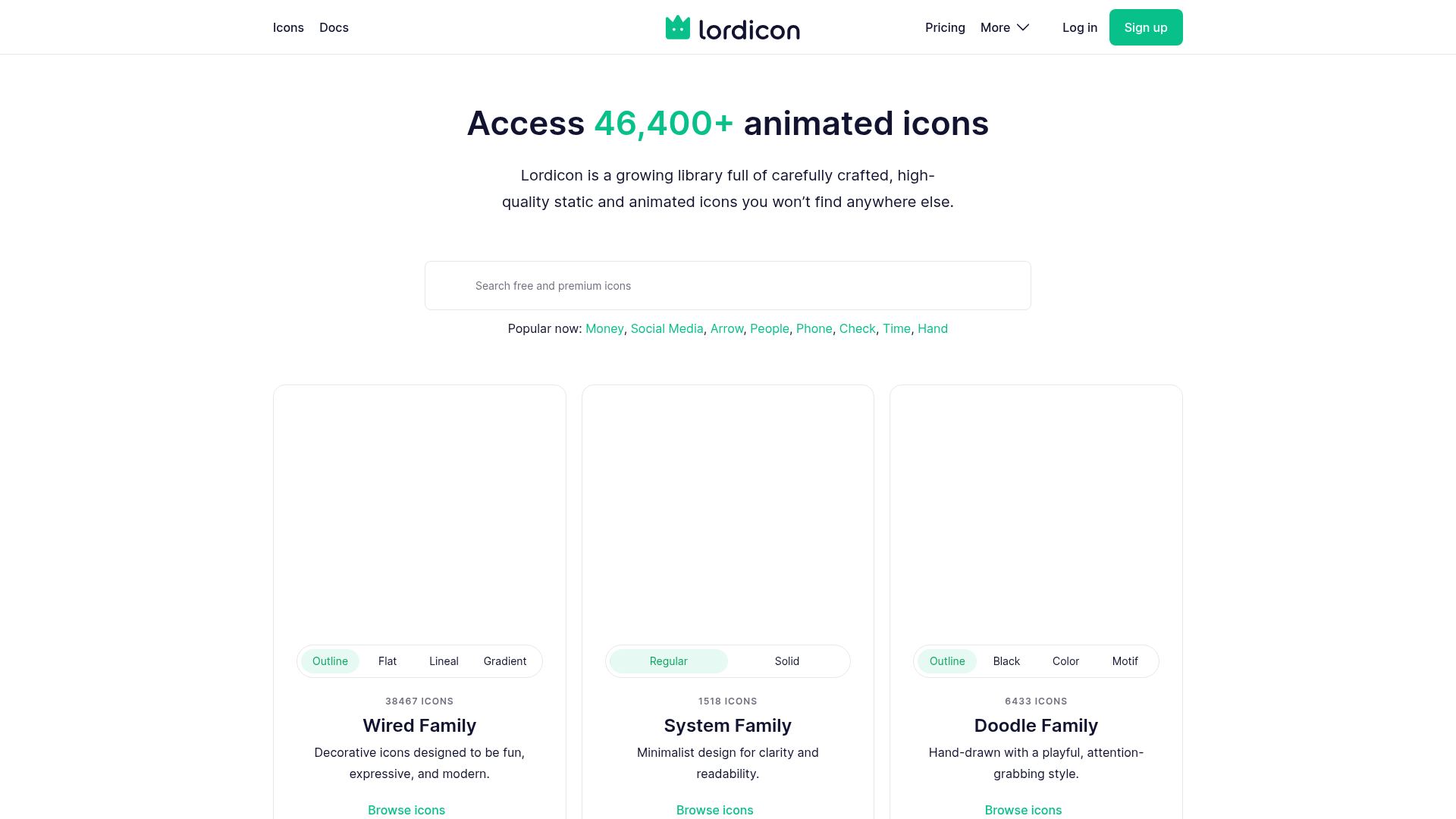
What is Lordicon? Lordicon is an animated icon library built around Lottie. Its pricing page lists 9,100 animated icons on the free tier and 37,300 more with PRO, and icons export as Lottie JSON, GIF, MP4, WebP, PNG, or SVG. The library splits into three families, described in its icon styles guide: Wired for larger decorative and explanatory icons, System on a 24-pixel grid for menus and buttons, and Doodle for a hand-drawn look.
Teams pair the two when a page needs motion feedback in specific spots, such as feature cards or buttons. Lordicon's design guidance notes that placing an animated icon on a button draws attention quickly while hinting at what the button does, and it caps click-triggered motion at 500ms. Hover-triggered decorative icons work best between 1,500 and 3,000ms.
Setup is manual, because Lordicon has no listing in the Webflow Apps directory. The Lottie JSON upload plays icons through the native Lottie animation element with no code and no paid plan. Code Embed elements run the <lord-icon> custom element with all eight Lordicon triggers, but need a paid plan. The Webflow Data API and Lordicon APIs give control over script injection and icon content at the cost of server-side development. Lordicon's own guide treats the Lottie JSON path as the default, with Code Embed as the add-on when you want Lordicon-native triggers.
Upload Lottie JSON to the native Lottie element
This is the method Lordicon's own Webflow guide recommends, and it works on every plan, including free Starter sites. You download an icon as Lottie JSON, upload it as an asset, and control playback with Webflow interactions. Because the file lives in your assets, it serves from Webflow hosting with no dependency on Lordicon's CDN. Set styling and speed in Lordicon's editor before you download, since the Lottie element controls playback only.
To set up the integration:
- Customize the icon in Lordicon's online editor, then download it in Lottie JSON format.
- Open the Assets panel by pressing
J, then upload the JSON file. - Drag a Lottie animation element onto the page from the Add panel, under Media.
- Select the element, open its settings, choose your uploaded file, then set Loop, Playback Direction, Speed, and Render Mode.
- Open the Interactions panel and add a trigger such as Mouse hover or When scrolled into view.
Lordicon's official Webflow demo pairs each icon animation type with a specific interaction setting:
- Intro: Pair an
in-…icon animation with the "When scrolled into view" interaction so the icon plays as it enters the viewport. - Hover: Pair a
hover-…icon animation with the "Mouse hover" interaction so the icon plays under the cursor. - Loop: Pair a
loop-…orhover-…animation with "When scrolled into view" and Loop enabled, which keeps offscreen icons from animating. - Morph: Pair a
morph-…animation with "Mouse hover" and reverse it on hover out so the icon returns to its first state.
The demo also chains two of these, playing an in-… animation on reveal and then handing the icon to a hover or morph animation. Lordicon-native triggers such as boomerang and sequence are not available on this path, so those need the Code Embed method below.
Add lord-icon elements with Code Embed
The Code Embed element accepts the <lord-icon> custom element, which runs Lordicon's own player. That gives you all eight trigger types: in, click, hover, loop, loop-on-hover, morph, boomerang, and sequence. Custom code needs a paid Site plan or a paid Workspace plan.
Load the player script and place icons
The player script loads once site-wide, and any Code Embed element on any page can then render icons. Lordicon calls a single script tag the simplest way to add its player to a site.
To set up the player:
- Open Site settings, then Custom code, and paste the player script into the Head code field, as covered in Webflow's guide to head and body code:
<script src="https://cdn.lordicon.com/lordicon.js"></script>
- Add a Code Embed element where the icon should appear and paste the markup from Lordicon's web documentation:
<lord-icon
  src="https://cdn.lordicon.com/lbjtvqiv.json"
  trigger="hover"
  colors="primary:#121331,secondary:#08a88a"
  style="width:80px;height:80px">
</lord-icon>
- Publish the site. Code Embed elements render in preview, but a script placed in Site settings runs only on the published site and the
webflow.iostaging URL, so publish to see the icons animate.
One thing to watch before you ship this: the player URL https://cdn.lordicon.com/lordicon.js carries no version in it, and Lordicon's documentation says the script link may change with a new player release and that new icons may need the updated version. That is fine for a landing page and less fine for a site nobody revisits for a year. The documented alternative is the @lordicon/element npm package with a module bundler, which pins a version you control.
The element accepts attributes that control appearance and behavior:
- colors: Sets the icon palette by palette name, for example
colors="primary:#ff0000,secondary:#00ff00". - stroke: Sets line thickness to
light,regular, orboldon families that support it. - trigger and state:
triggerselects one of the eight trigger types, andstateselects a specific animation state inside the icon. - loading: Defers the icon with
lazy,interaction, ordelayso below-the-fold icons cost nothing on first paint. - target: Points the trigger at another element through a CSS selector, so a whole card can drive the icon inside it.
Stroke control is family-dependent: the System family and the Wired Flat style accept color changes only, per Lordicon's icon style documentation. For programmatic control, element.playerInstance exposes play(), playFromBeginning(), pause(), stop(), and goToFrame(), along with writable colors, stroke, and state properties, documented in the IPlayer interface.
Paste an Embed HTML snippet
The Embed HTML export is a self-contained snippet, the player script plus a lord-icon element, that you copy from the icon library and paste into a Code Embed element. The icon JSON stays on Lordicon's CDN, so nothing gets uploaded to your site. The embed settings currently offer three triggers: In, Hover, and Loop.
To embed an icon this way:
- Customize the icon in the Lordicon library and choose Embed HTML from the download menu.
- Copy the generated code.
- Paste it into a Code Embed element and publish.
Lordicon states there is no guarantee of 100% uptime for embeds that use its CDN, and it recommends hosting Lottie JSON on your own servers when icon appearance matters to your brand. Treat this path as a prototyping shortcut rather than the production answer.
Drive icons from the Webflow CMS
Code Embed elements can read CMS fields, so each item in a Collection List can render its own animated icon. Store each icon's JSON URL in a plain-text field in the Webflow CMS and reference that field from inside the embed.
To build a CMS-driven icon list:
- Add a plain-text field to your Collection that holds the icon's JSON URL.
- Place a Code Embed element inside the Collection List item.
- Insert
<lord-icon>markup and reference the CMS field inside thesrcattribute.
Content editors can then swap an icon by editing a CMS field, which suits icon rows that change with the content rather than with the design.
Build with the Webflow and Lordicon APIs
The API path suits teams managing Lordicon across many sites or generating icon-driven content programmatically. It needs server-side development, and scripted workflows call these APIs directly:
- Lordicon icon search: The Lordicon API searches icons through
GET /v1/iconsand lists families and styles throughGET /v1/variants, with Bearer token authentication. - Lordicon download tracking:
POST /v1/download/trackreports a download andGET /v1/download/statsreturns the totals, which helps when a team needs to account for icon usage per project. - Webflow custom code endpoints: Registering a hosted script and then applying site custom code puts the player in a site's head without anyone opening the site in Webflow.
- Webflow CMS and webhooks: The CMS write endpoints create icon-backed Collection items, and Webflow webhooks fire events such as
collection_item_createdandsite_publish.
Lordicon has no webhooks of its own. Its player works the other way around, exposing addEventListener on the player instance for client-side animation events.
Inject the player script site-wide via the Data API
The site custom code endpoints add the Lordicon player to a site's head without opening Webflow at all. An agency rolling the player out across a set of client sites can script the whole thing.
To implement this:
- Authenticate as a Webflow Data Client App holding the
custom_code:writescope. Webflow's documentation states these endpoints require a bearer token obtained from an OAuth code grant flow, so a plain site token will not do. - Register the player with
POST /v2/sites/{site_id}/registered_scripts/hosted, pointing it at thelordicon.jsURL shown above. - Apply the registered script to the site head with
PUT /v2/sites/{site_id}/custom_code, referencing the script id and version returned by the previous call. - Publish the site so the applied code goes live.
Once the script is in place, any Code Embed element or CMS-driven embed on that site can render <lord-icon> elements.
Create icon-driven CMS items in bulk
Pairing Lordicon's icon search with Webflow's CMS write endpoints lets one script populate an entire icon-backed Collection. Lordicon notes that the file links its API returns have a limited lifespan, so anything you want available later has to be downloaded and hosted on your own server. Self-host the JSON before you write any URLs into the CMS.
To implement this:
- Query
GET /v1/icons, then download and self-host the JSON files. - Call the bulk items endpoint,
POST /v2/collections/{collection_id}/items/bulk, with thecms:writescope to create up to 100 items per request, storing each icon URL infieldData. - Publish the new entries with the publish items endpoint,
POST /v2/collections/{collection_id}/items/publish.
A collection_item_created webhook can then notify downstream systems whenever a new icon entry lands.
What you can build with the Lordicon Webflow integration
Integrating Lordicon with Webflow lets you put interactive animated icons across a site without producing motion assets in After Effects or writing animation code by hand.
These are the patterns that come up most often:
- Hover-animated feature grids: A features section where each card's icon plays on mouse hover, built with
hover-…icons and the native Lottie element, or withtrigger="hover"in Code Embed. - CTA button micro-interactions: An animated icon inside a signup button that pulls the eye. Lordicon put an animated interaction on its own "Subscribe to PRO" button and reports a 20% MRR increase in its own write-up, a vendor-reported number rather than an audited one.
- Morphing menu toggles: A hamburger icon that morphs into a close icon with
trigger="morph", switched from JavaScript by setting the player'sstateproperty when the menu opens. - Form feedback and loaders: A loop-trigger spinner during submission and a single-shot check animation on success, which reads more clearly to a visitor than a static label swap.
If the player is going onto more than one site, start with our walkthrough on applying custom code by API rather than clicking through site settings by hand. Teams already driving Webflow from an AI client can make the same custom code and CMS calls through the Webflow MCP server.
Frequently asked questions
Yes, through the Lottie JSON route, which uses Webflow's native Lottie element and no custom code. Download the icon as Lottie JSON, upload it as an asset, and follow Embed Lottie animations. The Code Embed and head code routes need a paid Site plan or a paid Workspace plan.
Lordicon's free license permits commercial projects as long as you credit Lordicon, using the markup on its attribution page. Its pricing page still labels the free tier a personal license, so for client work the PRO license is the clean answer: it drops attribution and explicitly covers work done on behalf of a client.
Not with the native Lottie element, which controls play state only, so set colors and speed in Lordicon's editor before you download the JSON. With the player, the
colorsandstrokeattributes on<lord-icon>restyle an icon at render time with no re-export.They can if left unmanaged, so keep the files small and defer anything below the fold. On
<lord-icon>,loading="lazy"holds the icon until it enters the viewport. Lordicon reports a 98/100 Google PageSpeed Insights score using the technique in its SVG placeholder guide. Neither path handlesprefers-reduced-motionfor you, so pause animations for motion-sensitive visitors with custom code, following the guidance at web.dev.No. Lordicon has no Marketplace app listing, so every route is manual: upload Lottie JSON as an asset and drive it with interactions, or paste the player script and
<lord-icon>markup into custom code on a paid plan. Nothing needs to be authorized against your Webflow account.
Description
Embed Lordicon's animated icons on Webflow pages through the native Lottie element, Code Embed elements, or the Webflow Data API. Control hover, click, loop, and morph triggers without building the animations yourself.
This integration page is provided for informational and convenience purposes only.

Vectary
Connect Vectary with Webflow to embed interactive 3D models and app-free AR experiences on any page.

Icon Drop
Connect Icon Drop with Webflow to search, insert, and manage 20,000+ open-source SVG icons directly inside the Designer, no code or external tools required.
Remove Background
Connect Remove Background with Webflow to remove image backgrounds on the canvas without uploading files to external servers.

SVG Import
Connect SVG Import, a free app that converts pasted SVG code into editable DOM elements, with Webflow to add path-level control to SVGs on the canvas.
Icons8 Graphics
Connect Icons8 Graphics, a design asset platform, with Webflow to access 500,000+ icons, vector illustrations, and stock photos through drag-and-drop, SVG embeds, icon fonts, or API-driven CMS population.

Logo To Use

Modulo
Connect Modulo with Webflow to add pre-built, customizable UI components directly to your canvas and bind them to CMS data.

Stockpress
Connect Stockpress with Webflow to search and place approved brand files from your DAM inside Webflow without downloading and re-uploading them.
Stockpress
Connect Stockpress, a digital asset management platform, with Webflow to browse, search, and place brand assets directly in Webflow without switching platforms.
Related integrations
Get started for free
Try Webflow for as long as you like with our free Starter plan. Purchase a paid Site plan to publish, host, and unlock additional features.
