






Google Drive
Connect Google Drive, a cloud storage and file management platform, with Webflow to embed live documents, host downloadable files, and build CMS-driven resource libraries that update without republishing.

Webflow handles page design, CMS content, and hosting. It does not include built-in cloud storage, document embedding, or file management. When your site needs to display live spreadsheets, host downloadable PDFs, or maintain a library of resources that update without republishing, you hit a gap that Webflow alone cannot fill.
Google Drive bridges that gap by providing cloud-hosted files that you can embed directly on Webflow pages or reference through CMS collections. Google Docs, Sheets, Slides, and Forms all generate embed codes that render inside Webflow pages and update automatically when the source file changes. For files that don't support embedding, shareable links and automation workflows route Drive content to your site without manual re-uploading.
This integration works well for agencies managing client resource libraries, marketing teams publishing live data dashboards, educators organizing course materials, and developers building custom file portals. Whether you need a simple embedded spreadsheet or a full CMS-driven document library synced to a Drive folder, the approach scales from zero-code embeds to API-driven automation.
How to integrate Google Drive with Webflow
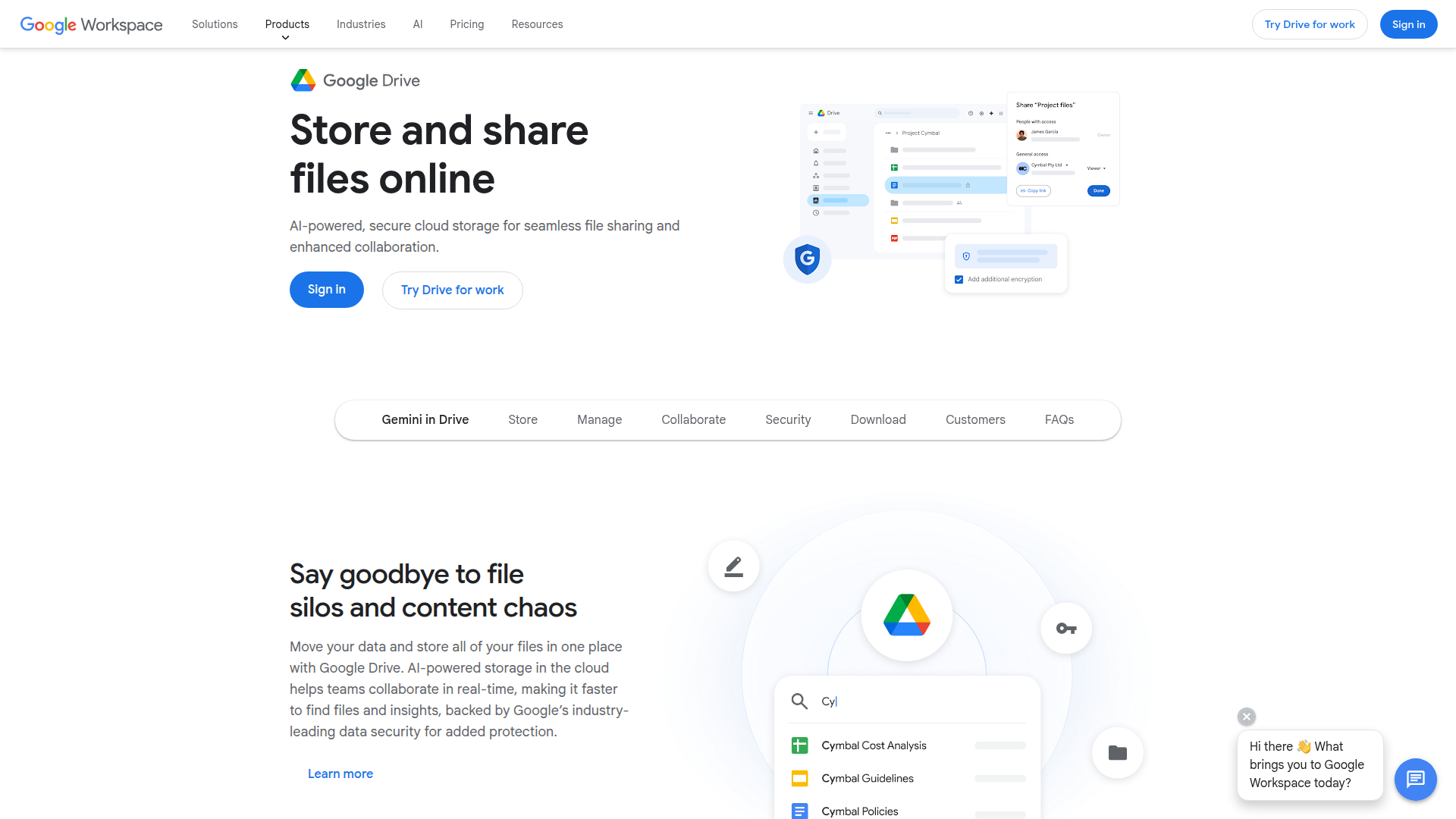
What is Google Drive? Google Drive is a cloud storage and file management platform within the Google Workspace suite. It stores Google Docs, Sheets, Slides, and Forms alongside standard file types like PDFs, images, and videos. Drive supports real-time collaboration, granular sharing permissions, and a REST API for programmatic file operations.
Teams connect Google Drive with Webflow when their sites need to display documents that change frequently or host files too large for Webflow's native asset storage. A marketing team might embed a live pricing spreadsheet that product managers update in Sheets. An agency might build a resource hub where editors add new documents through the CMS without touching any page layout. A developer might sync an entire Drive folder to CMS items using a serverless middleware layer.
The Google Drive-Webflow integration supports 4 approaches:
- Code Embed elements and direct links handle displaying Google Docs, Sheets, Slides, Forms, and file downloads on Webflow pages without writing code.
- Webflow CMS collections let you build scalable document libraries where editors manage Drive file references through CMS items.
- Zapier supports explicit workflows such as new Google Drive files in a folder creating Webflow CMS items and new Webflow form submissions creating Google Drive folders or Google Docs from templates.
- The Webflow Data API and Google Drive APIs give you full control over file syncing, CMS automation, and custom file portals, but require server-side development.
Most implementations combine two or more of these methods depending on the complexity of the setup.
Embed Google Drive files on Webflow pages
Google's "Publish to web" feature generates iframe embed codes for Docs, Sheets, Slides, and Forms. You paste these codes into a Code Embed element in Webflow, and the file renders directly on your page. Embedded content updates automatically when the source file changes in Drive. No republishing required. This method requires a paid Webflow site plan since free plans cannot use Code Embed elements.
For file types that don't support embedding — PDFs, images, videos, and folders — you can add shareable Drive links to any Webflow element. This works on all Webflow plans, including free.
Embed Google Docs, Sheets, Slides, or Forms
Google Workspace files generate native embed codes through the "Publish to web" option. Once embedded, viewers see a read-only version of the file directly on your Webflow page. Docs appear without toolbars, Sheets show values and charts but hide formulas, and Slides display in presentation or full-screen mode.
To embed a Google Workspace file:
- Open your file in Google Docs, Sheets, or Slides and click File > Share > Publish to web. For Google Forms, click Send at the top right, then click the embed tab.
- Select the Embed tab, choose your publishing options, and click Publish.
- Copy the generated iframe HTML code.
- In Webflow, open the Add panel and drag a Code Embed element onto your canvas.
- Paste the iframe code into the code editor, click Save & Close, and publish your site.
A few things to keep in mind about embedded Drive content:
- Slides auto-updates cannot be disabled, while Docs and Sheets can be set to manual republishing under File > Share > Publish to web > Published content & settings
- Publishing a file to the web makes it publicly visible — do not embed files containing sensitive or confidential data
- Google Workspace administrators can disable "Publish to web" for organizational accounts, which blocks this method entirely
- Files on shared drives require additional sharing configuration — set "Non-member of this shared drive can be given access to files" in shared drive settings before publishing
These constraints are usually manageable, but they matter before you publish anything publicly.
You can also embed Drive files inline within blog posts by inserting a Code Embed element inside a Rich Text element. Place your cursor at the desired insertion point, click the plus icon, select the custom code button, and paste your iframe code.
Customize Google Sheets embeds with URL parameters
After generating a Sheets embed code, you can modify the iframe src URL to control what visitors see. Append parameters like gid= to target a specific sheet tab, range=A1:B14 to limit visible rows and columns, widget=false to hide the sheet tab at the bottom, headers=false to remove row numbers and column letters, and chrome=false to hide the title and footer.
To customize a Sheets embed:
- Generate the embed code using the standard "Publish to web" steps.
- Edit the
srcURL inside the iframe code to add your desired parameters. - Paste the modified code into a Code Embed element in Webflow.
This gives you more control over what data visitors see, though responsive design options for Sheets embeds remain limited.
Make Drive embeds responsive
Standard iframes don't adapt to different screen sizes. You can make Drive embeds responsive using a CSS wrapper technique.
To create a responsive embed:
- Wrap your Code Embed element in a div container.
- Set the wrapper div's padding-bottom to your desired aspect ratio — use
56.25%for 16:9 (standard for Slides) or75%for 4:3. - Set the wrapper's position to relative and the iframe's position to absolute.
- Set the iframe's width and height to 100%.
This approach works for any iframe-based embed, not just Drive files.
Link to non-embeddable Drive files
For PDFs, images, videos, folders, and other file types that don't support "Publish to web," use shareable links instead. This method works on all Webflow plans, including free.
To link a Drive file from your Webflow site:
- Right-click the file in Google Drive and select Share.
- Set permissions to "Anyone with the link" with Viewer access, then copy the link.
- In Webflow, select any text, button, or image element.
- In the settings panel, set the link to the copied Drive URL and enable "Open in new tab."
Visitors click through to view the file in Google Drive's interface. This means they leave your site temporarily — there's no in-page preview for these file types.
Build a CMS-driven document library
For sites with many Drive files, hardcoding individual embeds doesn't scale. A CMS-based approach stores Drive file references as collection items, letting editors add and update documents without touching any page design. This method requires a CMS plan or higher.
To build a document library with the CMS:
- Create a CMS collection — for example, "Resources" or "Documents."
- Add a URL field to store the full shareable Drive link for each file.
- Add additional fields for title, description, category, or any other metadata you need.
- For each collection item, paste the Google Drive shareable link generated via Share → Get link in Drive.
- On the collection template page, add a Link Block or Button and bind its URL to the Drive URL field.
- Add a Collection List to any page where you want to display the library, then style and publish.
For files that support embedding, you can use a variation of this approach. Store the Drive File ID — the alphanumeric string between /d/ and the next / in a Drive share URL — in a Plain Text CMS field. Reference the File ID in a Code Embed element using the URL format https://drive.google.com/file/d/[FILE_ID]/preview. Note that this iframe workaround only renders on published sites, not in Webflow's preview mode.
Connect with Zapier and other automation tools
Automation platforms are useful when you need explicit Webflow trigger/action pairings without custom code.
Zapier offers confirmed examples such as new Google Drive files in a folder creating Webflow CMS items and new Webflow form submissions creating Google Drive folders or Google Docs from templates. Webflow form submissions can also trigger Drive actions such as creating folders, while file-upload workflows require additional configuration and may need custom middleware for binary file handling.
When using Zapier with Webflow form file uploads, you need to disable the uploaded file access restriction. Go to Site settings > Apps & Integrations > Restrict uploaded file access and toggle it off. The Zap will not access uploaded files without this step.
Build with the Webflow and Google Drive APIs
For use cases that automation platforms can't cover — real-time folder-to-CMS syncing, authenticated file portals, or bidirectional content updates. You can build a custom integration using both APIs. This requires a server-side middleware layer because Google Drive API calls cannot be made directly from browser-side JavaScript on a Webflow site due to CORS restrictions. Serverless functions on Netlify, Vercel, or AWS Lambda work well for this.
The relevant APIs include:
- The Google Drive REST API v3 handles file listing, uploads, downloads, exports, permissions, and push notifications
- Webflow Data API handles CMS collection items, form submissions, asset uploads, and site publishing
- Webflow webhooks fire real-time events for form submissions, CMS item changes, and site publishes
Together, these APIs provide the building blocks for custom sync jobs and middleware-driven workflows.
Google Drive authentication uses either a service account for automated server-to-server sync jobs or OAuth 2.0 for accessing files owned by end users. Use the drive.file scope where possible — it's non-sensitive and avoids the extended security review required for restricted scopes. Webflow API authentication requires a Bearer token, obtainable from Site settings > Integrations > API Access.
Sync a Google Drive folder to Webflow CMS
You can monitor a Drive folder for new files and automatically create corresponding CMS items in Webflow. This approach uses Drive's push notification system to avoid constant polling.
To set up folder-to-CMS syncing:
- Call
GET /drive/v3/changes/startPageTokento get the initial page token, then register a watch channel withPOST /drive/v3/changes/watch, providing your webhook URL in theaddressfield. Channels expire in at most 7 days, so your middleware must include renewal logic. - When a file is added, Drive sends a notification with
X-Goog-Resource-State: addto your webhook. Fetch the file's metadata withGET /drive/v3/files/{fileId}?fields=id,name,mimeType,webViewLink. - Create a Webflow CMS item with
POST /v2/collections/{collection_id}/items, mapping Drive metadata to CMS fields. Store the DrivefileIdin a text field to enable lookups for future updates. - Publish the new item with
POST /v2/collections/{collection_id}/items/publish. Batch multiple item IDs in one call, and call the site publish endpoint (POST /v2/sites/{site_id}/publish) only once at the end of a sync batch — it has a hard limit of one publish per minute.
Items created through the Webflow API always start as drafts. The explicit publish step is required to make them live. The bulk CMS endpoints accept up to 100 items per call, making batch syncs efficient.
Route Webflow form submissions to Google Drive
You can capture form data submitted on your Webflow site and store it as files in Google Drive. This is useful for archiving submissions or generating documents from form data.
To implement form-to-Drive routing:
- Register a Webflow webhook for the
form_submissiontrigger type on your site. Point it at your middleware endpoint. - When a submission arrives, your middleware receives a JSON payload with all form field data. Serialize the data into your target format — JSON, CSV, or PDF.
- Upload the file to Google Drive using
POST /upload/drive/v3/files?uploadType=multipart, specifying the target folder in theparentsfield of the metadata. - Optionally, write the Drive file URL back to the Webflow form submission using
PATCH /v2/sites/{site_id}/forms/{form_id}/submissions/{submission_id}to store a reference in a hidden field.
For binary file attachments, Webflow's native form handler does not support binary file upload fields. A custom frontend can post directly to your middleware endpoint, bypassing Webflow's native form handler, which then handles the Drive upload using resumable upload sessions for files over 5 MB. Note that Webflow enforces a 4 MB limit on CMS image fields, so any images routed from Drive to CMS image fields must be resized first.
What can you build with the Google Drive Webflow integration?
Integrating Google Drive with Webflow lets you display, distribute, and manage cloud-hosted files on your site without re-uploading content or rebuilding pages when files change.
- Live data dashboards: Embed a Google Sheet showing real-time project metrics, pricing tables, or inventory data on a Webflow marketing page. The embed updates automatically when anyone edits the source spreadsheet — no republishing needed.
- Scalable resource libraries: Build a CMS-driven downloads page where each collection item links to a Drive-hosted PDF, slide deck, or template. Editors add new resources by creating CMS items with Drive share links. An education platform could organize hundreds of course materials by subject and level.
- Automated form-to-file workflows: Connect a Webflow job application form to Zapier or Make so every submission creates a Drive folder, uploads the applicant's resume, and logs their details in a Google Sheet. The entire intake process runs without manual filing.
- Client file portals: Use the Google Drive API to list files from a client-specific Drive folder and display them on a Webflow page through a serverless middleware layer. Each client sees their project deliverables — contracts, reports, design files — organized on a branded portal page.
If you need more control over real-time file syncing or authenticated access per user, the API integration path covers those cases with full flexibility.
Frequently asked questions
No. There is no Google Drive app in the Webflow Apps Marketplace. All Google Drive integration requires embed methods, automation platforms, or custom API development.
Only Google Docs, Sheets, Slides, and Forms support native iframe embedding through Google's "Publish to web" feature. PDFs, images, videos, and folders cannot be embedded this way. For those file types, use shareable Drive links on Webflow button or text elements. The embedded file must be publicly accessible, so avoid this method for confidential documents.
Yes. The Code Embed element requires a paid Webflow site plan (CMS, Business, or Ecommerce) or a paid Workspace plan (Core, Growth, Agency, or Freelancer). If you're on a free plan, you can still link to Drive files using shareable URLs on any element — you just can't embed them inline on the page.
No. Direct browser-side API calls from a Webflow site to Google Drive trigger CORS errors because Webflow's static hosting cannot modify server response headers. All Google Drive API calls must route through a server-side proxy — a serverless function on Netlify, Vercel, or AWS Lambda, or an automation platform like Zapier or Make.
Open Site settings in your Webflow project, then navigate to the custom code section to add scripts in the head or before the closing body tag. This is useful for adding analytics tracking on Drive link clicks or loading JavaScript libraries needed for Drive API middleware calls. Custom code added at the site level applies to all pages, while page-level custom code applies only to that specific page.
Description
Google Drive adds cloud-hosted file embedding and document management to Webflow. Embed live Docs, Sheets, Slides, and Forms directly on pages, or build scalable resource libraries using CMS collections linked to Drive files.
This integration page is provided for informational and convenience purposes only.

Clip Path Bae
Connect Clip Path Bae with Webflow to clip images, divs and other elements into polygon, circle, ellipse or custom SVG shapes without writing code.

Chainlift Color
Connect Chainlift Color with Webflow to generate accessible Material 3 dynamic color themes with pre-configured utility classes and color variables.

Adobe Express
Generate images with Adobe Firefly, edit them, and save them to your site without leaving the page build.

bynder
Connect Bynder with Webflow to search and place brand-approved assets from your DAM directly onto your site.
Asset Bae
Connect Asset Bae with Webflow to bulk-edit image filenames and alt text, with AI-generated alt text for accessibility compliance.

Frontify
Connect Frontify with Webflow to browse and embed brand-approved assets, then sync them directly into your site.
Virtual Tours
Connect Virtual Tours to your Webflow site and display interactive 360° tours on any page.

SVGFlow
Connect SVGFlow with Webflow to edit SVG icon colors, sizes, and stroke widths directly on the design canvas without external tools.
Creattie
Connect Creattie's Lottie animation library with Webflow to add lightweight animations that load faster than videos while maintaining visual quality.
Related integrations
Get started for free
Try Webflow for as long as you like with our free Starter plan. Purchase a paid Site plan to publish, host, and unlock additional features.
