






Form Sparrow
Point a Webflow form's action URL at Form Sparrow to process submissions and deliver them by email, exported sites included.
Webflow forms handle submissions on hosted sites, storing each entry and emailing a notification to whoever you nominate. The gaps show up at the edges. Webflow's own plan limits put a 50 submission ceiling on the free Starter plan and hold native file upload fields back to higher paid tiers. An exported site loses form processing altogether, since none of Webflow's infrastructure is running behind it.
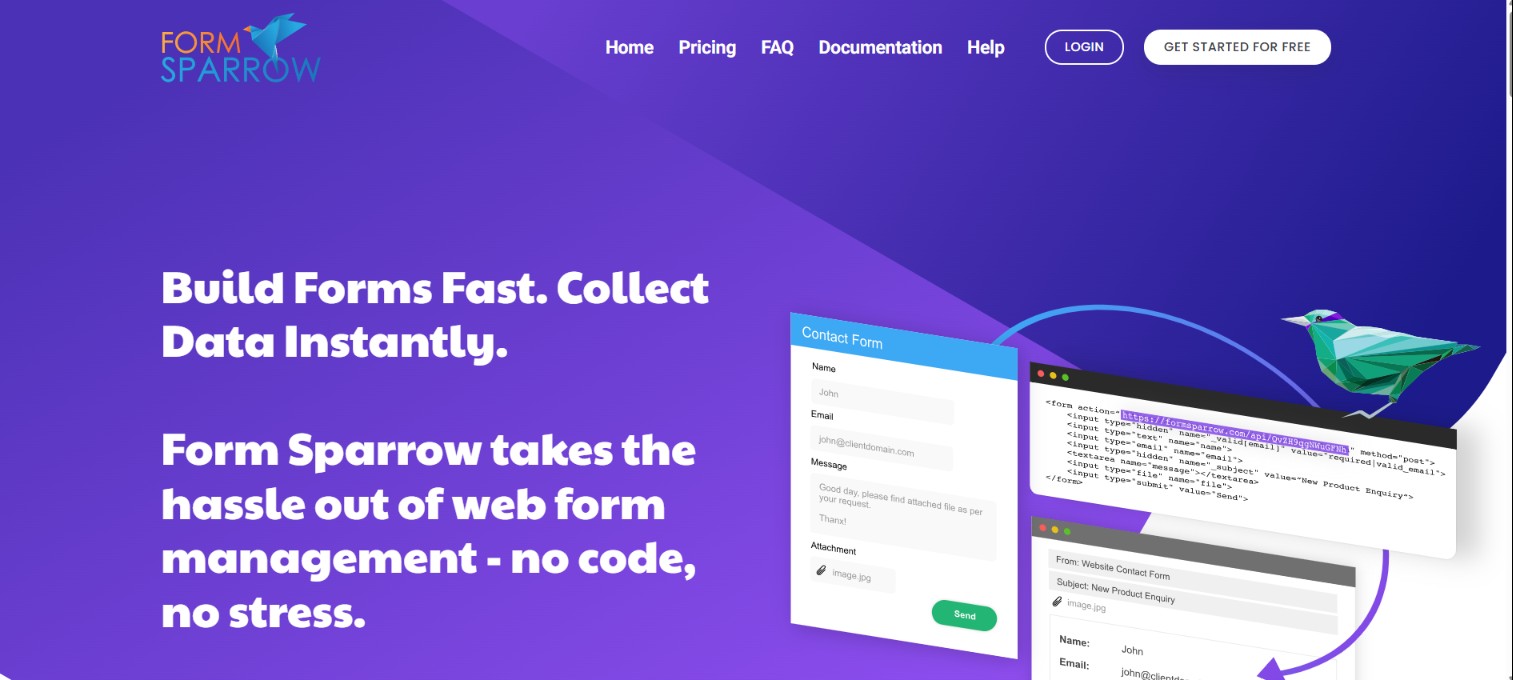
Form Sparrow is one of the hosted form backends that takes that job over. You paste its endpoint into a Webflow form's action field and switch the method to POST, and from then on every submission is processed by Form Sparrow and delivered to your inbox, with validation rules, spam filtering, file attachments and a thank-you redirect already handled.
The setup suits freelancers and agencies running the same form pattern across many client sites. It is close to mandatory for anyone shipping exported Webflow sites, where the built-in form handler does not exist at all.
How to integrate Form Sparrow with Webflow
What is Form Sparrow? Form Sparrow is a hosted form backend that receives HTML form submissions and emails them on. You point a form's action attribute at a unique endpoint URL, and Form Sparrow handles validation, spam filtering, file attachments and post-submission redirects without any PHP or JavaScript of your own. Form Sparrow pricing is a flat $5 per project per month with the first month free, and each form with its own endpoint counts as a project.
Teams reach for this combination in two situations: a site that has outgrown or sits outside Webflow's native form handling, and a form that needs delivery behavior Webflow does not offer, such as reply-to routing or per-field validation messages. Which approach you pick depends on where the form markup lives and how far the data has to travel. The custom action URL points an ordinary Webflow form at Form Sparrow's endpoint with no code at all. The Code Embed route drops a complete Form Sparrow form onto a page when you want to own the markup. The Webflow Data API and webhooks path keeps native form handling in place and fans the data out to the CMS or another system, at the cost of running a server. Most sites never need more than the first.
Point your Webflow form to the Form Sparrow action URL
Form Sparrow has no Webflow Marketplace app, so every setup runs through form settings or custom code. The custom action method is the documented primary path and needs no JavaScript. Each endpoint is my.formsparrow.com/api/ followed by your email ID, and any Webflow form can post to it through the custom action setting. Your styling and layout stay exactly as they are; only the destination changes. Form Sparrow reads POST data only, so a GET submission fails.
One detail the documentation glosses over: it prints the endpoint protocol relative, starting with //. Write it out with https:// in the Action field so a published page cannot be talked into posting form data over plain HTTP.
To set up the integration:
- Enter your email address on Form Sparrow's setup page to get your email ID and the full action URL. Using the ID rather than a raw address keeps your inbox out of the page markup, where harvesters read it.
- Select the form element in Webflow and open its settings.
- Paste the URL into the Action field and set the method to
POST. - Remove any Webflow or Email notifications, since a custom action cannot be combined with them.
- Publish the site, submit the form once, and click the verification link Form Sparrow emails you.
After verification, submissions land in your inbox and the form picks up Form Sparrow's hidden-field controls:
- Redirects and confirmations: A hidden
_afterfield sends the visitor to your own thank-you page, and_confirmationreplaces the default message with your copy. - Reply-to routing: A hidden
_replytofield set to%emailpicks up whatever the visitor typed into the field namedemail, so hitting reply answers the lead directly. - File attachments: Adding
enctype="multipart/form-data"to the form wrapper and naming the file inputfiledelivers uploads as email attachments. - Field validation: A hidden
_valid[email]field carrying rules such asrequired|valid_emailrejects bad data and tells the visitor which rule failed. - Spam controls and copies: An empty hidden
_honeyfield catches automated submissions, whilecc[]andbcc[]fields copy other recipients on every notification.
One endpoint can serve several forms, but they all share its settings, so give any form that needs different routing its own project.
Two consequences are worth planning for. A submission sent to a custom action is never stored in Webflow, which makes Form Sparrow's email your only copy of the lead: if it bounces or lands in a spam folder, there is nothing to re-download. The built-in success state usually will not fire either, which is why the redirect or confirmation message earns its place. Turn the form's CAPTCHA off as well, because the client-side check can stop a submission before it ever reaches the endpoint. The same setup is the standard answer on exported sites, where Webflow's form processing is not running at all.
Embed a Form Sparrow form with a Code Embed element
A Code Embed element accepts a complete HTML form in place of Webflow's form block, which suits builders who want direct control over the markup. You generate the embed code in your Form Sparrow dashboard and paste it onto any page, and a single embed holds the HTML, the CSS and any <script> tags together. Custom code needs a paid Site plan or a paid Workspace plan.
To embed a Form Sparrow form:
- Copy the embed code and confirm the form tag uses
method="POST". - In Webflow, open the Add panel and drag a Code Embed element onto the page.
- Paste the code into the embed and click Save & close.
- Publish the site, then submit once. The first submission triggers Form Sparrow's verification email.
Embeds come with constraints that shape how you use them:
- Client-side only: HTML, CSS and JavaScript run inside an embed, while server-side languages such as PHP do not execute at all.
- Editing placeholder: Script tags show a placeholder while you edit and only render on preview, publish and export.
- Size ceiling: Each embed holds a finite amount of code, so host longer scripts externally and reference them by URL rather than pasting everything inline.
- Preview gaps: Turning on the Run custom code in Preview toggle under Site settings covers most cases, but some preview limitations remain.
Treat the published site as the only real test surface and run at least one live submission through it before handing the page over.
Build with the Webflow Data API and webhooks
Start with the Webflow MCP server before writing any code. Its forms tool reads a site's forms and their schemas and lists submissions, and its CMS tools create collections, define fields and publish items, so an AI client can answer questions about native submissions and scaffold the collection you are about to write into. Form Sparrow publishes no REST API or webhook system of its own, so anything past email delivery happens on the Webflow side through the Data API v2 at https://api.webflow.com/v2. This path suits developers who need submission data in the CMS or in another system, and it requires server-side work.
Four Webflow surfaces carry most of that work:
- Forms API: The Forms API uses the
forms:readandforms:writescopes to list and update native form submissions across a site. - Webhooks: Webflow webhooks push
form_submissionevents to any endpoint you control as they happen. - CMS API: The CMS API uses the
cms:writescope to create and publish Collection items built from submission data. - Authentication: Every call carries a site token or an OAuth access token, and each scope has to be granted before the matching endpoint will answer.
The form_submission webhook fires only for forms still handled by native processing, so a form pointed at a Form Sparrow custom action never appears in any of these APIs. Keep native handling on and forward a copy yourself if you want both.
Sync form submissions to the Webflow CMS
This pattern keeps native form handling in place and uses middleware to fan the data out. The webhook delivers each submission to your server, your server writes an item into Webflow CMS, and it can also POST the same data to a Form Sparrow action URL for email delivery. Approving user-submitted content before it publishes, such as testimonials, follows the same shape. A form_submission payload looks like this:
{
  "triggerType": "form_submission",
  "payload": {
    "name": "Contact Us",
    "siteId": "65427cf400e02b306eaa049c",
    "data": {
      "First Name": "Zaphod",
      "Last Name": "Beeblebrox",
      "email": "zaphod@heartofgold.ai",
      "Phone Number": 15550000000
    },
    "schema": [
      {
        "fieldName": "First Name",
        "fieldType": "FormTextInput",
        "fieldElementId": "285042f7-d554-dc7f-102c-aa10d6a2d2c4"
      }
    ],
    "submittedAt": "2022-09-14T12:35:16.117Z",
    "id": "6321ca84df3949bfc6752327",
    "formId": "65429eadebe8a9f3a30f62d0",
    "formElementId": "4e038d2c-6a1e-4953-7be9-a59a2b453177"
  }
}
To implement the sync:
- Register a webhook with
POST /v2/sites/{site_id}/webhooksand settriggerTypeto"form_submission". This needs thesites:writescope, and afilterobject can restrict events to one formname. - Receive the JSON payload at your endpoint. Reading
form_submissionevents needs theforms:readscope. - Map the
datakey-value pairs to Collection fields and callPOST /v2/collections/{collection_id}/items/livewithfieldData.nameandfieldData.slugset. - Optionally forward the same data as a
POSTto your Form Sparrow action URL so the email notification still goes out.
Failed deliveries retry before the webhook deactivates itself, so answer quickly at the endpoint, log every failure, and do the CMS write after you have already responded.
What you can build with the Form Sparrow Webflow integration
Form Sparrow's job on a Webflow site is narrow and useful: it collects, filters and delivers form submissions by email with no server-side form processing of your own. That covers more ground than it sounds like once the delivery details are configurable.
Four setups come up repeatedly in client work:
- Lead generation landing pages: Campaign pages whose contact forms redirect to a booking page after submission, with the reply-to address set from the visitor's own email so a reply opens the conversation.
- Customer feedback portals: Feedback forms that email each response to your team, while the CMS sync pattern above publishes the approved ones to a Collection list on your reviews page.
- Event registration sites: RSVP forms that confirm by email and copy organizers through
cc[]recipients, with an attendee list that updates as registrations sync to the CMS. - Support request routing: A separate form and endpoint per department, where the honeypot field and spam word filtering keep automated noise out of the queue before anyone reads it.
All four depend on notification email that actually reads the way you want, so before you replace Webflow's handler wholesale, check how far you can customize form notification emails natively. Then connect the Webflow MCP server to your AI client and have it list a site's existing forms and submissions before you commit to which ones move to Form Sparrow.
Frequently asked questions
No. Form Sparrow has no Webflow Marketplace listing, so there is nothing to install from inside Webflow. Setup is manual either way: paste the action URL into a form's settings, or paste a generated form into a Code Embed element.
Yes. A form with a custom action sends nothing to Webflow, so submissions are not stored there and the setting cannot be combined with Webflow or Email notifications. On the free Starter plan the submissions also stop counting against its cap, since Webflow's own handling is bypassed.
Form Sparrow publishes no app on Zapier, Make or n8n, so reaching it from those platforms means sending a generic HTTP
POSTto its action URL. Webflow itself is supported natively, including Zapier's New Form Submission trigger. A form already pointed at Form Sparrow will not fire any of those triggers.Yes, and it is one of the main reasons to use Form Sparrow. Webflow's native file upload field is held back to higher paid site plans, while Form Sparrow's uploads run through the action URL on any plan. Add
enctype="multipart/form-data"to the form wrapper, name the file inputfile, and uploads arrive as email attachments.Yes, and it is one of the few options that does. An exported site has no Webflow server behind it, so form processing never runs and submissions have to reach a third party. In the exported form, set the action to your Form Sparrow URL and confirm the method is
POST.
Description
Form Sparrow is a hosted form backend for Webflow forms. Paste its action URL into your form settings and switch the method to POST, and submissions arrive by email with validation, spam filtering and file attachments handled. It also works on exported sites, where Webflow's own form processing does not run.
This integration page is provided for informational and convenience purposes only.

Arengu
Visually build user flows with custom actions with your API or favourite apps.

Airtable forms
Two builds hide behind "Airtable forms": an Airtable-hosted form you embed in a page, and a Webflow form whose submissions land in an Airtable base. This page covers both, the tradeoffs between them, and the API path for teams that need conditional routing.
123FormBuilder
Connect 123FormBuilder, a drag-and-drop form builder, with Webflow to embed payment forms, multi-step workflows, conditional logic, and HIPAA-compliant intake on any page.
Related integrations
Get started for free
Try Webflow for as long as you like with our free Starter plan. Purchase a paid Site plan to publish, host, and unlock additional features.
