






Webflow has no built-in way to pull photos from a Facebook Page. Teams keep galleries current by hand-downloading and cropping images before uploading them to the site, then repeat the whole cycle every time someone posts to Facebook. The gallery falls out of date the moment new photos go live on social.
EmbedAlbum closes that gap with a widget that renders Facebook photo albums directly on Webflow pages. You connect a Facebook Page once, paste an embed snippet into your site, and the gallery updates itself whenever new photos appear on Facebook. The widget loads client-side, so new photos and design changes appear on the live site without a republish.
This combination fits marketing teams and page editors who manage photo-heavy sites, along with agencies running galleries across multiple client sites. Hotels, restaurants, retail, and other multi-location brands get the most value from live Facebook galleries.
How to integrate EmbedAlbum with Webflow
EmbedAlbum is a widget platform by EmbedSocial for embedding Facebook albums and galleries as live, customizable widgets on any website. It imports all albums from a Facebook Page and syncs automatically when a new photo is added. Layouts include grid, masonry, carousel, and slideshow, with lightbox view and custom CSS.
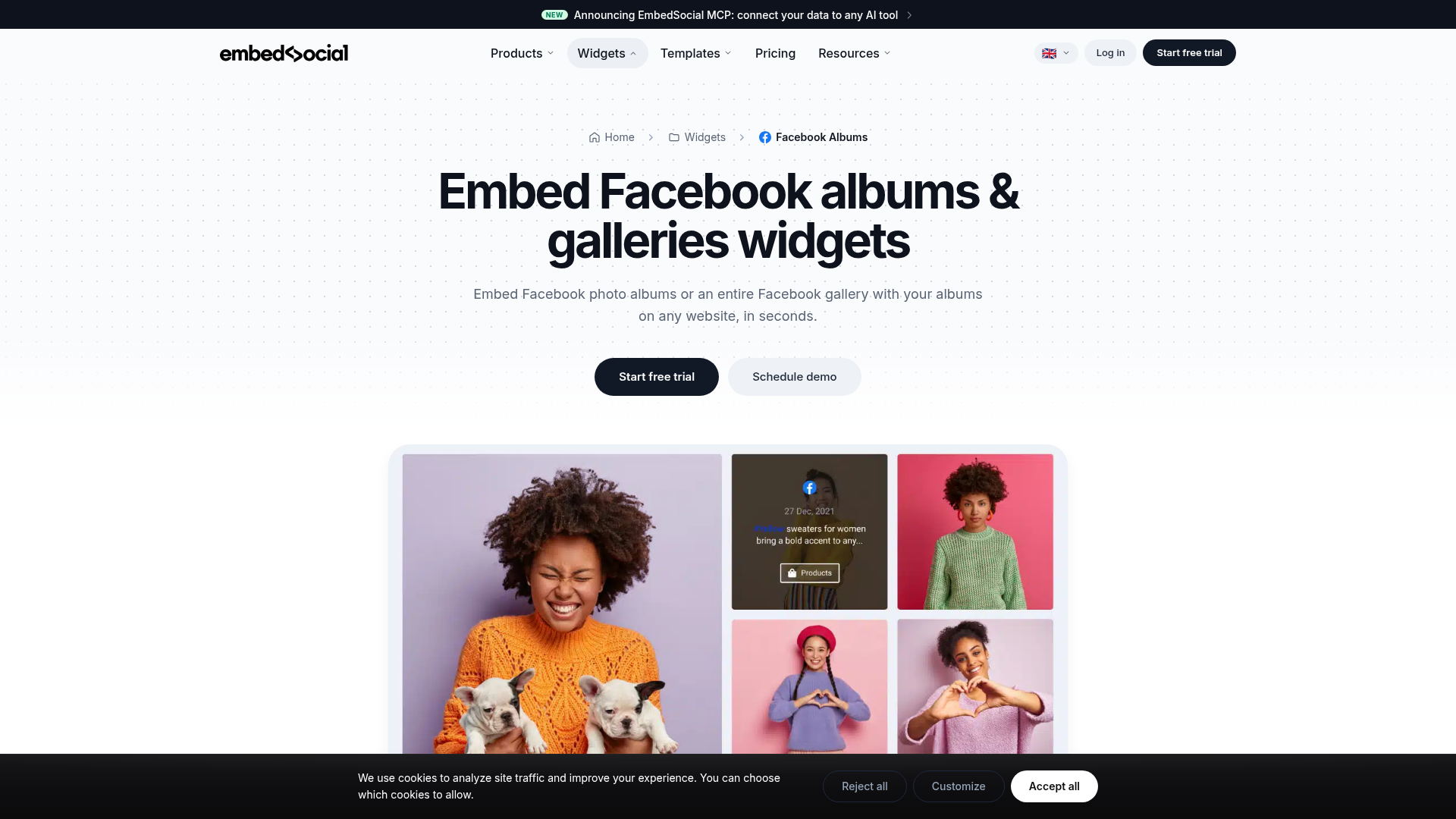
Teams pair EmbedAlbum with Webflow when their photo content already lives on Facebook and re-uploading it to the site wastes time. The widget removes manual photo management, including hosting and cropping, from the workflow. EmbedAlbum has no official Webflow Marketplace app, so every method below runs on embed code or APIs.
The EmbedAlbum-Webflow integration supports three approaches:
- The Code Embed element places an album widget on any page without writing code.
- CMS embeds on Collection pages render a different Facebook album for each item in the Webflow CMS.
- The Webflow Data API and EmbedSocial API give you full control over CMS syncing and multi-site script deployment, but require server-side development.
Most implementations use the embed methods alone. The API path matters for agencies managing many sites or teams syncing content into the CMS.
Add the EmbedAlbum widget with a Code Embed element
This is the standard method and needs no developer. You generate the widget in EmbedSocial, copy the HTML and JavaScript snippet, and paste it into a Code Embed element on any Webflow page. Two plan gates apply: the full, unbranded album features require a paid EmbedSocial plan, and custom code in Webflow requires a Core, Growth, Agency, or Freelancer Workspace, or an active paid Site plan.
To set up the integration:
- In EmbedSocial, connect the public Facebook Page you manage as a source.
- Customize the album widget layout and design.
- Click Embed and copy the generated code.
- In Webflow, open the Add panel and add a Code Embed element to the canvas.
- Paste the code and click Save and close.
- Publish the site.
Once the widget is live, it handles the ongoing work:
- New Facebook photos sync automatically, with no manual action in Webflow.
- Layout options include grid, masonry, carousel, and slideshow with lightbox view.
- The widget is mobile-responsive and takes the width of its parent element unless the code defines sizing.
- Design changes made in the EmbedSocial dashboard reflect on the live site without republishing.
Keep the snippet under the 50,000-character limit per Code Embed element, and never include <html>, <body>, or <head> tags, which break the site layout. The embed appears in preview mode but only goes live after you publish.
Add the script site-wide or per page
If you want the widget in a shared layout element, add the snippet through custom code in head and body tags instead of a Code Embed element. To apply it to every page, go to Site settings > Custom code, paste the snippet into the Footer code section, and click Save changes. For a single page, open Page settings and paste the code into the Before </body> tag field under Custom code, then save. Head code and Footer code fields each hold up to 50,000 characters, and the same paid plan requirement applies.
Use the iFrame code when JavaScript is blocked
EmbedSocial also generates an iFrame version of the widget for contexts where custom JavaScript is not allowed.
To get the iFrame code:
- Open the widget in EmbedSocial and click Embed.
- Click iFrame code and copy the code from the pop-up.
EmbedSocial notes that some features such as Lightbox mode are limited with the iFrame code, so use the standard JavaScript snippet whenever possible.
Render a different album on each Collection page
This pattern turns one Collection template into many gallery pages, each pulling its own Facebook album. EmbedSocial publishes a dedicated guide, Embed Facebook albums in Webflow Collection pages. You store each album's ID in a CMS field, then swap that ID into the embed code with dynamic data in custom code embeds. A location directory or event series can then show a unique gallery per item without duplicating pages.
To set up per-item albums:
- In your Collection settings, add a Plain text field named "EmbedAlbum ID".
- In each Collection item, enter that item's unique Album ID and save.
- Open the Collection template page, add a Code Embed element, and paste the full EmbedSocial embed code.
- Replace the hardcoded Album ID with the Add Field variable mapped to "EmbedAlbum ID".
- Publish the site.
After publish, each Collection page loads its own album, and new Facebook photos appear on every page without touching Webflow again.
Build with the Webflow and EmbedSocial APIs
The API path suits developers who need programmatic control, and it requires server-side development. EmbedSocial's API is read-only and account-gated. Its documentation sits inside the EmbedSocial dashboard, and EmbedSocial states the API is available on Premium plans. EmbedSocial also states there are "No streaming/webhooks at this time," so nothing on the EmbedSocial side can push events to Webflow.
The available APIs are:
- The EmbedSocial Developers API handles read-only access to synced social content on Premium and Enterprise plans.
- The Webflow Data API handles CMS collection items, custom code, and site publishing.
- Webflow webhooks fire events like
collection_item_createdwhen CMS content changes, for notifying external systems.
Because EmbedSocial has no outbound webhooks, any sync into Webflow must run on scheduled polling rather than events.
Sync album references into the Webflow CMS
This sub-method keeps a Collection in step with your EmbedSocial account, for example maintaining the "EmbedAlbum ID" fields used by the Collection page pattern.
To implement the sync:
- Poll the EmbedSocial API on a schedule from your server to read current album data.
- Create or update items with
POST https://api.webflow.com/v2/collections/{collection_id}/items, which requires theCMS:writescope and accepts up to 100 items per bulk request. - Publish the changes with
POST https://api.webflow.com/v2/sites/{site_id}/publish. The request body must include at least one ofcustomDomainsorpublishToWebflowSubdomain.
Items created through the staged endpoints stay unpublished until the publish call runs, so schedule both steps together.
Deploy embed scripts across client sites
Agencies running EmbedAlbum on multiple Webflow sites can apply the widget script programmatically instead of pasting it into each site.
To roll out the script:
- Call
GET https://api.webflow.com/v2/sitesto list the sites in the workspace. - Check existing scripts with
GET /v2/sites/{site_id}/registered_scripts. - Apply the script with
PUT /v2/sites/{site_id}/custom_codeusing the upsert custom code endpoint.
EmbedSocial supports use on multiple websites, so one account can back widgets deployed this way across a full client roster.
What you can build with the EmbedAlbum Webflow integration
Integrating EmbedAlbum with Webflow lets you run live Facebook photo galleries that update themselves without manual image uploads, hosting, or cropping. Teams put this to work in a few common ways:
- Per-location gallery pages: A multi-location restaurant or hotel brand stores one Album ID per CMS item, so each location's Collection page renders its own Facebook album from a single template.
- Album-based blog posts: Editorial sites drop full Facebook albums into articles, so new photos appear in each post without anyone cropping or uploading images by hand.
- Homepage galleries: A brand runs a live Facebook photo gallery on its homepage, and the team never updates it manually because new Facebook photos sync on their own.
- Shoppable galleries: Ecommerce sites turn Facebook album photos into a shoppable gallery, tagging products so visitors can buy directly from the images.
If you need more control over CMS syncing or multi-site script deployment, the API path covers those cases. To connect a live social feed the same way, see how to embed an Instagram feed on Webflow.
Frequently asked questions
No. Neither EmbedAlbum nor EmbedSocial has an official Webflow Marketplace app. The integration runs on embed code pasted into a Code Embed element or a custom code section, following EmbedSocial's own Webflow setup guide.
You need paid plans on both sides. Facebook sources in EmbedSocial require a Pro, Pro Plus, Premium, or Enterprise plan, not the Free plan. Custom code in Webflow requires a Core, Growth, Agency, or Freelancer Workspace, or an active paid Site plan, so a free Starter site cannot host the embed.
No. The widget loads client-side, so new Facebook photos and design changes made in the EmbedSocial dashboard appear on the live site automatically. Account-side changes reflect in Webflow without a republish. You only publish when you change the embed code or the page itself.
Yes. Store each Album ID in a Plain text field, then map it into the embed code with the Add Field variable, as covered in Webflow's guide to using dynamic data in custom code embeds. Follow EmbedSocial's step-by-step Collection pages article to set it up.
The most common cause is a Facebook password change, which automatically revokes EmbedSocial's access to the Page and stops widget updates until you re-approve permissions. EmbedSocial documents the fix in its guide to refreshing missing permissions. This matters most for agencies, where client account handoffs and shared logins make password changes frequent.

Description
Display auto-syncing Facebook photo albums on Webflow pages by pasting EmbedAlbum's widget code into a Code Embed element, or render a different album per Webflow CMS item with CMS-based embeds on Collection pages.
This integration page is provided for informational and convenience purposes only.

Elfsight Instagram Feed Plugin
Transform your Webflow website into a dynamic social hub by integrating live Instagram content through Elfsight's Instagram Feed Plugin. This integration enables automatic display of your latest Instagram posts, user-generated content, and hashtag campaigns directly on your website — all without writing a single line of code.

Elfsight Facebook Feed
Related integrations
Get started for free
Try Webflow for as long as you like with our free Starter plan. Purchase a paid Site plan to publish, host, and unlock additional features.
