






Dropbox
Connect Dropbox, a cloud storage and collaboration platform, with Webflow to host media via shared links and sync folder changes to the CMS using Zapier or APIs.

Dropbox gives your media library the versioning, deep folder structure, and 100 GB file transfers that the native asset manager doesn't. Point your site at Dropbox-hosted files through shared links, embed interactive previews with drop-in widgets, or sync folder changes into CMS items through Zapier, n8n, or the API.
The pairing fits marketing teams publishing approved brand assets and agencies backing client portals with Dropbox folders. Developers wire folder-change webhooks to the CMS for automated sync, while content managers paste Dropbox links into CMS fields with no code.
How to integrate Dropbox with Webflow
What is Dropbox? Dropbox is a cloud storage and content collaboration platform. It provides file sync across devices, shared links with password protection and expiring access, version history, and file transfer up to 100 GB on Standard and Advanced paid plans (Plus is limited to 50 GB). Developer tools include drop-in widgets plus a REST API with webhooks for detecting file changes.
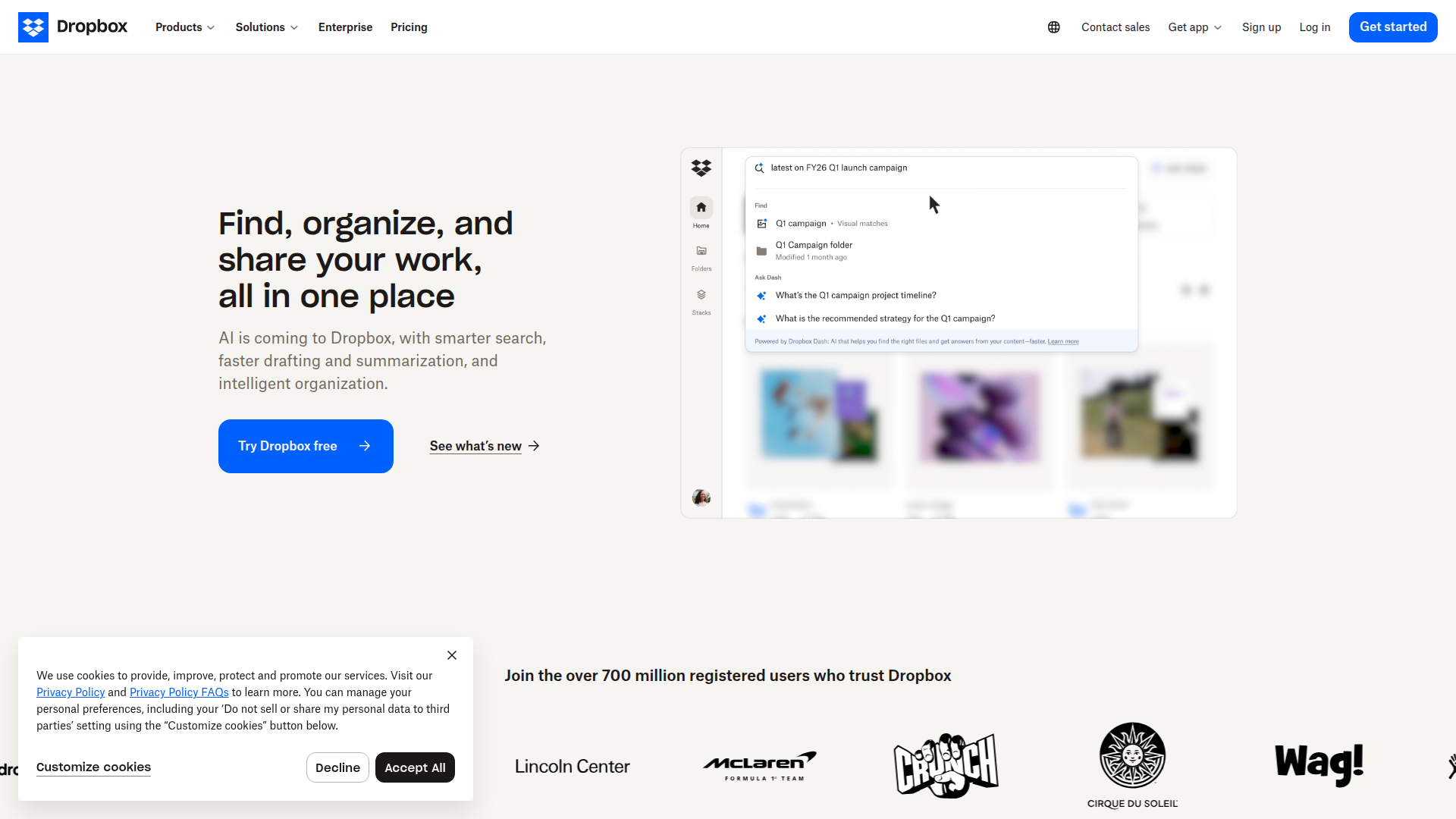
Reach for this combination when files live in Dropbox but publish through your site. Marketing and content teams store approved media libraries and PDFs in Dropbox, then display selected files or CMS-powered galleries on their site. Agencies build client portals backed by Dropbox file storage.
The Dropbox integration supports several approaches:
- Dropbox shared links let you host files using no-code links.
- Dropbox drop-in widgets let you embed previews or save buttons with copy-paste HTML.
- Automation platforms like Zapier and n8n move files and folder events between the two apps without writing code.
- The Webflow Data API and Dropbox APIs give you full control over CMS sync and asset uploads, but require server-side development.
Most implementations combine two or more of these methods depending on the complexity of the setup.
No official Dropbox app exists on the Webflow Marketplace. The URL for a Dropbox listing returns an error page, and a marketplace search returns no results. The methods below cover the connectors that actually work.
Host and embed Dropbox files with shared links and drop-in widgets
The fastest path uses a Dropbox shared link. Modify the link and paste it into any link, image, or video element. This method needs no App key and no paid plan, so it works for the simplest media-hosting cases. For interactive previews and save buttons, Dropbox provides drop-in widgets that you paste into a Code Embed element on a paid site. Note that the Dropbox Embedder does not support audio or video files.
For direct hosting, use shared links on media sources or download buttons. Use Dropbox's drop-in widgets when visitors need file previews or save-to-Dropbox buttons.
Paste a direct Dropbox link
A Dropbox shared link works as a direct file URL once you change one query parameter: replace ?dl=0 with ?raw=1. This is the only purely no-code option and needs no App key. Use it for media sources or downloadable PDFs served from Dropbox instead of native storage.
To serve a Dropbox file directly:
- In Dropbox, create a shared link for the file.
- Replace
?dl=0at the end of the link with?raw=1for direct file access. - Paste the modified link into an image, video, or link element in the Designer.
Dropbox can take down embedded content if the shared link exceeds bandwidth limits, so this suits moderate-traffic assets rather than high-volume delivery.
Embed file previews with the Dropbox Embedder
The Dropbox Embedder is a JavaScript library that renders interactive file and folder previews inside an <iframe> using shared links. Add an anchor tag with class="dropbox-embed" and the dropins.js script. This suits document repositories and folder previews where visitors browse files inline. The Embedder doesn't support audio or video.
To embed a preview:
- Register an app in the Dropbox App Console and whitelist your Webflow domain.
- Add a Code Embed element to your page, or add the script to your site head in Custom code in head and body tags.
- Paste the script tag with your App key:
<script type="text/javascript" src="https://www.dropbox.com/static/api/2/dropins.js"
  id="dropboxjs" data-app-key="YOUR_APP_KEY"></script>
- Add the anchor tag pointing at your shared link:
<a class="dropbox-embed" href="SHARED_LINK" data-height="500" data-width="700"></a>
Code Embed elements cap at 50,000 characters, and you need a paid Workspace or active Site plan to use them.
Add a Save to Dropbox button
The Dropbox Saver lets visitors save a file from your site to their own Dropbox in two clicks. The simplest usage adds class="dropbox-saver" and an href to an anchor tag. Use it on resource pages and download hubs where you want users to keep a copy.
To add a Saver button:
- Add the
dropins.jsscript tag with your App key to a Code Embed element or your site head. - Add an anchor with
class="dropbox-saver"andhrefset to the file URL.
Dropbox retrieves the file directly from the supplied URL, and the transfer must complete within 15 minutes or it times out.
Connect with Zapier or n8n
Automation platforms give you a no-code way to move data between Dropbox and Webflow when a direct link isn't enough. Zapier offers pre-built templates for the pairing, so you can route form submissions to Dropbox folders or turn new Dropbox files into CMS items. n8n connects Dropbox and Webflow through dedicated nodes for custom workflows. This path suits operations teams and content managers who want automated file handling without server code.
Zapier has a confirmed direct Webflow-to-Dropbox connection with these triggers and actions:
- New Webflow form submission → create a text file in Dropbox
- New Webflow order → create a new Dropbox folder
- New file in a Dropbox folder → create a new Webflow CMS item
- New Dropbox folder → create a new Webflow CMS item
- New file in a Dropbox folder → update an existing Webflow CMS item
n8n connects Dropbox with Webflow through dedicated nodes: the n8n Dropbox node supports creating, downloading, moving, and copying Dropbox files and folders, and the Webflow node supports creating, updating, deleting, and getting Webflow items.
Build with the Webflow and Dropbox APIs
For full control over CMS sync and asset uploads, use the Dropbox API and Webflow Data API directly. This path handles cases automation templates can't cover, like uploading Dropbox files into the asset manager or backing up CMS content on every change. You need server-side development because Code Embed elements don't run server-side languages, so Dropbox API calls need an external server or serverless function.
Use the Dropbox API v2 for file upload, download, folder listing, and shared link creation over HTTP POST. The Webflow Data API handles CMS collection items and assets. Pair both with Dropbox webhooks and Webflow webhooks to trigger real-time events between systems.
One token gotcha shapes every server-side build. Dropbox stopped issuing long-lived access tokens in September 2021. Tokens now expire after 4 hours, so you must request a refresh token with token_access_type=offline during authorization or the integration breaks silently.
Sync Dropbox files into the Webflow CMS
When files change in Dropbox, push them into a CMS collection. Dropbox webhooks are coarse-grained: a notification only tells you which account changed, not what changed, so follow up with a list call to get file details.
To sync file changes:
- Register a webhook URI in the Dropbox App Console with the
files.metadata.readscope, and echo back thechallengeparameter during the verification handshake. - On receiving a webhook POST, retrieve your stored cursor and call
POST https://api.dropboxapi.com/2/files/list_folder/continuewith{"cursor": "<stored_cursor>"}to get the actual changes. - Map the returned file metadata to your CMS collection schema.
- Create and immediately publish a CMS item with
POST https://api.webflow.com/v2/collections/{collection_id}/items/live.
Verify each POST using the X-Dropbox-Signature header, an HMAC-SHA256 of the request body signed with your app secret.
Upload Dropbox files as Webflow assets
To bring Dropbox images into the asset manager rather than hotlinking them, download the file bytes and push them through the asset upload flow. Asset creation returns an Amazon S3 upload URL, so uploading takes two calls.
To upload a Dropbox file as an asset:
- Call
POST https://content.dropboxapi.com/2/files/downloadwith aDropbox-API-Argheader to retrieve the file bytes. - Compute the MD5 hash of the file.
- Call
POST https://api.webflow.com/v2/sites/{site_id}/assetswithfileNameandfileHashto receive theuploadUrlanduploadDetails. - POST the file bytes to the returned S3 URL using
uploadDetailsas headers. - Reference the returned asset when creating a CMS item.
You need the assets:write scope on your API token to upload assets.
Back up Webflow CMS content to Dropbox
Send your site's content to Dropbox on every change to keep a file-based backup. Typed webhook events fire for CMS and form activity, so register the ones you care about and write each payload to Dropbox. Dropbox webhooks work differently: a single notification type only tells you which account changed, and a follow-up API call retrieves the actual file-level details.
To back up CMS content:
- Register a webhook for
collection_item_created,collection_item_changed, orform_submissionthrough the Webflow API. - On receiving the webhook, extract the item or submission data.
- Call
POST https://content.dropboxapi.com/2/files/uploadwith aDropbox-API-Argheader setting the path and mode, plus the file bytes in the request body.
For files at or above 150 MB, use a chunked upload_session flow instead of a single upload call.
What can you build with the Dropbox Webflow integration?
Integrating Dropbox with Webflow lets you host and sync media at scale without straining native asset storage.
- CMS-synced media library: Wire a Dropbox folder to a Collection List so new files become CMS items automatically. A weekly video series can push each upload into a gallery, the way the Sarah Updates site feeds Dropbox video URLs into CMS fields.
- Dropbox-hosted media pages: Serve high-resolution media and PDFs from Dropbox using
?raw=1links. This keeps large files off your hosting plan. A product catalog page can render dozens of Dropbox-hosted images without hitting asset size caps. - Form submission storage: Route form submissions to organized Dropbox folders through Zapier. A contact or intake form can drop a text file into a client folder for every submission, giving operations teams a clean record.
- Client resource portal: Build a portal backed by Dropbox folders where clients download deliverables. As an agency, embed folder previews with the Dropbox Embedder and add Saver buttons for one-click saves to Dropbox.
If you need more control over folder-triggered CMS updates or asset uploads, the API integration path covers those cases with full flexibility.
Frequently asked questions
No native built-in integration exists, and there is no official Dropbox app on the Webflow Marketplace. The working connectors are third-party automation tools like Zapier and n8n, plus direct API work. For no-code cases, Dropbox shared links and drop-in widgets cover most needs.
Yes, through two main methods. Modify a Dropbox shared link to end in
?raw=1and drop it into a media or link element with no code, or paste the Dropbox Embedder script and anchor tag into a Code Embed element. The Embedder needs a Dropbox App key and thedropins.jsscript, and it does not support audio or video.Yes. Custom code in a Code Embed element cannot exceed 50,000 characters. For longer scripts, host the code on an external server and reference it with a
<script src="">tag instead of pasting it inline.Dropbox access tokens expire after 4 hours, because Dropbox stopped issuing long-lived tokens in September 2021. Request a refresh token by adding
token_access_type=offlineduring OAuth 2.0 authorization, then use it to mint new access tokens. Without this, any server-side sync silently stops working once the first token expires.Use Dropbox webhooks together with the Webflow Data API. Register a webhook, and when Dropbox notifies you of a change, call
list_folder/continuewith your stored cursor to fetch the actual file changes, then create items with the Webflow CMS API. For a no-code version, use a Zapier template that creates Webflow items from new Dropbox files.
Description
Dropbox is a cloud storage and collaboration platform. On a Webflow site, it hosts media through shared links, embeds file previews, and syncs to CMS.
This integration page is provided for informational and convenience purposes only.

Modulo
Connect Modulo with Webflow to add pre-designed, production-ready UI components to your sites like hero sections, feature blocks, FAQ layouts, CTAs, and more, directly inside Webflow.
Goat Slider
Connect Goat Slider, a CMS-driven slider app, with Webflow to add dynamic carousels and sliders that automatically update when your content changes.
Pixcap Editable 3D Icons and Characters
Connect Pixcap, a customizable 3D asset library, with Webflow to browse, customize, and insert 3D icons, illustrations, and characters directly in Webflow without 3D modeling skills.
CutCopy
Connect CutCopy with Webflow to move variable collections and element attributes between projects instead of rebuilding them by hand.

Devblocks CMS Image Optimizer
Connect Devblocks CMS Image Optimizer with Webflow to batch-convert existing CMS images to WebP without re-uploading a single file.
Flowdrive
Connect Flowdrive, an external file and video hosting service, with Webflow to host videos and enable file uploads without Webflow's Business plan requirement.
Lummi
Connect Lummi, an AI visual asset library, with Webflow to source and insert commercial-use images inside the canvas.

Image Management
Convert Webflow CMS collection images to WebP or AVIF inside Webflow with the Image Management app, or script the same job with the Assets API.

Smootify Icons
Connect Smootify Icons with Webflow to place SVG icons from eight icon libraries on the canvas, styled without uploads or code.
Related integrations
Get started for free
Try Webflow for as long as you like with our free Starter plan. Purchase a paid Site plan to publish, host, and unlock additional features.
