






Flowbase Boosters
Add typewriter text, count-up stats, countdowns, and image sliders to Webflow with Flowbase Boosters: free attribute-driven scripts, no JavaScript to write.

Webflow covers layout, styling, and native Interactions on the canvas. A headline that types itself out, a stat that counts up, or a slider that wipes between a before and an after image still needs JavaScript. Writing that script once is quick. Keeping the same script alive and updated across every client site you maintain is the part that costs time.
Boosters are prewritten scripts from Flowbase that you switch on with HTML attributes. Each Booster is one small file served from the jsDelivr CDN, and you control its behavior by setting fb-* attributes on the element it should affect. The Boosters catalog lists 17 of them at the time of writing, and Flowbase adds more.
This suits designers and agencies who want interactive polish on a marketing site without standing up a build step for it. If you only need one effect, a single-purpose app is often the lighter choice: we also cover a countdown timer bar and a dedicated GOAT Slider. Boosters earns its place when you expect to reach for several effects across several sites and want one vendor behind all of them.
How to integrate Flowbase Boosters with Webflow
What is Boosters? Boosters is Flowbase's set of no-code front-end scripts for Webflow. Each one pairs a minified CDN file with a family of fb-* HTML attributes, so configuration happens in Webflow's element settings rather than in code. The catalog covers three GSAP text effects, a count-up counter, a countdown, a carousel ticker, tooltips, a before-and-after image slider, a custom slider, auto-rotating tabs, a real-time clock, social sharing, a password reveal, a text scramble, a cookie-based dismissal helper, and an age gate.
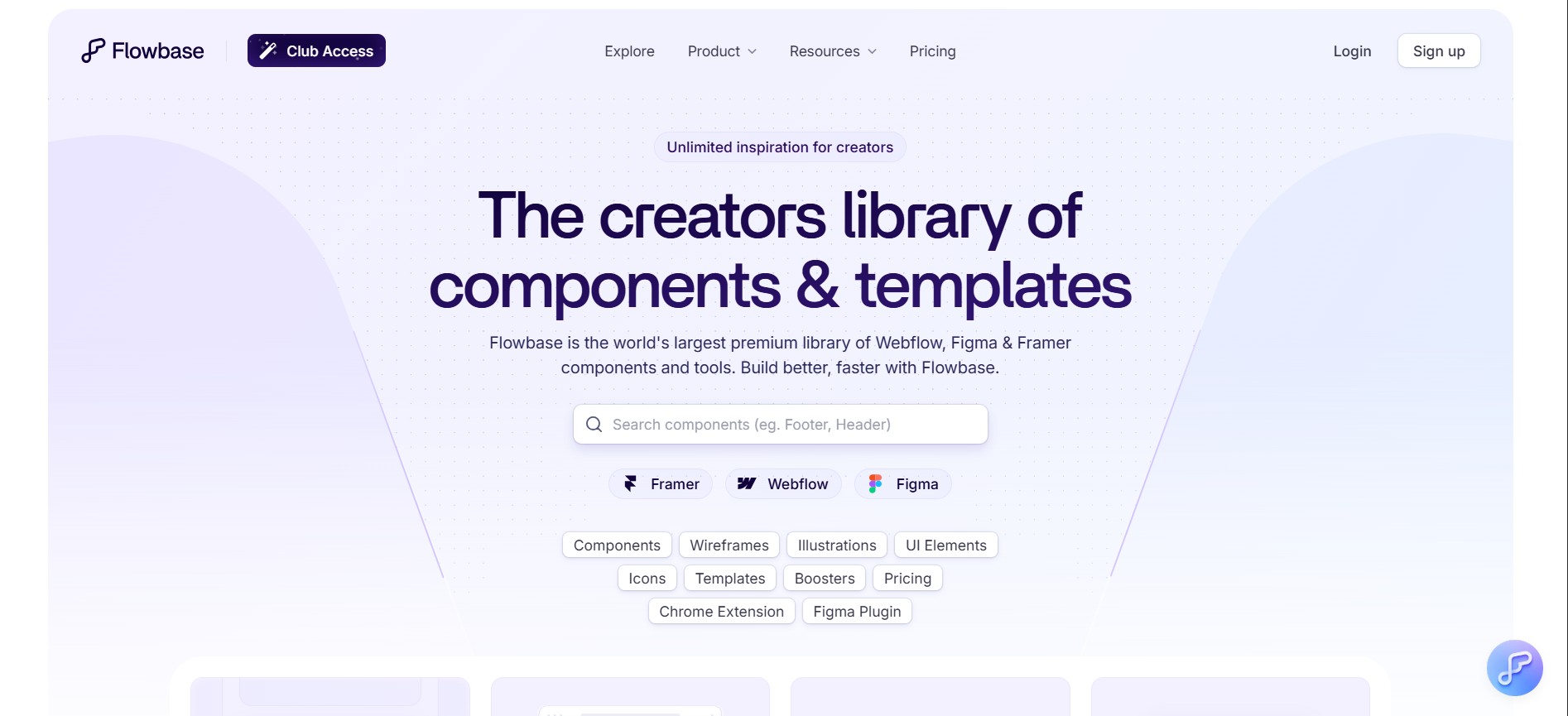
One thing to get straight before you install: on the Webflow Marketplace the listing is titled Flowbase, published by Flowbase, with support at support@flowbase.co. Boosters is one section inside that app, alongside the component library, wireframes, icons, and Webflow tools. Installing to get Boosters means installing the Flowbase app, and Webflow has marked it as approved.
Teams reach for Boosters when a design calls for motion that native elements do not produce on their own. A marketing team drops a count-up band onto a launch page; an agency adds auto-rotating tabs to a product demo. The alternative in both cases is writing and maintaining the JavaScript yourself.
There are three ways in. The Flowbase app installs, updates, and removes Booster scripts for you from inside Webflow. Manual script embeds put the same CDN file into head and body tags or a Code Embed element, which is what exported projects and page-scoped installs need. The Webflow Data API registers and applies those scripts from your own backend, which is the route for deploying one Booster to many sites at once.
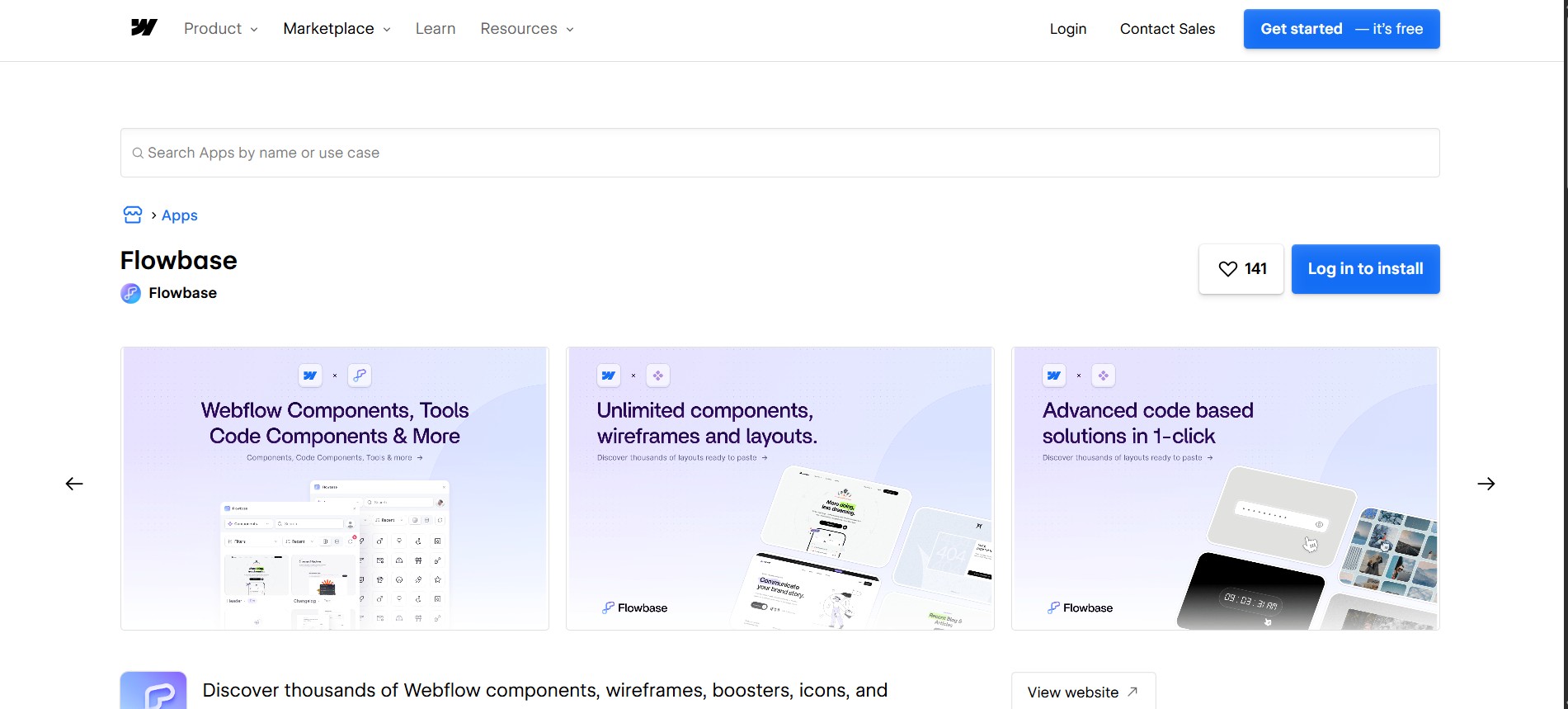
Install the Flowbase app
Flowbase recommends the app over pasting scripts by hand, because the app keeps track of which Booster scripts a site is running and flags updates to them. You authorize it against a single site or against a whole Workspace.
To set up the integration:
- Open the Flowbase listing on the Webflow Marketplace and click Install.
- Choose whether to authorize the app for one site or for the Workspace, then confirm the authorization.
- Back in Webflow, open the Apps panel in the sidebar and launch the app.
- Select an element, configure the Booster's settings, then click Add Component or Add Attribute.
- Publish the site and open the live URL to see the Booster running.
What the app does for you:
- Script delivery: The app adds and removes the CDN script for each Booster you use, so you never place a script tag yourself.
- Update tracking: Because the app manages the scripts it installed, it can tell you when a Booster script has a newer version available.
- Workspace coverage: Authorizing at Workspace level grants access to every project in it, including sites you add to that Workspace later.
- Prewired components: Components inserted from the app arrive with the required
fb-*attributes already attached, so you skip the manual attribute steps. - Manual fallback: You can still embed any Booster script by hand, which is the documented route for exported sites.
Add Component drops a prebuilt component at the bottom of whatever element you have selected, styled minimally so you can restyle it. Add Attribute applies attributes to that one element instead. To copy configured fb-* attributes from one element to another, the x-attribute app is worth having alongside it.
Worth reading before you authorize: the listing's Permissions section asks to read and write custom code, read site data and publishing, and read information about the authorizing user. Those are the scopes a script installer needs, and no CMS or form scopes appear among them. Webflow's Apps overview is explicit about the exit path, and it is split across two tabs: you view what a site has authorized under Site settings > Integrations > Authorized apps, and you revoke under Site settings > Apps and integrations. At Workspace level, Workspace settings > Apps and integrations > Uninstall app removes it from every site in that Workspace. After a revoke, elements the app placed stay on the page while the custom code it added is removed at your next publish, so a page can change appearance on publish rather than the moment you revoke.
Add Booster scripts with custom code and Code Embed elements
Every Booster page in the catalog publishes its own minified script and the list of fb-* attributes that drive it, so you can install any Booster without the app at all. Manual installs sit outside the app's lifecycle, which means version updates are yours to track. Adding custom code needs a Core, Growth, Agency, or Freelancer Workspace, or an active Site plan on the site.
Embed a script site-wide or per page
Use site settings for a Booster that appears in more than one place, and page settings when a single page needs it. Either way the script goes in the head code field, and each of those fields holds up to 50,000 characters.
The Typewriter Booster script looks like this:
<!-- Flowbase Booster [Typewriter] -->
<script src="https://cdn.jsdelivr.net/npm/@flowbase-co/boosters-typewriter@1.0.1/dist/typewriter.min.js" type="text/javascript"></script>
- Copy the script from the Typewriter Animation page, which pins the version rather than tracking the latest release.
- Paste it into Site settings > Custom code > Head code, or into a page's Custom code > Inside
<head>tag section. - Wrap your text in a div and set
fb-typewriter = trueon it, then tunefb-typewriter-speed,fb-typewriter-delay, andfb-typewriter-loop. - Add your text strings inside that wrapper, leaving one visible and the rest hidden.
- Publish, then open the published URL.
Check that the script keeps its quoted URL and its closing </script> tag. If a Booster does nothing on the live site, the browser console is the first place to look.
Use a Code Embed element on the canvas
A Code Embed scopes the script to the page it sits on, and it keeps the script next to the component it powers rather than in a settings panel. Each embed also holds up to 50,000 characters.
- Add a Code Embed element from the Add panel where the component should appear.
- Paste the Booster script into the embed.
- Click Save and close.
- Add the
fb-*attributes to the target element. - Publish and check the published URL.
One trap to know about: Webflow removes code components entirely on copy and paste between sites, so a section you move to another project arrives without its embed. Re-add it after pasting.
Build with the Webflow Data API
Flowbase publishes no developer API for Boosters, so the programmatic side of this integration lives entirely on Webflow's. The Data API can register a Booster's CDN file as a script on a site and then apply it site-wide or to one page, which is how you get the same Booster onto twenty client sites without opening twenty projects.
The endpoints that matter here:
- Registered scripts: Hosted script registration takes the jsDelivr URL, a Subresource Integrity hash, a SemVer version, and a display name.
- Inline scripts: Inline registration caps at 2,000 characters, which is why Boosters belong in the hosted path rather than pasted in as source.
- CMS data: The CMS endpoints read and write the collections that feed CMS-bound Boosters such as the carousel ticker.
- Publish confirmation: The site publish event reports
siteId,publishedOn,domains,publishedBy, andpublishScope, so your deploy job can wait for a real publish.
The API layer only handles the script. Attributes still get set on elements, either in Webflow or through the app.
Register and deploy a Booster script via the API
All endpoints sit under https://api.webflow.com with the /v2 prefix, and registration needs the custom_code:write scope.
- Register the file with
POST /v2/sites/{site_id}/registered_scripts/hosted, passinghostedLocation(the Booster's jsDelivr URL),integrityHash,version, anddisplayName. - Apply it with
PUT /v2/sites/{site_id}/custom_codefor the whole site, orPUT /v2/pages/{page_id}/custom_codefor one page. - Publish with
POST /v2/sites/{site_id}/publishand confirm through the publish webhook. - Verify with
GET /v2/sites/{site_id}/registered_scriptsand the matching custom code GET endpoints.
Pin the version in hostedLocation. An integrity hash is computed against the exact bytes at that URL, so pointing it at a moving @latest tag will break the moment Flowbase publishes a new release. Registered script versions are also immutable in Webflow: each displayName plus version pair is unique and cannot be overwritten, so shipping an updated Booster means registering it as a new version. If you would rather drive this from an agent than from a deploy script, the Webflow MCP server reads and writes site and page custom code and manages registered scripts inside your existing permissions and roles, and it records what it changed in the site activity log.
Know what a hosted Booster script costs you
Boosters are cheap to add and easy to over-add, and the costs are real even though none of them show up on an invoice. Weigh these before a Booster ships to a client site.
- Third-party runtime: Each Booster is a file fetched from jsDelivr at page load, which means a dependency outside your project and outside your publish cycle.
- Page weight: Boosters are per-effect files rather than one bundle, so four effects on one page means four requests, and the GSAP-based ones are the heaviest of them.
- Cookie inventory: The Cookies Booster stores a dismissal cookie in the visitor's browser for a number of days you set, so it belongs in whatever cookie disclosure your site publishes.
- Attention cost: Countdowns and age gates buy urgency by interrupting people, and on a considered purchase that trade often goes the wrong way. Ship one per page at most and measure it.
- Interaction collisions: Scripts that touch DOM events can fight with native Interactions, which is a debugging cost that lands later rather than at install time.
On price, the Boosters in the public catalog are free and Flowbase's getting started guide says so plainly. Flowbase pricing lists a free Starter tier and a Pro+ tier at $39 per month, or $27 per month billed annually, which covers the wider component library plus a set of premium Boosters. That paid tier carries a limit worth knowing if you plan to lean on the library: monthly accounts are capped at 200 component copies per month.
What you can build with the Boosters Webflow integration
Boosters covers the interactive pieces that marketing pages keep asking for and that native elements do not produce on their own. These are the four that earn their weight most often.
- Animated stat sections: The Count Up Booster animates a number toward a target with
fb-count-target,fb-count-time, andfb-count-delay, which suits a metrics band on a product page. - Before-and-after comparisons: The Before & After Image Slider compares two pieces of content on a horizontal or vertical split, built from Webflow elements you style yourself rather than a fixed widget.
- Launch and promotion pages: The Countdown Booster counts weeks, days, hours, minutes, and seconds to a UTC target date, and the Cookies Booster keeps a dismissed banner hidden for a set number of days.
- CMS-driven carousels: The Carousel Ticker loops a row of content with
fb-carouselon the wrapper andfb-carousel-contenton the inner div. For CMS content, putcarousel-wrapperon the Collection List Wrapper and bind the list to your Webflow CMS collection.
Once you are deploying the same Booster to more than a handful of sites, move the install into code. Follow our walkthrough on applying custom code to Webflow pages with the Data API.
Frequently asked questions
Booster scripts run on the published site, not on the canvas or in preview. Flowbase's getting started guide tells you to publish and open the live URL to see any Booster working, so plan QA against a published staging or production URL.
Only if you authorize it at Workspace level. Flowbase's getting started guide notes that selecting the Workspace grants access to every project in it, including sites added later. Authorizing a single site covers that site alone.
You need a Core, Growth, Agency, or Freelancer Workspace, or an active Site plan on the site. Webflow pricing lists custom code as a Core feature. The code fields accept HTML, CSS, and JavaScript, but no server-side languages.
They can. Webflow's Code Embed documentation warns that scripts affecting DOM events such as onClick and onHover may cause unexpected behavior. For the Carousel Ticker specifically, Flowbase's carousel troubleshooting article covers setting
fb-carousel-ignore-interactions="true"to stop Interactions reinitializing after the carousel updates, and notes that duplicate copies of the script make the carousel speed up.Not on the Flowbase side. Flowbase publishes no developer API or webhooks for Boosters, and each Booster is a static CDN file, so there is nothing for an automation platform to call. Drive it from Webflow instead, with the Data API custom code endpoints.
Description
Attribute-driven scripts that add GSAP text effects, count-up stats, countdowns, tooltips, carousels, and image sliders to a Webflow site, installed through the Flowbase Marketplace app or a manual embed.
This integration page is provided for informational and convenience purposes only.

CMS Library: Nest
Simulate multiple nested Collections on a single page, with Finsweet's CMS Library!
CMS Library: Slider
Create CMS slider with dynamic number of slides, with Finsweet's CMS Library!

Webflow Tabs
Connect Webflow Tabs with CMS collections, Finsweet Attributes, and custom JavaScript to build dynamic tabbed interfaces with CMS-generated content, deep linking, and auto-rotation.
CMS Library: Anchor
Create CMS anchor links and sections, with Finsweet's CMS Library!
CMS Library: Combine
Combine multiple CMS Dynamic Lists into one single Collection List, with Finsweet's CMS Library!
CMS Library: Add Classes
Give unique add-on classes to elements inside your Collection List, with Finsweet's CMS Library!

Class Adder for Webflow Interactions
Class Adder is a tool to add/remove a class from an element. You can trigger the add/remove on click, hover, scroll in/out of view, or page load. This is an add-on to Webflow Interactions.

Awesome Table
Connect Awesome Table with Webflow to display filterable Google Sheets data on any page without building a custom backend.

3D and AR with Vectary
Connect Vectary, a browser-based 3D and AR design platform, with Webflow to embed interactive 3D models and app-free AR directly on your site.
Related integrations
Get started for free
Try Webflow for as long as you like with our free Starter plan. Purchase a paid Site plan to publish, host, and unlock additional features.
