






BlogSEO AI
Connect BlogSEO AI, an AI content platform that generates and publishes SEO articles, with Webflow to auto-publish keyword-targeted posts directly to the CMS.

BlogSEO AI generates SEO articles, inserts contextual internal links, produces HD images, and pushes finished posts straight into your CMS Collection. The native marketplace app maps content fields automatically, and you choose whether each article publishes from a review queue or goes live the moment it generates.
The integration fits growth-stage startups scaling content and agencies managing multiple client sites. If you already run your site on Webflow, you can add a full autoblogging workflow without custom code or third-party plugins.
How to integrate BlogSEO AI with Webflow
What is BlogSEO AI? BlogSEO AI is an AI content platform that generates SEO blog articles and auto-publishes them to your CMS. It analyzes website structure, researches keywords, monitors competitors, and matches brand voice. It also inserts internal links automatically and generates HD images for each post.
Reach for this combination when you want a steady stream of keyword-targeted articles flowing into your site without manual copy-paste. BlogSEO handles generation and SEO structure. Webflow handles the site design and hosted delivery. The connection sits between them and moves finished content into your Collection.
The BlogSEO AI-Webflow integration supports two approaches:
- The BlogSEO AI marketplace app connects through OAuth and publishes articles to your CMS without writing code.
- The Data API and BlogSEO custom webhook give you full control over field routing and publish timing, but require server-side development.
Most implementations use the native app, then add the webhook path only when a custom pipeline demands it.
Install the BlogSEO AI app
The BlogSEO AI marketplace app connects your BlogSEO account to a Webflow site with a no-code OAuth flow. Once connected, generated articles map straight to your CMS Collection fields and publish on the schedule you set. You need an active BlogSEO subscription and Admin or Editor access to the site. Your site must be on a CMS or Business plan, which support 2,000 and 10,000 CMS items respectively.
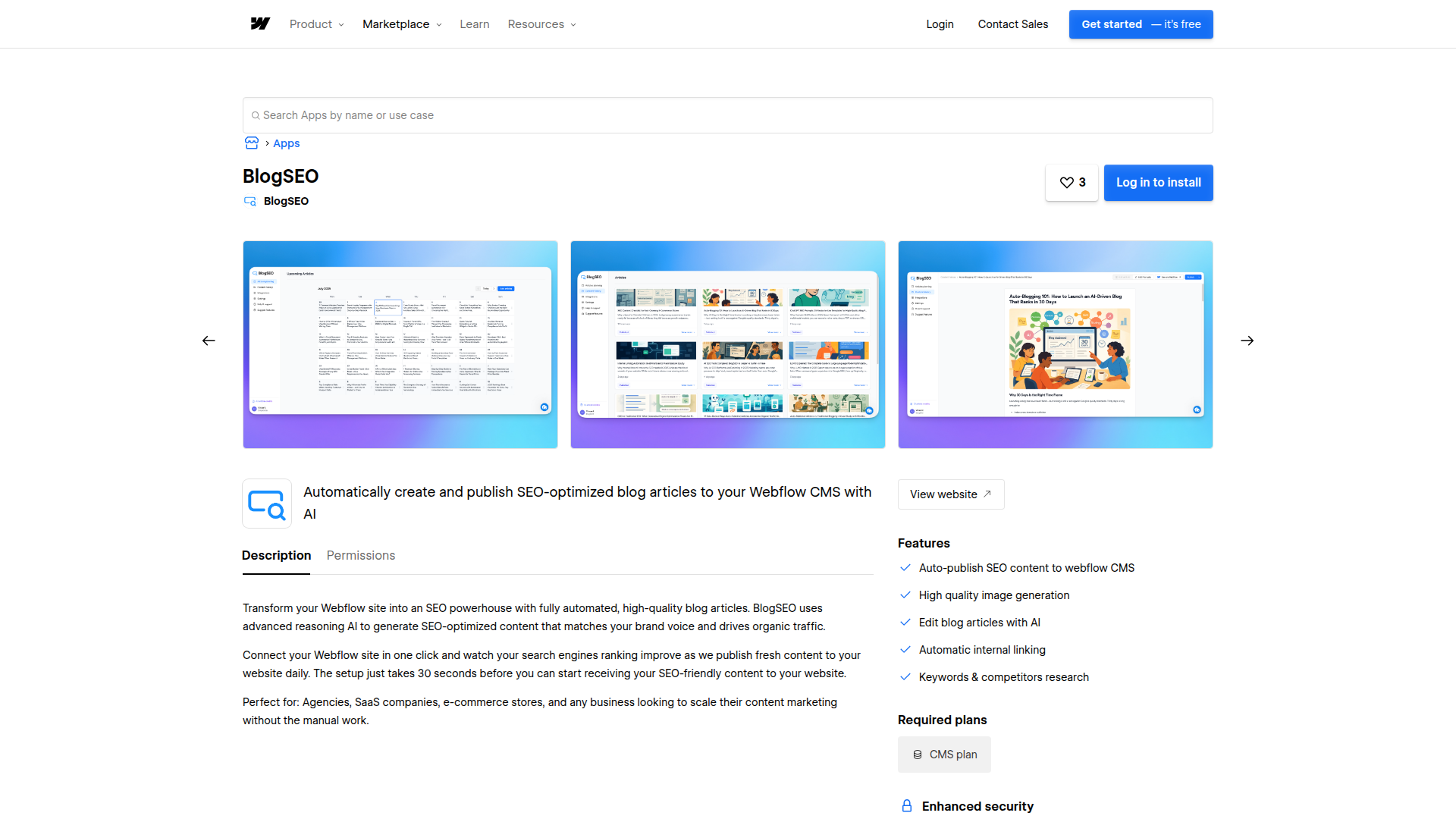
The app covers the core publishing tasks:
- Auto-publish SEO content to CMS collections
- Generate HD images and attach them as the main image
- Insert contextual internal links inside article bodies
- Run keyword and competitor research from the BlogSEO dashboard
To set up the integration:
- Open Integrations in your BlogSEO dashboard and select Webflow.
- Click Connect to Webflow and log in to authorize BlogSEO.
- Select the site you want to connect.
- Confirm the field mapping and choose manual or automatic publishing.
BlogSEO maps its content fields to your Collection fields with no manual configuration. The title field maps to Name, slug to Slug, hero_image to Main Image, html_content to Post Body, meta_title to Meta Title, and meta_description to Meta Description. Read the full setup in the Webflow integration docs.
The Rich Text field does not support tables, so BlogSEO stops generating tables inside articles while a Webflow integration is active. This keeps content formatting clean in your CMS.
Choose a publishing mode
The app supports two publishing modes. Pick the one that matches how much control you want over what goes live and when. Both run without code, and you switch between them in the Webflow integration settings.
Manual publishing
Manual mode holds each generated article in a review queue until you approve it. Use this when a person should read the draft before it reaches the live site. It also protects any in-progress design work from going live before you are ready.
To publish an article manually:
- Open Articles in the BlogSEO dashboard.
- Select an article with a "generated" status.
- Click Publish, then choose Publish to Webflow.
The article creates a staged CMS item, then publishes to your live site. This mode keeps a human in the loop for every post.
Automatic publishing
Auto-publish mode pushes and publishes each article the moment BlogSEO generates it. This suits high-volume autoblogging where speed matters more than per-article review. Enable Auto-publish in the Webflow integration settings to turn it on.
To enable auto-publishing:
- Open the Webflow integration settings in your BlogSEO dashboard.
- Toggle Auto-publish on.
- Confirm your target Collection and field mapping.
Auto-publish triggers a full site publish to both staging and production after each article push. Any other pending draft changes on your site will also go live. If you have active design work in progress, stay on manual mode.
Build with the Webflow and BlogSEO AI APIs
The API path gives you full control over how content moves from BlogSEO into your site. It suits developers who need to route content through middleware and sync multiple sites with custom logic. This path requires server-side development. BlogSEO does not expose a public versioned REST API, so the API path uses its outbound webhook on one side and the Data API on the other.
Use these interfaces for the API path:
- The BlogSEO custom webhook sends an outbound POST when an article is published or republished
- The Data API handles CMS Collections and Collection items
- Webhooks trigger real-time events like
collection_item_publishedandsite_publish
Together these interfaces let the API path react to BlogSEO output and write to your site on your terms.
Route webhook payloads to Webflow CMS
BlogSEO's custom webhook fires an HTTP POST to a URL you specify each time an article publishes. A middleware function receives the payload and calls the Data API to create or update a CMS item. This gives you a place to transform content and validate fields before articles land in the right Collection.
To implement this path:
- Register a webhook URL in BlogSEO under Settings > Integrations > Custom Webhook. The payload includes
article.id,article.slug,article.title,article.content,article.format, andarticle.main_image_url. Respond within 30 seconds or the request fails. - In your middleware, use
article.idto tell new articles apart from updates. Maparticle.titletoname,article.slugtoslug, and the body into your Rich Text field. - Send
POST /v2/collections/{collection_id}/itemsto create a staged item. The request body needs afieldDataobject withnameandslug, and the call requires theCMS:writescope. - Publish the staged item with
POST /v2/collections/{collection_id}/items/publish, or create it live directly withPOST /v2/collections/{collection_id}/items/live.
Image fields need a publicly accessible URL, since the CMS API does not accept direct file uploads, and images cap at 4 MB. Site publish operations are limited to one successful publish per minute through the API, so batch your publishes if you push at scale.
What can you build with the BlogSEO AI Webflow integration?
Integrating BlogSEO AI with Webflow lets you run a full SEO content pipeline without copy-pasting drafts into Collection items by hand.
- Autoblogging pipeline: Generate keyword-targeted articles on a schedule and push each one straight into a blog Collection. A B2B SaaS team can go from a URL to a published, internally linked post in minutes.
- One-click manual publishing: Draft articles in BlogSEO, review them in a queue, then publish approved posts to your live blog with a single click. Editorial teams keep a human check on every post.
- Internal linking at scale: Auto-insert contextual links to cornerstone pages and commercial pages such as product or pricing pages inside each article body before it reaches your CMS. An e-commerce brand can raise internal clicks to product pages without manual link edits.
- Custom content sync: Route BlogSEO webhook payloads through middleware into specific Collections using the Data API. An agency can send articles to the right client site and Collection based on payload logic.
If you need more control over field routing or multi-site publishing, the API path covers those cases with full flexibility.
Frequently asked questions
Your Webflow site must be on a CMS or Business plan. The Basic plan cannot support the integration because it lacks CMS API access.
You need Admin or Editor access to the Webflow site. The OAuth flow grants BlogSEO permission to write CMS items to the site you select during setup. If you connect with an API token instead, generate one under Site Settings > Integrations > API Access.
BlogSEO publishes the entire Webflow site to both staging and production after each article push. This means the publish includes the new article and any pending draft changes in your site. Teams with active design work in progress should use manual publish mode to avoid pushing unfinished changes. The behavior is documented in the Webflow integration docs.
Webflow's Rich Text field does not support tables natively. When your Webflow integration is active, BlogSEO automatically stops generating tables inside articles to avoid formatting problems in the CMS. This keeps the content clean when it lands in your Collection. You can read more in the Webflow integration docs.
BlogSEO provides a publicly accessible URL for each image, because the Webflow CMS API does not accept direct file uploads. The maximum image file size is 4 MB. For a custom API build, map
article.main_image_urlto your Main Image field and confirm the URL resolves publicly.
Description
BlogSEO AI is an AI content platform that generates and publishes SEO articles. Every post flows into a Webflow CMS Collection with images and internal links.
This integration page is provided for informational and convenience purposes only.

AutoLink
Connect AutoLink AI with Webflow to automate internal linking across your site.

Ordinal
Connect Ordinal with Webflow to schedule CMS collection items and their social promotion from one calendar.
Goaffpro Affiliate Marketing
Connect Goaffpro with Webflow to track affiliate sales, manage commissions, and build custom branded affiliate portals on your site.

Hypotenuse AI
Connect Hypotenuse AI with Webflow to publish AI-drafted blog articles directly into a CMS Collection.

Ranktune (Formerly Krastie AI)
Connect Ranktune (formerly Krastie AI) to Webflow to publish approved articles into Webflow CMS Collections and track AI referrals with a site script.

Hipa.ai
Hipa.ai's Webflow app is still listed, but the vendor rebuilt hipa.ai as a different business. Here is how to check your site and what to run instead.

Octopus.do
Plan and approve your site architecture in Octopus.do before you build the first page in Webflow.

LandingRabbit
Draft landing pages in LandingRabbit from notes and decks, then create and publish them on your Webflow site with the Webflow MCP server.
Text Wizard AI
Connect Text Wizard AI by Modulify with Webflow to add AI-powered text processing capabilities directly in the Webflow Designer through a marketplace app.
Related integrations
Get started for free
Try Webflow for as long as you like with our free Starter plan. Purchase a paid Site plan to publish, host, and unlock additional features.
