Iconos sociales - Síguenos

Conecta Social Icons - Follow Us de Smartarget con Webflow para mostrar iconos flotantes de redes sociales en todo tu sitio.

→
↗
►
↓
←
↑
Instalar aplicación
→
↗
►
↓
←
↑
Ver sitio web
→
↗
►
↓
←
↑
Ver lección
→
↗
►
↓
←
↑
Configuración de registros A
→
↗
►
↓
←
↑
Configuración de registros CNAME
Iconos sociales - Síguenos

Social Icons - Follow Us drops a floating, multi-network follow widget onto any Webflow site, covering 10 platforms the built-in Facebook and Twitter elements can't reach, including Instagram, TikTok, LinkedIn, YouTube, WeChat, and Weibo. Pick your networks, set colors and positions for desktop and mobile, then deploy a single script.

It's built for e-commerce stores converting visitors into followers, agencies shipping client sites, creators growing audiences from portfolio traffic, and brands targeting international or Gen Z audiences.

How to integrate Social Icons - Follow Us with Webflow

What is Social Icons - Follow Us? Social Icons - Follow Us is a widget by Smartarget that displays floating social media follow icons on any website. It supports 10 platforms including Facebook, Instagram, Twitter/X, LinkedIn, Pinterest, YouTube, TikTok, WeChat, Weibo, and Snapchat. You configure it in the Smartarget dashboard, where you choose networks, set colors, write CTA text, and control position separately for desktop and mobile.
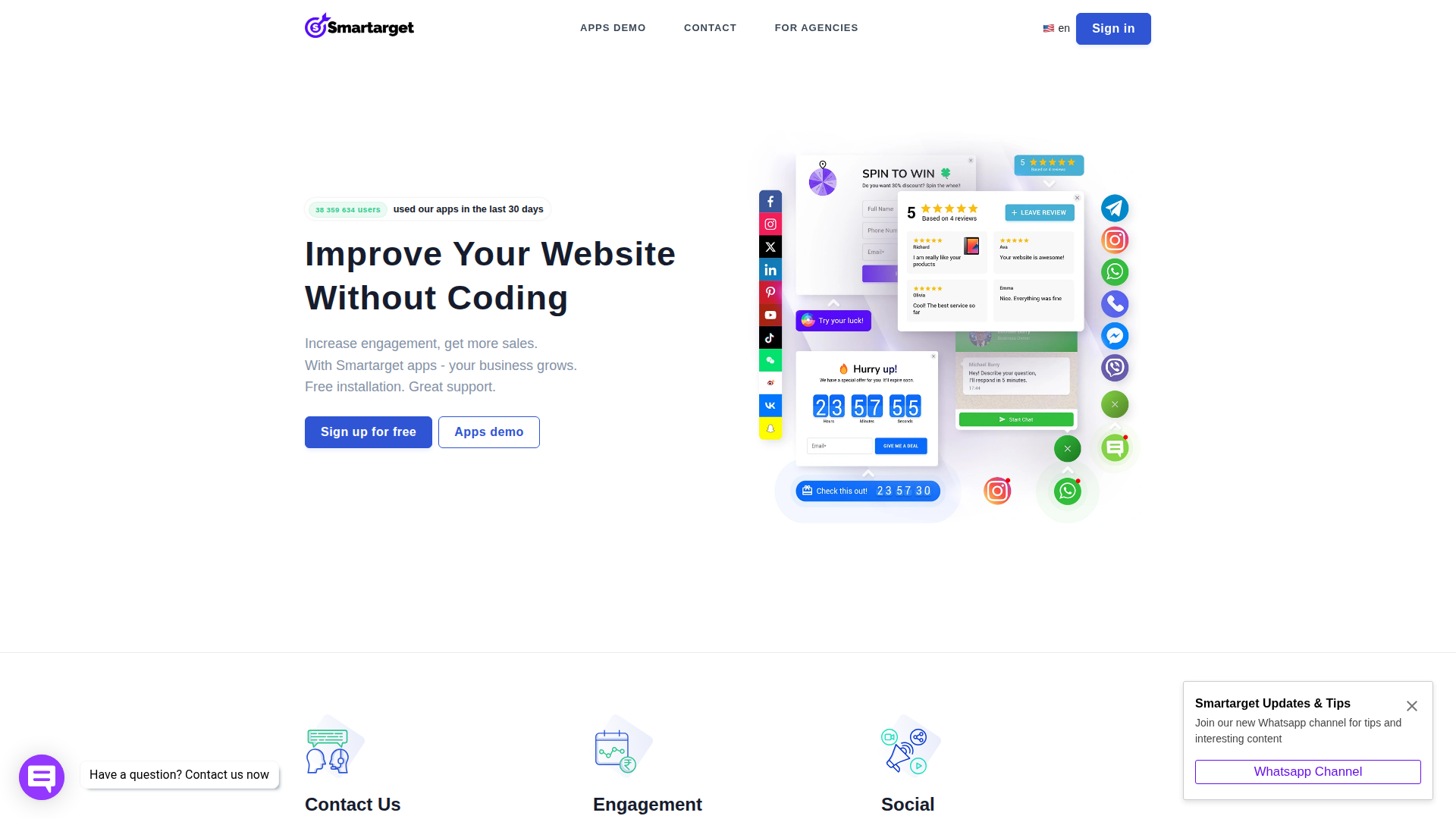
Reach for this widget when you need a visible, persistent follow prompt across your Webflow site without designing and coding custom social icon components. The floating format keeps the icons visible on every page while staying out of the main content flow. Setup takes a few minutes and doesn't require editing your layout or styles.

You can set up the Social Icons - Follow Us Webflow integration in 3 ways:

  • Install the Social Icons - Follow Us app from the Webflow Marketplace to inject the widget automatically without manual code placement.
  • Paste the Smartarget script into custom code in head and body tags or a Code Embed element for site-wide or page-specific control.
  • Use the Data API as an advanced Webflow-side automation option for managing custom code that contains Smartarget's script, though this isn't a standard Smartarget integration path and still requires server-side development.

Most implementations use either the Marketplace app or the manual code method. The API path mainly applies if you're a developer managing multiple sites or building deployment tooling.

Install the Social Icons - Follow Us app

The Social Icons - Follow Us app installs from the Webflow Marketplace and injects the Smartarget JavaScript into your site. You don't need to copy or paste any code manually. Use this method to run the widget across your entire site with the fewest manual steps. You need a paid site plan for custom code to function on your published domain.
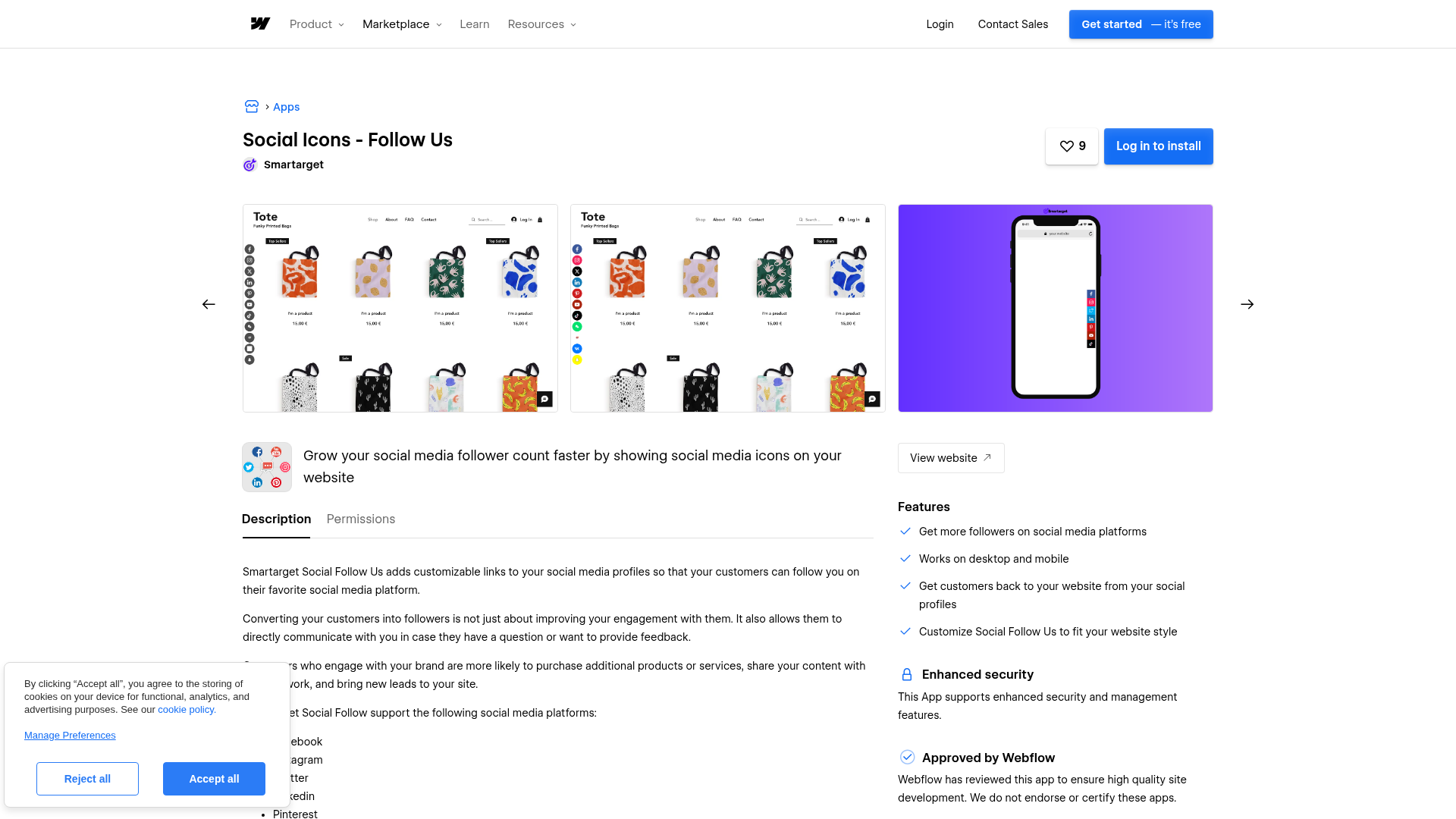
To set up the integration:

  1. Open the Social Icons - Follow Us Marketplace listing and install the app on your site.
  2. Sign up for a free account at app.smartarget.online. No credit card required.
  3. Configure the Follow Us widget in the Smartarget dashboard: select social networks, set colors, CTA text, icon style, and separate desktop and mobile positions.
  4. Publish your site. The widget appears on the live published domain.

The Marketplace app handles these capabilities:

  • Automatic JavaScript injection with no manual code placement
  • Support for 10 social networks in a single widget
  • Configurable colors, CTA text, hover animations, and icon styles
  • Separate positioning controls for desktop and mobile

Use this method when you want the fastest site-wide setup with the fewest manual steps.

Installing through the Marketplace grants Smartarget "Read and write custom code" and "Read site data and publishing" permissions on your site. If that level of access is a concern, use the manual custom code method instead.

Add Social Icons - Follow Us with custom code

Manual code embedding gives you the same widget functionality as the Marketplace app. You control exactly where the script lives, and you avoid granting Smartarget any API-level permissions on your site. You'll need a paid site plan (Basic, CMS, Business, or Ecommerce) or a paid Workspace plan, since custom code fields aren't available on free accounts.

All manual methods start with the same Smartarget dashboard setup:

  1. Sign up at app.smartarget.online.
  2. Configure your Follow Us widget (networks, colors, CTA text, positioning).
  3. Go to Integrations in the Smartarget dashboard and copy the generated JavaScript snippet.

Then choose the placement method that fits your needs.

Site-wide deployment with footer code

Use this approach to show the widget on every page. Placing the script in the footer avoids render-blocking during initial page load.

To add the script site-wide:

  1. Go to Site settings.
  2. Click the Custom Code tab.
  3. Paste the Smartarget <script> snippet into the Footer code section.
  4. Click Save changes.
  5. Publish your site.

The widget won't render in the Designer canvas. It appears only in preview mode and on the published live site, including the .webflow.io staging domain. Always verify on a published staging URL before going live.

Single-page deployment with page settings

Use this method when you want the widget on one specific page only.

To add the script to a single page:

  1. Open the target page.
  2. Open the Pages panel and click the gear icon on the target page.
  3. Scroll to the Custom Code section.
  4. Paste the snippet in the Before tag field.

  5. Save and publish.

The widget runs only on that page.

Positioned placement with a Code Embed element

If you need the widget at a specific visual location on the page rather than as a floating overlay, drop in a Code Embed element to place it directly in the canvas layout.

To embed at a specific position:

  1. Open the target page.
  2. Open the Add panel (the + icon).
  3. Drag a Code Embed element from the Components section onto the canvas.
  4. Paste the Smartarget JavaScript snippet into the code editor.
  5. Click Save & Close.
  6. Publish the site.

Don't include <html>, <body>, or <head> tags inside the Code Embed element. Only HTML, CSS in <style> tags, and JavaScript in <script> tags work here. The element has a 50,000-character limit, which is well above the size of a typical Smartarget snippet.

Build with the Webflow API

If you're a developer managing multiple sites or building deployment automation, the Data API is an advanced Webflow-side option for updating custom code that contains the Smartarget script. Smartarget itself offers no public API or programmatic access of its own, so this route is indirect and not required for normal setup.

For most teams, the Marketplace app or manual custom code is the better fit. The API path mainly applies when you already manage site code through internal tooling and want the Smartarget snippet included in that workflow.

Agencies can use this method to deploy the same widget configuration across a portfolio of client sites, and teams can use it in internal tooling that manages site code as part of a larger workflow. Smartarget configuration itself still happens in the dashboard rather than through an API.

What you can build with the Social Icons - Follow Us Webflow integration

Integrating Social Icons - Follow Us lets you convert site visitors into social followers across up to 10 platforms without building custom icon components or managing individual embed codes.

  • Multi-platform follow bar for e-commerce sites: Add a persistent follow widget to your storefront that links to Instagram, Facebook, TikTok, and other channels. Buyers who follow your brand see new product launches and promotions in their social feeds. This builds a direct channel to repeat customers outside of paid advertising.
  • International audience hub with regional networks: Display WeChat and Weibo icons alongside Western platforms for a brand serving both Asian and global markets. A single widget surfaces the right channels without building separate regional page layouts.
  • Gen Z engagement on portfolio and creator sites: Place TikTok and Snapchat follow icons on a portfolio or content site. Visitors browsing your work can follow you on the platforms where you publish short-form content, adding followers directly from visitors already browsing your work.
  • B2B LinkedIn growth from professional service pages: Add a floating LinkedIn follow icon to a consulting or SaaS marketing site. Professional visitors who already read your case studies or service pages follow your company page with one click.

If you need more control over multi-site deployments or custom injection workflows, the Data API path gives you that as an advanced Webflow-side automation option. Smartarget offers no public API or programmatic access of its own.

Preguntas frecuentes

  • ¡Totalmente! Cualquier widget de Smartarget necesita código personalizado, y estos campos solo están disponibles en los planes de sitio de pago de Webflow (Basic, CMS, Business o Ecommerce) o en los planes Workspace de pago. La etiqueta «Free plan available» del Marketplace habla del precio de Smartarget, no del plan de Webflow. Pásate por la documentación de código personalizado para ver al detalle qué planes lo admiten.

  • Los widgets basados en JavaScript solo se renderizan en el sitio publicado, no en el lienzo de Webflow. Esto se aplica a todas las inserciones de JavaScript, no solo a Smartarget. Para verificar el widget, publícalo en tu .webflow.iodominio de prueba y compruébalo allí. La documentación sobre inserción de código confirma este comportamiento.

  • Yes. Use page-level custom code (page settings, Before tag field) or place a Code Embed element on individual pages. For site-wide deployment, paste the script in Site settings > Custom Code > Footer code. The Smartarget Webflow setup guide walks through both options.

  • El plan gratuito limita el widget a la página de inicio una vez que pasen los 14 días de prueba. Además, muestra el sello «Powered by Smartarget» y recorta las opciones de personalización. Si quieres lucir el widget en entradas de blog, portafolios o cualquier rincón de tu web, el plan PRO de Smartarget viene al rescate sin limitaciones. Échale un vistazo a los planes en smartarget.online.

  • Es posible que las versiones en caché del widget persistan después de guardar los nuevos ajustes. Añade ?sm_no_cache=1 a la URL de tu sitio (por ejemplo, yourdomain.com/?sm_no_cache=1) para omitir la caché y forzar la carga de la configuración más reciente. Si el widget sigue sin aparecer, abre las herramientas de desarrollo del navegador y revisa la pestaña Consola para ver si hay errores de JavaScript. Para problemas específicos de Smartarget, contacta con el soporte en support@smartarget.online. Las preguntas frecuentes de Smartarget documentan este parámetro para omitir la caché.

Iconos sociales - Síguenos
Joined in

Categoría

Redes sociales

Descripción

Añade un widget flotante de redes sociales a cualquier sitio de Webflow mediante la aplicación Smartarget o un fragmento de código personalizado, con soporte para 10 plataformas y opciones de posición y estilo.

→
↗
►
↓
←
↑
Instalar aplicación

Esta página de integración se ofrece únicamente con fines informativos y de conveniencia.


Other Redes sociales integrations

Other Redes sociales integrations

pinterest

pinterest

Conecta Pinterest con Webflow para convertir el contenido de tu sitio en Pines y mostrar tableros de Pinterest en tus páginas.

Redes sociales
Más información
LinkedIn

LinkedIn

Conecta LinkedIn, una plataforma de publicidad y networking profesional, con Webflow para instalar el Insight Tag para el seguimiento de anuncios, insertar publicaciones y botones de seguimiento, y publicar automáticamente contenido del CMS en tu página de empresa.

Redes sociales
Más información
Instagram

Instagram

Redes sociales
Más información
Plugin de feed de redes sociales Flockler

Plugin de feed de redes sociales Flockler

Redes sociales
Más información
Facebook

Facebook

Conecta Facebook a Webflow para realizar un seguimiento de las conversiones de anuncios, sincronizar catálogos de productos y añadir funciones sociales mediante una aplicación del Marketplace, la configuración nativa del sitio o una integración directa por API.

Redes sociales
Más información
EmbedSocial

EmbedSocial

Añade reseñas y feeds sociales de EmbedSocial a Webflow con un código de inserción, o sincronízalos en elementos del CMS mediante la API o un agente.

Redes sociales
Más información
embedstories

embedstories

Conecta EmbedStories con Webflow para mostrar historias de Instagram que se sincronizan automáticamente en cualquier página de tu sitio.

Redes sociales
Más información
Galería de vídeos de YouTube de Elfsight

Galería de vídeos de YouTube de Elfsight

Conecta la galería de vídeos de YouTube de Elfsight con Webflow para mostrar un canal o lista de reproducción de YouTube completo como una única galería que se actualiza sola, en lugar de insertar cada vídeo manualmente.

Redes sociales
Más información
embedalbum

embedalbum

Redes sociales
Más información

Integraciones relacionadas

No se encontraron elementos.

Empieza gratis

Prueba Webflow todo el tiempo que quieras con nuestro plan Starter gratuito. Compra un plan de sitio de pago para publicar, alojar y desbloquear funciones adicionales.

Empieza, es gratis