ActiveCampaign

Conecta ActiveCampaign, una plataforma de automatización de marketing y correo electrónico, con Webflow para sincronizar los envíos de formularios con los registros de contactos, realizar un seguimiento del comportamiento de los visitantes y activar secuencias de correo electrónico automatizadas basadas en la actividad de la página.

→
↗
►
↓
←
↑
Instalar aplicación
→
↗
►
↓
←
↑
Ver sitio web
→
↗
►
↓
←
↑
Ver lección
→
↗
►
↓
←
↑
Configuración de registros A
→
↗
►
↓
←
↑
Configuración de registros CNAME
ActiveCampaign

ActiveCampaign turns Webflow form submissions and page visits into instant marketing actions. Submissions flow straight into contact records with the right lists, tags, and custom fields applied, while site tracking feeds page-visit signals into automations, lead scores, and targeted email sequences, no manual exports required.

It's built for freelance designers shipping turnkey lead-capture systems, agencies running email marketing across multiple sites, SaaS marketers converting trial signups, and content teams segmenting blog readers into subscribers. If your site needs to move beyond basic form collection, this is the direct path.

How to integrate ActiveCampaign with Webflow

What is ActiveCampaign? ActiveCampaign is a marketing automation and email marketing platform that combines email campaigns, multi-step automation workflows, CRM pipelines, and site tracking into a single system. It has native email support, with SMS and WhatsApp available via add-ons. The platform includes 950+ automation recipes, A/B testing, lead scoring, and a REST API available on all paid plans.
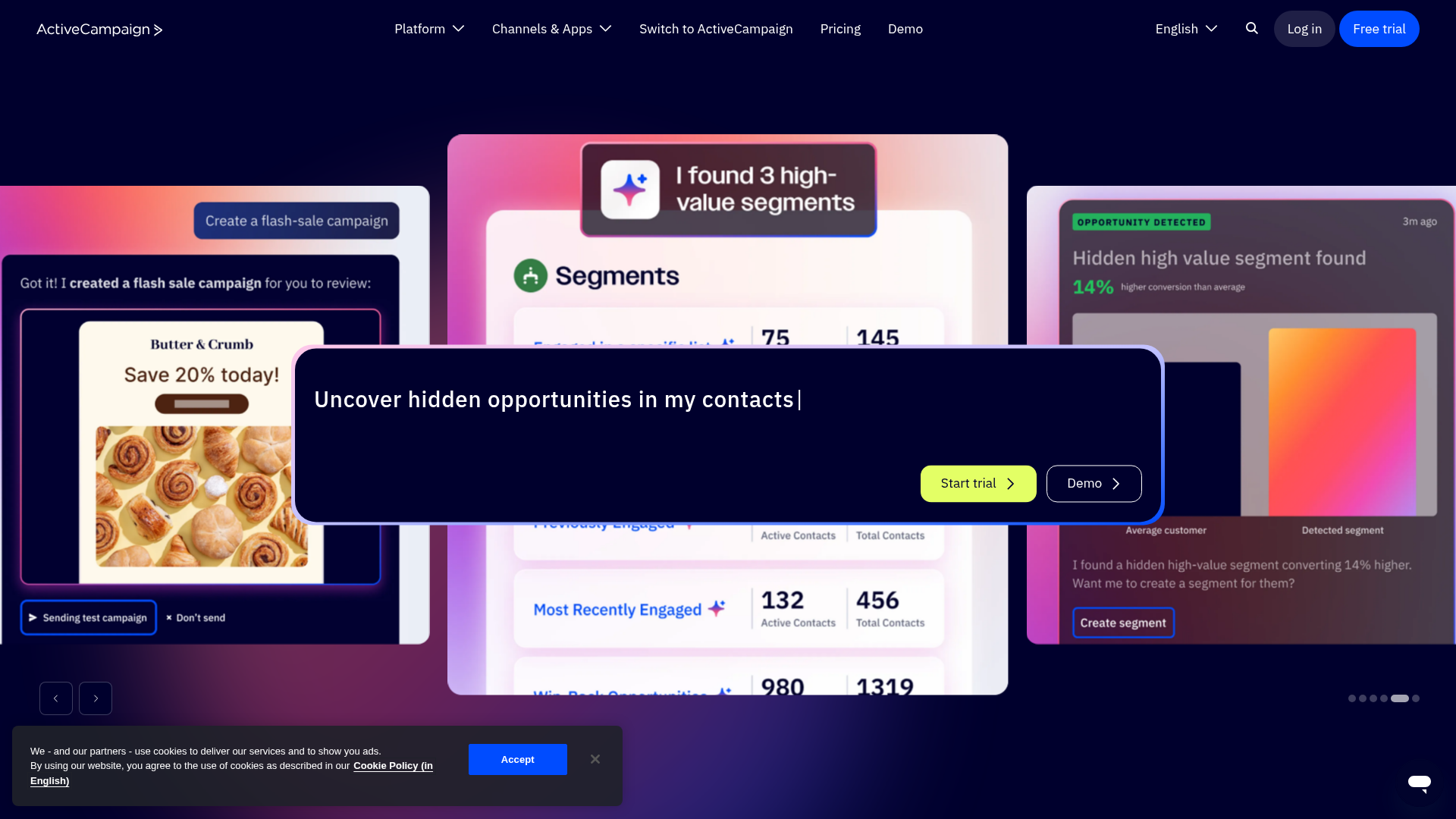
Pair ActiveCampaign with your site when you need form submissions to trigger immediate, personalized follow-up sequences. A visitor fills out a contact form, downloads a resource, or signs up for a trial, and ActiveCampaign takes over with automated emails, tag-based segmentation, and behavioral tracking. The combination gives you full control over both the website experience and the post-submission lifecycle.

You can connect ActiveCampaign to your site in 5 ways:

  • The ActiveCampaign app handles form syncing, form embedding, list and tag management, and site and event tracking without writing code.
  • Code Embed elements and custom code let you place ActiveCampaign form scripts and tracking code directly into specific pages or site-wide.
  • Zapier, Make, and viaSocket connect form submissions to ActiveCampaign contacts, tags, and automations through visual workflow builders.
  • The Data API and ActiveCampaign API give you full control over contact syncing, CMS updates, webhook-driven workflows, and e-commerce data, but require server-side development.

Start most implementations with the native app and add custom API integrations only when your workflows exceed what the app supports.

Install the ActiveCampaign app

The ActiveCampaign app is the recommended starting point for connecting the two platforms. It launched in September 2025 as an official integration built by ActiveCampaign and is free to install. The app handles form-to-contact mapping, one-click ActiveCampaign form embedding, list and tag creation, and site and event tracking, all from within the Designer. The app works with all site plans, but the ActiveCampaign features used with it require a paid ActiveCampaign plan.

To set up the integration:

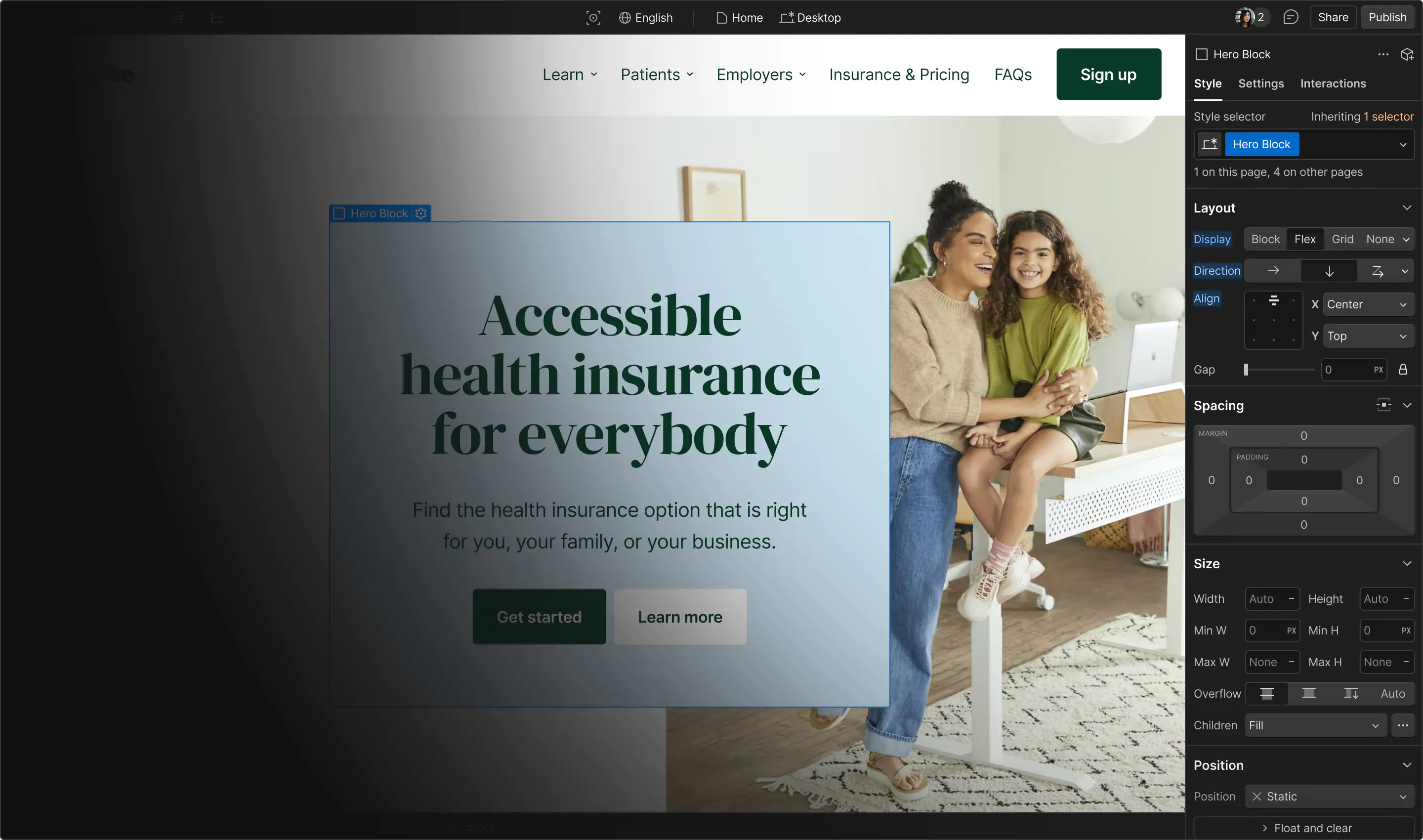
  1. Click the Apps icon in the left menu, search for "ActiveCampaign," and click Install.
  2. After installation, click Launch and authenticate with your ActiveCampaign account URL and API key.
  3. Choose your approach: map an existing form to ActiveCampaign, or embed an ActiveCampaign form directly into your page.
  4. Select or create ActiveCampaign lists and tags, then map form fields to the corresponding ActiveCampaign contact fields.
  5. Enable site tracking and event tracking from within the app interface.
  6. Click Publish Site to activate the integration. Sync configurations and tracking do not work until you publish the site.

The app can:

  • Sync form submissions directly to ActiveCampaign contacts with field mapping
  • Embed ActiveCampaign inline, floating bar, floating box, and modal forms with one click
  • Create and manage ActiveCampaign lists, tags, and custom fields without leaving the Designer
  • Enable site tracking (page visits for known contacts) and event tracking (clicks, element visibility, time on page) with no code
  • View full form submission history per contact record (ActiveCampaign Enterprise plan only, via Custom Objects)

These features cover the standard no-code setup you'll need before moving into custom workflows.

If you add a new field to a form after the initial setup, the field mapping does not auto-update. You'll need to manually reconfigure mappings for any form changes through the app.

Add ActiveCampaign forms and tracking with Code Embed elements

When you need to place an ActiveCampaign form on a specific page position or add tracking scripts outside the native app, paste embed codes directly into your site. This method works if you want ActiveCampaign's form builder, with conditional fields, multi-step flows, or GDPR consent options, rendered inline on a page, or if you need to add the site tracking script manually. You need a paid site plan to access Code Embed elements and custom code in head and body tags.

Embed an inline ActiveCampaign form

ActiveCampaign's simple embed code is a JavaScript snippet that renders your form dynamically. Any changes you make to the form in ActiveCampaign's form builder update automatically on your site without re-pasting the code.

To embed an inline form:

  1. In ActiveCampaign, open your form in the Form Builder and click Integrate in the top-right corner.
  2. Copy the Simple embed code.
  3. Drag a Code Embed element to the desired position on your page.
  4. Double-click the Code Embed element, paste the simple embed code, and click Save & Close.
  5. Publish your site.

Embedded ActiveCampaign forms process submissions through ActiveCampaign's infrastructure, not through the native form handler. That means they don't count against your form submission limits, which is useful for high-volume sites on lower-tier plans.

Add a modal or floating form site-wide

ActiveCampaign floating bar, floating box, and modal forms can't be placed in a specific element position on the canvas. You'll need to place the embed script via your site's custom code settings, footer code, rather than a Code Embed element.

To add a site-wide form script:

  1. In ActiveCampaign, open the form in the Form Builder and click Integrate.
  2. Copy the Simple embed code.
  3. Go to Site Settings > Custom Code and paste the code in the Footer Code field.
  4. Save and publish your site.

To restrict a modal or floating form to a single page, use the page-level custom code field instead. Open the Pages panel, click the gear icon next to the target page, scroll to Custom Code, and paste the script in the Before tag field. ActiveCampaign's form settings do not include URL targeting, so site-wide scripts display the form on every page unless you add JavaScript to check window.location.pathname before executing.

Install the site tracking script manually

If you prefer to install ActiveCampaign's site tracking code outside the native app, paste it into your site's custom code settings. Site tracking records which pages known contacts visit on your site, which feeds behavioral automations and lead scoring in ActiveCampaign.

To install site tracking manually:

  1. In ActiveCampaign, go to Website > Site Tracking, enable the toggle, add your domain, and copy the tracking script.
  2. Go to Site Settings > Custom Code and paste the script in the Footer Code field.
  3. Save and publish your site.

For GDPR compliance, change vgo('setTrackByDefault',true) to vgo('setTrackByDefault',false) in the tracking script. That requires explicit consent before tracking activates. Full details are in ActiveCampaign's GDPR site tracking guide. Site tracking only records visits from contacts who have been identified, either by submitting an ActiveCampaign form, clicking a link in an ActiveCampaign email, or having their email passed into the tracking script via JavaScript.

Connect with Zapier, Make, or other automation tools

If you need to route form data to ActiveCampaign through conditional logic or multi-step workflows, automation platforms offer a visual alternative to custom code. Zapier, Make and viaSocket all support direct Webflow-to-ActiveCampaign connections. Reach for these platforms when you need to transform data between the two systems, add conditional branching, or chain multiple actions that the native app does not support.

Zapier offers three pre-built templates for Webflow and ActiveCampaign:

  • New form submission triggers "Add or update contact" in ActiveCampaign
  • New form submission triggers "Add contact to automation" in ActiveCampaign
  • New form submission triggers "Create or update contact" in ActiveCampaign

Make supports direct Webflow and ActiveCampaign modules, including a New form submission trigger and ActiveCampaign actions such as Add Contact to Automation, Add Tag to Contact, and Create Deal. viaSocket also supports direct Webflow and ActiveCampaign workflows, including a New Form Submission trigger with ActiveCampaign actions such as Create Contact, Update Contact, and Create or Update a Deal.

Those options cover the most common form-to-contact and form-to-automation workflows without custom code.

To set up a Zapier connection:

  1. In Zapier, click Create > New Zap.
  2. Select Webflow as the trigger app, choose Form submission as the trigger event, connect your account, and select your site and form.
  3. Add ActiveCampaign as the action app, choose your action, such as "Create or Update Contact," and map form fields to ActiveCampaign contact fields.
  4. Name your Zap and click Publish.

Renaming a form or site breaks any connected Zap. If submissions stop flowing, reopen the Zap and reselect the site and form in the trigger step.

Build with the Webflow and ActiveCampaign APIs

For workflows that exceed what the native app and automation platforms support, both platforms offer REST APIs for fully custom integrations. API-based implementations handle use cases like syncing e-commerce orders to ActiveCampaign's Deep Data system, creating CMS items from ActiveCampaign webhook events, or building custom event tracking that maps to specific automation triggers. This path requires server-side development since the platform does not execute backend code, and you must never expose ActiveCampaign API keys in client-side JavaScript.

The ActiveCampaign API v3 handles contacts, tags, lists, automations, deals, custom fields, webhooks, and e-commerce data. The Data API v2 handles CMS collections, form submissions, and site publishing. Webhooks trigger real-time events like form_submission, collection_item_created, and ecomm_new_order.

Together, these APIs cover custom integration patterns beyond the native app's built-in setup flow.

All custom API integrations require a middleware layer, AWS Lambda, Cloudflare Workers, Netlify Functions, or Vercel Edge Functions, to hold credentials and proxy requests between the two platforms.

Sync form submissions to ActiveCampaign contacts

You can capture form submissions via webhook and use them to create or update ActiveCampaign contacts in real time. The POST /api/3/contact/sync endpoint is the recommended choice because it creates a new contact or updates an existing one by matching on email address, preventing duplicate records.

To implement form-to-contact syncing:

  1. Register a webhook by calling POST /v2/sites/:site_id/webhooks with triggerType: "form_submission" and your middleware URL. Optionally add a filter object with a name field to scope the webhook to a specific form.
  2. In your middleware, parse the incoming payload.data object and map field values to ActiveCampaign contact fields. payload.data uses the form field label as the key, such as "First Name" or "email", not a stable ID. Use payload.schema[].fieldElementId as the stable identifier if you need to handle field renames.
  3. Call POST /api/3/contact/sync with the mapped contact data to create or update the contact in ActiveCampaign.
  4. Optionally call POST /api/3/contactLists with status: 1 to subscribe the contact to a list, POST /api/3/contactTags to apply a tag, or POST /api/3/contactAutomations to enroll the contact in an automation.

ActiveCampaign authenticates API requests via an Api-Token header. Your API key is available under Settings > Developer in your ActiveCampaign account. The Data API uses Authorization: Bearer <token> headers.

Sync e-commerce orders to ActiveCampaign Deep Data

For Ecommerce sites, you can push order data into ActiveCampaign's e-commerce system to trigger post-purchase automations, abandoned cart sequences, and repeat-purchase campaigns.

To implement e-commerce order syncing:

  1. Register a webhook with triggerType: "ecomm_new_order".
  2. As a one-time setup, register your store as a Deep Data source by calling POST /api/3/connections.
  3. When an order webhook fires, create or retrieve the e-commerce customer via POST /api/3/ecomCustomers, then create the order via POST /api/3/ecomOrders. Creating an order through this endpoint triggers ActiveCampaign's built-in e-commerce automations.

API v1 is deprecated. Use /v2/ endpoints for all new integrations.

What can you build with the ActiveCampaign Webflow integration?

Integrating ActiveCampaign with your site lets you turn static form submissions into automated, behavior-driven marketing workflows without manual data entry or separate landing page tools.

  • Segmented lead nurture from any form: A visitor submits a contact form and lands in an ActiveCampaign automation based on which form they filled out or what they selected. Tags applied at submission route "pricing inquiry" contacts to a sales sequence and "content download" contacts to an educational drip, all without manual sorting.
  • Behavioral follow-up from page visits: With site tracking enabled, ActiveCampaign records when a known contact visits your pricing page, reads a case study, or returns to a product page. Those page visits trigger targeted emails, increase lead scores, or create CRM tasks for sales reps with full context on what the contact viewed.
  • Multi-format email capture across your site: Embed ActiveCampaign inline forms inside blog posts, floating bars on landing pages, and modal pop-ups on exit intent, all styled through ActiveCampaign's form builder. Each form type connects to a different list or automation, and submissions bypass your form limits since they process through ActiveCampaign's infrastructure.
  • Post-purchase and e-commerce automation: Ecommerce order data flows into ActiveCampaign via the API, triggering abandoned cart recovery emails, post-purchase thank-you sequences, review requests, and repeat-purchase campaigns based on what the customer bought and when.

If you need more control over CMS-driven email content or bidirectional data sync between contact records and Collection List items, the API integration path covers those cases with full flexibility.

Preguntas frecuentes

  • La app de ActiveCampaign se instala gratis y funciona a la perfección en cualquier plan de Webflow, incluido el plan gratuito Starter. Para poner en marcha sus funciones integradas necesitarás un plan de pago de ActiveCampaign. El plan Starter de Webflow limita los formularios a 50 envíos en total para siempre y sin avisos al tocar techo; por suerte, los formularios incrustados de ActiveCampaign se saltan este tope al procesarse en sus propios servidores. Si necesitas Custom Objects para guardar varios envíos de formulario por contacto, necesitarás el plan Enterprise de ActiveCampaign. Además, los elementos Code Embed y el código personalizado requieren un plan de sitio de pago en Webflow.

  • Casi siempre se debe a que el sitio aún no se ha publicado tras activar el seguimiento. La sincronización de formularios, el rastreo de eventos y el del sitio solo cobran vida al pulsar publicar. Si todo sigue dormido tras publicar, comprueba que tu dominio esté en la lista blanca de ActiveCampaign, en Sitio web > Seguimiento del sitio, dentro de «Lista blanca e instalación de código». Descubre cómo resolver cualquier detalle en la guía de configuración de seguimiento del sitio de ActiveCampaign.

  • ¡Claro que sí! La app nativa permite mapear los campos de tus formularios de Webflow con los campos de contacto de ActiveCampaign, incluidos los personalizados. Podrás elegir o crear listas y etiquetas al configurarla, y las respuestas volarán a ActiveCampaign automáticamente tras publicar. Este mapeo se aplica al usar formularios de Webflow; si incrustas uno propio de ActiveCampaign, no te hará falta configurarlo porque escribe directamente en su plataforma. Tienes el paso a paso completo en la guía de configuración para conectar Webflow a ActiveCampaign.

  • En los planes de ActiveCampaign que no son Enterprise, los datos del último formulario enviado sobrescriben a los anteriores para ese mismo contacto, sin guardar cada envío como un registro independiente. Con el plan Enterprise, los Custom Objects guardan cada envío por separado en la ficha del contacto para no perder ningún detalle del historial. Si tu equipo gestiona flujos que dependen de seguir paso a paso varias interacciones en el tiempo, conviene tener esto en cuenta antes de elegir plan.

  • Así es. Desde febrero de 2024, la autenticación DKIM y DMARC es obligatoria para que los correos lleguen correctamente a Gmail y Yahoo. Estos registros DNS se configuran en ActiveCampaign, no en Webflow. Si gestionas el DNS de tu dominio desde el panel de Webflow, deberás añadir los registros DKIM, SPF y DMARC allí mismo. Si faltan, los correos de ActiveCampaign serán rechazados o irán directo a spam.

ActiveCampaign
ActiveCampaign
Joined in

Categoría

Email marketing

Descripción

ActiveCampaign añade automatización de correo electrónico, seguimiento de sitios y embudos de CRM a Webflow a través de su aplicación de Marketplace para la sincronización de formularios sin código, elementos de incrustación de código para formularios integrados o la API de ActiveCampaign para flujos de trabajo personalizados.

→
↗
►
↓
←
↑
Instalar aplicación

Esta página de integración se ofrece únicamente con fines informativos y de conveniencia.


Other Email marketing integrations

Other Email marketing integrations

Postmark

Postmark

Conecta Postmark con Webflow para enviar correos electrónicos transaccionales con tu marca desde tu propio dominio verificado, activados por envíos de formularios, pedidos o eventos del CMS.

Email marketing
Más información
Sendingflow

Sendingflow

Conecta Sendingflow, una plataforma de automatización de marketing por correo electrónico, con Webflow para activar campañas de email automatizadas a partir de los envíos de formularios en tu sitio.

Email marketing
Más información
Apex

Apex

Conecta Apex con Webflow para automatizar tus campañas de email marketing activadas por envíos de formularios y pedidos de ecommerce.

Email marketing
Más información
Campaigner

Campaigner

Conecta Campaigner con Webflow para sincronizar automáticamente los contactos de tus formularios con tus listas de correo y activar campañas automatizadas de email y SMS.

Email marketing
Más información
Omnisend

Omnisend

Añade formularios de registro de Omnisend a Webflow y envía los datos de los formularios y los pedidos de Ecommerce a Omnisend para activar campañas automatizadas de correo electrónico y SMS.

Email marketing
Más información
Systeme.io

Systeme.io

Conecta Systeme.io, una plataforma de marketing integral con embudos, correo electrónico y cursos, con Webflow para captar clientes potenciales y activar secuencias mediante integraciones o Zapier.

Email marketing
Más información
Pardot

Pardot

Conecta Account Engagement (anteriormente Pardot) con Webflow para convertir los envíos de formularios y las visitas a páginas en clientes potenciales rastreados que se sincronizan con Salesforce.

Email marketing
Más información
Amazon SES

Amazon SES

Envía confirmaciones de formularios de Webflow y boletines del CMS a través de Amazon SES desde tu propio dominio verificado.

Email marketing
Más información
Mailjet

Mailjet

Conecta Mailjet con Webflow para añadir registros de formularios a tus listas de contactos y enviar correos electrónicos transaccionales desde tu propio dominio.

Email marketing
Más información

Integraciones relacionadas

No se encontraron elementos.

Empieza gratis

Prueba Webflow todo el tiempo que quieras con nuestro plan Starter gratuito. Compra un plan de sitio de pago para publicar, alojar y desbloquear funciones adicionales.

Empieza, es gratis