


Great UI and UX designs rely on powerful tools for visual prototyping and real-time collaboration.
Effective user interface (UI) and user experience (UX) design start with understanding what audiences need from your client’s website. Then, you need to give visitors clear paths forward with as little friction as possible.
To do that, you’ll rely on software that helps you plan and execute unique designs based on specific goals, like lead nurturing or conversion generation. Your tech stack should also facilitate collaboration to aid in client reviews and user testing.
In this guide, we’ll look at 10 UI/UX design tools, and explain how to choose one that suits your workflows.
What are UI and UX, and why do they matter?
UX design is the process of building a website that visitors can understand quickly, navigate smoothly, and use to accomplish their goals without unnecessary hurdles. UI design is a specific stage of that process, where you make sure navigation and other interactive elements work well and improve the overall experience.
Together, strong UI/UX design help you:
- Create logical user flows that move people through intended journeys, such as from consideration to purchase
- Build trust by making the website professional and user-friendly
- Encourage repeat visits thanks to strong first impressions
10 UX and UI tools for web designers
Here are 10 modern tools that can help UX and UI designers build great client websites quickly, along with their respective best use cases.
- Webflow — All-in-one design
- Sketch — Easy handoffs
- Miro — Remote teams
- Axure — Highly structured experiences
- Proto.io — User testing
- Adobe XD — Adobe Creative Cloud users
- Marvel — Small teams
- Figma — Team collaboration
- Origami Studio — Advanced prototyping
- Flowmapp — Creating defined user journeys
1. Webflow
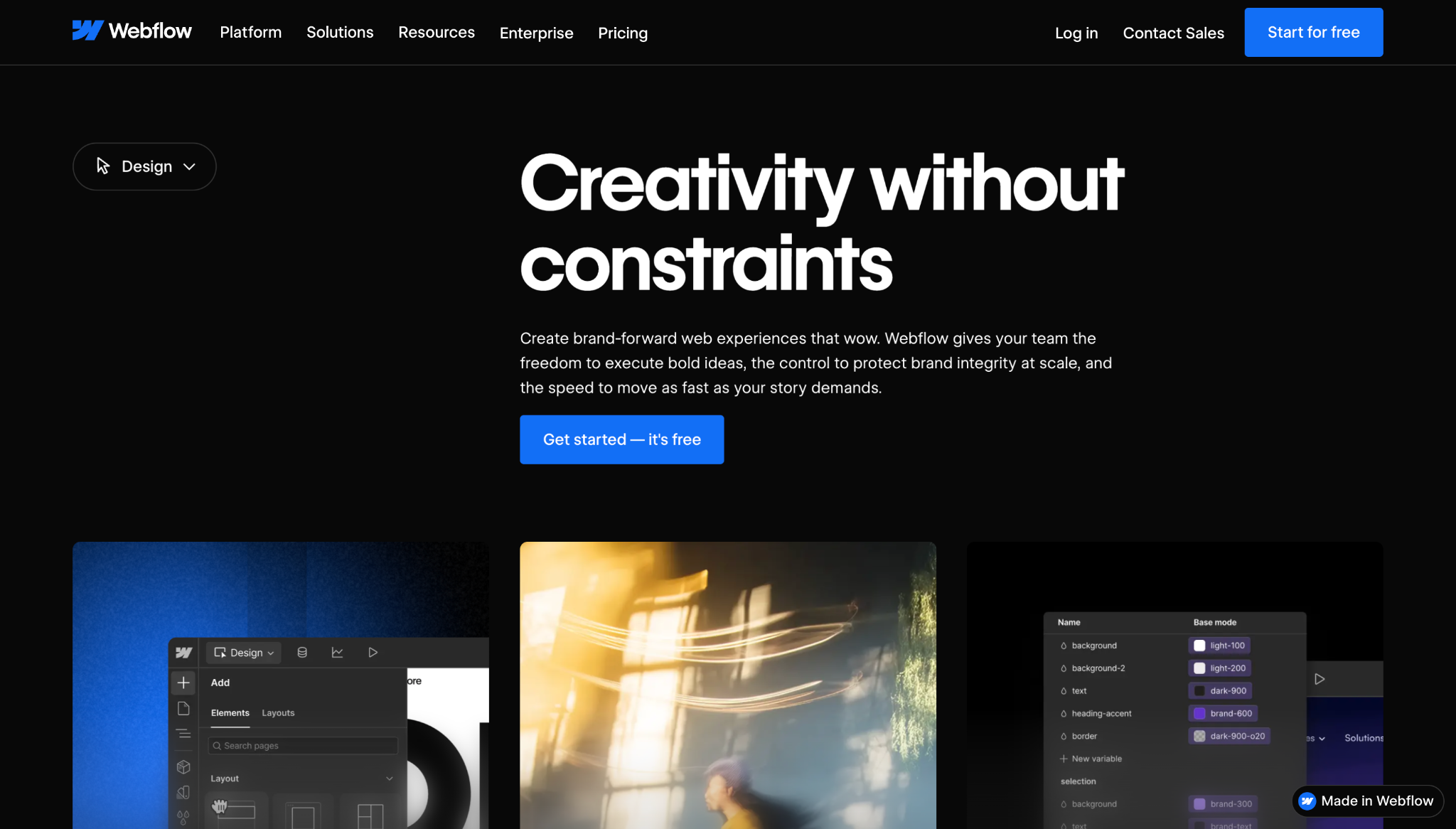
With Webflow’s agentic web marketing platform, you can efficiently move your client’s website from UX plan to working build to successful launch. Webflow lets you build custom layouts visually, add complex interactions and animations, then test how the experience responds across devices.
Webflow is suitable for a wide range of projects, including content-heavy sites, interactive experiences, landing pages, and marketing campaigns that need to evolve after going live.
Key benefits:
- Visual design canvas with HTML, CSS, grid, and flexbox control
- Built-in content management system (CMS) for updating dynamic pages at scale
- Responsive previews and staging environments for editing and testing user experiences
- Secure, high-performance managed cloud hosting
Best for. All-in-one web design
2. Sketch
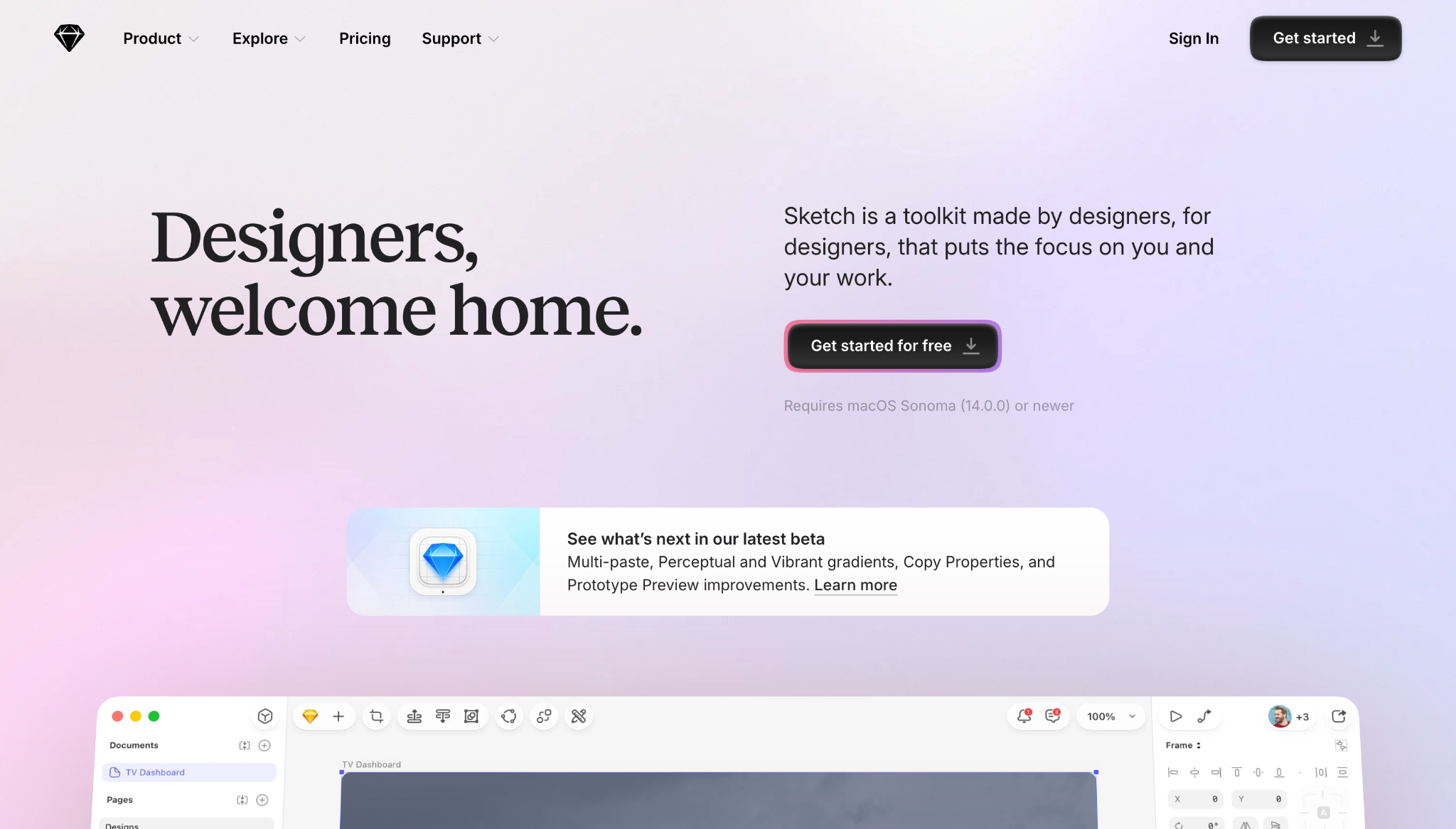
Sketch is a good choice when you work on a Mac, but your client uses Windows and still needs an accessible way to review the project. You can build in this native app, while your client can view and leave comments in their favorite browser. This tool’s ‘symbols’ system also offers reusable components that let you transfer an element across multiple project boards.
Key benefits:
- Native Mac app for detailed UI design
- Browser-based review and commenting access
- Reusable UI patterns
Best for. Easy handoffs
3. Miro
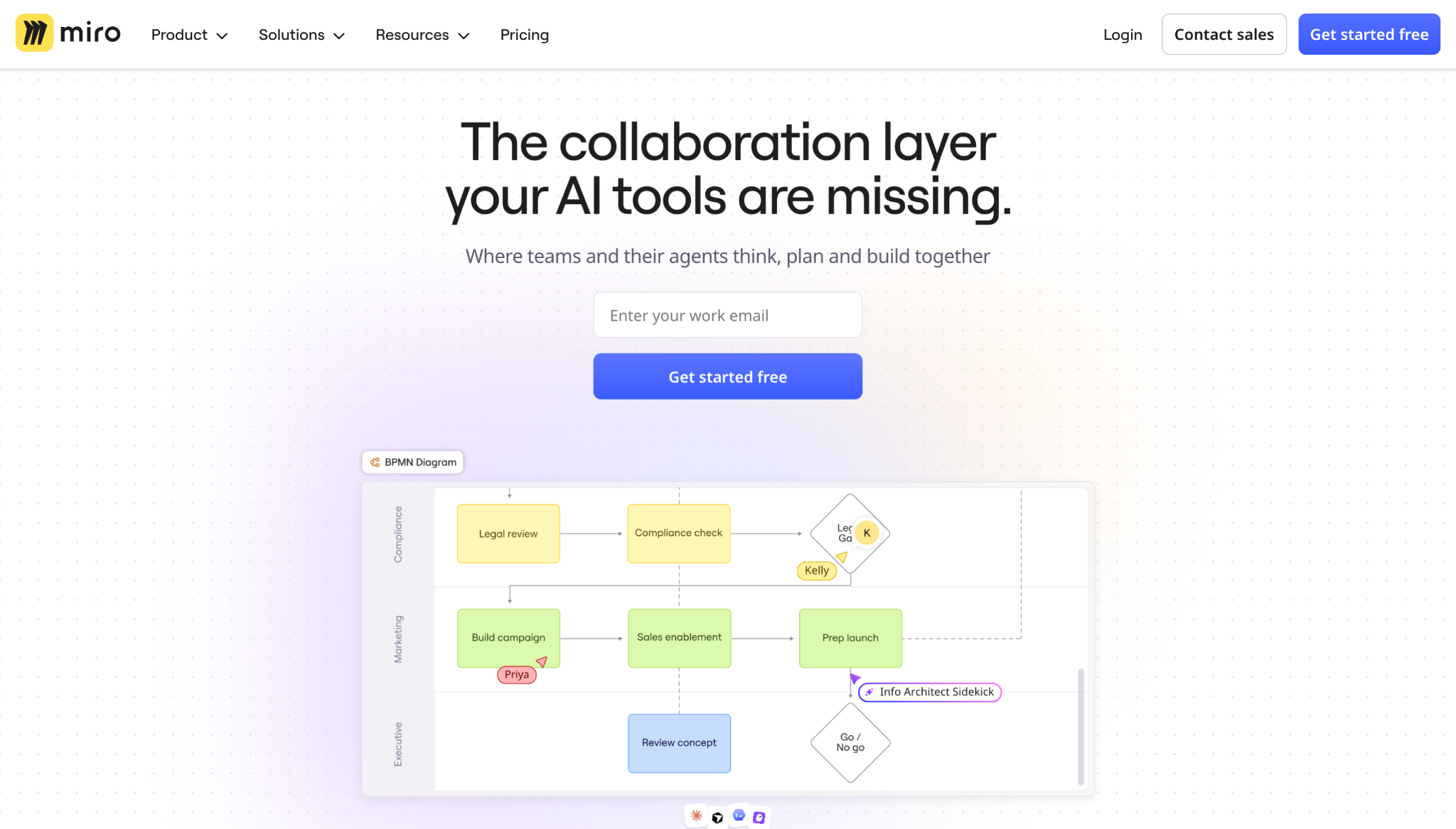
Miro is best for pre-UI work, when you need to transition a project away from scattered notes and into a shared view of the client’s central problem or vision. This tool is well suited to remote teams that regularly conduct user journey discussions, as well as alignment workshops where you want to make complex projects visual for large groups.
Key benefits:
- Shared canvas for workshops and discovery sessions
- Journey mapping tools for spotting UX gaps
- Large template library
Best for. Remote teams
4. Axure
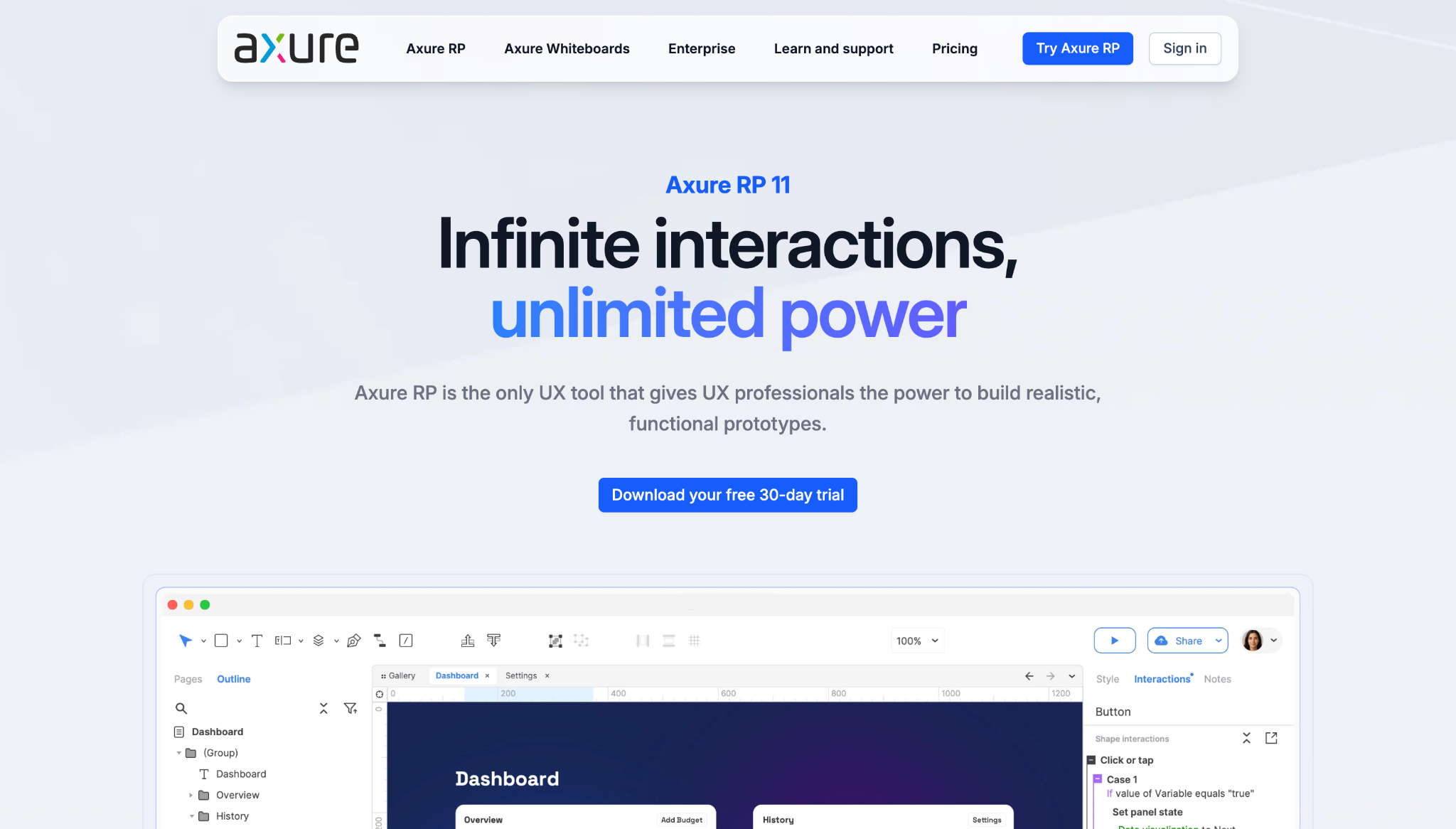
Axure is useful when your client’s website or product has behavior that’s too complex for a basic, click-through prototyping tool to convey. That includes form-heavy flows, as well as conditional experiences where one user choice affects the next. For logic-heavy UX design, Axure can prevent expensive assumptions from reaching the development phase.
Key benefits:
- Conditional logic for testing complex user paths
- Dynamic panels, working forms, and data-driven interactions
- Built-in notes for UX documentation
Best for. Highly structured user experiences
5. Proto.io
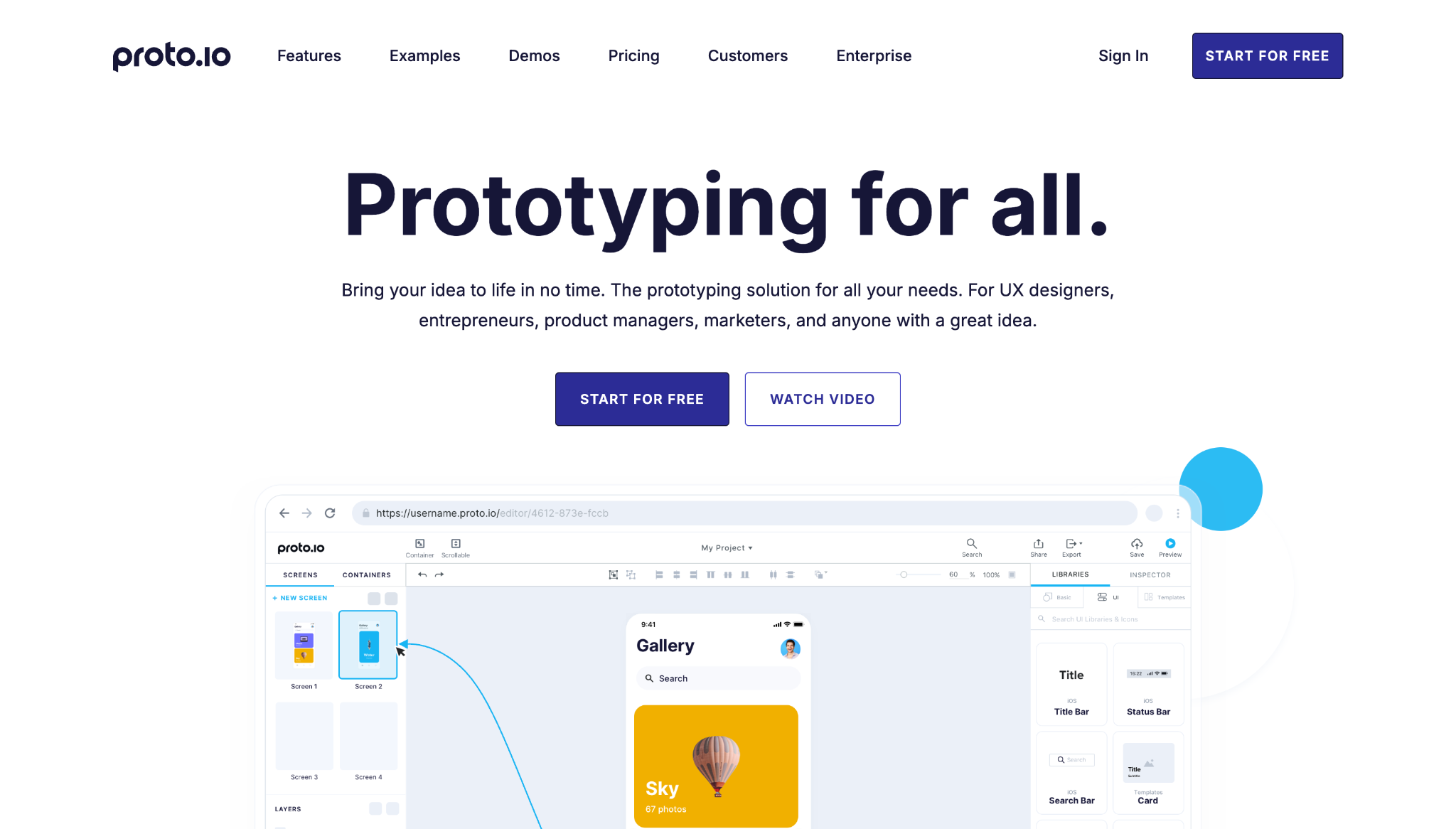
With Proto.io, you can help your client experience a design by adding movement, scrolling behavior, and mobile interactions. This can make a prototype feel closer to the final product, so your client can give more useful feedback. Proto.io works best for mobile and app-like workflows as a prototyping layer, so you might need to pair it with another design tool if you need deeper visual systems for UI design.
Key benefits:
- High-fidelity web and mobile prototypes directly in the browser
- Motion, transitions, and micro-animations for realistic interaction demos
- Support for collecting feedback through shared links and testing platforms
Best for. User testing

The modern web design process
Discover the processes and tools behind high-performing websites in this free ebook.
6. Adobe XD
Adobe XD is designed to help you move from layout ideas to clickable prototypes quickly. This platform integrates with other tools in the Creative Cloud ecosystem, so it’s a good choice if you use Photoshop or Illustrator for brand assets. However, it’s worth noting that Adobe XD is in maintenance mode currently, so the developers only address bug fixes and minor workflow improvements rather than providing new feature releases.
Key benefits:
- User-friendly workspace for new UI designers
- Familiar Adobe-style workflow
- Design, prototyping, sharing, and review features in one app
Best for. Adobe Creative Cloud users
7. Marvel
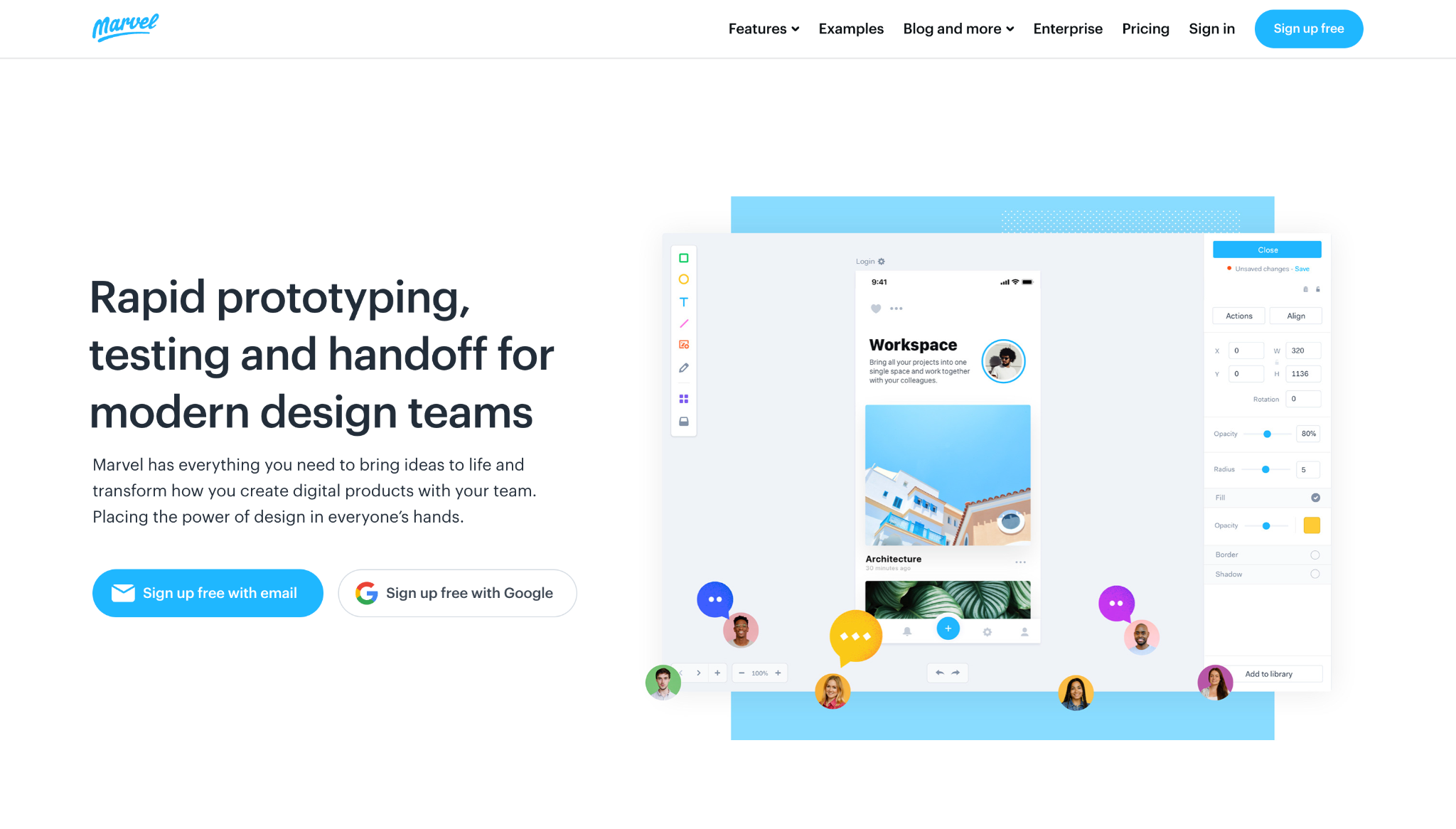
Marvel focuses on small teams that prioritize speed, letting you move from a rough idea to a testable prototype without having to build a complex workflow. This also makes Marvel useful for early client approvals, where you want to validate a direction before investing in a higher-fidelity design. On the other hand, larger teams and those working on complex design systems may outgrow this tool’s capabilities.
Key benefits:
- Rapid wireframing and prototyping for quick project iterations
- Built-in user testing and feedback loops
- Automatic design specs for smooth handoffs
Best for. Small teams
8. Figma
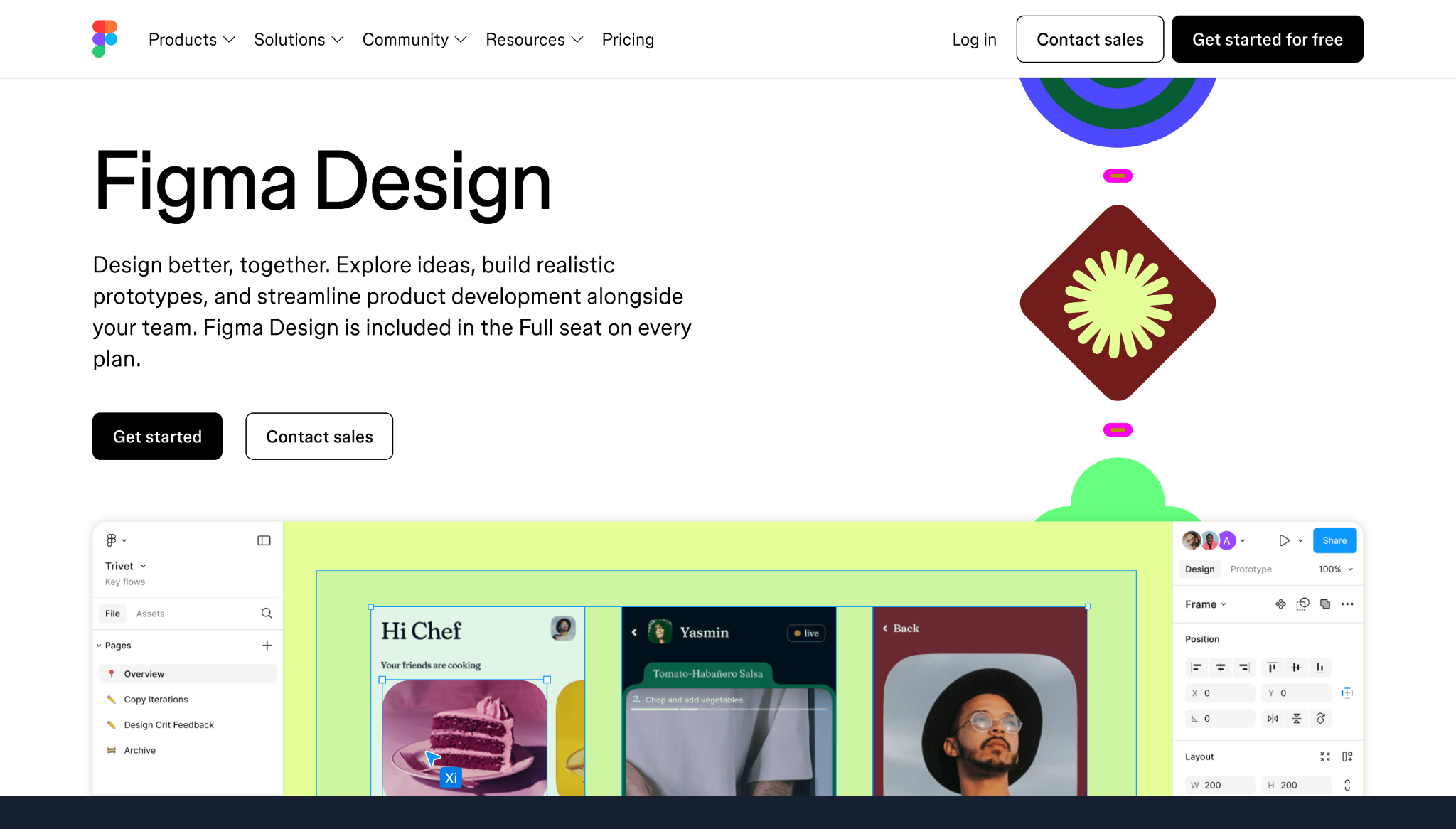
Figma’s multiplayer design technology lets up to 500 people (with up to 200 editors) collaborate on a project. That makes this tool a solid choice for large teams that want to maintain and review designs concurrently. Variables and libraries also let you build systems clients can extend well after handoff and launch.
Key benefits:
- Shared comments and real-time feedback
- Community resources like UI kits and plugins
- Variables, design tokens, and libraries for scalable systems
Best for. Team collaboration
9. Origami Studio
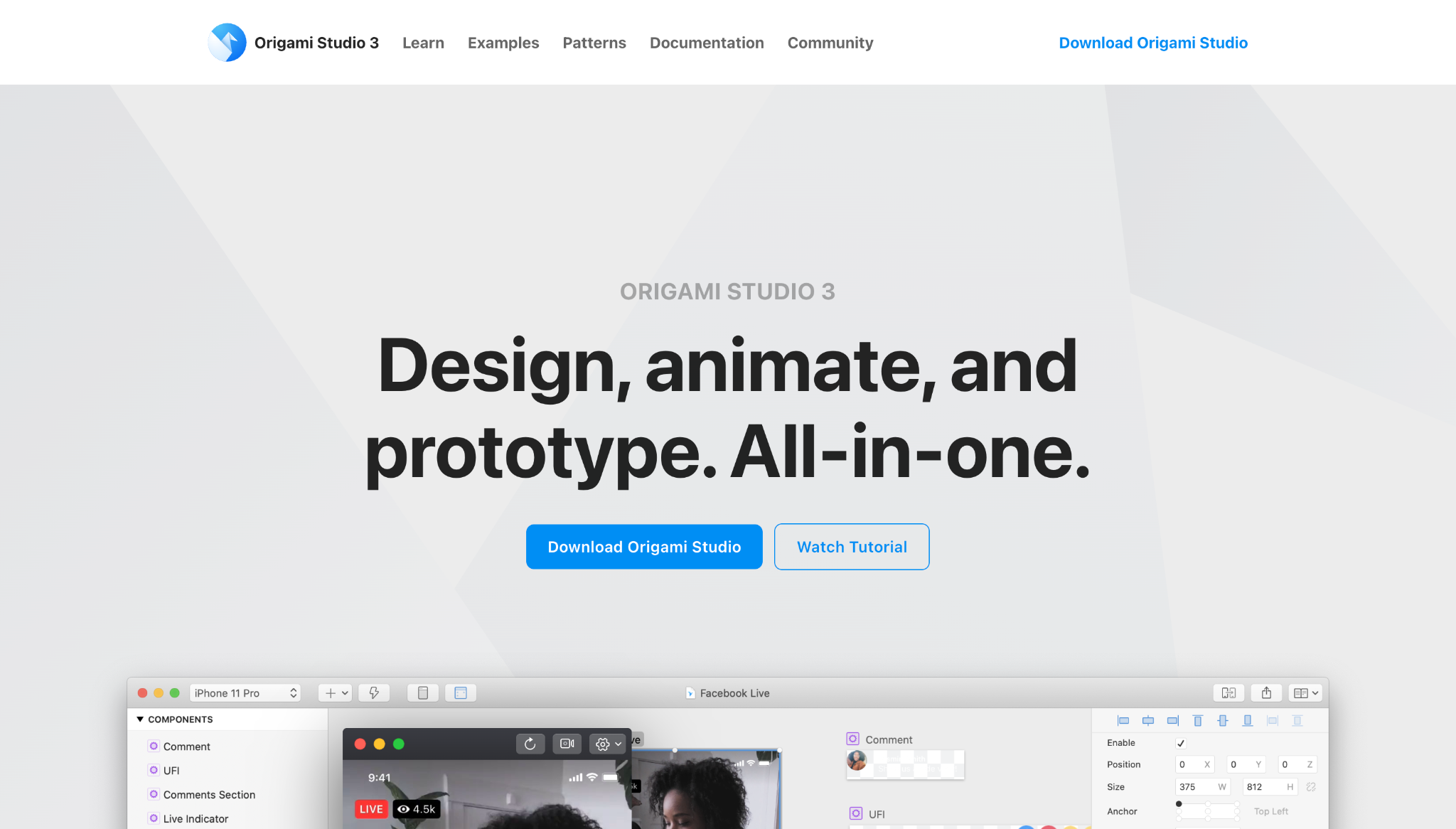
Origami Studio is built for complex prototyping designs, where you want the client to understand how gestures, hardware-based interactions, or motion details will work before development. With patches, you can add interactive logic to site elements and make on-screen behavior more tangible. Note that Origami Studio is more specialized than most UI/UX tools, and it might be more than you need for website projects that don’t prioritize heavy interactions.
Key benefits:
- Patch-based building blocks for sophisticated prototypes
- Access to native hardware inputs like haptics, audio, and device motion
- Figma import support for bringing in visual layers
Best for. Advanced prototyping
10. Flowmapp
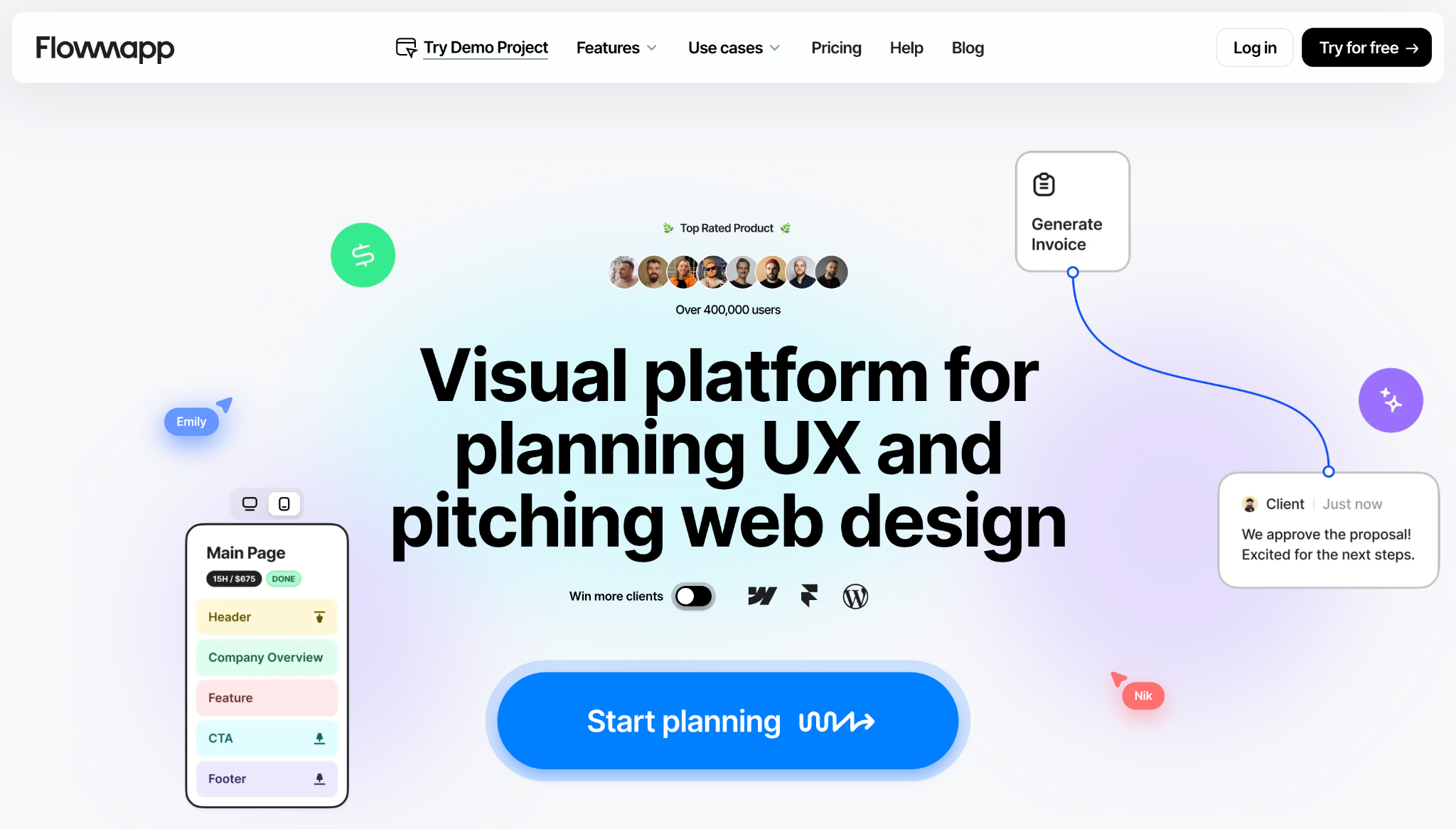
Flowmapp helps you refine a website’s structure before designing individual pages. You can visually map out your client’s site and how visitors will move through it, so you can plan clear navigation for content-heavy projects. Flowmapp also connects planning to approvals, letting you set clear project scopes early in the design process.
Key benefits:
- Visual sitemaps for planning website structures
- User flows for mapping visitor paths
- Content planning and project estimates for client approvals
Best for. Creating defined user journeys
How to choose the right UI/UX design tool
A competent UI/UX design tool should help you plan, explain, test, and hand over projects. When comparing options, look for:
- Ease of adoption. The best tool is one that matches your expertise level and fits into your existing or preferred workflow.
- Prototyping options. Pick a prototyping tool based on how much complexity you need before development. Low-fidelity prototypes validate website structures early, while high-fidelity prototypes are better for testing interactions.
- Collaboration features. Choose a tool that lets people comment directly on the design, so your clients can provide feedback in context.
- Handoff support. Look for features and documentation, like shared notes, that help developers translate your designs into working sites.
- Room to grow. If your client’s website needs to scale, prioritize tools that support reusable components, shared libraries, and dynamic content management.
Turn your UI and UX designs into client-ready sites with Webflow
UI/UX design tools help you and your client make better decisions long before the website goes live. With collaborative features and testing environments, you can pressure test every design choice, then carry those decisions smoothly through to the final build.
With Webflow’s built-in CMS and collaboration features, you can turn approved UI and UX direction into a working website without losing momentum. Drag-and-drop visual design tools, reusable components, staging environments, and pre-built templates help you make each client’s vision a reality, whether you’re new to web design or a seasoned pro.
Plan and build user-friendly, high-performance sites with Webflow.

Build websites that get results.
Build visually, publish instantly, and scale safely and quickly. All with Webflow's agentic web marketing platform.