









Great web design starts with choosing the right platform for your workflows.
The graphic design software you use influences how you develop ideas and turn them into web-ready visuals. The capabilities you have — and how easy it is to use them — can make or break your entire design workflow.
Design software tools are getting smarter, with AI features that can speed up repetitive tasks and cloud-based workflows for better collaboration. Even so, the software you pick still makes a big difference, whether you’re a seasoned design professional or a new freelancer.
Read on to explore 10 of the best graphic design software platforms and learn how to choose the best tool for your business.
Graphic design software: What you need to know
Graphic design software is an umbrella term for several types of tools, each supporting a different part of the design process. Below are the most common types of graphic design software.
How to choose the right design software for your needs
Just because a design program has a big reputation doesn’t mean it’ll support your specific design needs. When you’re picking a tool, here are several factors to consider:
- Skill level. If you’re new to design, choose a platform with a user-friendly interface and helpful templates so you can get started quickly. If you already know your way around design systems and image editing, pick a tool that can handle more advanced workflows for more creative room.
- Industry. When it comes to web design, screen-focused tools will serve you better than print-first software. But if your work also includes branding, print materials, and packaging, explore software that handles a wider mix of tasks.
- Budget. Look beyond the current price and think about long-term value. Lower-cost and free tools often come with tradeoffs like limited features, and will likely only be enough if you use it for occasional client work or a one-off project. If a more expensive platform saves time and makes work more efficient, it might be a better investment for your long-term business goals.
- Project type. Some tools are better for photo editing, while others are better for vector-based illustrations. If your projects cover a lot of ground, consider using a combination of tools instead of one do-it-all platform with limited depth.
Top 10 graphic design software options
Here are the 10 best programs for graphic design, with each rating well for the following:
- Versatility: How many kinds of tasks a tool can handle.
- Ease of use: How quickly the average user can learn the tool.
- AI features: Whether the tool offers AI features, and how well those features work.
- Who the tool is for: What types of business and design goals the tool supports.
- Pricing: How much it costs over time and whether there are free options available.
- Platform compatibility: What devices and operating systems it works on.
1. Adobe Creative Cloud
2. Figma
3. Canva
4. CorelDRAW
5. Affinity
6. Procreate
7. Inkscape
8. Sketch
9. GIMP
10. Krita
1. Adobe Creative Cloud
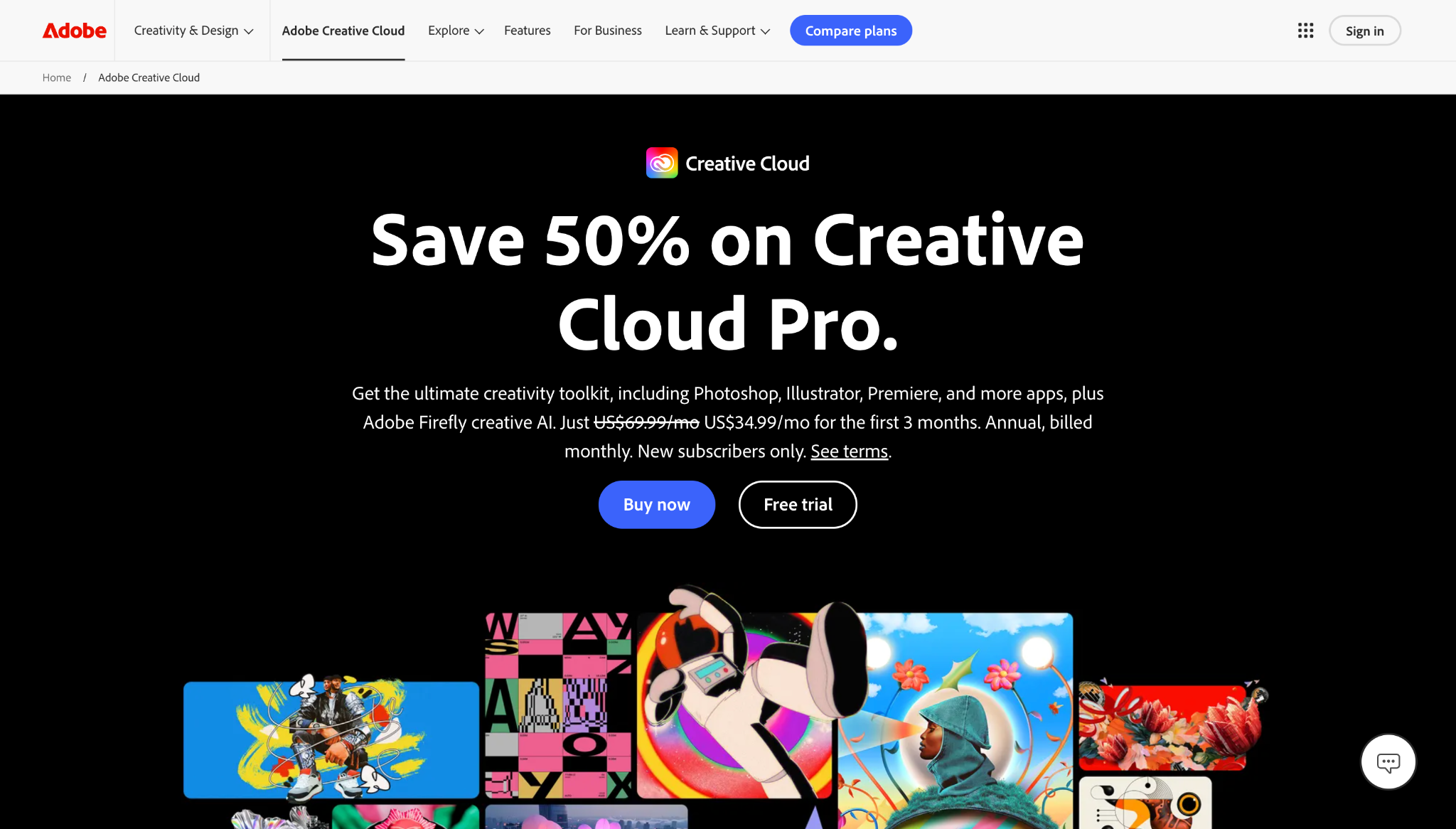
If you want one toolkit that stretches across almost every client deliverable, Adobe’s ecosystem is the obvious choice. It includes more than 20 design apps, so you can switch from editing photos in Photoshop to making vector graphics in Illustrator, then laying out pages in InDesign. It isn’t the most beginner-friendly option (because you’re learning multiple apps as part of one solution), but that tradeoff gives you a much wider creative range than most single-purpose tools.
Adobe offers AI features through Firefly. It’s an excellent option for individuals and businesses that treat web design as a part of a bigger design workload, whether you’re making campaign graphics or animations.
Pricing (referenced April 2026):
- $69.99 per month for Creative Cloud Pro.
- Single app plans available starting at $4.99 per month.
Platform compatibility:
- Supports desktop, web, and mobile workflows.
- Desktop apps available for Windows and macOS operating systems.
2. Figma
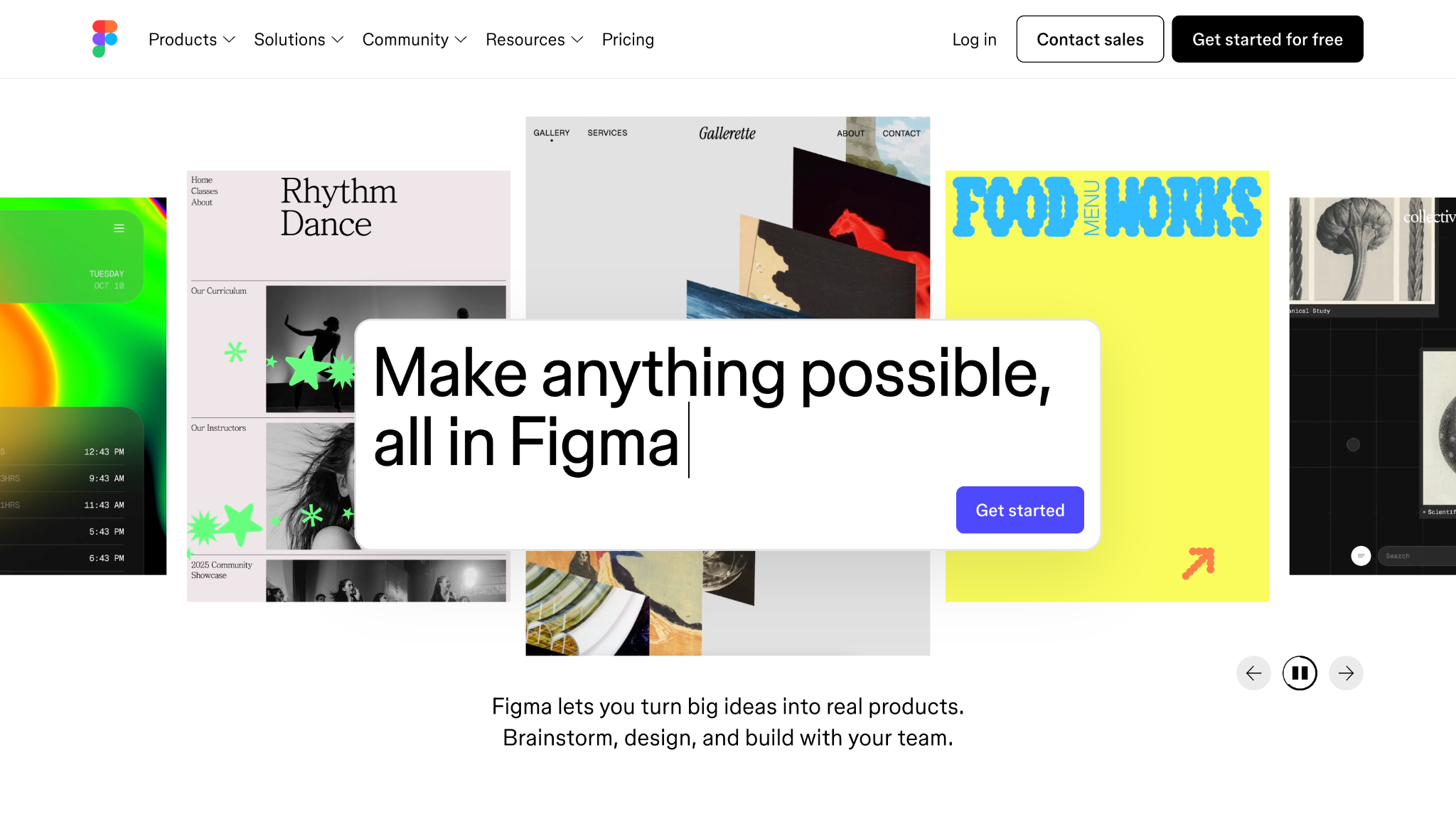
If your work stays focused on web design systems, wireframes, and prototyping, try Figma. It’s faster to get started with than other design suites because it includes real-time collaboration and a lot of reusable components, so you spend less time building web elements from scratch.
Figma offers AI features through Figma AI and Figma Make (a more advanced generative AI tool), so it’s ideal for UI/UX teams and agencies that want to move quickly from ideation to developer handoff.
Pricing (referenced April 2026):
- Free plan available.
- Professional plan at $20 per month for a full seat.
- Organization plan at $55 per month for a full seat billed annually.
- Enterprise plan at $90 per month for a full seat billed annually.
Platform compatibility:
- Desktop apps for macOS and Windows.
- Supports web browsers with mobile preview and commenting.
3. Canva
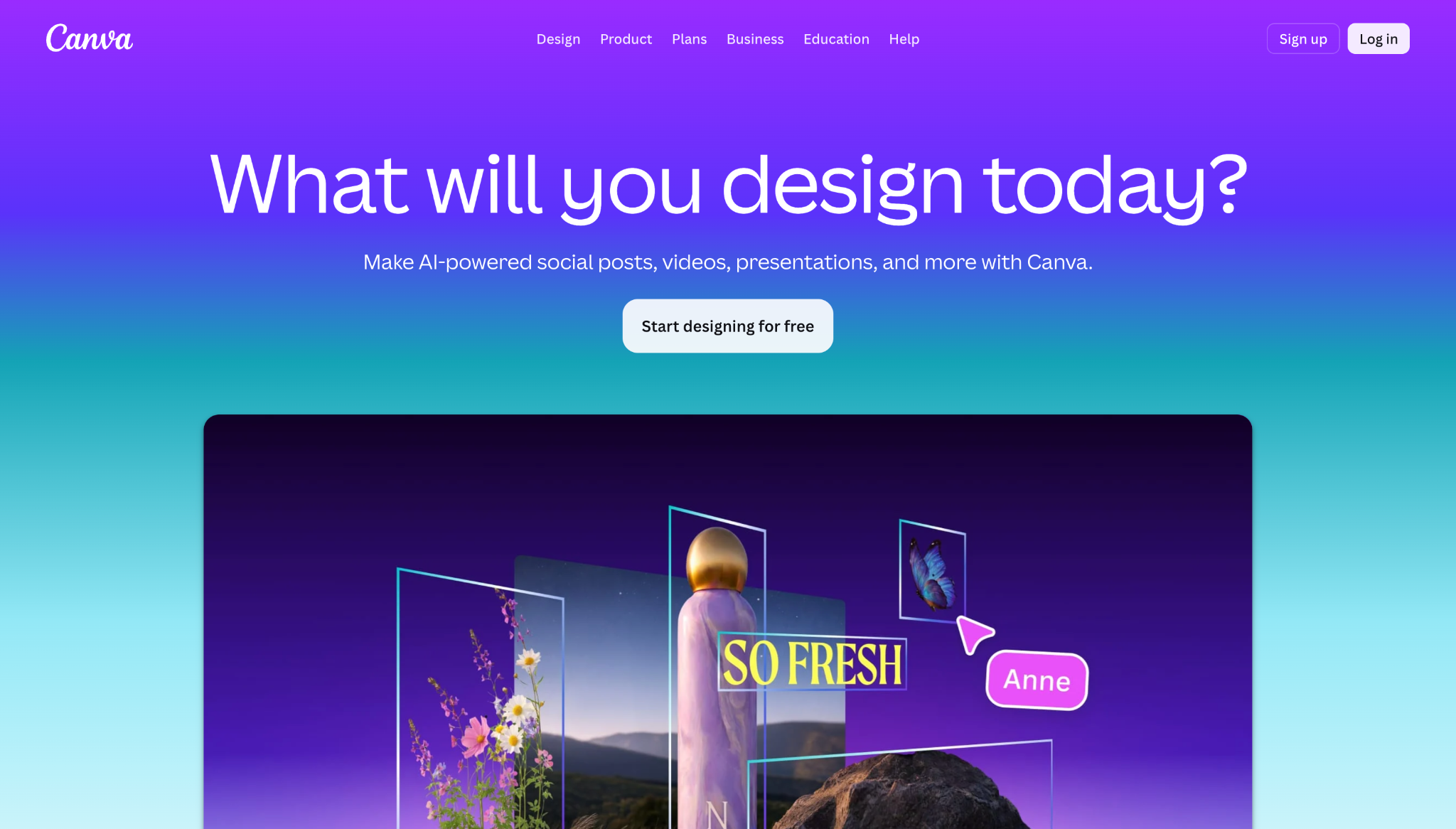
Canva provides readymade templates for just about every visual use case. It’s easy to learn thanks to its clean UI, so it’s a great option for beginners and non-professionals who need decent graphics on fast turnarounds.
Canva’s AI suite — Magic Studio, Canva AI, and Magic Design — make more difficult processes (like background removal) possible without specialized knowledge.
Pricing (referenced April 2026):
- Free plan available.
- Pro plan at $18 per user per month.
- Business plan at $25 per user per month.
- Custom pricing for Enterprise plans/
Platform compatibility:
- Available to use directly in the browser.
- Apps available for macOS, iOS, Android, Windows, and Chromebook.

Ultimate web design
From 101 to advanced, learn how to build sites in Webflow with over 100 lessons — including the basics of HTML and CSS.
4. CorelDRAW
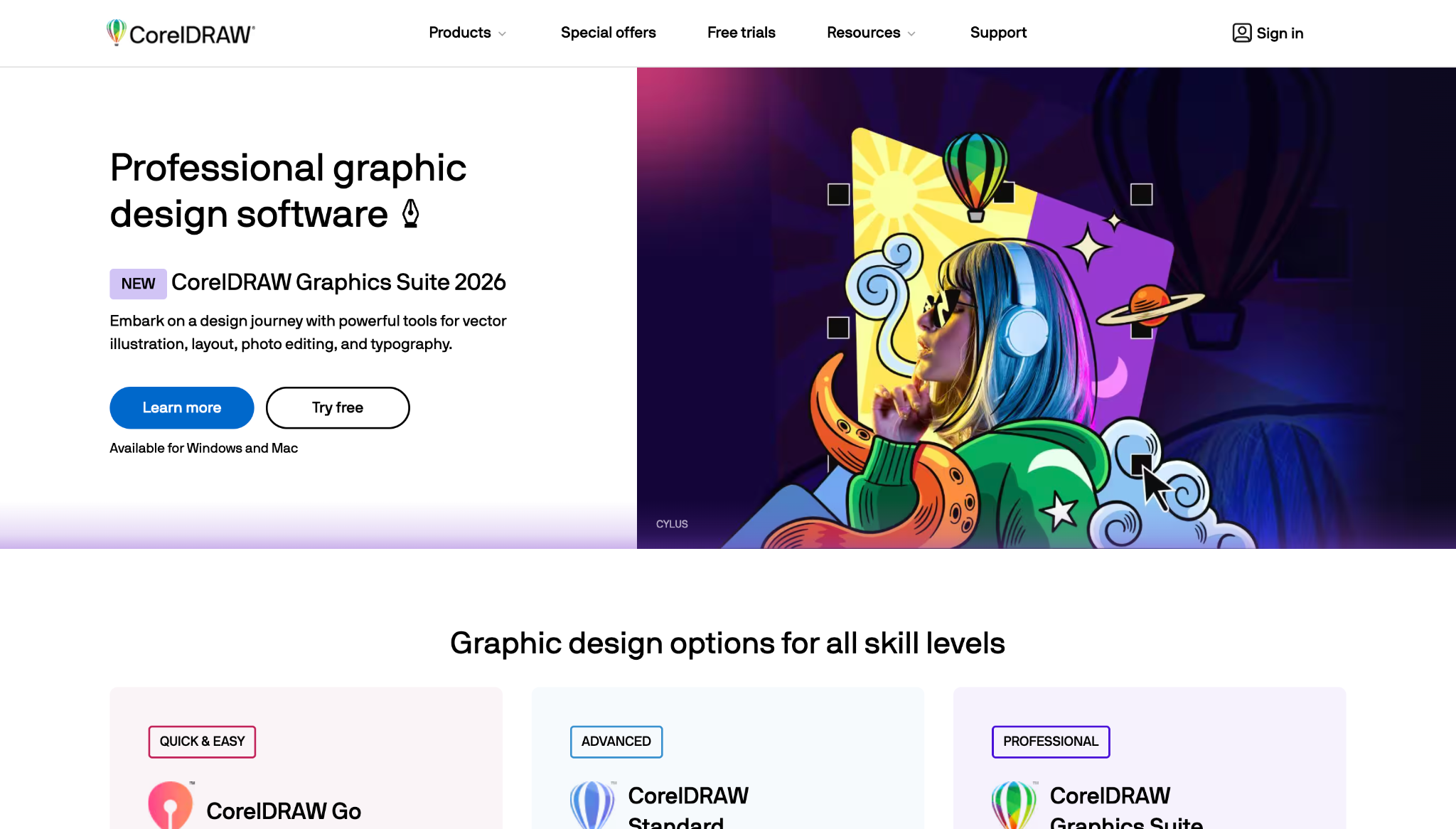
CorelDRAW is a traditional design suite for creating brand assets, including print materials and website graphics. It has a learning curve, but it’s easier to learn than a multi-app ecosystem like Adobe, especially if you don’t want to toggle between programs for one project.
You can pay for extra credits to use CorelDRAW’s vector-specific workflow tools and generative AI features. It’s a strong fit for designers and small studios that want a single desktop suite for vector and web projects.
Pricing (referenced April 2026):
- $22.42 per month (billed annually).
- $549 as a one-time purchase.
Platform compatibility:
- Available on Windows and macOS.
- Browser-based web app for subscribers.
5. Affinity

Canva-owned Affinity covers many client deliverables without pushing you into a full subscription. And, it also connects with Canva AI, so eligible users can unlock overlapping AI features like generative fill and background removal. It also offers pro-level control without feeling as intense as Adobe (although Affinity still has a decent learning curve).
Canva’s Affinity is suitable for freelancers and small agencies that want powerful graphic design tools for web assets and brand work but don’t have the budget to support a more comprehensive tool.
Pricing (referenced April 2026):
- Free.
Platform compatibility:
- Desktop only for macOS and Windows.
6. Procreate
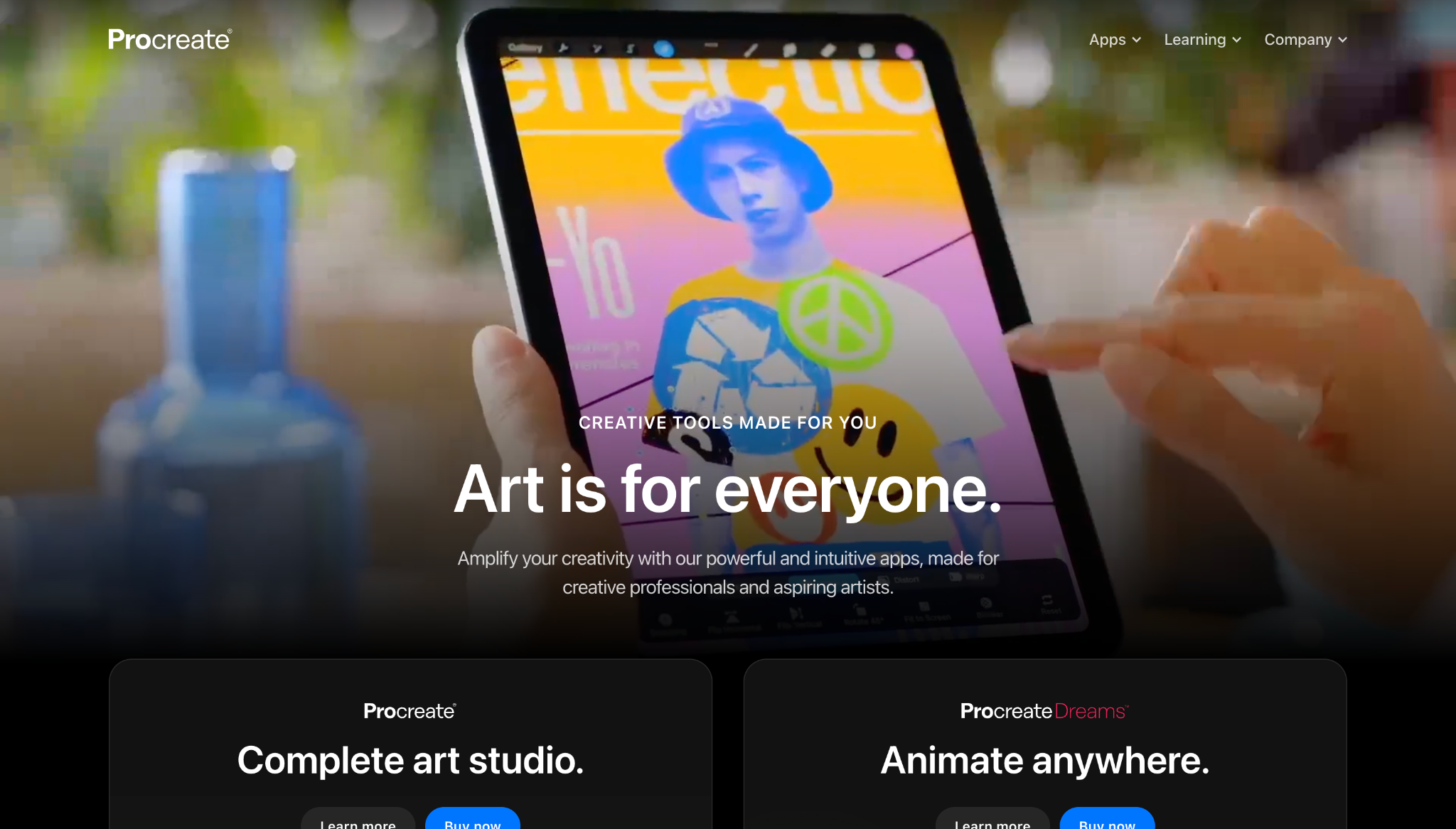
Procreate is an excellent option for graphic designers looking for illustration-forward programs rather than UI design or web layout tools. Its touch-first workflow and beginner resources make it simpler to learn than many professional art apps, especially if you prefer drawing by hand.
Procreate has a strict “no AI” policy, citing ethical concerns and a commitment to human creativity.
If your go-to device for creating original artwork is an iPad, Procreate may be a good fit.
Pricing (referenced April 2026):
- $12.99 as a one-time purchase on the App Store.
- $5.99 one-time purchase as Procreate Pocket for iPhone.
Platform compatibility:
- Available in two forms for iOS devices (Procreate Pocket for iPhone is less feature-rich).
7. Inkscape
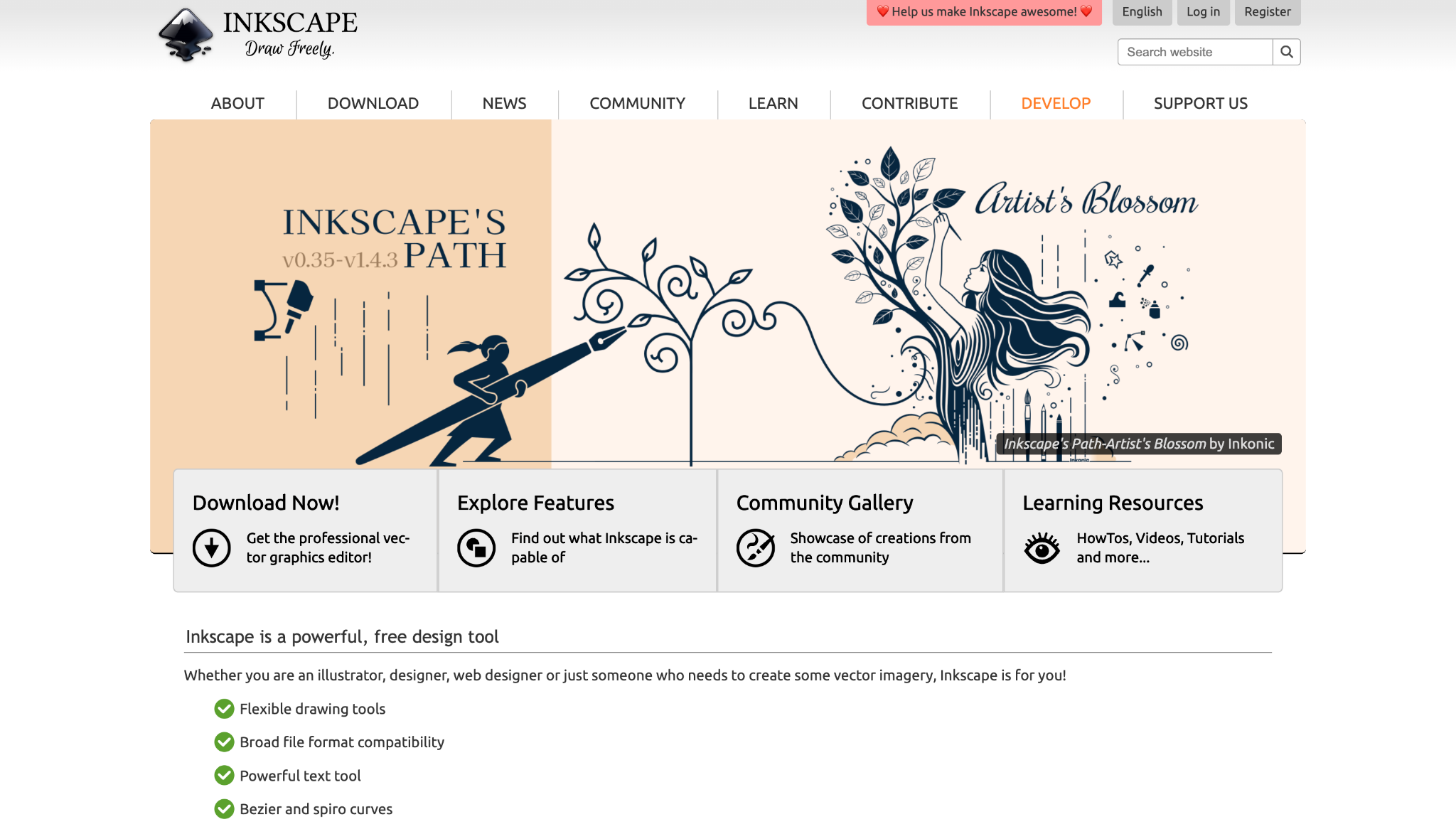
Inkscape is a dedicated vector editor for SVG file assets like logos and icons. It’s less beginner-friendly than Canva or Figma, and it isn’t a full image editor or collaborative design platform. But it’s a great option if you have some experience making vectors but don’t have the budget for a paid tool.
Inkscape works well for students and freelancers who need to make vector graphics inexpensively and aren’t interested in paying for AI features (which Inkscape doesn’t offer).
Pricing (referenced April 2026):
- Free.
Platform compatibility:
- Available for Windows, macOS, and Linux.
8. Sketch
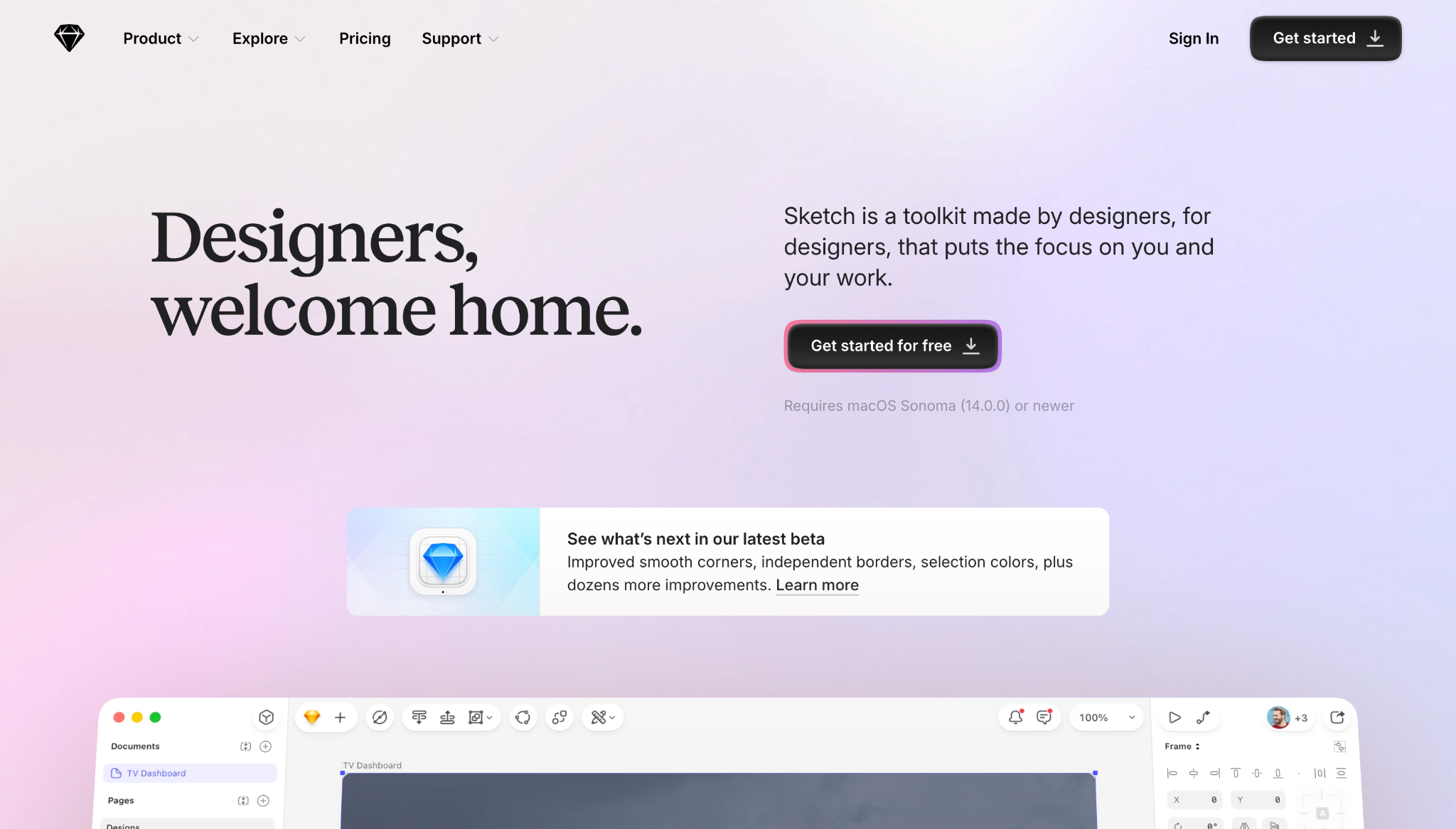
Sketch is a Mac-first environment that consolidates design tools for a simpler workflow than you’d find in complex cross-platform ecosystems. It was made for designers by designers, so its toolkit is tailored to processes like prototyping rather than broader creative production.
Sketch offers AI through agent-based workflows, which performs web-related tasks for you.
Pricing (referenced April 2026):
- Standard plan at $12 per month.
- Business plan at $24 per month.
- Enterprise plan at $44 per month.
- Mac-only one-time license at $120 per seat (includes on year of updates).
Platform compatibility:
- macOS running Sonoma 14 or newer.
- Web app available for better collaboration.
- iPhone and iPad apps available for previewing and mirroring.
9. GIMP
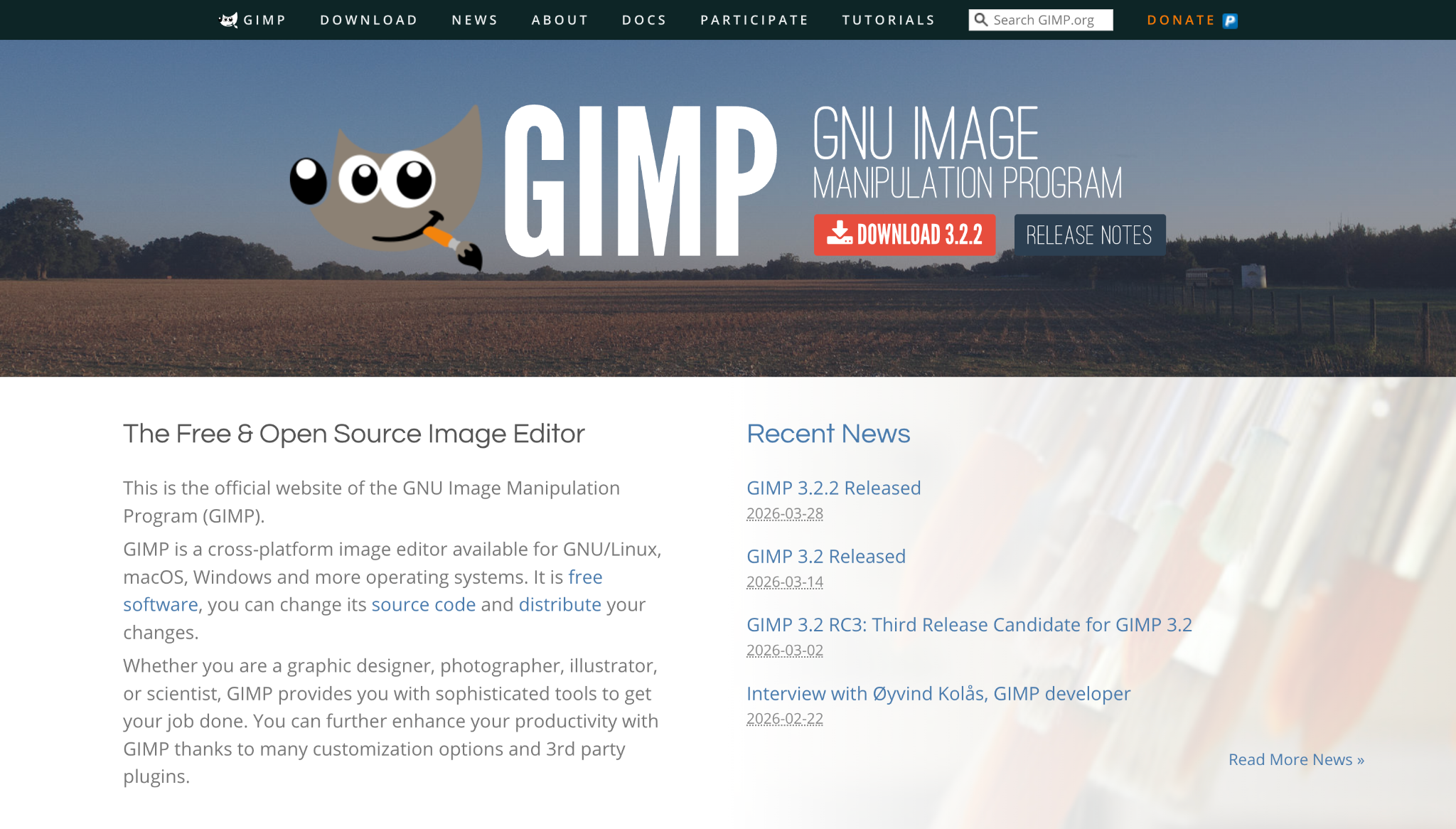
GIMP is an open-source raster editor for general bitmap editing and image composition. However, it lags behind the competition for UI design or collaborative workflows. Beginners can learn how to use GIMP through its tutorials, but there is a steep learning curve, so it’s a better fit for designers who know how to navigate design platforms without AI features.
Freelancers and small agencies that want a stripped-down but capable free image editor should try GIMP.
Pricing (referenced April 2026):
- Free.
Platform compatibility:
- Available for Windows, macOS, and Linux.
10. Krita
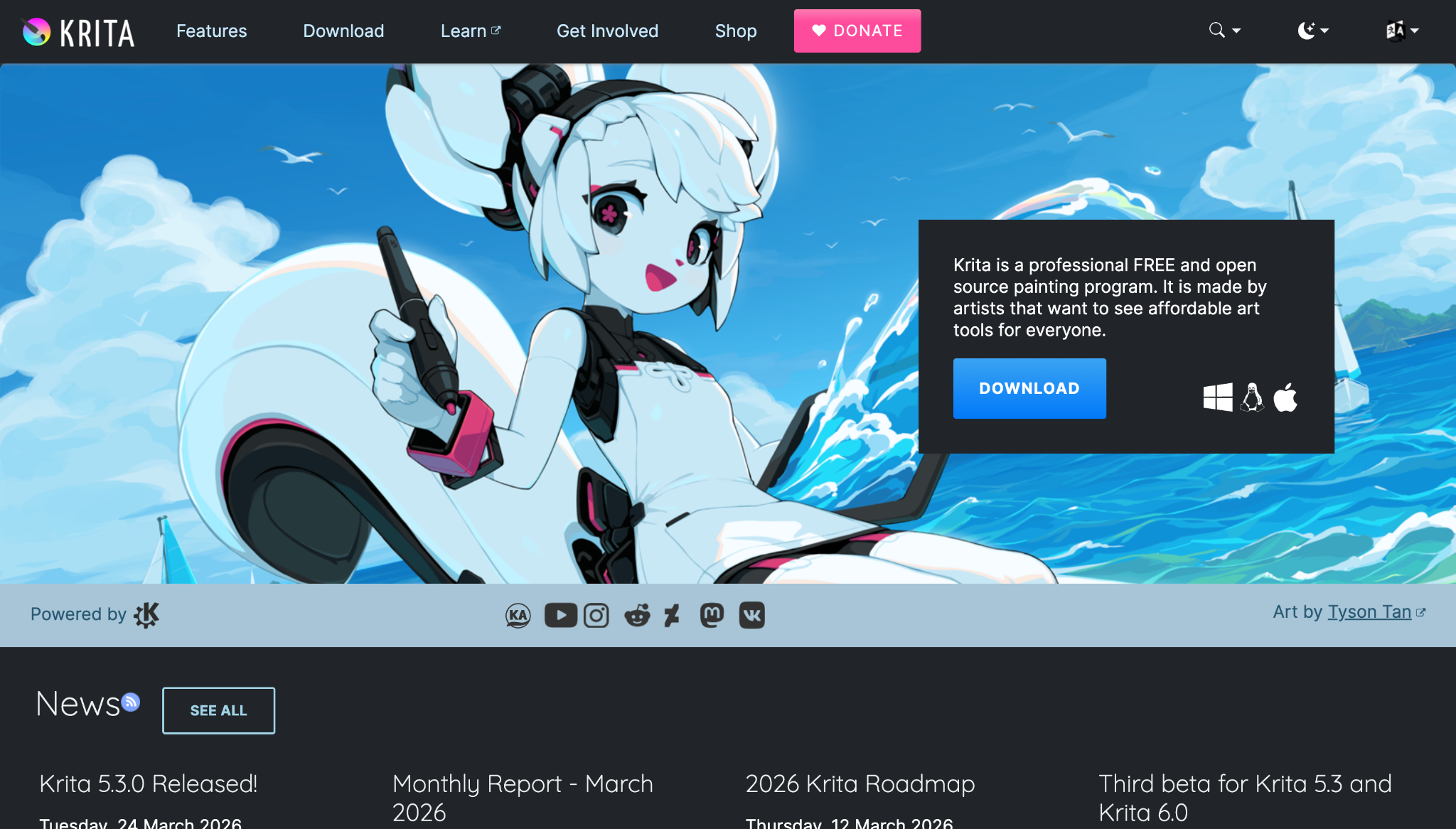
Krita is an open-source graphic arts software ideal for digital painting, concept art, and custom web project visuals. While it won’t replace Photoshop for image manipulation, it’s a great choice for artists drawing and painting from scratch.
Like Inkscape and GIMP, Krita doesn’t have AI features, but it’s still a strong alternative for concept artists and illustrators who want a free, open-source design tool for Windows or Linux OS.
Pricing (referenced April 2026):
- Free.
Platform compatibility:
- Available for Windows, macOS, and Linux.
- Active Android and ChromeOS updates.
Turn your designs into web experiences with Webflow
The best graphic design software helps you create the website visuals you need, but strong graphics are only one part of the process. With Webflow, you can turn static visuals into creative ways for visitors to engage with your latest project, like holographic buttons or an interactive product gallery. You can build responsive, mobile-first sites through the user-friendly design environment, and manage and update content all in one place. Start with a template or build a site from scratch without having to touch code. Then, use the built-in SEO controls to capture more organic traffic for your clients.
See how Webflow fits into your next graphic design project.
Freelance web design boot camp
Explore what a successful, fulfilling web design career can look like with this free, comprehensive course.


















